
When your laptop keyboard stops responding, it can bring your productivity to a sudden halt. Whether keys are unresponsive, typing random characters, or the entire keyboard is dead, the issue might not be as serious as it seems. Most keyboard problems stem from software glitches, driver conflicts, or simple user errors—many of which you can fix in minutes without professional help.
Before assuming hardware failure or rushing to replace your device, follow this comprehensive guide to troubleshoot and restore full functionality to your laptop’s keyboard.
Step 1: Check for Obvious Physical and Usage Issues
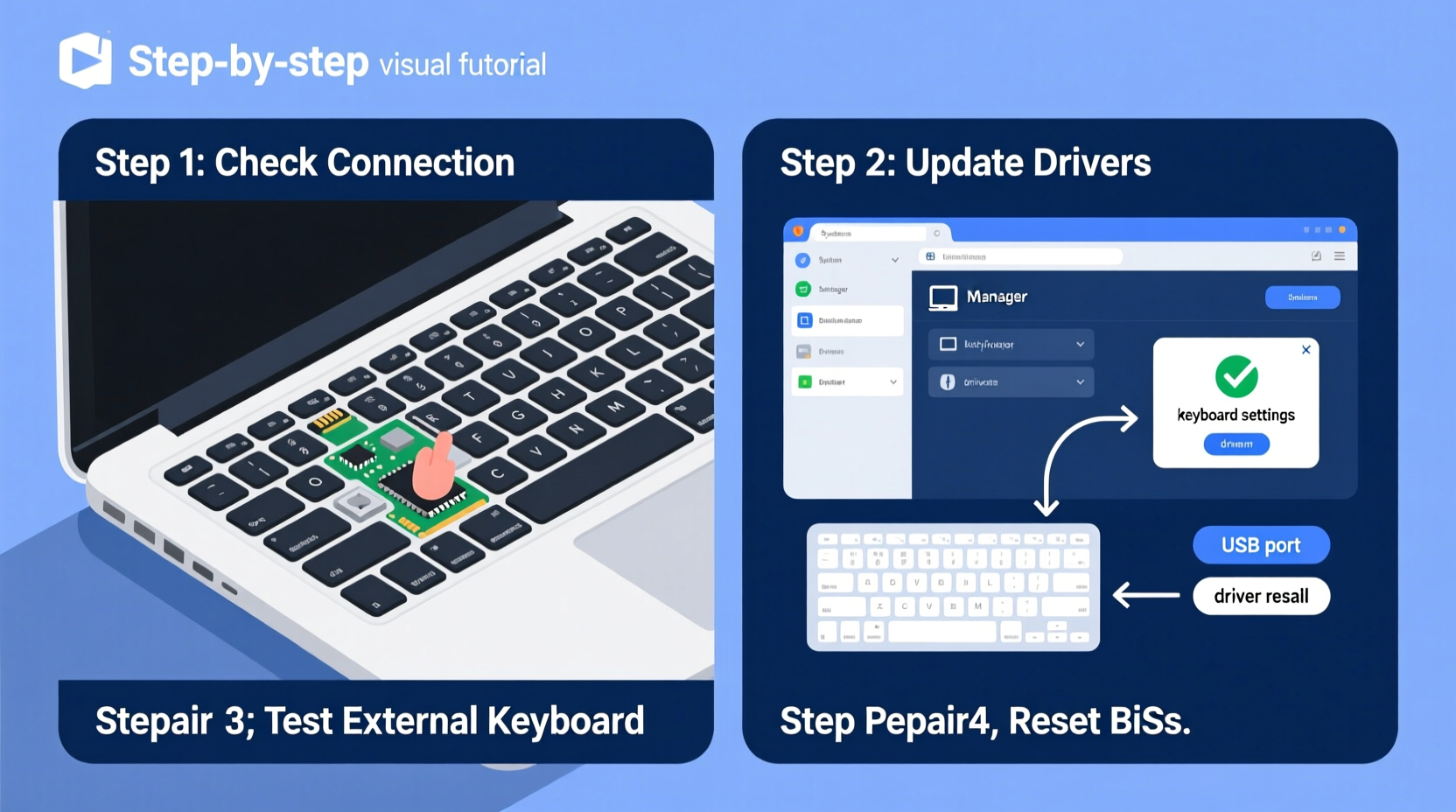
Start with the basics. Sometimes the simplest causes are overlooked. Dust, debris, or liquid spills can interfere with key mechanisms. Also, verify whether the keyboard is actually disabled.
- Inspect for visible debris under the keys. Use compressed air to gently blow out particles.
- Check if any keys are physically stuck or damaged.
- Determine if an external keyboard is connected—some laptops disable the internal keyboard when one is plugged in.
- Ensure that the keyboard isn’t locked. On many laptops, pressing Fn + F1–F12 (often labeled with a lock icon) toggles keyboard input.
Step 2: Restart Your Laptop
A temporary system glitch may cause the keyboard to stop working. A reboot clears memory caches and reloads essential drivers.
- Save all open work.
- Click the Start menu and select “Restart.”
- Wait for the system to fully shut down and power back on.
- Test the keyboard immediately after login.
If the keyboard works after restart, the issue was likely a transient software hiccup. If not, proceed to deeper diagnostics.
Step 3: Test Using On-Screen Keyboard
The on-screen keyboard helps determine whether the problem is hardware- or software-related.
- Press Windows + Ctrl + O to open the on-screen keyboard.
- Try typing using the mouse or touchpad.
If the on-screen keyboard responds correctly, the physical keyboard or its driver is likely at fault. If neither works, the issue may involve deeper system settings or OS corruption.
Step 4: Update or Reinstall Keyboard Drivers
Outdated, corrupted, or missing drivers are a common cause of keyboard failure. Updating or reinstalling them often resolves the issue.
- Press Windows + X and select “Device Manager.”
- Expand the “Keyboards” section.
- Right-click each listed keyboard device (e.g., “Standard PS/2 Keyboard”) and choose “Update driver.”
- Select “Search automatically for updated driver software.”
If no update is found or the issue persists:
- Right-click the keyboard device again and select “Uninstall device.”
- Restart your laptop. Windows will automatically reinstall the default driver on boot.
“Driver misconfigurations account for nearly 40% of reported peripheral failures in modern laptops.” — David Lin, Senior Systems Engineer at TechSupport Today
Step 5: Run the Built-in Hardware Troubleshooter
Windows includes diagnostic tools that can detect and fix common hardware issues.
- Go to Settings > System > Troubleshoot > Other troubleshooters.
- Find “Keyboard” and click “Run” next to it.
- Follow the prompts and apply any recommended fixes.
This tool checks for power management settings, driver issues, and service interruptions that could affect keyboard performance.
Common Software Conflicts That Disable Keyboards
Certain applications and system features can interfere with keyboard input:
- Filter Keys: This accessibility feature ignores brief or repeated keystrokes. It may be accidentally enabled.
- Third-party keyboard managers: Apps like AutoHotkey or gaming software sometimes override default input behavior.
- Malware: Rarely, malicious software can intercept or block keystrokes.
To disable Filter Keys:
- Navigate to Settings > Accessibility > Keyboard.
- Turn off “Use Filter Keys.”
Tips Box: Quick Fixes You Can Try Immediately
Tip: Plug in a USB keyboard temporarily to rule out software issues while you troubleshoot the built-in one.
Tip: Try booting into Safe Mode. If the keyboard works there, a third-party app is likely causing the conflict.
Hardware Diagnostics and When to Seek Professional Help
If software fixes fail, the issue may be hardware-related. Before concluding that the keyboard needs replacement, perform a few final checks.
| Issue | Possible Cause | Solution |
|---|---|---|
| No keys respond | Loose ribbon cable, motherboard issue | Professional internal inspection required |
| Some keys don’t work | Debris, wear, or localized circuit damage | Cleaning or partial repair |
| Keys type wrong characters | Language layout mismatch or firmware glitch | Check regional settings or reset BIOS |
| Keyboard lights up but unresponsive | Firmware/software disconnect | BIOS update or driver rollback |
For laptops still under warranty, contact the manufacturer. Opening the device yourself may void coverage.
Mini Case Study: Recovering a Seemingly Dead Keyboard
Sophie, a freelance writer, found her laptop keyboard completely non-responsive one morning. She couldn’t meet a deadline without typing. After ruling out physical damage and testing the on-screen keyboard (which worked), she opened Device Manager and discovered her keyboard driver had a yellow exclamation mark.
She uninstalled the driver and restarted the laptop. Windows reinstalled the default HID-compliant keyboard driver, and her physical keyboard began working again. The root cause? A failed Windows update had corrupted the driver file. Sophie avoided a costly repair and saved her project timeline—all within 15 minutes.
Preventive Checklist: Keep Your Laptop Keyboard Running Smoothly
- ✅ Clean the keyboard monthly with compressed air.
- ✅ Avoid eating or drinking near the laptop.
- ✅ Keep your operating system and drivers updated.
- ✅ Regularly check Device Manager for warning icons.
- ✅ Disable unnecessary keyboard-enhancing software.
- ✅ Use the on-screen keyboard occasionally to test system input health.
- ✅ Back up your system before major updates.
Frequently Asked Questions
Why is my laptop keyboard not typing anything?
This could be due to driver issues, accidental deactivation via function keys, software conflicts, or physical damage. Start by testing the on-screen keyboard and checking Device Manager for errors.
Can I use an external keyboard permanently if my built-in one fails?
Yes. Many users rely on external USB or Bluetooth keyboards indefinitely. They often offer better ergonomics and durability. Just ensure your laptop has available ports or Bluetooth support.
Will resetting my PC fix the keyboard issue?
A reset can resolve deep software conflicts, especially if malware or corrupted system files are involved. However, it should be a last resort—back up your data first and try simpler solutions earlier.
Final Steps and When to Replace
If every troubleshooting method fails and the keyboard remains unresponsive, the internal connection or circuit board may be damaged. At this point, consider:
- Contacting the manufacturer for repair under warranty.
- Visiting a certified technician for internal inspection.
- Using an external keyboard as a reliable long-term alternative.
Modern laptop keyboards are complex components integrated into the chassis. DIY replacements are risky and may lead to further damage unless you have experience with micro-soldering and precision tools.
Conclusion
A non-working laptop keyboard doesn’t always mean disaster. In most cases, the fix is simpler than expected—ranging from a quick restart to a driver update. By following a logical sequence of checks, you can identify and resolve the root cause efficiently, saving time and money.




 浙公网安备
33010002000092号
浙公网安备
33010002000092号 浙B2-20120091-4
Comments
No comments yet. Why don't you start the discussion?