
A non-responsive keyboard can bring productivity to a sudden halt. Whether you're typing an urgent email, coding a project, or simply browsing, a malfunctioning keyboard disrupts workflow and increases frustration. The good news is that most keyboard issues stem from easily diagnosable causes and can be resolved without professional help. From hardware faults to software glitches, this guide walks through the most frequent reasons behind keyboard failure and provides clear, actionable steps to restore functionality quickly.
Common Causes of Keyboard Malfunctions
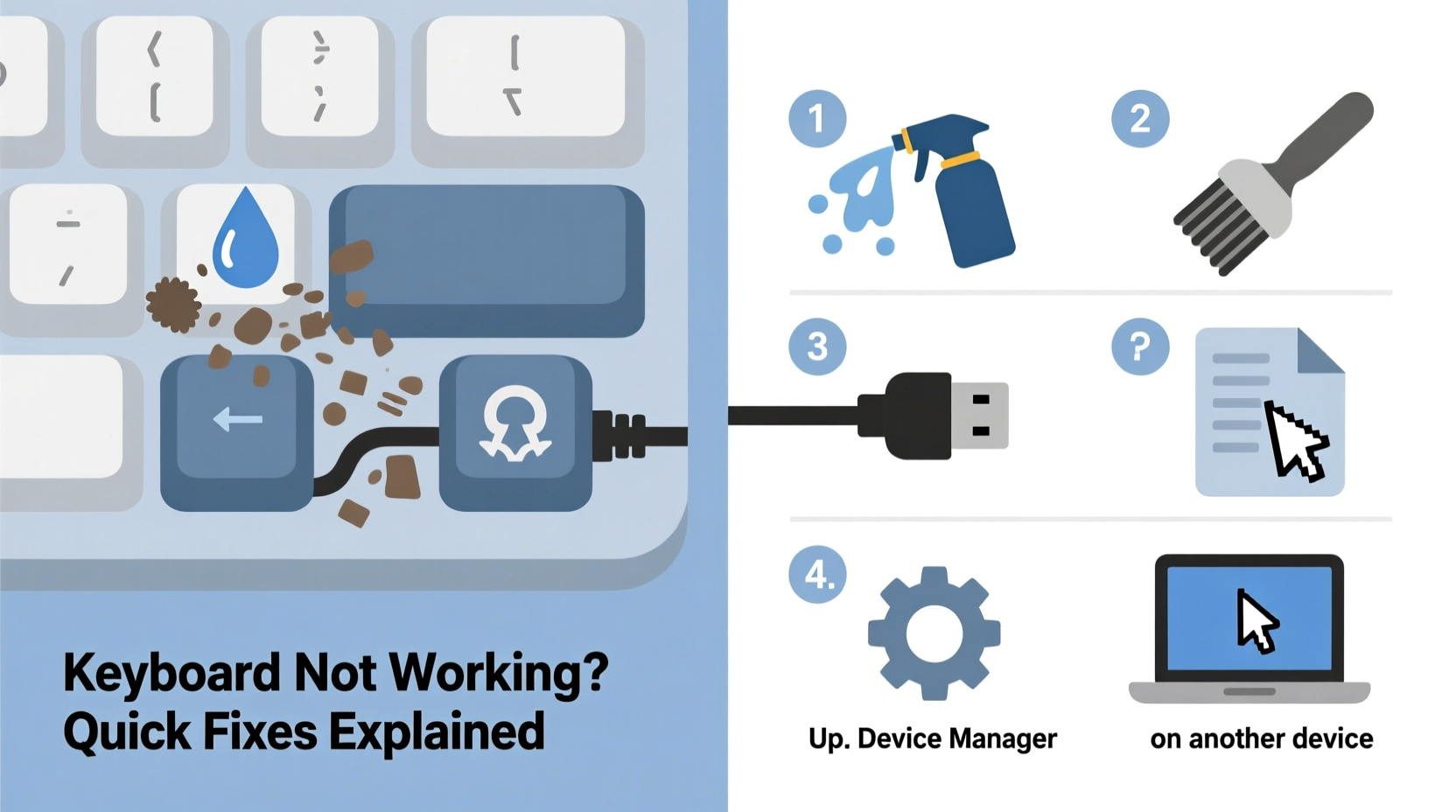
Before attempting fixes, it’s essential to understand what might be causing the problem. Keyboards—both built-in and external—can fail due to a mix of physical, electrical, and software-related factors.
- Loose or damaged connections: For wired keyboards, a frayed cable or poor USB port contact can interrupt signal transmission.
- Driver issues: Outdated, corrupted, or missing drivers prevent the operating system from communicating with the keyboard.
- Software conflicts: Background applications or recent updates may interfere with input devices.
- Physical debris: Dust, crumbs, or liquid spills can jam mechanical keys or short internal circuits.
- Power problems (wireless keyboards): Low battery or failed pairing with the receiver.
- Operating system errors: Temporary glitches in Windows, macOS, or Linux can disable input devices unexpectedly.
Step-by-Step Troubleshooting Guide
Follow this logical sequence to identify and resolve the root cause efficiently. Start with the simplest checks and move toward more advanced diagnostics.
- Check the physical connection. Unplug and reinsert the USB cable (or Bluetooth dongle). Try a different USB port to rule out port failure.
- Test on another device. Connect the keyboard to a different computer. If it works there, the issue lies with your original system.
- Inspect battery levels (for wireless models). Replace or recharge batteries if below 20%.
- Restart your computer. A reboot often resolves temporary OS hiccups affecting peripherals.
- Verify keyboard visibility in Device Manager (Windows) or System Settings (macOS). Look for warning icons or disabled status.
- Update or reinstall drivers. Use built-in tools like Device Manager to roll back or update drivers.
- Run the built-in hardware troubleshooter. On Windows, go to Settings > Update & Security > Troubleshoot > Additional troubleshooters > Keyboard.
Mini Case Study: Recovering a Frozen Laptop Keyboard
Sarah, a freelance writer, found her laptop keyboard unresponsive after returning from lunch. No keys responded, though the trackpad worked fine. She first checked for visible debris but found none. After restarting, the issue persisted. She then connected a USB keyboard, which worked immediately—indicating a software or driver issue rather than hardware damage. Using the functional USB keyboard, she accessed Device Manager, uninstalled the internal keyboard driver, and restarted. Windows automatically reinstalled the driver, and her built-in keyboard returned to normal. The culprit? A corrupted driver update during sleep mode.
Do’s and Don’ts When Fixing Keyboard Issues
| Action | Do | Don't |
|---|---|---|
| Cleaning | Use compressed air or soft brush to remove debris | Use excessive water or alcohol directly on keys |
| Driver Management | Update via official sources or OS tools | Download third-party driver updaters from untrusted sites |
| Wireless Pairing | Follow manufacturer instructions for reset and sync | Assume dead batteries when pairing fails |
| Hardware Testing | Test with multiple devices and ports | Immediately disassemble the keyboard unless experienced |
Expert Insight: Why Drivers Matter
“Over 60% of reported ‘dead’ keyboards are actually suffering from driver corruption or misconfiguration. Before replacing hardware, always verify the software layer.” — Rajiv Mehta, Senior Support Engineer at PeripheralCare Inc.
This insight underscores the importance of systematic diagnosis. Many users rush to replace keyboards when a simple driver rollback or OS reset would suffice.
Quick Fixes Checklist
Use this checklist as a rapid-response protocol when your keyboard stops working:
- ✅ Restart the computer
- ✅ Check physical connections (USB/Bluetooth)
- ✅ Test with another device
- ✅ Replace or charge batteries (wireless)
- ✅ Clean around sticky or unresponsive keys
- ✅ Open On-Screen Keyboard (Windows: Win + Ctrl + O) to confirm if input is blocked
- ✅ Update or reinstall keyboard drivers
- ✅ Disable Filter Keys (Settings > Accessibility > Keyboard)
- ✅ Boot into Safe Mode to test for software conflicts
- ✅ Perform a system restore if the issue began recently
Frequently Asked Questions
Why is my keyboard typing wrong characters?
This usually happens due to incorrect keyboard layout settings. Check your language preferences in system settings. For example, accidentally switching from US QWERTY to UK International can alter character output. Also, ensure Num Lock isn’t enabled on laptops with shared number keys.
My laptop keyboard stopped working after a spill—what now?
Power off immediately and disconnect the charger. Tilt the laptop to drain excess liquid. Let it dry for at least 48 hours in a well-ventilated area (avoid direct heat). Even if it appears dry, corrosion may develop later. Consider professional cleaning if keys remain unresponsive after drying.
Can malware disable my keyboard?
While rare, some malicious software targets input devices to block user access. If standard fixes fail and other devices also behave oddly, run a full antivirus scan using trusted security software. Booting from a clean OS environment (like a USB antivirus tool) can help detect stealthy threats.
Conclusion: Act Fast, Save Time and Money
Most keyboard problems aren’t permanent. With methodical troubleshooting, you can often restore function in minutes. The key is to avoid jumping to conclusions—what seems like hardware failure is frequently a minor software hiccup or loose connection. By understanding the underlying causes and applying proven fixes, you protect both your device and your peace of mind. Don’t discard or replace your keyboard too soon. Diagnose, test, and fix with confidence.




 浙公网安备
33010002000092号
浙公网安备
33010002000092号 浙B2-20120091-4
Comments
No comments yet. Why don't you start the discussion?