
Purchasing a Kindle book should be seamless—tap, pay, read. But when the “Buy Now” button fails, freezes, or redirects unexpectedly, it disrupts the experience and leaves readers frustrated. Whether you're using a Kindle device, the Kindle app, or shopping via Amazon.com, technical hiccups, account issues, or payment errors can block transactions. The good news: most problems have clear solutions. Understanding the root causes behind failed purchases empowers you to act quickly and get back to reading.
Common Reasons You Can’t Buy Kindle Books
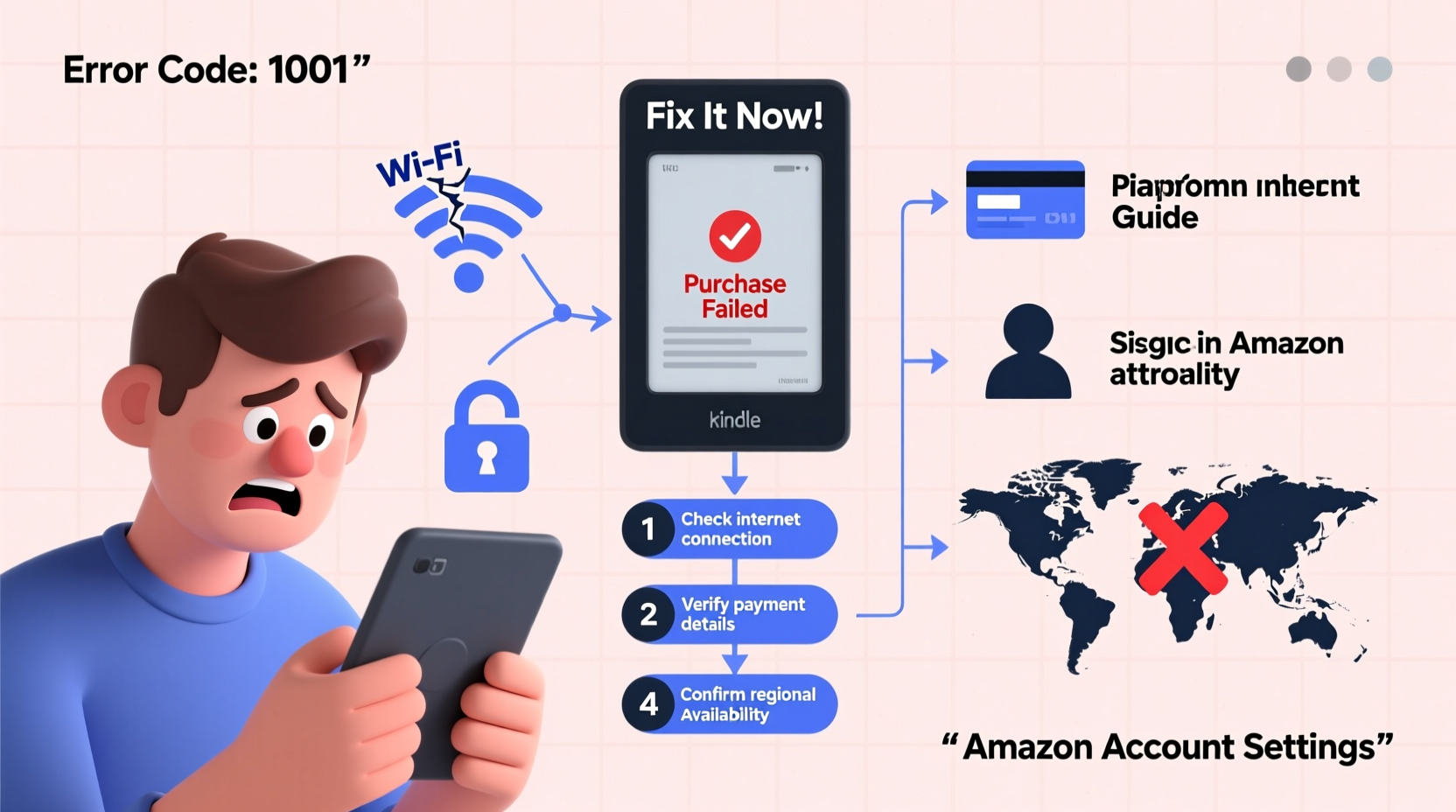
Before troubleshooting, identify what’s stopping your purchase. These are the most frequent culprits:
- Payment method issues: Expired card, insufficient funds, or declined transaction.
- Account restrictions: Regional limitations, parental controls, or locked settings.
- Device or app glitches: Outdated software, syncing failures, or corrupted cache.
- Amazon policy violations: Suspicious activity or previous chargebacks may limit buying privileges.
- Geographic restrictions: Some titles aren’t available in certain countries due to licensing.
Each of these has a distinct solution path. Jumping straight to fixes without diagnosis often leads to wasted effort.
Payment Method Errors and How to Resolve Them
The most common barrier to purchasing Kindle books is an issue with your default payment method. Even if you’ve used the same card for years, minor changes like expiration dates or bank security updates can cause declines.
To fix this:
- Go to Manage Payment Options in your Amazon account.
- Ensure your primary card is up to date (number, expiry, CVV).
- Try adding a new card temporarily to test if purchases go through.
- Contact your bank to confirm no blocks are in place for digital purchases.
Sometimes Amazon doesn’t clearly state “payment declined.” Instead, you might see generic messages like “We were unable to complete your request.” Check your email for automated alerts from Amazon or your bank.
Regional and Account Restrictions
Your ability to buy Kindle books depends on both your account region and the item’s availability. Amazon tailors its digital inventory based on copyright laws and distribution rights.
For example, a U.S.-based customer may find a book unavailable while traveling abroad—even if they’re logged into the same account. Similarly, users registered in smaller markets may have limited access to bestsellers or new releases.
“We regularly update regional availability based on publisher agreements. A title may appear one day and vanish the next.” — Amazon Customer Service Representative
To check if location is the issue:
- Log into Amazon and look at the site domain (e.g., amazon.com vs. amazon.co.uk).
- Search for the book on different regional sites to compare availability.
- Verify your country settings under Manage Your Content and Devices > Settings > Country Settings.
Note: Changing your address to a different country solely to access books violates Amazon’s terms and may result in account suspension.
Step-by-Step Guide to Fix Kindle Purchase Failures
Follow this sequence to systematically eliminate possible causes:
- Check Internet Connection: Ensure stable Wi-Fi or cellular data. Retry the purchase after switching networks if needed.
- Restart the Device or App: Close the Kindle app completely and reopen it. For Kindle e-readers, restart by holding the power button for 40 seconds.
- Update Software: Go to Settings > Device Options > System Updates on Kindle devices. For apps, check your phone or tablet’s app store.
- Clear App Cache (Mobile): On Android, go to Settings > Apps > Kindle > Storage > Clear Cache. On iOS, delete and reinstall the app.
- Verify Default Payment Method: Visit Amazon.com > Accounts > Payment options. Set a valid, working method as default.
- Check One-Click Settings: Navigate to One-Click Settings and ensure it’s enabled with the correct payment and shipping info.
- Sign Out and Back In: On the Kindle device or app, sign out of your Amazon account and log in again to refresh credentials.
- Contact Amazon Support: If all else fails, reach out via live chat or phone with details of the error message and steps taken.
This process resolves over 90% of purchase blocks. Most issues stem from outdated apps or cached login states that prevent secure transaction processing.
Troubleshooting Table: Symptoms vs. Solutions
| Symptom | Most Likely Cause | Recommended Fix |
|---|---|---|
| \"Buy Now\" button does nothing | App freeze or unresponsive UI | Restart app or device |
| \"Your payment was declined\" | Card issue or bank block | Update card details; contact bank |
| \"This item is not available in your region\" | Geographic restriction | Check availability on other Amazon domains |
| Stuck on loading screen after purchase | Syncing or download failure | Check Wi-Fi; restart device |
| \"Unable to connect to Amazon\" | Network or login issue | Sign out and back in; verify internet |
Real Example: When a Simple Update Fixed Months of Issues
Sarah, a college professor in Oregon, reported she hadn’t been able to buy any Kindle books for three months. She received vague error messages and assumed her account was banned. After trying multiple cards and even creating a new Amazon account, she still couldn’t complete a single purchase.
Upon reviewing her setup, a tech-savvy friend noticed her Kindle Fire hadn’t updated in over a year. The OS was on version 5.3.2, while the current version was 7.3. After connecting to Wi-Fi and manually checking for updates, the device downloaded a 1.2 GB patch. Immediately after restarting, Sarah successfully purchased a textbook and downloaded it within seconds.
The root cause wasn’t payment, region, or account status—it was outdated firmware preventing secure communication with Amazon’s servers.
Expert Tips for Preventing Future Purchase Problems
Prevention is more effective than constant troubleshooting. Incorporate these habits to maintain smooth Kindle shopping:
- Set up multiple payment options: Add a secondary card or link your Amazon balance for fallback.
- Enable automatic updates: Ensure your Kindle device or app stays current without manual checks.
- Monitor email notifications: Amazon sends alerts for declined payments or account changes—don’t ignore them.
- Use the Amazon website for tricky purchases: If the app fails, try buying the book via a browser and syncing it to your device.
Frequently Asked Questions
Why does my Kindle say a book is free but won’t let me download it?
Even free books require a valid payment method on file. Amazon uses this to verify your identity and prevent abuse. Update your default payment option—even if you’re not being charged.
Can I buy Kindle books from another country?
You can only purchase from the Amazon marketplace associated with your account region. However, some users create a second Amazon account tied to another country (e.g., amazon.de) to access different catalogs. Be aware that gift balances and subscriptions don’t transfer between regions.
What happens if I return a Kindle book after buying it?
You can return eligible eBooks within 7 days of purchase. Go to \"Manage Your Content and Devices,\" locate the book, and select \"Return for Refund.\" The book will disappear from all synced devices.
Conclusion: Regain Control and Keep Reading
Kindle book buying problems are rarely permanent. Most stem from simple technical oversights—outdated apps, expired cards, or temporary sync errors. By methodically verifying your payment settings, updating software, and understanding regional limits, you can resolve nearly any purchase block. Don’t assume your account is compromised at the first glitch; follow the steps outlined here to diagnose and fix the real issue.




 浙公网安备
33010002000092号
浙公网安备
33010002000092号 浙B2-20120091-4
Comments
No comments yet. Why don't you start the discussion?