
For millions of readers, digital devices have replaced physical books. But not all screens are created equal—especially when it comes to eye comfort during long reading sessions. The Kindle Paperwhite and the Basic iPad are two of the most popular choices for e-reading, yet they differ fundamentally in display technology, lighting, and how they affect visual fatigue. This isn’t just about preference; it’s about physiology. Understanding the real differences between these devices can help you avoid headaches, dry eyes, and disrupted sleep—all common side effects of poor screen choices.
This comparison cuts through marketing claims and examines what actually happens to your eyes over hours of reading. Spoiler: one device is built for reading. The other, while versatile, wasn’t designed with your ocular health as its top priority.
How Screen Technology Affects Eye Strain
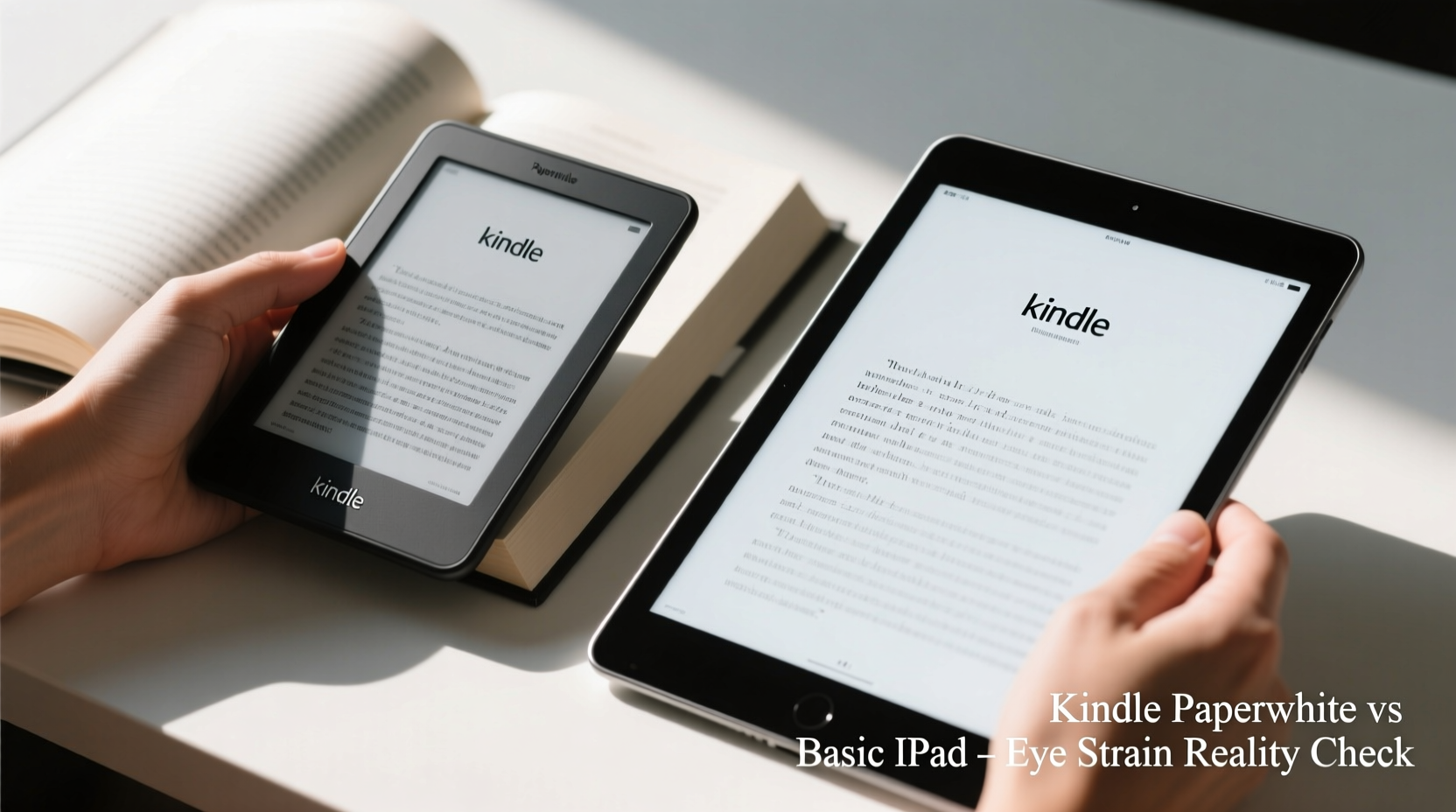
The core difference between the Kindle Paperwhite and the Basic iPad lies in their display technology. The Kindle uses an E Ink (electronic ink) screen, while the iPad relies on an LCD (liquid crystal display) panel with LED backlighting. These aren't just technical terms—they directly impact how light enters your eyes and how your brain processes visual information.
E Ink mimics the appearance of printed paper. It reflects ambient light rather than emitting its own. Each pixel on the screen holds its state without constant power, meaning no flicker and minimal blue light emission. In contrast, LCD screens like the iPad’s emit light directly toward your face. Even at low brightness, this constant glow forces your pupils to constrict and your eyes to work harder to process dynamic pixels.
“Prolonged exposure to self-illuminated screens increases accommodative stress—the effort your eyes make to stay focused. E Ink reduces this load significantly.” — Dr. Lena Patel, Optometrist and Vision Health Researcher
A 2021 study published in *Nature Human Behaviour* found that participants who read from backlit screens reported higher levels of eye fatigue, dryness, and difficulty focusing after just 30 minutes compared to those using reflective E Ink displays. The effect was more pronounced in low-light environments—a common scenario for bedtime reading.
Lighting Design: Frontlight vs Backlight
Both devices offer adjustable lighting, but the way that light reaches your eyes is dramatically different.
The Kindle Paperwhite uses a frontlight system. LEDs are positioned along the edges of the screen, directing soft, even illumination across the surface. This light reflects off the E Ink layer—just like a book under a lamp. You control brightness and, on newer models, warmth (with amber tones), allowing for comfortable night reading without disrupting melatonin production.
The Basic iPad, however, uses a backlight. Light shines from behind the LCD panel straight into your eyes. Even with Night Shift enabled (which shifts colors toward warmer tones), the intensity and direction of the light remain problematic. The screen acts like a small flashlight pointed at your face, especially in dark rooms.
Frontlighting also allows for better contrast in sunlight. Try reading an iPad outdoors on a bright day, and you’ll struggle with glare and washed-out text. The Kindle, meanwhile, becomes easier to see under direct sun because its matte screen diffuses light naturally—like paper.
Side-by-Side Comparison: Key Features & Eye Impact
| Feature | Kindle Paperwhite | Basic iPad |
|---|---|---|
| Display Type | E Ink Carta (matte) | LCD Retina (glossy) |
| Light Source | Adjustable frontlight (warm option on newer models) | LED backlight (Night Shift available) |
| Blue Light Emission | Negligible (no backlight) | High, even with filters |
| Flicker | None (static image) | PWM flicker possible at low brightness |
| Glare in Sunlight | Minimal (matte finish) | Significant (glossy screen) |
| Battery Life | Weeks on a single charge | ~10 hours of continuous use |
| Multitasking | No (dedicated reader) | Yes (apps, notifications, videos) |
| Eye Fatigue Risk | Low | High with prolonged use |
The table shows a clear trade-off: versatility versus visual comfort. The iPad excels as a multimedia device, but that strength becomes a liability when used primarily for reading. Notifications, auto-brightness adjustments, and app distractions force your brain to switch contexts constantly—increasing cognitive load and contributing indirectly to eye strain.
A Real-World Reading Experience: One User’s Journey
Consider Sarah, a university student who initially switched from physical books to her 9th-gen iPad for convenience. She downloaded textbooks, novels, and research papers, believing the larger screen would improve readability. Within two weeks, she began experiencing daily headaches, dry eyes, and trouble falling asleep—even when using Night Shift and lowering brightness.
After consulting her optometrist, she learned that her symptoms aligned with “digital eye strain,” exacerbated by prolonged exposure to the iPad’s backlight. On her doctor’s recommendation, she purchased a Kindle Paperwhite. After switching, she noticed immediate improvements: no more mid-reading headaches, less squinting, and better sleep quality. Her focus improved, too—without pop-up messages or browser tabs tempting her away from the text.
Sarah now uses her iPad only for video lectures and collaborative work. For reading, the Kindle is her default. “I didn’t realize how much mental energy I was spending fighting discomfort until it went away,” she said.
Optimizing Your Device for Safer Reading
If you’re committed to using either device, certain habits can reduce eye strain—even if you're using a backlit screen. Here’s a step-by-step guide to safer digital reading:
- Control ambient lighting: Never read in total darkness. Use a room lamp or overhead light to balance screen brightness and reduce contrast stress on your eyes.
- Follow the 20-20-20 rule: Every 20 minutes, look at something 20 feet away for at least 20 seconds. This relaxes your eye muscles and prevents accommodative spasm.
- Adjust distance and posture: Hold your device 14–18 inches from your eyes, slightly below eye level. This reduces neck strain and minimizes direct light exposure.
- Limit session length: Aim for 45-minute maximum reading blocks on an iPad. With a Kindle, you can extend to 90 minutes or more comfortably.
- Use warm lighting at night: Enable warm frontlight on the Kindle or Night Shift on iPad, but remember: warmth doesn’t eliminate emitted light intensity.
- Clean your screen regularly: Smudges and fingerprints increase glare and force your eyes to work harder to interpret text.
Checklist: Reduce Eye Strain While Reading Digitally
- ✅ Read in a well-lit room
- ✅ Take breaks every 20–30 minutes
- ✅ Keep screen at arm’s length and slightly tilted
- ✅ Disable notifications during reading sessions
- ✅ Choose serif fonts (e.g., Bookerly on Kindle) for better readability
- ✅ Hydrate and blink consciously—dry eyes worsen strain
When the iPad Might Still Be the Right Choice
Despite its drawbacks for pure reading, the iPad has valid use cases. Readers who rely on accessibility tools—such as text-to-speech, font scaling, or screen readers—may benefit from iOS’s robust support. Students using PDFs with annotations, diagrams, or layered content often need the iPad’s flexibility.
Additionally, if you’re reading comics, illustrated books, or children’s stories, the iPad’s color display and higher resolution deliver a richer experience. But even in these cases, consider limiting usage time and using accessories like anti-glare screen protectors or blue light-blocking glasses.
One workaround is sideloading Kindle books onto the iPad via the Kindle app and enabling “Reader Mode” with dark text on light background. However, this doesn’t change the fundamental issue: you’re still staring at a glowing screen.
Frequently Asked Questions
Can blue light glasses fix iPad-related eye strain?
Blue light glasses may reduce some symptoms, but they don’t address the root causes: screen brightness, flicker, and sustained near-focus. Studies show mixed results on their effectiveness. They might help marginally, but switching to an E Ink device offers far greater relief.
Is the Kindle Paperwhite worth it if I already own an iPad?
If you read more than 3–4 hours per week, yes. The investment pays off in reduced fatigue, better sleep, and longer uninterrupted reading sessions. Think of it like choosing running shoes over dress shoes for a marathon—one is simply designed for the task.
Do newer iPads have less eye strain than older models?
Slightly. Improvements like True Tone and better PWM frequency help, but the core issue remains: backlighting. Even the latest iPad Air or Pro models emit more light than any Kindle. For reading-specific comfort, E Ink still wins.
Final Verdict: Prioritize Eye Health Over Convenience
The truth is simple: the Kindle Paperwhite is engineered for reading. Its E Ink screen, frontlighting, matte finish, and lack of distractions create an environment where your eyes can relax. The Basic iPad, while powerful and versatile, forces your visual system to adapt to conditions it wasn’t evolved to handle—constant artificial light, high contrast, and rapid pixel refresh.
Long-term, repeated exposure to backlit screens correlates with increased risks of chronic dry eye, myopia progression, and circadian rhythm disruption. Choosing the right tool isn’t about rejecting technology—it’s about using it wisely. If reading is a central part of your life, whether for pleasure, learning, or work, your eyes deserve the best possible support.




 浙公网安备
33010002000092号
浙公网安备
33010002000092号 浙B2-20120091-4
Comments
No comments yet. Why don't you start the discussion?