
In an age where digital screens dominate our daily lives, the question of eye comfort during extended reading has never been more relevant. Many consumers face a choice between the Amazon Kindle Paperwhite and the Apple iPad (Basic model) for reading e-books, articles, and documents. While both devices offer portability and convenience, one key claim often surfaces: the Kindle Paperwhite reduces eye strain compared to tablets like the iPad. But is this benefit real—or just marketing?
This article examines the underlying technologies, user experiences, and scientific principles behind screen-induced eye fatigue. We’ll compare display types, lighting systems, usage patterns, and expert insights to determine whether switching from an iPad to a Kindle Paperwhite genuinely makes a difference in visual comfort—especially over long reading sessions.
The Science Behind Eye Strain and Digital Screens
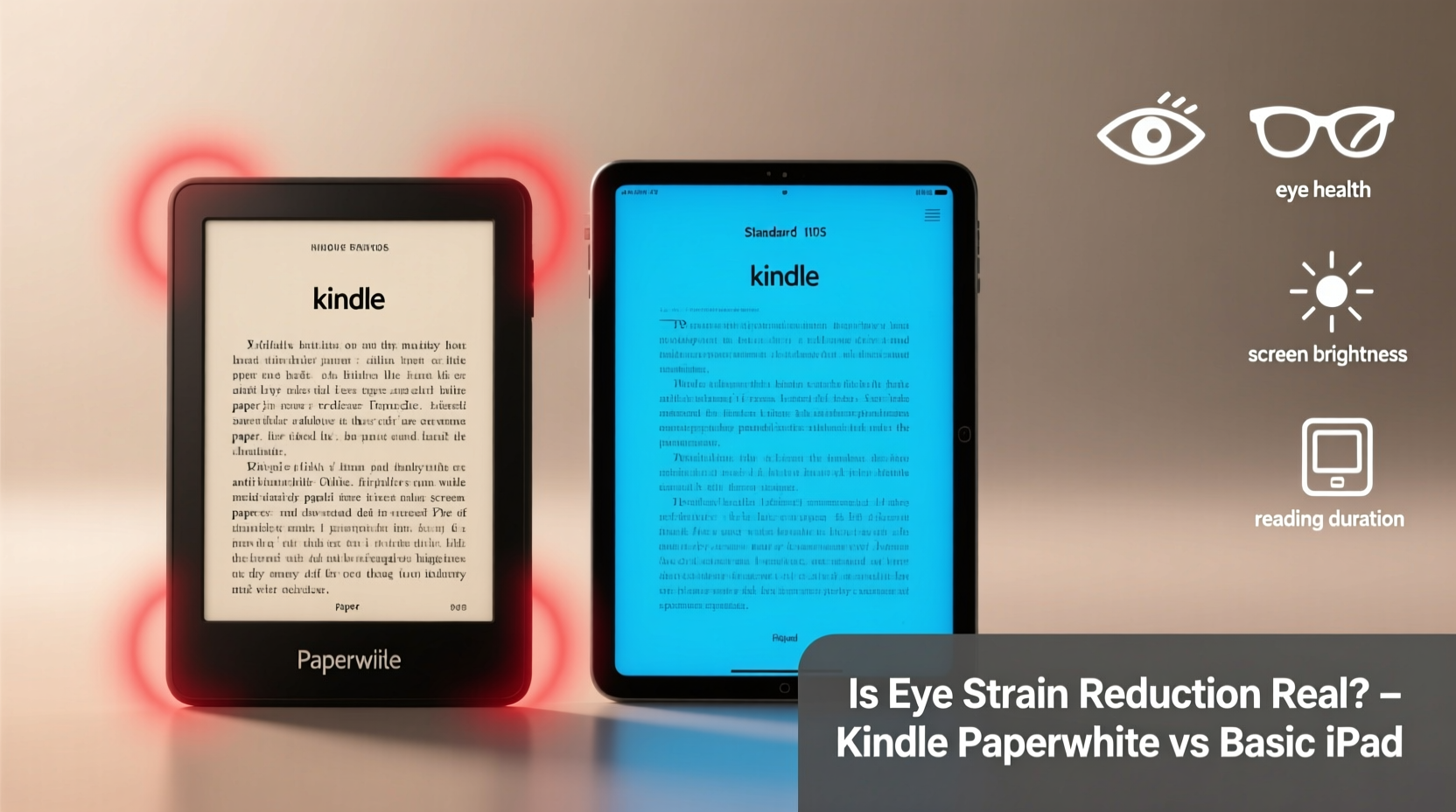
Eye strain, also known as asthenopia, occurs when your eyes become tired from intense use, such as reading fine print or staring at bright screens for prolonged periods. Symptoms include dryness, blurred vision, headaches, and difficulty focusing. With the rise of backlit displays, concerns about blue light exposure and flicker rates have intensified.
Liquid Crystal Display (LCD) screens, like those used in the Basic iPad, rely on a constant backlight to illuminate pixels. This backlight typically emits a significant amount of blue light—a high-energy wavelength that can suppress melatonin production and disrupt circadian rhythms. Prolonged exposure, especially in low-light environments, may contribute to discomfort and sleep disturbances.
In contrast, the Kindle Paperwhite uses E Ink technology, which mimics the appearance of printed ink on paper. Instead of emitting light, E Ink reflects ambient light, much like physical books. The screen only draws power when the image changes, making it inherently less taxing on the eyes during static viewing—such as reading.
“E Ink displays significantly reduce visual fatigue because they eliminate screen flicker and minimize glare. For dedicated readers, this translates to longer, more comfortable sessions.” — Dr. Lena Patel, Optometrist and Vision Researcher at Boston Eye Institute
However, the modern Kindle Paperwhite does include a front light to enable reading in the dark. While this improves usability, it introduces a new variable: how well that light is diffused and whether it contributes to glare or uneven brightness. Still, even with front lighting, E Ink remains fundamentally different from LCDs in its interaction with human vision.
Display Technology Compared: E Ink vs Retina LCD
To understand the differences in eye strain potential, it’s essential to compare the core display technologies side by side.
| Feature | Kindle Paperwhite | Basic iPad |
|---|---|---|
| Display Type | E Ink Carta (Matte) | Retina LCD (Glossy) |
| Light Source | Front-lit (ambient reflection primary) | Backlit (constant emission) |
| Blue Light Emission | Minimal (adjustable warm light option) | High (reduced via Night Shift, but still present) |
| Flicker | Negligible (no refresh unless page turns) | Potential PWM flicker at low brightness |
| Glare Resistance | Excellent (matte finish) | Moderate to poor (glossy screen attracts reflections) |
| Reading in Sunlight | Highly readable | Washed out without max brightness |
The table highlights critical distinctions. The Kindle’s matte E Ink screen avoids the “screen glow” effect common with iPads, particularly in dim rooms. Because it doesn’t refresh constantly like an LCD, there’s no perceptible flicker—something many users subconsciously react to, even if they don’t notice it directly.
Meanwhile, the iPad’s glossy Retina display, while sharp and vibrant, acts like a mirror in certain lighting conditions. Users often compensate by increasing brightness, which amplifies blue light exposure and accelerates eye fatigue. Although Apple includes features like Night Shift and True Tone to mitigate this, these are software-level adjustments that don’t change the fundamental nature of the display technology.
User Experience: Real-World Reading Scenarios
Technology specs matter, but real-world usage determines actual comfort. Consider Sarah, a graduate student who reads academic journals and novels for several hours daily. She initially used her 9th-gen iPad for all reading, appreciating the ability to annotate PDFs and switch between apps. However, after six months, she began experiencing frequent headaches and difficulty concentrating past 30-minute sessions.
On her professor’s recommendation, Sarah switched to a Kindle Paperwhite for non-interactive reading. Within a week, she noticed fewer headaches and could read for up to two hours without discomfort. “It felt like going back to physical books,” she said. “The text didn’t ‘buzz’ anymore.”
Sarah’s experience isn’t unique. Numerous anecdotal reports and online forum discussions echo similar sentiments: users consistently report greater endurance and reduced fatigue when reading on E Ink devices. While placebo effects may play a minor role, the consistency across diverse demographics suggests a physiological basis.
That said, the iPad retains advantages in versatility. It supports multimedia, web browsing, note-taking, and interactive textbooks—features the Kindle cannot match. For users whose needs extend beyond passive reading, the trade-off in eye comfort may be acceptable. But for those prioritizing long-form reading, especially before bedtime, the Kindle holds a clear edge.
Step-by-Step: Optimizing Your Device for Low Eye Strain
Whether you choose the Kindle or iPad, certain settings and habits can reduce eye fatigue. Follow this practical guide to maximize comfort:
- Adjust brightness manually: Avoid auto-brightness. Set it to match ambient light—bright enough to read easily, but not glowing in a dark room.
- Use warm lighting at night: On the Kindle Paperwhite, enable the warm light setting (if available on your model). On iPad, activate Night Shift with warmer tones enabled.
- Take regular breaks: Follow the 20-20-20 rule—every 20 minutes, look at something 20 feet away for 20 seconds.
- Hold the device at proper distance: Keep it 16–20 inches from your eyes, slightly below eye level to reduce neck and eye strain.
- Clean the screen regularly: Smudges and dust increase glare and force your eyes to work harder.
- Limit multitasking: Close unrelated apps and notifications to maintain focus and reduce cognitive load.
For iPad users, consider installing third-party reading apps like Readwise Reader or Kindle app with dark mode enabled. These can simulate a simpler, distraction-free interface. Pair this with a physical book stand to avoid holding the tablet, reducing muscular strain that compounds eye fatigue.
Checklist: Choosing the Right Device for Your Reading Needs
Ask yourself the following questions to determine which device better suits your lifestyle and visual comfort:
- Do I primarily read books, articles, or long-form text? → Favors Kindle
- Do I need color, video, or interactive content? → Favors iPad
- Do I read in direct sunlight (e.g., beach, park)? → Favors Kindle
- Do I frequently take notes or highlight across sources? → Favors iPad
- Do I experience headaches or eye fatigue after screen use? → Strongly favors Kindle
- Am I reading before bed? → Favors Kindle due to lower blue light impact
- Do I value battery life? → Kindle lasts weeks; iPad lasts ~10 hours
If most of your answers lean toward the Kindle, the eye strain reduction is not only real—it’s likely to improve your reading consistency and overall well-being.
Frequently Asked Questions
Does the Kindle Paperwhite emit blue light?
Yes, but significantly less than an iPad. The front light in newer models includes a warm light option that reduces blue spectrum output. Even on cool settings, the total luminance and emission profile are far milder than LCD backlights.
Can I reduce eye strain on my iPad effectively?
You can mitigate it, but not eliminate it. Use Night Shift, lower brightness, apply a matte screen protector, and limit sessions to under an hour. However, the inherent flicker and reflectivity of LCDs make them less ideal for marathon reading.
Is E Ink really better for long reading sessions?
Yes. Multiple studies and user reports confirm that E Ink causes less accommodative stress—the effort your eyes make to focus. Because the text appears static and reflective, your eyes don’t constantly refocus as they do on flickering, glowing screens.
Conclusion: Prioritize Purpose Over Features
The debate between Kindle Paperwhite and Basic iPad isn’t about which device is “better” overall—it’s about matching the tool to the task. When the goal is comfortable, sustained reading with minimal eye strain, the Kindle Paperwhite delivers a scientifically and experientially superior experience.
The eye strain reduction is real. It stems from fundamental differences in display technology, lighting design, and visual ergonomics. While the iPad excels as a multipurpose device, it was never designed solely for reading. The Kindle, in contrast, is purpose-built for it.
If you’re someone who reads daily—whether for pleasure, study, or professional development—consider giving your eyes the break they deserve. Switching to a Kindle Paperwhite may feel like a step back in functionality at first, but it’s a leap forward in long-term comfort and sustainability.




 浙公网安备
33010002000092号
浙公网安备
33010002000092号 浙B2-20120091-4
Comments
No comments yet. Why don't you start the discussion?