
If your Kindle has started to lag—pages take forever to turn, the home screen freezes, or the interface feels sluggish—it’s more than just frustrating. A slow Kindle can disrupt reading flow and diminish the very experience it was designed to enhance. The good news: most slowdowns are fixable without replacing the device. Whether you’ve owned your Kindle for years or recently noticed performance drops, understanding the root causes and applying targeted fixes can restore smooth operation.
Unlike smartphones or tablets, Kindles run on optimized e-ink systems that prioritize battery life and readability over raw processing power. This means even minor software clutter or storage issues can significantly impact responsiveness. But because Amazon designs its devices for longevity, many users overlook routine maintenance. With a few strategic steps, you can diagnose and resolve the issue quickly.
Why Your Kindle Might Be Running Slow
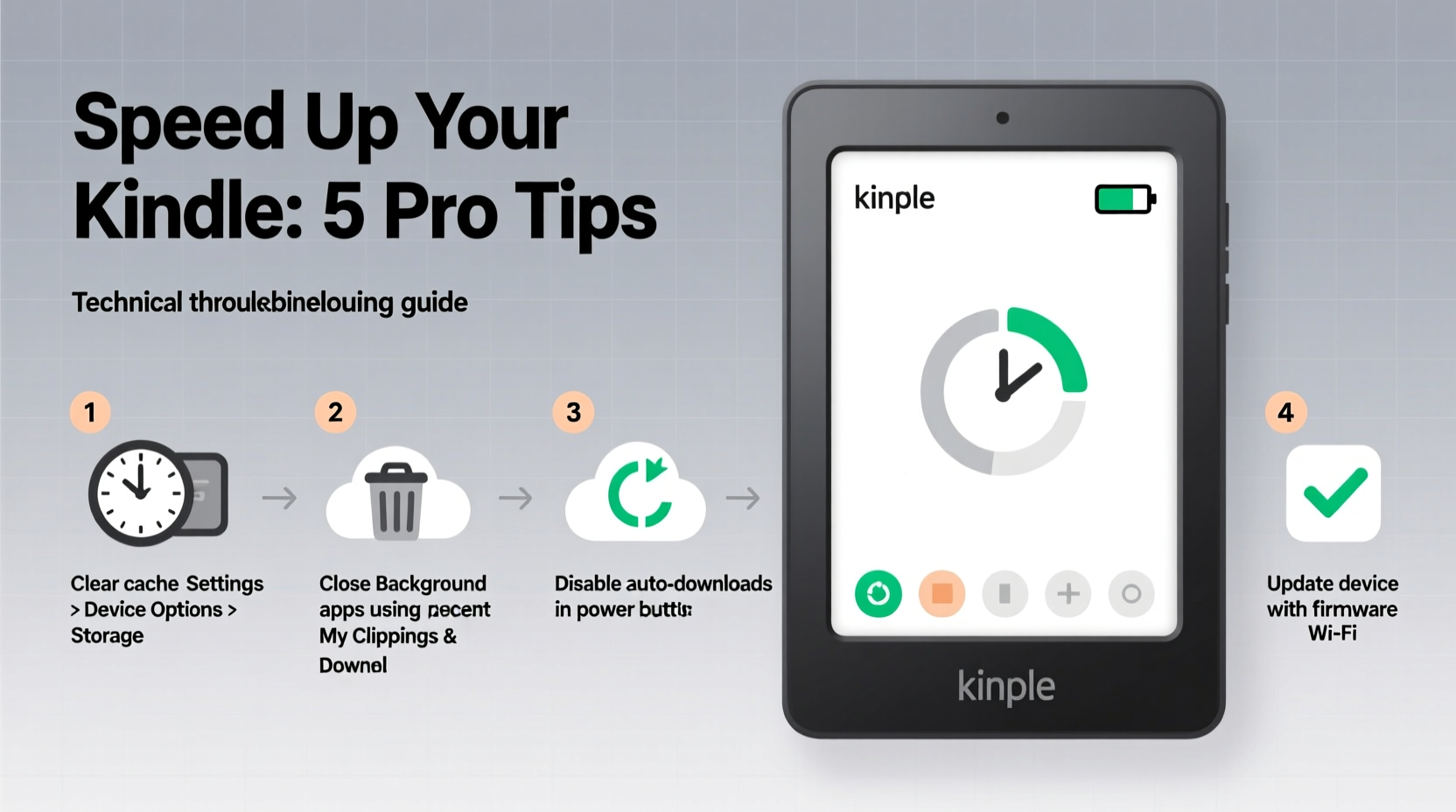
Performance degradation on a Kindle rarely happens without cause. Common triggers include excessive cached data, outdated firmware, too many downloaded books or apps, background sync processes, or corrupted system files. Over time, accumulated user data and continuous syncing with your Amazon account can burden the internal memory, especially on older models with limited RAM and storage.
E-ink displays themselves are inherently slower than LCD screens—they require a “flash” to refresh the page—but this shouldn’t affect navigation between menus or opening books. If even basic actions like returning to the home screen feel delayed, the issue likely lies within the software or storage management.
“Many Kindle slowdowns stem from overlooked digital clutter. Just like a computer, even simple devices need occasional cleanup.” — David Lin, Digital Device Optimization Specialist
Step-by-Step Guide to Speed Up Your Kindle
Follow this logical sequence to identify and eliminate the source of slowness. These steps are safe, non-destructive (unless otherwise noted), and effective across most Kindle models including Paperwhite, Oasis, and basic Kindle devices.
- Restart Your Kindle
Hold the power button for 40 seconds until the screen goes black and the Amazon logo reappears. This clears temporary memory and stops any stuck processes. - Check for Software Updates
Go to Settings > Device Options > System Updates. Install any pending updates. New firmware often includes performance improvements and bug fixes. - Clear Browser Data
If you use the built-in browser, accumulated cache and cookies can drag down performance. Navigate to Settings > Privacy > Clear Personal Data, then select “Browsing History,” “Cookies,” and “Cached Images and Files.” - Remove Unused Books and Content
While books stored in the cloud don’t occupy local space, downloaded titles do. Delete books you’ve finished or no longer need by long-pressing them on the home screen and selecting “Remove from Device.” - Reset the Home Screen Layout
A cluttered home screen with hundreds of covers can strain rendering. Go to Settings > Device Options > Reset to Factory Defaults—but choose “Keep My Content” to preserve books while resetting interface settings.
Tips to Prevent Future Slowdowns
Maintaining peak Kindle performance requires minimal effort but consistent habits. Think of it like maintaining a car: regular tune-ups prevent major breakdowns.
- Limit Downloads: Use “Read Now” sparingly. Instead, stream books from the cloud when possible, especially if you have Wi-Fi access.
- Use Collections: Organize books into collections to reduce visual clutter on the home screen, improving load times.
- Disable Widgets: On newer models, widgets like weather or news can run background updates. Turn them off in Settings > Widgets if not essential.
- Sync Regularly: Ensure your device syncs properly so bookmarks and progress are saved, reducing data conflicts that may cause delays.
- Reboot Monthly: Perform a full restart every few weeks to clear memory and refresh the system.
Do’s and Don’ts: Kindle Performance Best Practices
| Do’s | Don’ts |
|---|---|
| ✅ Reboot your Kindle monthly | ❌ Leave hundreds of books downloaded permanently |
| ✅ Update firmware as soon as available | ❌ Ignore persistent freezing or unresponsiveness |
| ✅ Use collections to organize content | ❌ Store personal files (photos, documents) unless necessary |
| ✅ Clear browser data quarterly | ❌ Perform factory reset without backing up notes/highlights |
Real Example: Restoring a Lagging Kindle Paperwhite
Sarah, a college student, relied on her Kindle Paperwhite for textbooks and novels. After two years of heavy use, she found it took over 10 seconds to open books, and the home screen froze frequently. She had over 300 books downloaded, used the browser daily, and hadn’t restarted the device in months.
Following the troubleshooting steps, she first restarted the device—minor improvement. Then she deleted 200 unused books, cleared browser data, and updated the firmware. The difference was immediate: page turns became responsive, and the home screen loaded in under two seconds. By organizing remaining books into subject-based collections, she maintained performance without sacrificing access.
This case illustrates how cumulative digital habits—not hardware failure—often cause slowdowns. Simple maintenance restored full functionality.
When to Consider a Factory Reset
If basic fixes fail, a factory reset may be necessary. This erases all settings, downloaded content, and personal data from the device—but your purchased books remain accessible via the cloud.
To perform a reset:
1. Go to Settings > Device Options > Reset.
2. Choose “Factory Reset.”
3. Confirm and wait for the device to reboot.
4. Sign back in with your Amazon account and selectively redownload books.
After resetting, avoid immediately downloading everything. Start with a few titles and monitor performance. This helps isolate whether the issue is software-related or due to storage overload.
FAQ: Common Kindle Speed Questions
Will deleting books from my Kindle delete them from my library?
No. Removing a book from your device only deletes the local copy. All purchased and archived books remain in your Amazon library and can be re-downloaded anytime.
Can a virus slow down my Kindle?
Extremely unlikely. Kindles run a locked-down operating system with no support for third-party apps outside the Amazon ecosystem. Performance issues are almost always due to software bloat, not malware.
Is it worth upgrading if my Kindle stays slow after troubleshooting?
If you’re using a model older than 2017 (e.g., Kindle 5th gen or earlier), consider an upgrade. Newer models have faster processors, more memory, and improved touch response. However, most slowdowns on recent devices are fixable with proper maintenance.
Final Checklist: Kindle Speed Recovery Plan
- ☑ Restart the device (hold power for 40 seconds)
- ☑ Check for and install system updates
- ☑ Delete unused downloaded books
- ☑ Clear browser history, cookies, and cache
- ☑ Organize books into collections
- ☑ Reset home screen layout (Settings > Device Options > Reset)
- ☑ Perform factory reset if issues persist
Conclusion: Take Back Control of Your Reading Experience
A slow Kindle doesn’t mean it’s time to replace it. In most cases, a few targeted actions can restore snappy performance and extend the life of your device for years to come. The key is proactive maintenance—regular restarts, mindful storage use, and staying current with updates. By treating your Kindle like the sophisticated electronic device it is, rather than just a digital bookshelf, you ensure it continues delivering the seamless, distraction-free reading experience it was built for.




 浙公网安备
33010002000092号
浙公网安备
33010002000092号 浙B2-20120091-4
Comments
No comments yet. Why don't you start the discussion?