
Laptops are engineered for portability, but their compact design often comes at the cost of thermal performance. As processors grow more powerful, heat becomes a critical factor in both performance and longevity. Enter the laptop cooling pad—a common accessory marketed as a solution to overheating. But is it truly necessary, or does it simply add noise, weight, and clutter to an otherwise sleek machine?
The answer isn’t universal. For some users, a cooling pad can extend system life and prevent throttling during intensive tasks. For others, it’s redundant—especially with modern laptops that already feature efficient thermal management. To make an informed decision, it's essential to understand how heat affects your device, when external cooling matters, and what alternatives exist.
How Heat Impacts Laptop Performance and Lifespan
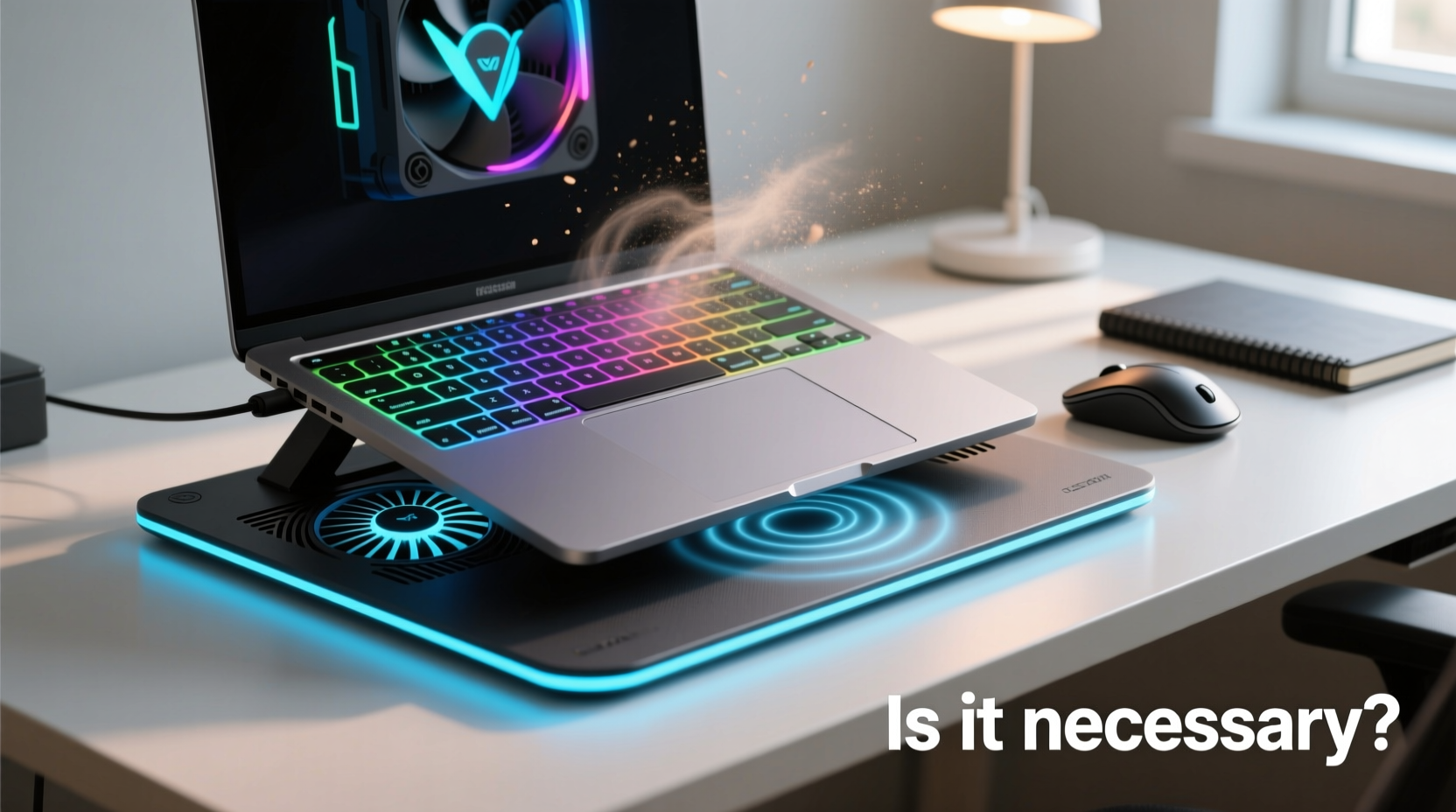
Heat is one of the most significant enemies of electronic components. When a laptop runs hot for prolonged periods, several issues arise:
- Thermal throttling: Modern CPUs and GPUs reduce clock speeds automatically when temperatures exceed safe thresholds. This leads to slower performance exactly when you need it most—during gaming, video editing, or rendering.
- Reduced component lifespan: Sustained high temperatures degrade capacitors, batteries, and solder joints over time. A study by Google on data center hardware found that drive failure rates increased significantly above 40°C (104°F).
- Battery degradation: Lithium-ion batteries lose capacity faster when exposed to heat. Keeping your laptop on a soft surface like a bed or pillow restricts airflow and traps heat near the battery.
- Uncomfortable user experience: A hot bottom panel makes lap use unpleasant and can even cause mild skin irritation with prolonged contact.
“Even moderate reductions in operating temperature can extend a laptop’s functional life by months or years.” — Dr. Alan Reeves, Electronics Thermal Systems Engineer
While internal fans and heat pipes do most of the work, ambient conditions and usage patterns heavily influence how well those systems perform. That’s where external tools like cooling pads enter the equation.
When a Cooling Pad Actually Makes a Difference
Not all laptop users benefit equally from a cooling pad. The real value depends on three key factors: workload intensity, laptop design, and environment.
High-Performance Use Cases
If you regularly engage in any of the following activities, a cooling pad may offer tangible benefits:
- Gaming on a thin-and-light or mid-tier laptop
- Video encoding or 3D rendering
- Running virtual machines or development environments
- Using your laptop in poorly ventilated spaces
In these scenarios, the CPU and GPU generate sustained heat loads that can overwhelm stock cooling solutions—especially in compact chassis with limited fan area or clogged vents.
Laptop Design Limitations
Some laptops are inherently prone to overheating due to design trade-offs:
- Ultrabooks: Prioritize thinness over cooling. Often rely on passive dissipation and small vapor chambers.
- Older models: Dust buildup in fans and heat sinks reduces efficiency over time.
- Plastic-bodied laptops: Less conductive than metal, trapping heat internally.
A cooling pad can compensate for these weaknesses by improving airflow underneath the chassis, where many intake vents are located.
When a Cooling Pad Is Unnecessary (or Counterproductive)
Despite their popularity, cooling pads aren’t always helpful. In fact, they can sometimes create more problems than they solve.
Modern Laptops With Efficient Cooling
Many current-generation laptops—from Apple MacBooks to Dell XPS and Lenovo ThinkPads—feature advanced thermal designs that rarely require external assistance. These include:
- Vapor chamber cooling
- Dual-fan, dual-heat-pipe systems
- Intelligent fan curves tuned for noise and efficiency
Adding forced airflow from below may disrupt the carefully balanced internal thermals, potentially increasing fan noise without lowering component temperatures.
Noise and Bulk Trade-Offs
Cooling pads typically come with one or more fans powered via USB. While effective at moving air, they introduce new downsides:
- Noise pollution: Additional fan whine adds to your acoustic footprint, especially in quiet environments like libraries or home offices.
- Added bulk: Defeats the purpose of a portable device. Now you must carry another item, find space for it, and manage extra cables.
- Power draw: Some pads draw power from your laptop’s USB port, marginally reducing battery life.
For casual users who browse, stream, or write documents, this trade-off rarely justifies the marginal cooling gain.
Poor Placement Can Worsen Ventilation
Ironically, some cooling pads block exhaust vents or compress against rubber feet, restricting airflow instead of enhancing it. Always check your laptop’s vent layout before selecting a pad.
“More airflow isn’t always better. Direction, pressure, and alignment matter just as much as volume.” — Maria Chen, Hardware Design Consultant at TechFlow Labs
Alternatives to Cooling Pads: Smarter Ways to Manage Heat
Before investing in a cooling pad, consider lower-cost, higher-impact strategies that address the root causes of overheating.
Keep Vents Clear and Clean
Dust accumulation is one of the top reasons for poor thermal performance. Over time, lint and debris clog fan blades and heat sinks, insulating heat rather than dissipating it.
For best results:
- Use compressed air every 3–6 months to clean intake grills and side vents.
- Open the chassis annually (if under warranty allows) to clean internal components.
- Avoid using your laptop on carpets, beds, or couches that obstruct airflow.
Optimize Power Settings
Adjusting your OS power plan can reduce heat generation without sacrificing usability:
- Navigate to Power & Sleep Settings (Windows) or Battery Preferences (macOS).
- Select a balanced or power-saving mode.
- Limit maximum processor state to 90–95% to reduce peak heat output.
This slight reduction in performance prevents aggressive fan ramping and keeps temperatures stable during long sessions.
Use a Hard, Flat Surface
One of the simplest yet most overlooked tips: never use your laptop on soft surfaces. Pillows, blankets, and laps compress the rubber feet and seal off intake vents on the underside.
Instead, use a tray, desk, or even a clipboard to create a firm platform. Elevation alone improves passive cooling significantly.
Undervolting (Advanced Users Only)
Undervolting reduces the voltage supplied to the CPU or GPU, lowering power consumption and heat output without affecting performance—assuming stability is maintained.
Tools like Intel XTU (for Windows) or ThrottleStop allow fine-tuning. However, improper settings can cause crashes or instability, so proceed with caution and backups.
| Solution | Effectiveness | Cost | Drawbacks |
|---|---|---|---|
| Cooling Pad | Moderate (context-dependent) | $20–$60 | Noise, bulk, potential misalignment |
| Vent Cleaning | High | $5–$15 (compressed air) | Requires maintenance effort |
| Power Plan Adjustment | Medium | Free | Slight performance cap |
| Elevated Surface | Medium-High | Free | Limited portability improvement |
| Undervolting | High (for compatible systems) | Free | Technical skill required; risk of instability |
Real-World Example: Gaming on a Budget Laptop
Consider Alex, a college student using a budget gaming laptop (Acer Nitro 5) for both coursework and weekend gaming. After six months of heavy use, the system began throttling during gameplay, dropping frame rates from 60 FPS to 35. Fans ran constantly, and the bottom surface became too hot to rest on his lap.
He first tried a $30 cooling pad with two large fans. Temperatures dropped by about 8°C, and fan noise decreased slightly as the internal fans didn’t need to work as hard. However, he disliked the added noise from the pad itself and found it cumbersome to carry between dorm rooms and the library.
Then, he cleaned the internal fans using compressed air—revealing a thick layer of dust blocking the heat sink. He also adjusted his power plan to limit CPU max state to 90%. After these changes, idle temps dropped from 58°C to 43°C, and gaming sessions stayed under 78°C—well below throttling thresholds.
The cooling pad was set aside. The real fix wasn’t more fans, but better maintenance and smarter settings.
Checklist: Do You Need a Cooling Pad?
Answer these questions to determine if a cooling pad is right for you:
- ✅ Do you run CPU/GPU-intensive applications for extended periods?
- ✅ Does your laptop frequently throttle or shut down due to heat?
- ✅ Are the intake vents located on the bottom of the chassis?
- ✅ Have you already cleaned internal dust and optimized power settings?
- ❌ Do you primarily use your laptop for web browsing, email, or office work?
- ❌ Is your laptop a newer model with strong built-in cooling?
- ❌ Do you value silence and minimalism in your workspace?
If you answered “yes” to the first four and “no” to the last three, a cooling pad could be a worthwhile investment. Otherwise, focus on maintenance and ergonomics first.
Frequently Asked Questions
Can a cooling pad damage my laptop?
No, a properly designed cooling pad will not damage your laptop. However, cheap models with unstable power delivery could theoretically stress USB ports. Also, pads that press against rubber feet may restrict airflow or scratch the casing. Choose reputable brands and ensure proper alignment.
Do cooling pads work for MacBook users?
Generally, no. MacBooks use highly efficient passive and active cooling systems with intelligent thermal management. Most models draw minimal power under normal loads, and their aluminum bodies act as heat spreaders. Adding a cooling pad rarely provides measurable benefits and may interfere with the clamshell’s airflow design.
Are there silent cooling pad options?
Yes, some models prioritize low-noise operation with larger, slower-spinning fans and variable speed controls. Look for pads advertising “quiet mode” or decibel ratings below 30 dB. Alternatively, passive aluminum stands act as heat sinks without any moving parts—though their effectiveness is limited to light workloads.
Conclusion: Smart Cooling Starts With Awareness
A laptop cooling pad isn’t universally necessary—but it’s not useless either. Its value lies in context. For users pushing aging or thermally constrained hardware to its limits, a well-chosen pad can delay throttling and improve comfort. For everyone else, smarter habits like cleaning vents, adjusting power settings, and using hard surfaces deliver better results with less hassle.
Before buying any accessory marketed as a performance booster, ask: *What problem am I actually solving?* More often than not, the answer lies in maintenance and usage—not additional gadgets.




 浙公网安备
33010002000092号
浙公网安备
33010002000092号 浙B2-20120091-4
Comments
No comments yet. Why don't you start the discussion?