
A laptop fan that never seems to stop spinning can be more than just an annoyance—it’s often a sign of underlying issues affecting performance, longevity, and user comfort. While some fan activity is normal during intensive tasks, constant high-speed operation even at idle suggests a problem. Understanding the root causes and knowing how to respond can prevent hardware damage, reduce noise, and maintain optimal system efficiency.
Why Laptop Fans Run Constantly: Common Causes
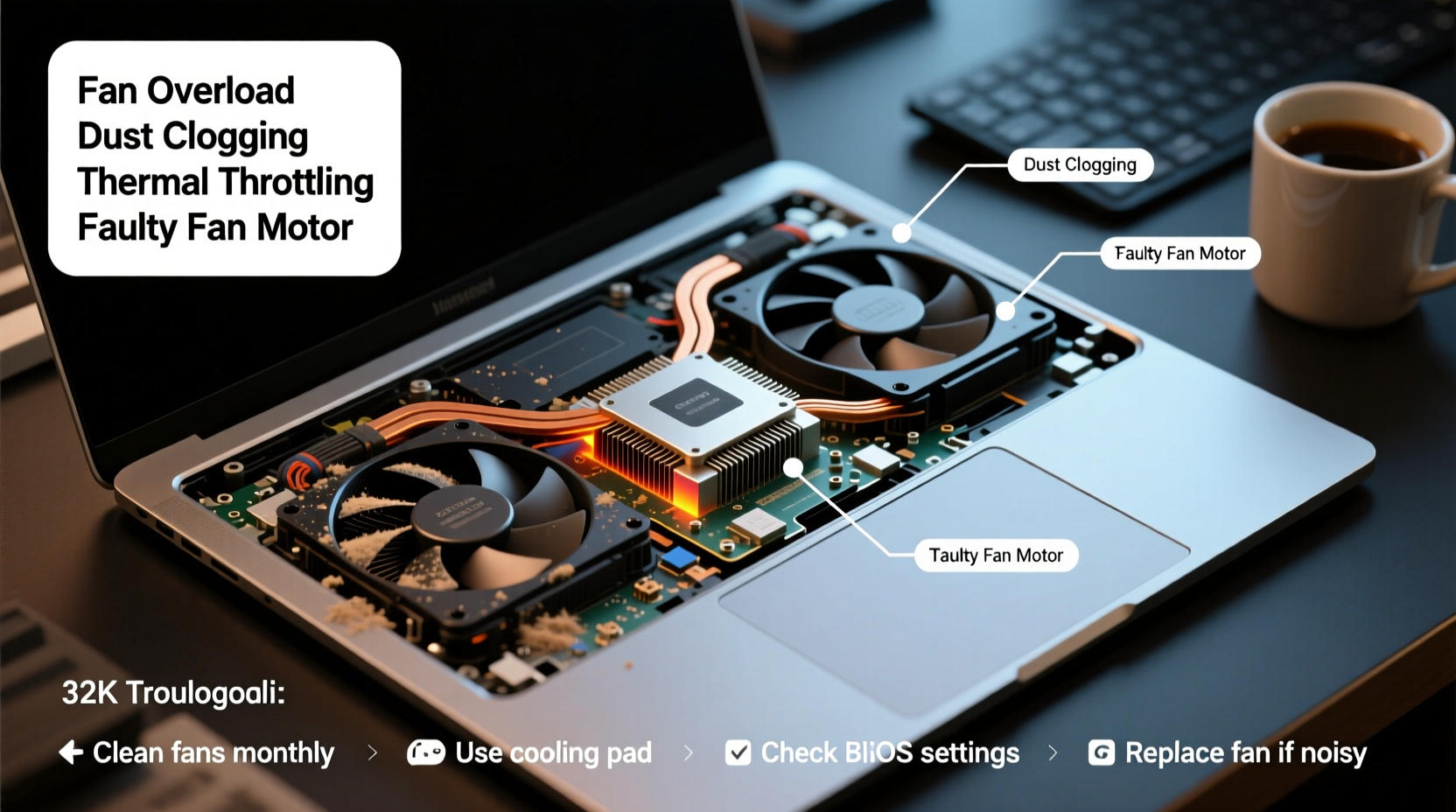
Laptop fans are designed to regulate internal temperatures by expelling hot air generated by the CPU, GPU, and other components. When these parts overheat, the thermal sensors trigger the fan to spin faster. However, several factors can cause persistent fan activity:
- High CPU or GPU usage: Background processes, malware, or demanding applications like video editors or games can push processors to their limits.
- Dust buildup: Over time, dust clogs air vents and heatsinks, reducing airflow and insulation efficiency.
- Poor ventilation: Using a laptop on soft surfaces like beds or couches blocks intake vents, leading to heat accumulation.
- Faulty thermal paste: Degraded or improperly applied thermal paste between the processor and heatsink reduces heat transfer.
- Outdated BIOS or drivers: Firmware bugs or inefficient power management settings may misreport temperatures or fail to throttle performance correctly.
- Ambient temperature: Operating in a hot room or direct sunlight increases baseline component heat.
Step-by-Step Troubleshooting Guide
Before considering hardware repairs, follow this logical sequence to diagnose and resolve excessive fan noise:
- Check Task Manager (Windows) or Activity Monitor (Mac): Identify any process consuming excessive CPU or GPU resources. End unnecessary tasks immediately.
- Update your operating system and drivers: Install pending updates for Windows, macOS, graphics drivers, and chipset firmware.
- Scan for malware: Run a full system scan using trusted antivirus software. Some crypto-mining malware silently uses processing power.
- Clean air vents and fans: Use compressed air to blow out dust from side vents and cooling grills. Do not use vacuum cleaners, as they can generate static.
- Reset power settings: On Windows, switch to “Balanced” power plan. On Mac, ensure “Automatic” graphics switching is enabled.
- Monitor internal temperatures: Use tools like HWMonitor (Windows), Core Temp, or iStat Menus (Mac) to check real-time CPU/GPU temps. Idle should be 40–60°C; above 85°C under load indicates overheating.
- Reapply thermal paste (advanced): If temps remain high after cleaning, consider replacing dried-out thermal compound—best done by professionals unless experienced.
Do’s and Don’ts: Managing Fan Performance
| Do’s | Don’ts |
|---|---|
| Use a laptop cooling pad with USB-powered fans | Place the laptop on blankets, pillows, or carpets |
| Keep vents clear and clean every 3–6 months | Ignore persistent high-pitched whirring sounds |
| Close unused browser tabs and background apps | Run multiple resource-heavy programs simultaneously without monitoring usage |
| Adjust display brightness and disable keyboard backlight when not needed | Disassemble the laptop without warranty consideration or technical knowledge |
| Enable automatic OS updates and security patches | Leave the laptop in a car or near heaters/sunlight |
Real-World Example: Sarah’s Overheating Work Laptop
Sarah, a freelance graphic designer, noticed her three-year-old laptop fan running nonstop, even when she wasn’t rendering videos. The device felt hot on her lap, and battery life had dropped sharply. She first checked Task Manager and found Adobe Creative Cloud processes consuming 70% CPU at idle. After disabling auto-launch features, fan noise decreased slightly but didn’t stop. She then used compressed air to clean the side vents—revealing a thick layer of lint. Post-cleaning, internal temperatures dropped from 92°C to 68°C at rest. A BIOS update further stabilized fan control. Within a week, her laptop ran quieter, cooler, and lasted longer on battery.
“Over 60% of overheating laptops brought into our repair shop have blocked vents or degraded thermal interface materials.” — Rajiv Mehta, Senior Technician at TechCare Pro Services
When to Seek Professional Help
While many issues can be resolved at home, certain symptoms indicate deeper problems requiring expert attention:
- Fan spins at maximum speed regardless of load
- Laptop shuts down unexpectedly despite low usage
- Noise includes grinding or clicking sounds (possible bearing failure)
- Visible damage to fan blades or motherboard connections
In such cases, disassembling the unit for inspection or replacement of the fan assembly may be necessary. Attempting DIY repairs without proper tools risks voiding warranties or damaging sensitive components.
Frequently Asked Questions
Is it bad if my laptop fan runs all the time?
Not necessarily—if you're running heavy applications, sustained fan activity is normal. However, constant high-speed spinning during light use (like browsing or word processing) indicates inefficiency or malfunction and should be investigated.
Can software really make my fan run more?
Yes. Poorly optimized apps, background sync services, outdated drivers, or malware can spike CPU usage, forcing the cooling system to work harder. Regular maintenance and smart app management reduce unnecessary load.
How long should a laptop fan last?
Most laptop fans last 3–5 years under normal conditions. Dust exposure, frequent thermal cycling, and continuous high RPM operation shorten lifespan. Signs of wear include irregular speeds, loud noises, or complete failure.
Preventive Maintenance Checklist
To keep your laptop cool and quiet, follow this routine:
- ✅ Clean air vents every 3–6 months with compressed air
- ✅ Avoid using the laptop on soft surfaces
- ✅ Monitor CPU temperature weekly using free tools
- ✅ Keep the OS, BIOS, and drivers updated
- ✅ Close unused programs and browser extensions
- ✅ Use a hard-shell case that allows ventilation
- ✅ Store the laptop in a dry, cool place when not in use
Conclusion: Take Control of Your Laptop’s Cooling System
A constantly running laptop fan isn't something to ignore. It's a signal—one that, when addressed early, can save you from costly repairs, performance throttling, or premature device failure. By understanding what drives overheating and applying consistent maintenance, you extend not only the life of your hardware but also your daily comfort and productivity. Small habits—like cleaning vents, managing background apps, and using proper surfaces—add up to significant improvements. Don’t wait for a shutdown or hardware fault. Act now, stay proactive, and keep your machine running smoothly and quietly for years to come.




 浙公网安备
33010002000092号
浙公网安备
33010002000092号 浙B2-20120091-4
Comments
No comments yet. Why don't you start the discussion?