
A laptop fan suddenly roaring like a jet engine—especially when you're not running heavy software—can be both alarming and disruptive. Many assume the only fix is to open the device and manually clean internal components. But what if you could reduce that noise significantly without voiding your warranty or risking hardware damage? The truth is, excessive fan noise often stems from dust buildup in accessible areas like air vents and intake grills. While internal cleaning is more thorough, there are practical, non-invasive techniques to improve airflow and quiet down your machine—safely and effectively.
Dust accumulation restricts airflow, forcing fans to spin faster and louder to maintain cooling. Over time, this strain reduces system performance and shortens component lifespan. Fortunately, you don’t need technical expertise or specialized tools to make a noticeable difference. With careful external maintenance and smart usage habits, you can restore quieter operation and better thermal efficiency—without ever unscrewing a single panel.
Why Your Laptop Fan Gets Loud Without Warning
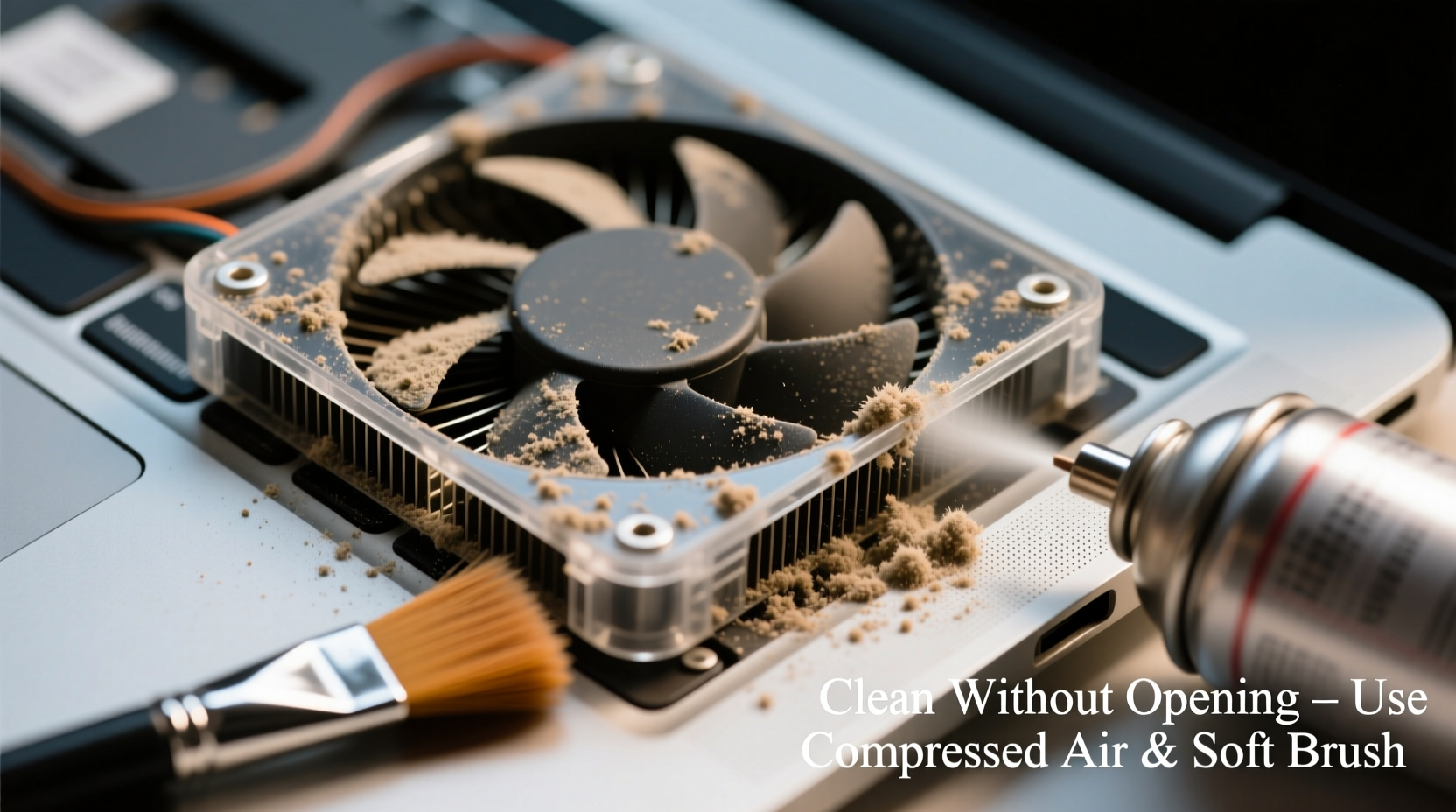
Fans ramp up speed when the CPU or GPU temperature rises. Modern laptops use dynamic thermal management: the hotter the internals, the faster the fans spin. Dust acts as insulation, trapping heat inside the chassis. Even a thin layer around intake vents can disrupt airflow enough to trigger aggressive fan behavior during routine tasks like web browsing or video playback.
Common misconceptions include blaming software updates or background apps as the sole cause. While resource-heavy programs do increase heat output, persistent noise after closing all applications points to hardware-level issues—most often, poor ventilation due to dust.
Additionally, placement matters. Using a laptop on soft surfaces like beds or couches blocks bottom-mounted air intakes. This forces the system to pull air inefficiently through side vents, accelerating dust intake and reducing cooling capacity. Over months, these small inefficiencies compound into constant high-pitched whirring.
“Over 60% of premature laptop overheating cases we see stem from blocked vents and surface placement—not hardware failure.” — Dr. Rajiv Mehta, Senior Technician at TechCare Labs
Safe, No-Opening Cleaning Methods That Work
You don’t need to disassemble your laptop to make meaningful improvements. These external techniques target the most common dust entry points: intake vents, exhaust ports, and keyboard edges. When performed regularly, they can delay or even eliminate the need for internal cleaning.
Step-by-Step: Non-Invasive Dust Removal
- Power Down Completely: Shut down the laptop and unplug the charger. Wait 10 minutes to ensure all components have cooled.
- Use Compressed Air Strategically: Hold the can upright and spray short bursts into intake vents (usually along the sides or bottom) and exhaust ports (typically at the back or side). Angle the nozzle to push dust outward, not deeper.
- Clean Around the Keyboard: Tilt the laptop slightly and blow air between keys to remove debris that may block upper vent paths.
- Wipe Exterior Vents with Microfiber: Gently rub vent surfaces with a dry microfiber cloth to remove surface dust and static buildup.
- Vacuum with Caution: Use a low-power vacuum with a brush attachment held near (not touching) vents to capture loosened particles. Never insert metal tools.
What Tools You Actually Need (And Which to Avoid)
Not all cleaning tools are created equal. Some can do more harm than good. Below is a clear guide to choosing the right equipment for safe, effective maintenance.
| Tool | Recommended? | Reason |
|---|---|---|
| Compressed air can (canned air) | ✅ Yes | Safe, precise, widely available. Blows dust out without contact. |
| Handheld electric duster | ✅ Yes | Reusable alternative to canned air; less risk of moisture discharge. |
| Microfiber cloth | ✅ Yes | Ideal for wiping exterior vents and preventing static buildup. |
| Household vacuum cleaner | ⚠️ With caution | Only use on low suction with brush attachment. Never insert nozzle. |
| Blow dryer (heat setting) | ❌ No | Heat can warp plastic and damage circuits. Static risk is high. |
| Metal tweezers or screwdrivers | ❌ No | Potential to scratch or puncture delicate fan blades. |
| Water or liquid cleaners | ❌ No | Moisture causes corrosion and short circuits—even in small amounts. |
Real-World Example: Reducing Fan Noise in a Home Office Setup
Sarah, a freelance graphic designer in Portland, noticed her three-year-old laptop began making loud fan noises during client calls. She wasn’t running design software at the time—just Zoom and Chrome. Initially, she assumed her SSD was failing. After reading about dust-related overheating, she decided to try external cleaning before seeking repair.
She powered down the device, used a can of compressed air on all visible vents (especially the left-side intake), and wiped the surface with a microfiber cloth. She also switched from using the laptop on her bed to a hard desk surface. Within 48 hours, the fan noise dropped noticeably. Temperature monitoring software showed CPU temps fell from 87°C to 72°C under idle conditions. Six months later, she reports stable performance without needing internal servicing.
Sarah’s case highlights how simple interventions can resolve seemingly complex issues. Her only regret? Not doing it sooner.
Preventive Habits to Minimize Future Dust Buildup
Once you’ve cleaned your laptop, maintaining that improvement requires consistent habits. Dust returns quickly in certain environments, but smart usage can dramatically slow accumulation.
- Elevate the Laptop: Use a stand or even a small book to lift the base slightly off flat surfaces. This improves airflow and prevents fabric fibers from being sucked in.
- Avoid High-Dust Areas: Keep away from construction zones, pet shedding corners, or windowsills where pollen collects.
- Use a Lap Desk: A hard-surfaced lap desk acts as a barrier while promoting ventilation.
- Monitor Temperatures: Install free tools like HWMonitor (Windows) or Macs Fan Control (macOS) to track internal temps and fan speeds over time.
- Shut Down Regularly: Letting the system cool completely helps prevent thermal memory effect in sensors and allows dust to settle before next use.
When External Cleaning Isn't Enough
There comes a point when non-invasive methods reach their limits. If your laptop continues to overheat or the fan sounds like a drone despite regular external cleaning, internal dust buildup is likely the culprit. Signs include:
- Fan runs constantly, even at idle
- System throttles performance unexpectedly
- Bottom of laptop feels excessively hot
- Unusual grinding or clicking noises
In such cases, professional servicing or careful self-disassembly may be necessary. However, many manufacturers void warranties if the device has been opened by unauthorized users. Before proceeding, check your warranty terms. Alternatively, seek certified repair centers that offer internal cleaning services—often for under $50.
“External cleaning buys you time and maintains performance, but every laptop needs deep cleaning every 12–18 months depending on environment.” — Lena Torres, Field Engineer at MobileFix Solutions
FAQ: Common Questions About Silent Fan Maintenance
Can I use my hairdryer to blow dust out of the vents?
No. Most hairdryers emit heat, which can damage internal components. Even on cold settings, they generate significant static electricity that risks harming sensitive electronics. Stick to canned air or electric dusters designed for electronics.
How do I know if dust is really the problem?
Check airflow directly: place your hand near the exhaust vent while the fan is active. If little or no warm air comes out, it’s likely blocked. Also, compare idle temperatures before and after cleaning—if temps drop by 10°C or more, dust was a major factor.
Is it safe to tilt or shake the laptop during cleaning?
Light tilting is fine and even helpful to let dislodged dust fall out. However, avoid vigorous shaking, especially with older devices that may have loose internal parts. Always power off first.
Final Checklist: Clean & Maintain Without Opening Your Laptop
Follow this concise checklist monthly or bi-monthly to keep your laptop cool and quiet:
- Shut down and unplug the laptop.
- Tilt gently to expose intake vents (bottom/sides).
- Spray compressed air in short bursts into all vents.
- Clean around the keyboard and screen hinges.
- Wipe exterior vent surfaces with a dry microfiber cloth.
- Use a low-suction vacuum near (not inside) openings to collect debris.
- Place laptop on a hard, elevated surface during use.
- Monitor fan noise and temperature weekly.
Conclusion: Take Control of Your Laptop’s Performance Today
A loud laptop fan doesn’t automatically mean hardware failure or costly repairs. Often, the fix is simpler than you think. By understanding how dust affects cooling and applying consistent, safe cleaning practices, you can restore quiet operation and extend your device’s life. You don’t need technical skills or special access—just awareness and routine care.
Start today: grab a can of compressed air, power down your machine, and give those vents some attention. The difference might surprise you. Share your experience or ask questions in the comments—your insight could help someone else avoid an unnecessary service bill.




 浙公网安备
33010002000092号
浙公网安备
33010002000092号 浙B2-20120091-4
Comments
No comments yet. Why don't you start the discussion?