
A sudden grinding or grating sound from your laptop’s fan can be alarming. Unlike the usual soft whirring during normal operation, a grinding noise suggests mechanical stress or internal wear. While some fans naturally become noisier with age, a distinct grinding sound often signals a more serious underlying issue. Ignoring it may lead to overheating, performance throttling, or even irreversible hardware damage. Understanding what causes this noise and whether it's safe to continue using your device is essential for preserving both productivity and longevity.
What Causes a Laptop Fan to Make a Grinding Noise?
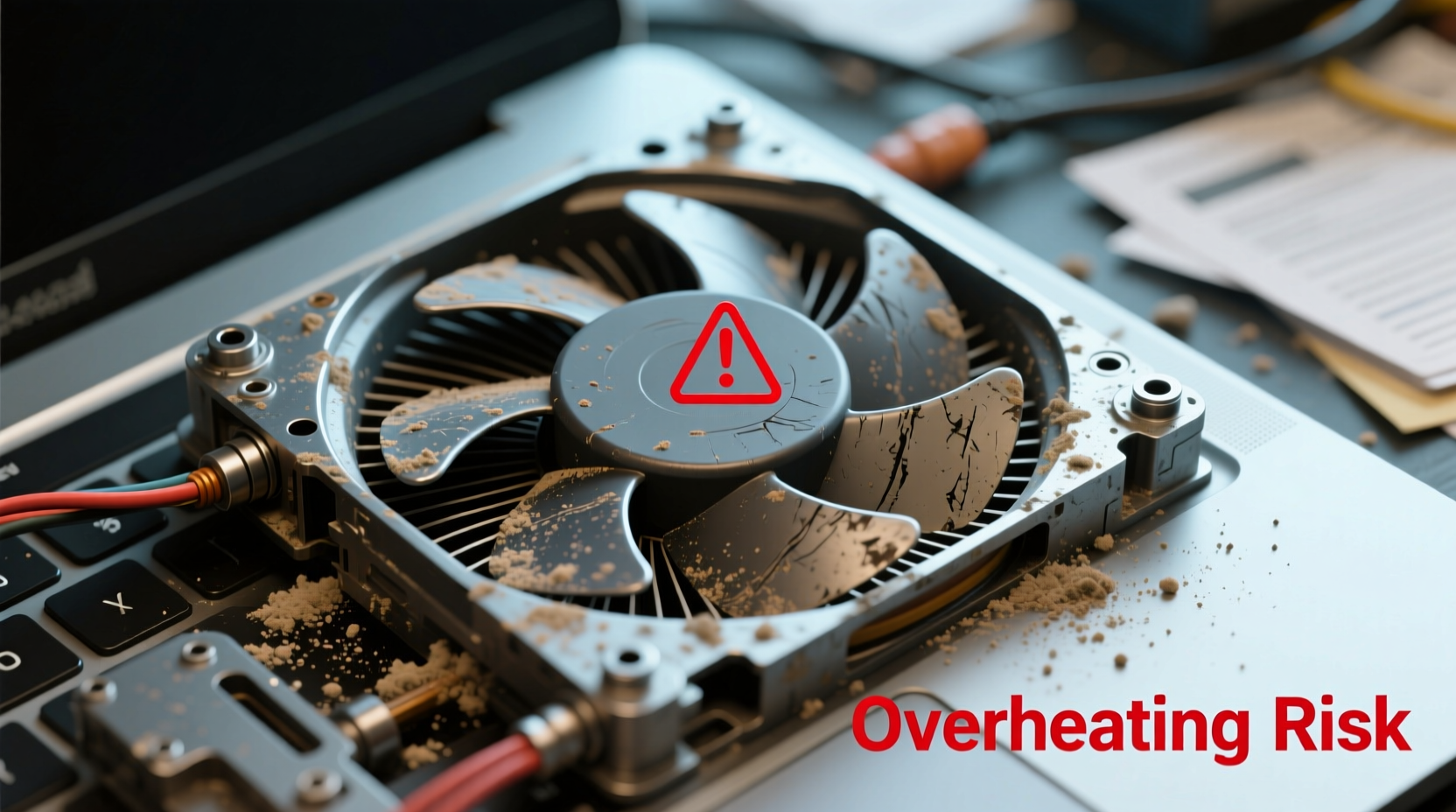
The fan in a laptop is responsible for drawing cool air over critical components like the CPU and GPU, preventing them from overheating. When that fan begins to emit a grinding, scraping, or rattling sound, it usually points to one or more physical malfunctions within the cooling system. Common culprits include:
- Dust and debris buildup inside the fan blades or vents
- Worn-out or failing ball bearings in the fan motor
- Loose fan mounting causing vibration against the chassis
- Foreign objects (like paper fibers or hair) caught in the fan
- Manufacturing defects or poor-quality fan assembly
- Liquid damage affecting motor integrity
Dust accumulation is the most frequent cause—especially in environments with high particulate matter. Over time, dust cakes onto the fan blades, unbalancing them and creating irregular rotation. This imbalance can mimic a grinding noise, especially at higher RPMs. However, if cleaning doesn’t resolve the sound, the issue likely lies deeper within the motor or bearing system.
Is It Safe to Keep Using a Laptop with a Grinding Fan?
Short-term use may not immediately destroy your laptop, but prolonged operation under these conditions carries significant risk. A grinding fan is not just an annoyance—it’s a warning sign that the cooling system is compromised. If the fan cannot spin properly, heat dissipation becomes inefficient, leading to:
- Increased internal temperatures
- Thermal throttling (reduced processor speed)
- Unexpected shutdowns to prevent hardware damage
- Potential long-term degradation of CPU, GPU, and motherboard
In extreme cases, sustained overheating can permanently damage solder joints or degrade thermal paste, requiring costly repairs. Additionally, a failing fan may seize entirely, leaving your laptop without active cooling. At that point, even light tasks could trigger automatic shutdowns.
“Any unusual mechanical noise from a laptop fan should be taken seriously. What starts as a minor grind can escalate into catastrophic thermal failure within weeks.” — Dr. Alan Reyes, Hardware Reliability Engineer at TechShield Labs
Step-by-Step Guide to Diagnosing and Addressing the Issue
Before deciding whether to repair or replace your laptop, follow this structured approach to assess the severity and source of the noise.
- Power down and inspect externally. Turn off the laptop and examine the air intake and exhaust vents. Use a flashlight to check for visible debris. If you see dust clumps, proceed to clean gently with compressed air.
- Boot up and isolate the sound. Power on the laptop and listen closely. Determine whether the noise increases with system load (e.g., opening multiple browser tabs or running video software). If the grinding intensifies under load, the fan is actively struggling.
- Monitor internal temperatures. Use tools like HWMonitor, Core Temp, or Open Hardware Monitor to track CPU and GPU temps. Idle temperatures above 50°C or load temps exceeding 90°C indicate poor cooling efficiency.
- Test fan behavior via BIOS or diagnostics. Some manufacturers (e.g., Dell, Lenovo) offer built-in hardware diagnostics that manually control fan speed. Run these tests to observe if the grinding persists across different RPM levels.
- Disassemble (if experienced). For users comfortable with hardware, carefully open the bottom panel to access the fan. Inspect for loose screws, wobbling blades, or resistance when spinning the fan by hand. Caution: Only attempt this if you understand ESD safety and warranty implications.
- Clean or replace the fan. If dust is present, use compressed air and a soft brush. If the bearings are worn or the shaft wobbles, replacement is necessary. OEM or compatible fans can be sourced online for most models.
When to Seek Professional Help
If you’re unsure about disassembling your laptop, or if the grinding continues after cleaning, consult a certified technician. Attempting DIY repairs on sealed or glued units (common in ultrabooks) can result in further damage. Professionals can also inspect for secondary issues such as dried thermal paste or clogged heat pipes that may contribute to overheating.
Do’s and Don’ts: Managing a Noisy Laptop Fan
| Do’s | Don’ts |
|---|---|
| Use compressed air to clean vents every 3–6 months | Blow into vents with your mouth (moisture can damage internals) |
| Elevate the laptop for better airflow (use a stand or book) | Block air intakes by placing the laptop on beds or cushions |
| Install monitoring software to track fan speed and temperature | Ignore persistent grinding noises hoping they’ll go away |
| Replace the fan promptly if bearings are failing | Use tape or adhesives to secure a wobbly fan (creates fire risk) |
| Keep the laptop in a dust-free environment when possible | Run intensive applications for hours with a malfunctioning fan |
Real-World Example: A Student’s Overheating Dilemma
Jessica, a university student relying on her mid-range laptop for online classes and research, began hearing a faint grinding sound during Zoom lectures. Initially dismissing it as background noise, she soon noticed her laptop shutting down unexpectedly during longer sessions. After downloading HWMonitor, she discovered CPU temperatures spiking to 98°C under moderate load. She used compressed air to clean the side vents, which reduced the noise slightly—but the grinding returned within days.
Determined to avoid repair costs, Jessica elevated her laptop on a small stand and limited multitasking. However, during finals week, the fan seized completely, triggering a critical thermal event that forced her to miss an exam. A technician later confirmed that the fan’s ball bearings had failed due to dust infiltration and lack of lubrication. The total repair—including fan replacement and thermal paste reapplication—cost nearly half the value of the laptop.
This case illustrates how ignoring early warning signs escalates both risk and expense. Had Jessica addressed the noise immediately, a simple $20 fan replacement could have prevented downtime and data loss.
How Long Can You Safely Run a Laptop with a Grinding Fan?
There’s no universal timeline—some laptops operate for weeks with a noisy fan, while others fail within days. The key variables are ambient temperature, usage intensity, and the root cause of the noise. Light tasks like word processing generate less heat, reducing immediate danger. However, any activity involving video rendering, gaming, or virtual machines dramatically increases thermal output, accelerating component stress.
As a general rule:
- Light use: A few weeks *might* be tolerable with strict temperature monitoring and external cooling.
- Moderate to heavy use: Risk becomes unacceptable within days. Avoid extended sessions.
- Fan completely seized: Do not power on. Permanent damage is likely upon boot.
If you must delay repairs, consider using your laptop in short bursts with enforced cooldown periods. Place it near a fan or in an air-conditioned room to reduce ambient heat. Avoid charging and computing simultaneously, as this increases thermal load.
Preventive Maintenance Checklist
Extend your laptop’s lifespan and avoid fan failures with routine care. Follow this checklist every 3–6 months:
- ✅ Clean air intake and exhaust vents with compressed air
- ✅ Check fan noise during startup and under load
- ✅ Monitor CPU/GPU temperatures using free software
- ✅ Ensure laptop is placed on hard, flat surfaces
- ✅ Replace thermal paste every 2–3 years (for advanced users)
- ✅ Update BIOS and drivers to ensure proper fan curve calibration
- ✅ Avoid eating or drinking near the laptop to minimize debris
Frequently Asked Questions
Can a grinding fan damage other parts of my laptop?
Yes. A failing fan leads to overheating, which can degrade the CPU, GPU, RAM, and motherboard over time. Sustained high temperatures weaken solder joints and reduce the lifespan of electronic components. In severe cases, thermal expansion can cause microfractures on the PCB.
Is it worth replacing the fan myself?
If you have experience with small electronics and your laptop model has accessible service documentation (such as iFixit guides), DIY replacement can save money. However, modern laptops often use proprietary screws, adhesive seals, and fragile ribbon cables. If you're unsure, professional repair is safer and may preserve your warranty status.
Will updating drivers fix a grinding fan noise?
No. Driver updates affect software communication with hardware but cannot resolve mechanical issues like worn bearings or physical obstructions. While updated BIOS versions may improve fan speed regulation, they won’t eliminate grinding caused by hardware failure.
Conclusion: Act Now to Protect Your Investment
A grinding laptop fan is more than a nuisance—it’s a red flag indicating potential hardware distress. While temporary workarounds exist, they are not sustainable solutions. Continued use under these conditions risks permanent damage, data loss, and higher repair costs down the line. Whether through careful cleaning, timely part replacement, or professional servicing, addressing the issue early preserves performance, reliability, and safety.
Your laptop is a vital tool, not a disposable appliance. Treat its symptoms with the attention they deserve. Take action today: inspect your device, monitor its temperatures, and plan for maintenance before a minor issue becomes a major breakdown.




 浙公网安备
33010002000092号
浙公网安备
33010002000092号 浙B2-20120091-4
Comments
No comments yet. Why don't you start the discussion?