
Laptops are essential tools for work, study, and entertainment. When they start freezing—unresponsive screens, spinning cursors, or complete lockups—it disrupts productivity and raises concerns about hardware failure or data loss. The good news is that most freezes stem from identifiable causes, many of which can be resolved without professional help. Understanding why your laptop freezes and knowing how to address the root issue can save time, money, and frustration.
Why Laptops Freeze: Common Causes
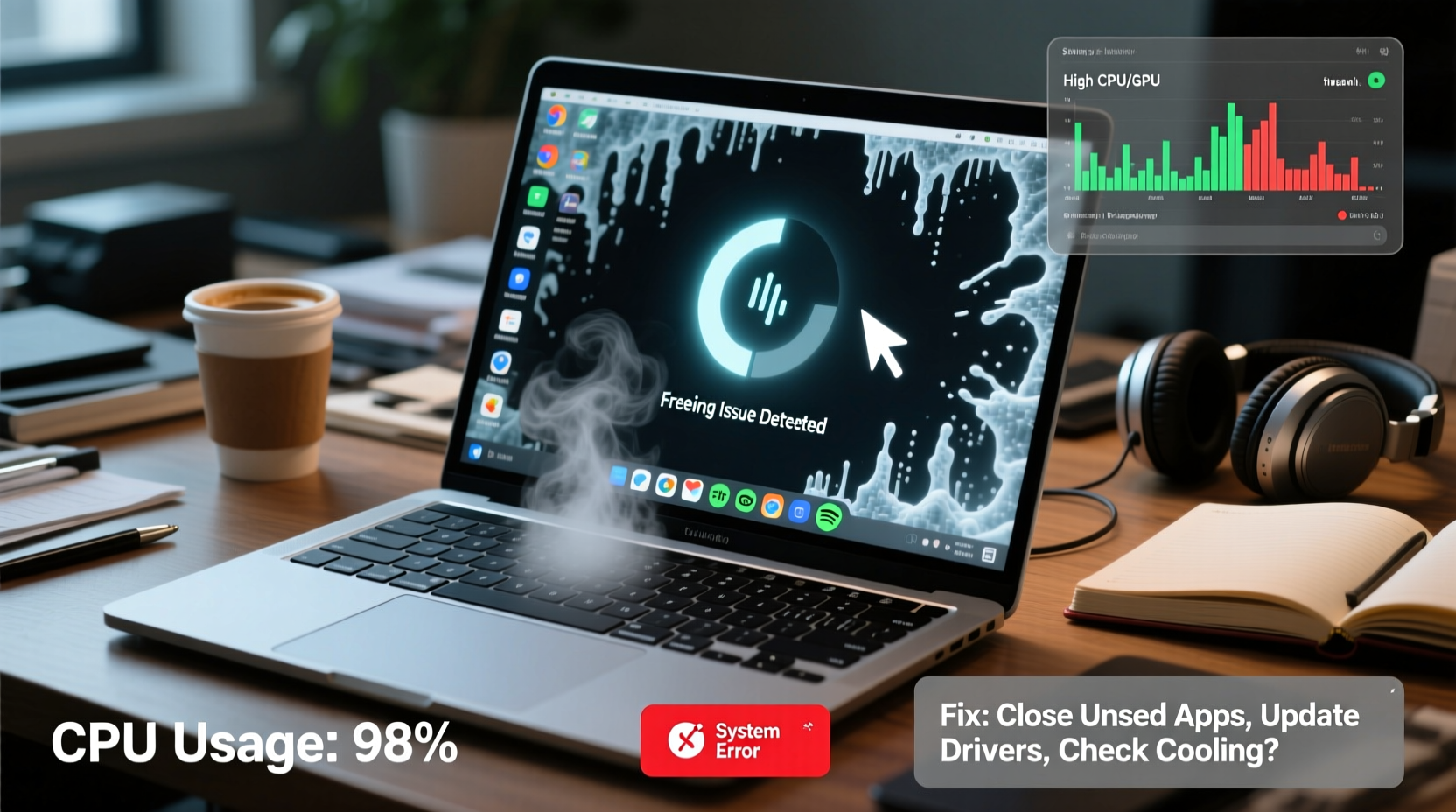
A frozen laptop isn’t always a sign of imminent breakdown. Freezing typically occurs when the system cannot keep up with demands placed on its resources. Several factors contribute to this, ranging from software overload to failing hardware.
- Insufficient RAM: Running multiple applications simultaneously can exhaust available memory, causing slowdowns and freezes.
- Overheating: Dust buildup or poor ventilation leads to thermal throttling or automatic shutdowns to protect components.
- Outdated or Corrupted Drivers: Graphics, chipset, or network drivers that aren’t updated may conflict with the operating system.
- Malware Infections: Hidden viruses or adware consume CPU cycles and background processes, degrading performance.
- Failing Hard Drive: Mechanical hard drives (HDDs) develop bad sectors over time, leading to read/write delays and system hangs.
- Operating System Bugs: Windows or macOS updates sometimes introduce instability, especially if installed incompletely.
- Too Many Startup Programs: Excessive background apps at boot slow down system initialization and strain resources.
Step-by-Step Guide to Fix a Freezing Laptop
Resolving freezing issues requires methodical troubleshooting. Follow this timeline-based approach to diagnose and fix the problem efficiently.
- Restart Your Laptop – A simple reboot clears temporary files and resets stuck processes. Hold the power button for 10 seconds if unresponsive.
- Check for Overheating – Feel the bottom and vents. If excessively hot, shut down, let it cool, and clean the fan using compressed air.
- Open Task Manager (Ctrl+Shift+Esc) – Look for high CPU, memory, or disk usage. End tasks consuming excessive resources.
- Update Your Operating System – Install pending updates. On Windows, go to Settings > Update & Security. On macOS, check System Settings > Software Update.
- Update Device Drivers – Use Device Manager (Windows) or manufacturer utilities to update graphics, audio, and chipset drivers.
- Scan for Malware – Run a full system scan using Windows Defender or trusted third-party antivirus software.
- Disable Unnecessary Startup Programs – In Task Manager’s Startup tab, disable non-essential apps like chat clients or cloud sync tools.
- Check Disk Health – Use built-in tools: CHKDSK for HDDs (Command Prompt as admin:
chkdsk C: /f /r) or SMART status via third-party tools like CrystalDiskInfo. - Increase Virtual Memory – Adjust page file size: System Properties > Advanced > Performance Settings > Advanced > Virtual Memory.
- Reset or Reinstall OS (Last Resort) – If problems persist, consider resetting Windows (Keep my files) or reinstalling the OS from a bootable USB.
Do’s and Don’ts When Dealing With Freezes
| Action | Do | Don't |
|---|---|---|
| When frozen | Wait 2–3 minutes, then force restart | Repeatedly press keys or click frantically |
| Cleaning | Use compressed air on vents monthly | Use vacuum cleaners near ports (static risk) |
| Software | Install only necessary programs | Download cracked software or unknown .exe files |
| Updates | Apply OS and driver updates promptly | Ignore update notifications for months |
| Storage | Keep at least 15% free space on system drive | Fill your SSD to 95% capacity |
Real Example: Recovering a Work Laptop from Chronic Freezing
Sarah, a freelance graphic designer, experienced daily freezes while using Adobe Photoshop. Her 5-year-old laptop had 8GB RAM and a traditional HDD. Initially assuming it was outdated, she considered buying a new machine. Instead, she followed diagnostic steps: cleaned dust from fans, disabled startup apps (including unused trial software), upgraded to an SSD, and increased virtual memory. The result? Freezes stopped entirely, and her workflow improved dramatically. The total cost was under $100—far less than a new laptop.
This case illustrates that hardware upgrades combined with smart maintenance often resolve performance issues better than replacement.
“Many users overlook thermal management and storage health. A well-maintained five-year-old laptop can outperform a neglected new one.” — James Lin, IT Support Specialist with 12 years of field experience
Essential Maintenance Checklist
Prevent future freezes with regular care. Use this checklist monthly or quarterly:
- ✅ Clean air vents and keyboard with compressed air
- ✅ Run malware scan using updated antivirus
- ✅ Check available disk space (aim for 15–20% free)
- ✅ Review startup programs and disable unnecessary ones
- ✅ Update operating system and critical drivers
- ✅ Backup important files to external drive or cloud
- ✅ Monitor battery health and avoid constant charging at 100%
- ✅ Defragment HDDs (not SSDs) monthly using built-in tool
Frequently Asked Questions
Can a virus cause my laptop to freeze?
Yes. Malware often runs hidden processes that consume CPU and memory. Signs include sudden slowdowns, unexpected pop-ups, or high network activity when idle. Regular scans with updated antivirus software reduce this risk significantly.
Is it safe to force restart a frozen laptop?
Occasional forced restarts are safe, but frequent use increases the risk of file corruption or OS errors. Always attempt a graceful shutdown first. If freezing is chronic, investigate underlying causes rather than relying on power cycles.
Will upgrading to an SSD stop freezing?
In many cases, yes. Traditional HDDs are slower and more prone to mechanical failure. An SSD drastically improves boot times, app responsiveness, and overall system fluidity—especially on older machines. It won’t fix overheating or malware, but it eliminates one major bottleneck.
Conclusion: Take Control of Your Laptop’s Performance
A freezing laptop doesn’t have to mean replacement. Most issues stem from manageable factors like heat, cluttered software, or aging components. By applying consistent maintenance, monitoring system behavior, and upgrading strategically, you can restore smooth operation and extend your device’s lifespan. Don’t wait until freezes become daily occurrences—act now to diagnose, optimize, and protect your investment.




 浙公网安备
33010002000092号
浙公网安备
33010002000092号 浙B2-20120091-4
Comments
No comments yet. Why don't you start the discussion?