
Seeing your laptop plugged in but not charging is more than just frustrating—it disrupts work, study, and personal tasks. While the issue may seem alarming, most cases stem from preventable or easily repairable causes. From faulty chargers to software glitches and battery wear, understanding the root cause is key to restoring reliable charging. This guide walks you through systematic diagnostics, practical fixes, and long-term prevention strategies to keep your device powered when you need it most.
Understanding Common Causes of Charging Failure
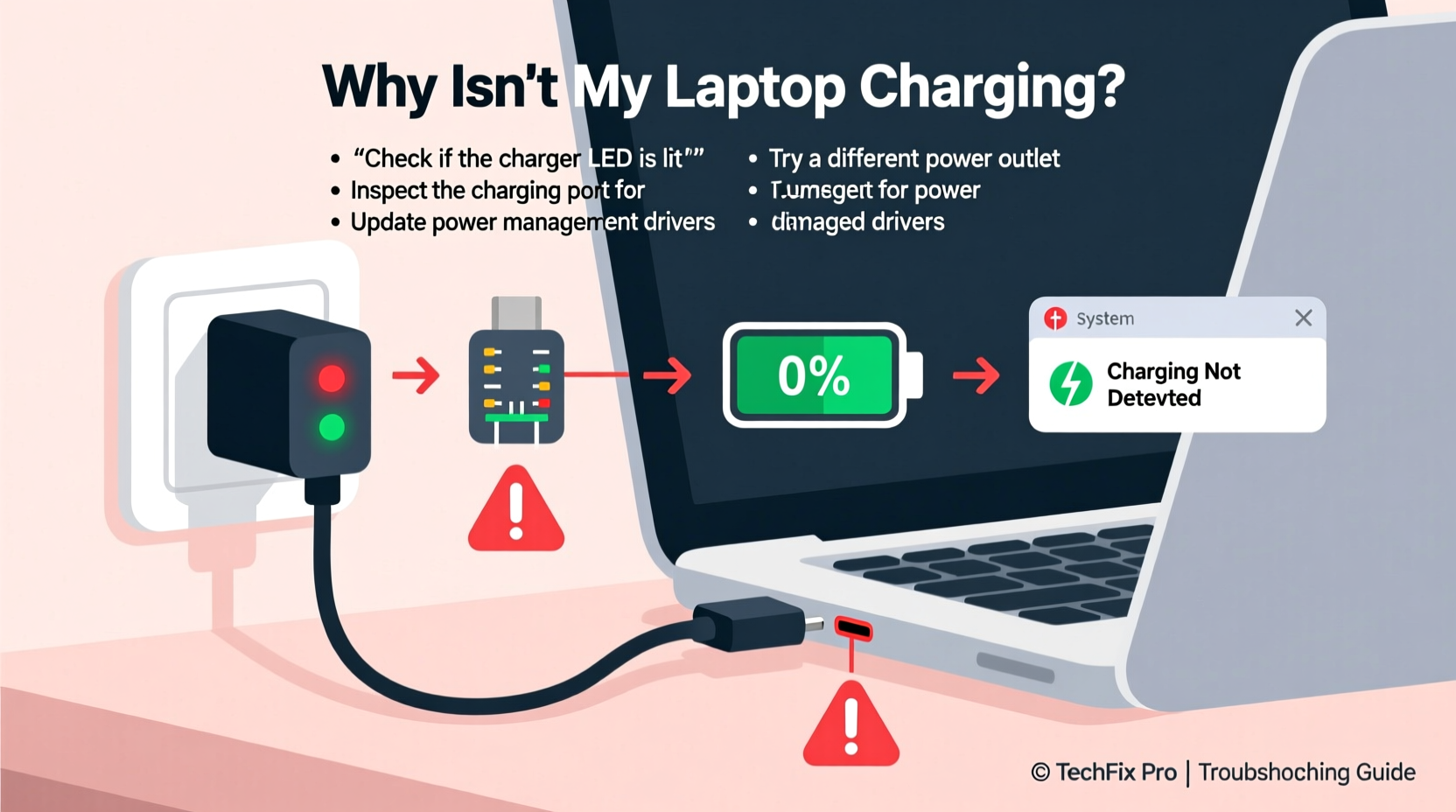
Laptops rely on a precise chain of components to charge: the power outlet, cable, adapter, charging port, battery, and internal firmware. A break at any point can halt the process—even if the system appears connected. The most frequent culprits include:
- Faulty or incompatible power adapters
- Damaged charging cables or ports
- Software or driver conflicts
- Overheating battery or system
- Natural battery degradation over time
- Power management settings blocking charge
Before assuming hardware failure, eliminate simple variables. A charger that works with one laptop may not deliver sufficient wattage for another. Likewise, dust buildup in the charging port can interrupt electrical contact. Identifying where the breakdown occurs saves time and money.
Step-by-Step Diagnostic Process
Follow this logical sequence to isolate the source of the problem without unnecessary replacements.
- Check the power source: Plug the adapter into a different outlet. Test with another device if possible to confirm electricity flow.
- Inspect the cable and adapter: Look for frayed wires, bent connectors, or loose joints. Gently wiggle the cable near the ends to see if charging flickers.
- Examine the laptop’s charging port: Use a flashlight to check for debris, corrosion, or physical damage. Avoid sharp tools; compressed air can safely remove dust.
- Observe LED indicators: Many laptops have lights on the charger or near the port. No light suggests power isn’t reaching the system.
- Try a known-good charger: Borrow a compatible adapter (same model or approved equivalent) to rule out adapter failure.
- Boot the laptop without the battery (if removable): If the system runs on AC power alone, the battery may be dead or disconnected internally.
If the laptop powers on but shows “Plugged in, not charging” in Windows or macOS, the issue likely lies in software, firmware, or battery health rather than power delivery.
Software and Firmware Fixes
Modern operating systems manage charging behavior through drivers and BIOS settings. Misconfigurations here can disable charging even with perfect hardware.
Update or Reinstall Battery Drivers (Windows)
Outdated or corrupted ACPI battery drivers are a common cause of charging halts.
- Press Win + X and select Device Manager.
- Expand Battery.
- Right-click Microsoft ACPI-Compliant Control Method Battery and choose Uninstall device.
- Restart the laptop. Windows will automatically reinstall the driver.
After reboot, check if charging resumes. Repeat if necessary.
Reset SMC and NVRAM (MacBooks)
Apple laptops use the System Management Controller (SMC) to regulate power. Resetting it often resolves charging anomalies.
- Shut down the MacBook.
- Press and hold Shift + Control + Option on the left side of the keyboard along with the Power button for 10 seconds.
- Release all keys and power the device back on.
This resets thermal, battery, and power management functions. For Intel Macs, also reset NVRAM by holding Option + Command + P + R during startup.
“Firmware-level resets like SMC recalibrate power delivery logic and resolve phantom 'not charging' states in up to 30% of reported cases.” — David Lin, Senior Hardware Technician, TechCare Labs
Do’s and Don’ts: Charging Best Practices
Mistakes in daily use accelerate wear and trigger avoidable failures. Refer to this table to optimize charging habits.
| Do’s | Don’ts |
|---|---|
| Use manufacturer-approved chargers | Use third-party chargers without certification |
| Keep the charging port clean and dry | Force the plug if misaligned |
| Allow occasional full discharge (once every 2–3 months) | Leave the laptop plugged in 24/7 at 100% |
| Store the laptop in cool environments | Charge on soft surfaces like beds or couches that block ventilation |
| Update BIOS and OS regularly | Ignore firmware update notifications |
When Hardware Is the Real Problem
Sometimes, no amount of software tweaking helps. Physical damage or component failure requires attention.
Battery Health Check
On Windows, generate a battery report:
- Open Command Prompt as Administrator.
- Type:
powercfg /batteryreport - Press Enter. The report saves to
C:\\windows\\system32\\battery-report.html.
Open the file and review “Design Capacity” vs. “Full Charge Capacity.” If the latter is below 70% of the former, the battery is degraded and should be replaced.
For MacBooks, hold Option and click the battery icon in the menu bar. If it says “Service Recommended,” Apple’s diagnostics have flagged battery issues.
Charging Port and Internal Wiring
A loose port or broken solder joint inside the laptop prevents consistent power transfer. Symptoms include:
- Charging only at certain angles
- Intermittent connection
- No response even with multiple chargers
These require professional disassembly and repair. Attempting DIY fixes risks damaging the motherboard.
Mini Case Study: Resolving a Persistent Charging Issue
Sarah, a freelance graphic designer, noticed her Dell XPS 13 wouldn’t charge despite being plugged in. The system ran fine on AC power, but battery percentage stayed frozen at 42%. She tried a second charger—same result. After ruling out the adapter, she checked Device Manager and found two duplicate battery entries. Uninstalling both and restarting resolved the conflict. The battery began charging normally within minutes. Sarah later learned a recent Windows update had duplicated the driver instance, a known edge case. Her takeaway: software issues aren’t always obvious, but methodical checks can yield quick wins.
FAQ
Why does my laptop show “Plugged in, not charging”?
This message typically means power is reaching the laptop, but the battery isn’t accepting charge. Causes range from driver errors and overheating to battery wear or charging circuit faults. Start with driver updates and a reboot before suspecting hardware.
Can a laptop battery stop charging permanently?
Yes. Lithium-ion batteries degrade over time, especially with frequent full charges and high temperatures. After 300–500 charge cycles, capacity drops significantly, and some fail to hold charge altogether. Replacement is the only solution.
Is it safe to use my laptop while charging?
Yes, modern laptops regulate power flow to prevent overcharging. However, intensive tasks (like gaming or video editing) while charging can increase heat, accelerating battery wear. Ensure proper ventilation and avoid prolonged peak load usage on battery.
Conclusion
A laptop plugged in but not charging doesn’t automatically mean disaster. Most issues stem from correctable software glitches, mismatched accessories, or overlooked environmental factors. By following a structured approach—verifying power sources, updating drivers, checking battery health, and practicing smart charging habits—you can resolve the majority of problems without professional help. When hardware is truly at fault, early detection prevents further damage and extends your device’s usable life. Stay proactive, maintain your equipment, and never assume the worst after a single charging failure.




 浙公网安备
33010002000092号
浙公网安备
33010002000092号 浙B2-20120091-4
Comments
No comments yet. Why don't you start the discussion?