
Nothing disrupts productivity or entertainment like sudden silence from your laptop. Whether you're in the middle of a virtual meeting, watching a tutorial, or trying to enjoy music, a malfunctioning audio system can be frustrating. The good news is that most sound problems have straightforward fixes. From driver glitches to incorrect settings, the root cause is often something you can resolve without technical expertise. This guide walks through practical, step-by-step solutions to diagnose and restore your laptop’s audio.
Check the Basics First
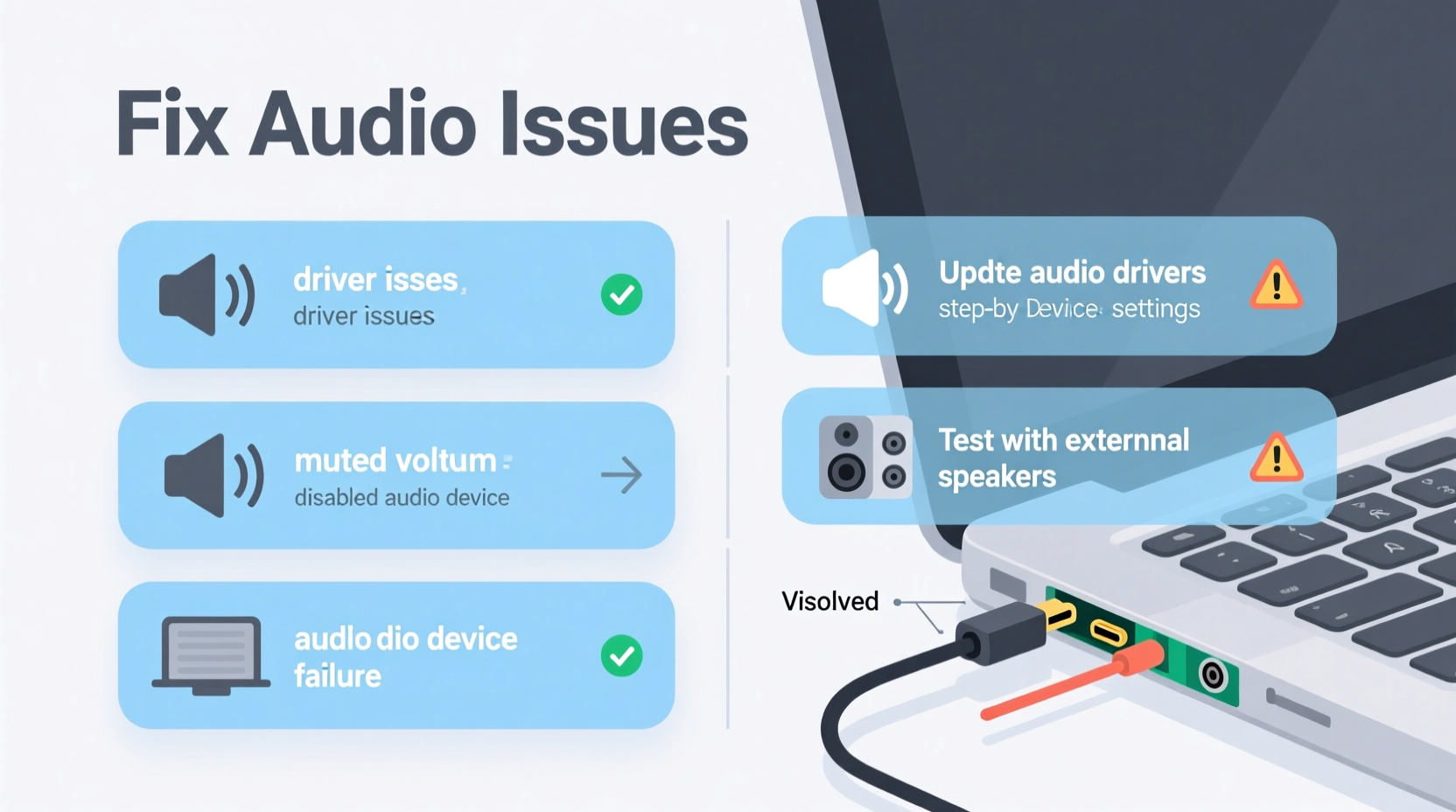
Before diving into complex troubleshooting, eliminate the simplest causes. Many audio issues stem from easily overlooked oversights.
- Ensure your laptop isn’t muted—check both the software volume slider and physical mute buttons (if available).
- Verify that external speakers or headphones are properly connected and powered on.
- Test the audio on another device to rule out faulty peripherals.
- Confirm the correct output device is selected in your system settings.
Step-by-Step Troubleshooting Guide
When basic checks don’t resolve the issue, follow this structured approach to identify and fix the underlying problem.
- Restart your laptop. A reboot resolves temporary software conflicts affecting audio services.
- Run the built-in audio troubleshooter. On Windows: Settings > System > Sound > Troubleshoot. On macOS: Apple Menu > System Settings > Sound > Output, then check for alerts.
- Inspect playback devices. Right-click the speaker icon, select \"Open Sound settings,\" then click \"Manage sound devices.\" Ensure your default output device is enabled and not disabled.
- Update or reinstall audio drivers. Outdated or corrupted drivers are common culprits. Visit your laptop manufacturer’s support site, enter your model number, and download the latest audio driver.
- Check for OS updates. Pending system updates may include critical audio patches.
Advanced Driver Fixes
If standard updates don’t help, manually intervene with driver management:
- Press Win + X, choose Device Manager, expand \"Audio inputs and outputs.\"
- Right-click your audio device (e.g., Realtek High Definition Audio) and select \"Uninstall device.\"
- Restart your laptop. Windows will automatically reinstall the driver.
On macOS, reset the Core Audio daemon by opening Terminal and typing: sudo killall coreaudiod. Enter your password when prompted. This forces macOS to reload the audio subsystem.
Common Causes and Their Solutions
Different symptoms point to different issues. Use this reference table to match your situation with the right fix.
| Symptom | Possible Cause | Solution |
|---|---|---|
| No sound from internal speakers or headphones | Driver failure or system corruption | Reinstall audio driver or run SFC scan (sfc /scannow) |
| Sound only works with headphones, not speakers | Speaker jack detection glitch | Clean headphone port gently; disable front panel jack detection in Realtek HD Audio Manager |
| Distorted or crackling audio | Hardware defect or driver conflict | Roll back recent driver update; test with USB speakers |
| Sound cuts out intermittently | Power-saving settings disabling audio device | Disable USB selective suspend in Power Options |
| No audio apps recognized (e.g., Zoom, Spotify) | App-specific permissions or output routing | Check app audio settings; set correct output device per app |
Expert Insight: Why Audio Fails More Than You Think
According to David Lin, senior hardware technician at TechCare Labs, “Laptops integrate multiple components into tight spaces, making audio circuits vulnerable to thermal stress and firmware bugs. Over 60% of ‘dead sound’ cases we see are actually driver rollbacks or accidental muting via function keys.”
“Always check the keyboard’s function key combination—many laptops use Fn + F2–F4 to mute or adjust volume. It’s the most common oversight.” — David Lin, Senior Hardware Technician
Real-World Example: Fixing a Frozen Webinar Setup
A freelance consultant preparing for a client webinar found her laptop producing no sound despite full volume. She tested headphones—no improvement. After ruling out mute settings, she opened Device Manager and noticed a yellow warning icon next to her audio device. She uninstalled the driver, restarted, and Windows reinstalled it automatically. Audio returned instantly. The issue? A failed automatic driver update during a previous sleep cycle had corrupted the installation.
This case underscores how non-hardware issues dominate audio failures. A five-minute fix saved what could have been a missed business opportunity.
Preventive Checklist for Long-Term Audio Health
Proactive maintenance reduces future disruptions. Use this checklist monthly:
- ✅ Verify all system updates are installed.
- ✅ Test both internal speakers and external devices.
- ✅ Clean audio ports gently with compressed air (avoid metal objects).
- ✅ Review startup programs that might interfere with audio services.
- ✅ Backup critical drivers using a tool like Snappy Driver Installer (offline version recommended).
Frequently Asked Questions
Why does my laptop show audio as playing but produce no sound?
This usually means the operating system believes audio is being sent, but the signal isn’t reaching the hardware. Check if the correct output device is selected. Also, ensure the audio service is running: Press Ctrl + Shift + Esc, go to Services, and confirm \"Windows Audio\" is set to Running. If not, start it manually.
Can malware cause sound issues?
Yes. Some malicious software disables system services, including audio, to prevent alerts or notifications. Run a full system scan using Windows Defender or a trusted antivirus. If audio returns after removal, the infection was likely interfering with system processes.
My sound works sometimes but cuts out randomly. What should I do?
Intermittent audio often points to power management settings. Disable power-saving features for audio devices: In Device Manager, right-click your audio device > Properties > Power Management > Uncheck \"Allow the computer to turn off this device to save power.\"
Final Steps and When to Seek Help
If you’ve completed all troubleshooting steps and still experience no sound, consider these final actions:
- Boot into Safe Mode and test audio—if it works, a third-party app is conflicting.
- Try a live Linux USB (e.g., Ubuntu). If sound works there, the issue is OS-specific, not hardware.
- Contact manufacturer support. If under warranty, request a diagnostic.
Persistent audio failure after thorough testing may indicate a damaged motherboard audio chip or internal wiring issue—both require professional repair.
“Don’t assume it’s broken. Most audio issues are software-related and reversible with methodical troubleshooting.” — David Lin
Conclusion
Laptop sound problems are common, but rarely permanent. By systematically checking settings, updating drivers, and understanding common failure points, most users can restore full functionality within minutes. Don’t rush to replace hardware—start with the simplest fixes and work your way up. With the right approach, you’ll spend less time troubleshooting and more time using your laptop as intended.




 浙公网安备
33010002000092号
浙公网安备
33010002000092号 浙B2-20120091-4
Comments
No comments yet. Why don't you start the discussion?