
Seeing lines across your computer screen can be alarming, especially when they appear suddenly during work or entertainment. These lines—whether horizontal, vertical, colored, or flickering—can stem from a range of issues, including hardware failure, software conflicts, or even loose connections. While some cases are minor and easily resolved, others may signal deeper problems requiring professional attention. Understanding the root cause is essential to choosing the right fix and avoiding unnecessary repairs or replacements.
Understanding the Types of Screen Lines
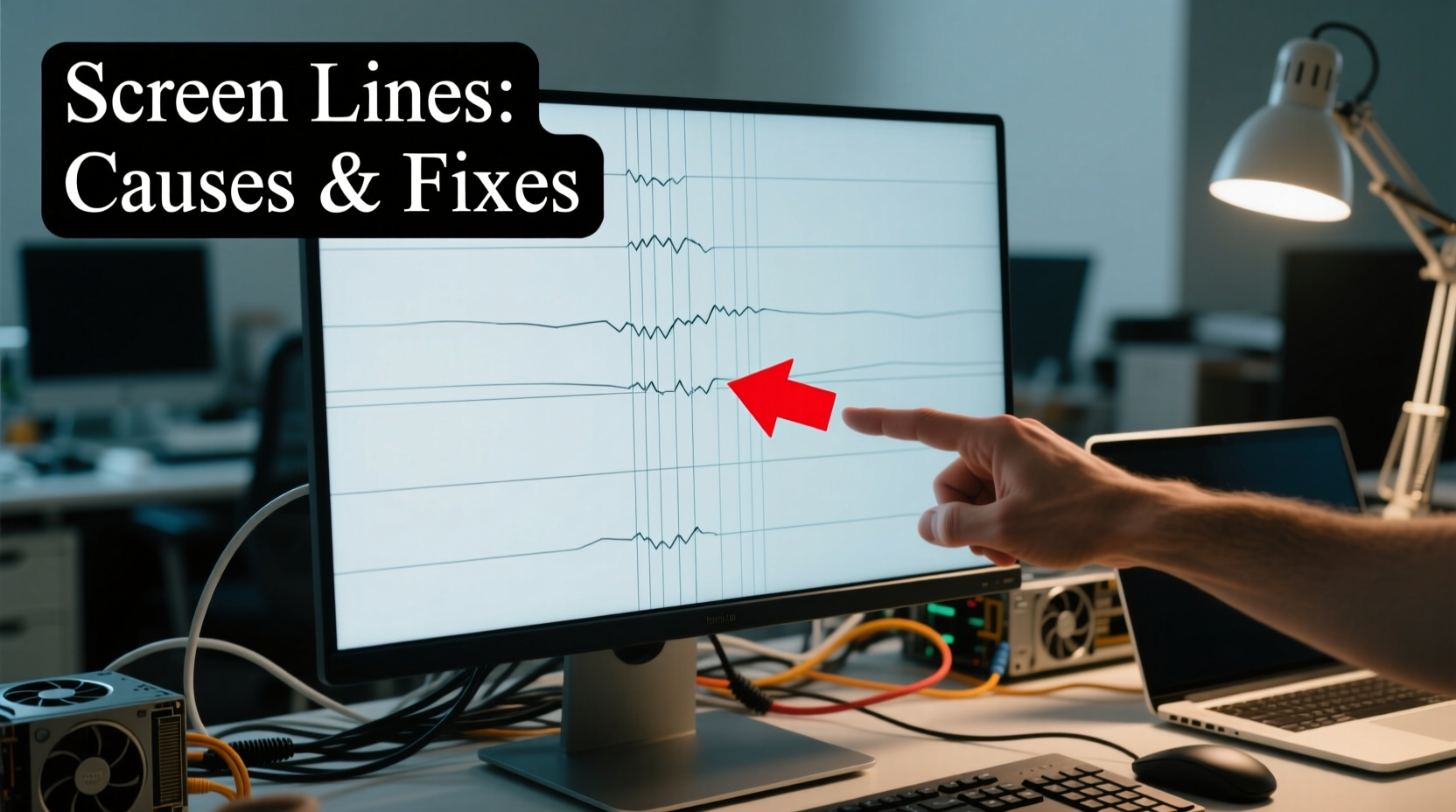
Not all screen lines are created equal. The appearance and behavior of the lines often provide clues about their origin:
- Vertical lines: Usually indicate an issue with the display’s data lines or GPU output. Often seen as thin, solid, or colored lines running from top to bottom.
- Horizontal lines: Commonly linked to timing or refresh rate problems, sometimes caused by outdated drivers or firmware glitches.
- Colored lines: Bright red, green, or blue streaks typically suggest pixel or transistor malfunctions in LCD/LED panels.
- Flickering lines: May point to intermittent connections, overheating components, or driver instability.
- Static vs. dynamic lines: If lines persist across boot screens and external monitors, it's likely a hardware issue. If they only appear in certain apps or after updates, software could be to blame.
Common Causes of Screen Lines
Screen lines rarely occur without reason. Identifying the underlying cause helps determine whether you need a quick fix or a trip to the repair shop.
1. Hardware Damage
Physical trauma such as dropping your laptop or applying pressure to the screen can damage the liquid crystal layer or internal connectors. This often results in permanent vertical or horizontal lines. Internal cable detachment between the display and motherboard is another frequent culprit, especially in laptops with aging hinges.
2. Graphics Card (GPU) Issues
A failing or overheating GPU can generate visual distortions, including lines, artifacts, or screen tearing. This is more common in desktops with dedicated graphics cards but can also affect integrated GPUs under heavy load.
3. Loose or Damaged Cables
In desktop setups, the video cable (HDMI, DisplayPort, etc.) connecting the monitor to the PC might be faulty or improperly seated. A damaged cable can interrupt signal transmission, leading to intermittent lines or flickering.
4. Software and Driver Conflicts
Outdated, corrupted, or incompatible graphics drivers are among the most common software-related causes. Similarly, recent OS updates or application installations can introduce display bugs that manifest as screen lines.
5. Firmware or Panel Defects
Some displays have manufacturing defects or develop faults over time due to component wear. Dead pixels, stuck transistors, or backlight inconsistencies can evolve into visible lines, especially in older screens.
“Over 60% of reported screen line issues in laptops within the first two years are tied to hinge stress and internal flex cable degradation.” — Dr. Alan Zhou, Senior Hardware Engineer at DisplayDiagnostics Inc.
Step-by-Step Guide to Diagnose and Fix Screen Lines
Follow this structured approach to isolate the problem and apply the correct solution.
- Restart your computer. Rule out temporary software glitches by rebooting. If the lines disappear, monitor for recurrence.
- Check external connections (desktops). Unplug and reseat the video cable at both ends. Try a different cable or port to test for faults.
- Connect to an external monitor. Use HDMI or DisplayPort to project your display onto another screen. If the external monitor shows no lines, the issue is likely with your primary display or its internal connection.
- Boot into Safe Mode. Start your computer with minimal drivers loaded. If lines vanish in Safe Mode, the problem is likely driver-related.
- Update or reinstall graphics drivers. Visit your GPU manufacturer’s website (NVIDIA, AMD, Intel) and download the latest compatible driver. Perform a clean install if necessary.
- Run a hardware diagnostic. Use built-in tools like Windows Memory Diagnostic or third-party utilities such as GPU-Z or HWiNFO to check for GPU errors or overheating.
- Inspect for physical damage. Look for cracks, pressure marks, or discoloration on the screen. Gently open and close the laptop lid to see if lines change with movement—this may indicate a loose internal cable.
- Reset display settings. Adjust resolution, refresh rate, and scaling to default values. Mismatched settings can sometimes cause visual anomalies.
Troubleshooting Table: Cause vs. Solution
| Cause | Symptoms | Solution |
|---|---|---|
| Loose video cable | Intermittent lines, flickering | Reseat or replace HDMI/DP cable |
| Graphics driver issue | Lines appear after update, only in OS | Update/reinstall GPU driver |
| Internal display cable damage | Lines worsen when moving screen | Professional repair or cable replacement |
| GPU failure | Artifacts, crashes under load | Test with another GPU; consider replacement |
| Physical screen damage | Persistent colored lines, cracked surface | Panel replacement required |
When to Seek Professional Help
While many screen line issues can be diagnosed at home, some situations demand expert intervention:
- The screen has visible cracks or bulges.
- Lines persist across multiple devices and cables.
- You suspect internal component failure (e.g., GPU, motherboard).
- The laptop has been exposed to water or extreme heat.
Opening a laptop or monitor to inspect internal cables carries risk, especially if you lack experience. Misalignment or static discharge can worsen the issue. Certified technicians have the tools and expertise to safely diagnose and repair display assemblies.
Mini Case Study: Recovering from a Driver-Induced Line Issue
Samantha, a freelance graphic designer, noticed faint green vertical lines appearing on her Windows laptop after a recent system update. The lines were subtle at first but became more pronounced over two days. She tried restarting and adjusting brightness, but the issue remained. Following online advice, she connected her laptop to a TV via HDMI. The external display showed no lines, ruling out GPU failure. Booting into Safe Mode eliminated the lines entirely. She uninstalled her NVIDIA driver and downloaded the latest version directly from the manufacturer. After a clean install, the lines disappeared and haven’t returned. The root cause was a corrupted driver update—a fix that saved her from an unnecessary $300 screen replacement quote.
Preventive Checklist
Protect your screen and avoid future issues with these proactive steps:
- ✅ Keep graphics drivers updated regularly.
- ✅ Avoid closing your laptop with objects on the keyboard.
- ✅ Use surge protectors to prevent power-related GPU stress.
- ✅ Clean your screen with a microfiber cloth—never abrasive materials.
- ✅ Ensure proper ventilation to prevent GPU overheating.
- ✅ Back up your system before major OS or driver updates.
FAQ
Can screen lines be fixed without replacing the display?
Yes, if the cause is software-related (like outdated drivers) or a loose cable, the lines can often be resolved without hardware replacement. However, physical damage to the panel usually requires a new screen.
Are vertical lines always a sign of a broken screen?
Not always. While persistent vertical lines often indicate hardware failure, they can also stem from GPU issues or driver problems. Always test with an external monitor to confirm.
Will updating my operating system fix screen lines?
Sometimes. OS updates include driver patches and display improvements that may resolve software-induced artifacts. But if the issue is hardware-based, an update won’t help.
Conclusion
Lines on your computer screen don’t automatically mean your device is beyond repair. By systematically evaluating the symptoms and testing potential causes, you can often pinpoint whether the issue lies in software, cabling, or hardware. Simple fixes like driver updates or reconnecting cables can save time and money, while early detection helps prevent minor issues from becoming major failures. Don’t rush to replace your screen—diagnose first. With the right knowledge, you’re already one step closer to a clear, line-free display.




 浙公网安备
33010002000092号
浙公网安备
33010002000092号 浙B2-20120091-4
Comments
No comments yet. Why don't you start the discussion?