
Live Photos are one of the most expressive features on the iPhone, capturing 1.5 seconds of motion and sound before and after you take a still image. But when the audio doesn’t play—despite seeing the animation—it can be frustrating. You tap the photo expecting ambient noise, laughter, or music, only to be met with silence. This issue affects many iPhone users across iOS versions and device models. The good news is that in most cases, it’s fixable. Whether the problem stems from settings, software glitches, or hardware limitations, this guide walks through comprehensive solutions to get your Live Photo sound back.
Why Live Photo Sound Might Not Be Working
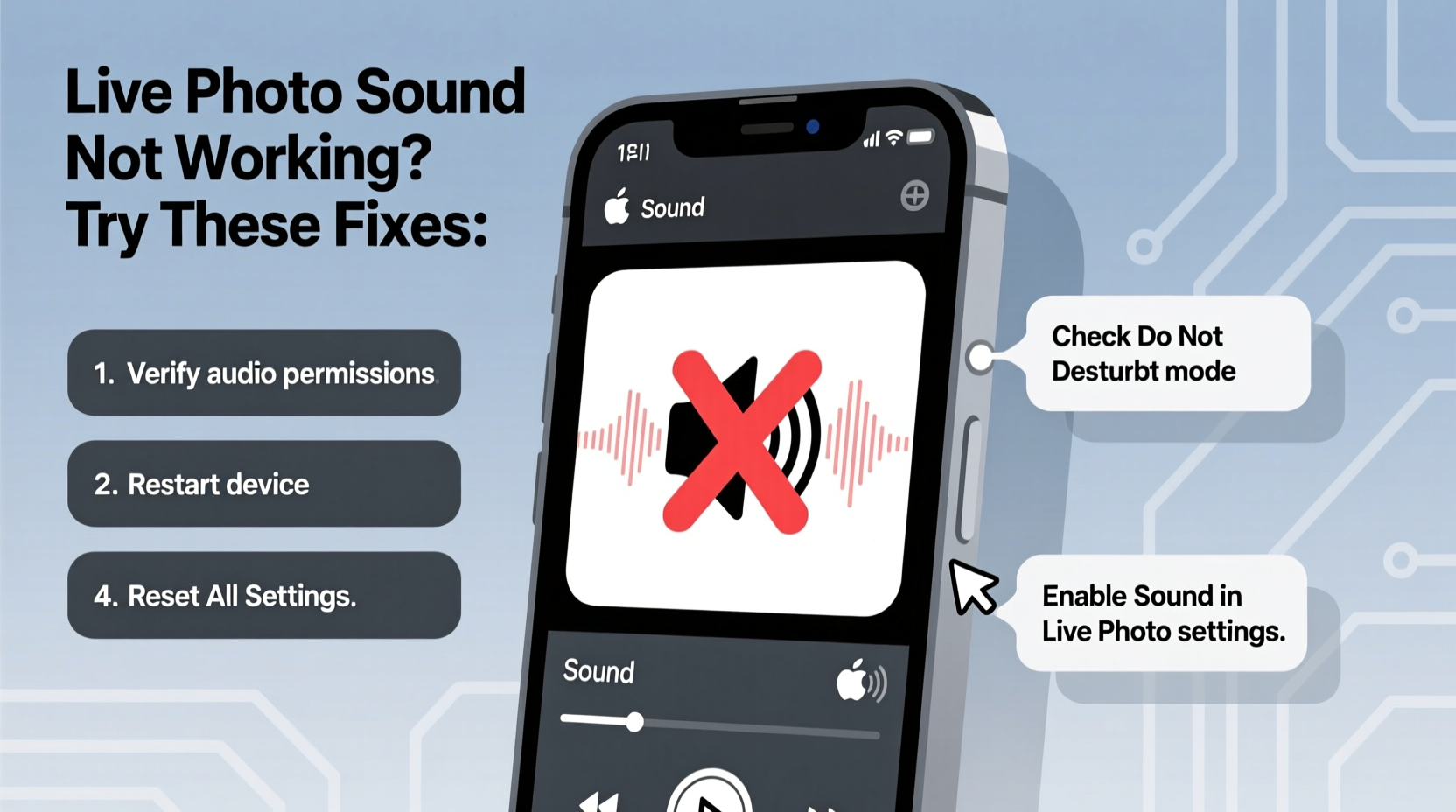
Before diving into fixes, it helps to understand why audio fails in Live Photos. Unlike standard photos, Live Photos bundle video, audio, and metadata into a single file. Any disruption in recording, playback settings, or system permissions can mute the sound. Common causes include:
- Muted iPhone (physical silent switch enabled)
- Volume down during playback
- Live Photo audio disabled in Settings
- Corrupted photo file or transfer issues
- iCloud syncing errors
- Outdated iOS version with known bugs
- Third-party app interference
Identifying the root cause streamlines the troubleshooting process. Start with the simplest explanations before moving to advanced fixes.
Step-by-Step Fixes to Restore Live Photo Sound
Follow this logical sequence of checks and actions to resolve sound issues efficiently.
1. Check Silent Mode and Volume
The most common reason for no sound is an accidentally engaged silent switch. Flip the small switch above the volume buttons to ensure it’s not showing orange (silent mode). Then, increase the volume using the side buttons while playing the Live Photo. If the volume is too low, the audio may seem absent.
2. Enable Sound in the Photos App
iOS allows users to disable sound globally for Live Photos in the Photos app settings. To verify:
- Open the Settings app.
- Scroll down and tap Photos.
- Ensure Play Sound for Live Photos is toggled ON.
This setting must be enabled for any audio to play during interaction with a Live Photo.
3. Restart Your iPhone
A soft reboot clears temporary memory glitches that might prevent audio processing. Press and hold the side button and either volume button until the power slider appears. Slide to power off, wait 30 seconds, then turn the device back on. After restart, test a Live Photo.
4. Update iOS to the Latest Version
Apple frequently releases updates that patch bugs affecting multimedia features. Outdated iOS versions may have known issues with Live Photo audio.
- Go to Settings > General > Software Update.
- If an update is available, download and install it.
After updating, check if the sound returns. Many users report restored functionality post-update.
5. Toggle Live Photo While Taking a New One
Sometimes, the camera temporarily disables audio capture. Open the Camera app, ensure the yellow Live Photo icon (circular target) is illuminated at the top. Tap it to toggle off and on again. Then record a new Live Photo in a noisy environment and immediately play it back to confirm sound is captured.
Advanced Troubleshooting Methods
If basic steps fail, deeper diagnostics may be required.
Check iCloud Syncing and Storage
If you use iCloud Photos, incomplete syncing can result in missing audio data. Live Photos require full-resolution sync to preserve sound. Go to Settings > [Your Name] > iCloud > Photos and confirm:
- Sync this iPhone is enabled
- Download and Keep Originals is selected (not “Optimize iPhone Storage”)
If optimized storage is on, audio may be stripped during compression. Switch to “Download and Keep Originals,” wait for sync completion, then recheck affected photos.
Test Audio in Other Apps
To rule out hardware failure, test the microphone and speaker in other contexts:
- Record a voice memo and play it back.
- Take a regular video and verify audio.
- Play music or a podcast.
If sound works elsewhere, the issue is isolated to Live Photos, not hardware.
Re-export or Share the Live Photo
If a specific photo lacks sound, try exporting it as a video:
- Open the Live Photo in the Photos app.
- Tap the share icon.
- Select “Save as Video.”
- Open the saved video and check for audio.
If the exported video has sound, the original Live Photo file may be corrupted. Use the video as a backup.
“Many Live Photo audio issues stem from iOS caching errors or partial iCloud sync—not permanent damage. A clean reboot or settings reset often resolves them.” — Jordan Lee, Apple Support Specialist with 8 years of experience
Troubleshooting Checklist
Use this checklist to methodically eliminate possible causes:
- ✅ Check silent switch position
- ✅ Increase volume during playback
- ✅ Enable “Play Sound for Live Photos” in Settings > Photos
- ✅ Restart your iPhone
- ✅ Update iOS to latest version
- ✅ Ensure Live Photo mode is active when shooting
- ✅ Verify iCloud Photos sync settings
- ✅ Test microphone and speaker with other apps
- ✅ Export problematic photo as video to test audio
- ✅ Reset all settings (if issue persists)
Do’s and Don’ts When Handling Live Photo Audio
| Do’s | Don’ts |
|---|---|
| Keep iOS updated for bug fixes | Ignore silent switch status |
| Store originals locally when possible | Use “Optimize iPhone Storage” if audio quality is critical |
| Test audio immediately after taking a Live Photo | Assume hardware failure without testing other apps |
| Back up important Live Photos to a computer | Delete originals before confirming sound works in export |
Real Example: Recovering a Silent Birthday Memory
Sarah, an iPhone 13 user, noticed that her daughter’s birthday balloon pop—a perfect Live Photo moment—had no sound. She confirmed the phone wasn’t on silent and the volume was up. After checking Settings, she found “Play Sound for Live Photos” was accidentally turned off during a recent iOS update. She toggled it on, restarted the phone, and the audio returned instantly. The crack of the balloon and her daughter’s squeal were preserved after all. This case highlights how a simple setting change can silently disable a cherished feature.
Frequently Asked Questions
Can Live Photos lose sound when shared via Messages or WhatsApp?
Yes. Some platforms compress Live Photos into static images or silent videos. To preserve both motion and sound, use AirDrop, share as a video, or upload via iCloud link. Avoid social media apps that don’t support Live Photo format.
Why do some Live Photos have sound and others don’t?
Variation usually comes from inconsistent settings at capture time. For example, if the microphone was blocked, the phone was in silent mode, or iCloud optimization removed audio during sync, individual photos will differ. Consistency in handling and settings reduces this issue.
Does resetting iPhone settings delete my photos?
No. Resetting settings (Settings > General > Transfer or Reset iPhone > Reset > Reset All Settings) only clears system preferences like Wi-Fi passwords, display brightness, and privacy options. Your photos, videos, and data remain intact. It’s a safe step if other fixes fail.
Conclusion: Take Control of Your Memories
Live Photos bring moments to life with sound and motion—don’t let technical hiccups silence them. Most audio issues are easily resolved with attention to settings, updates, and proper storage configuration. By following the steps outlined here, from checking the silent switch to managing iCloud sync, you can recover lost audio and prevent future problems. These memories matter. Take a few minutes now to audit your Live Photos settings and ensure every laugh, word, and song is heard exactly as it happened.




 浙公网安备
33010002000092号
浙公网安备
33010002000092号 浙B2-20120091-4
Comments
No comments yet. Why don't you start the discussion?