
When your Logitech keyboard stops responding, it can bring your productivity to a halt—whether you're typing an important report, gaming competitively, or simply browsing the web. The good news is that most keyboard issues are fixable with systematic troubleshooting. From wireless signal problems to outdated drivers and physical damage, understanding the root cause is key. This guide walks you through proven solutions to restore full functionality to your Logitech keyboard quickly and efficiently.
Step 1: Check the Basics First
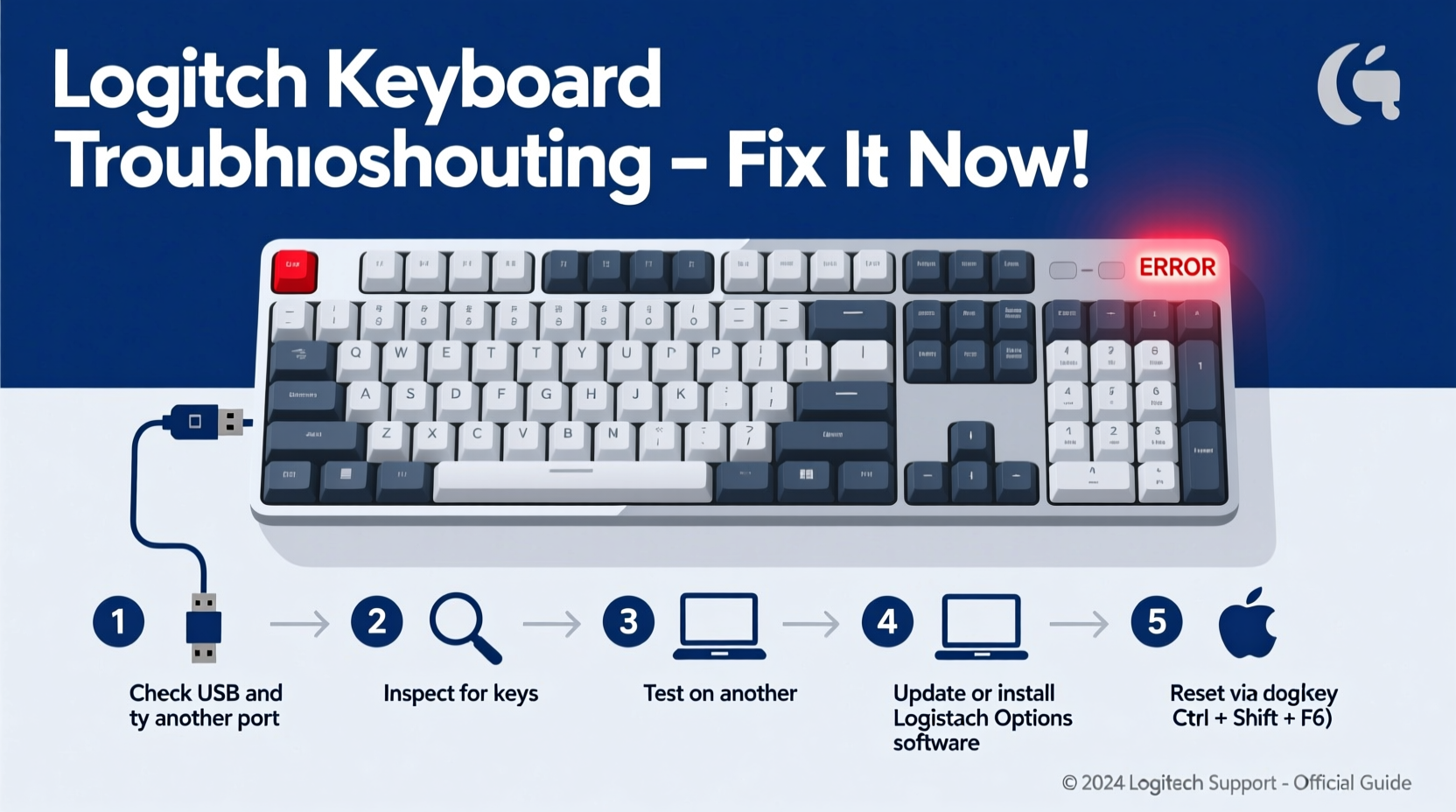
Before diving into complex fixes, rule out simple causes. Many keyboard problems stem from easily correctable oversights.
- Verify power source: For wireless models, check if the batteries are charged or properly inserted. Replace them if they’re old or low.
- Toggle the power switch: Some Logitech keyboards have a physical on/off switch. Ensure it’s turned on.
- Check USB connections: If using a wired keyboard or USB receiver, unplug and reinsert the cable or receiver. Try a different USB port.
- Look for indicator lights: Caps Lock, Num Lock, or Scroll Lock lights should respond when pressed. No response may indicate a deeper issue.
Step 2: Diagnose Wireless Connectivity Issues
Wireless Logitech keyboards rely on Bluetooth or a USB Unifying Receiver. Interference, pairing errors, or receiver failure are common culprits.
For Bluetooth Keyboards
- Ensure Bluetooth is enabled on your device.
- Remove the keyboard from paired devices and re-pair it.
- Keep the keyboard within 3 feet of the computer during pairing.
For Unifying Receiver Models
- Confirm the receiver is plugged directly into the PC (not through a hub).
- Download and install Logitech Unifying Software to re-pair the keyboard.
- If the receiver is lost, purchase a replacement; each supports up to six compatible devices.
“Over 60% of wireless keyboard failures are due to poor signal interference or dead batteries—not hardware defects.” — David Lin, Peripheral Systems Engineer at TechFix Labs
Step 3: Update or Reinstall Drivers
Outdated, corrupted, or missing drivers often prevent keyboards from functioning correctly, especially after OS updates.
On Windows
- Press Win + X and select Device Manager.
- Expand Keyboards, right-click your Logitech device, and choose Update driver.
- Select Search automatically for updated driver software.
- If no update is found, choose Uninstall device, then restart your PC to reinstall the driver automatically.
On macOS
- Go to System Settings > Bluetooth and remove the keyboard.
- Restart the Mac and re-pair the device.
- Check for system updates under Software Update, as these often include peripheral fixes.
Step 4: Test for Hardware and Physical Damage
Sometimes, the issue isn’t software-related. Spills, dust buildup, or mechanical wear can disable keys or entire sections.
Common Signs of Hardware Failure
- Keys stick or don’t register input.
- Random characters appear when typing.
- Only part of the keyboard works (e.g., left side only).
- Visible debris under keys or corrosion near ports.
Cleaning Procedure
- Turn off the keyboard and disconnect it.
- Tilt it upside down and gently shake to dislodge loose debris.
- Use compressed air to blow out particles between keys.
- Dampen a cotton swab with isopropyl alcohol (70%) and clean around sticky keys.
- Let it dry completely before reconnecting.
| Issue | Do | Avoid |
|---|---|---|
| Spilled liquid | Disconnect immediately, dry for 48+ hours | Powering it on while wet |
| Sticky keys | Clean with alcohol swabs | Using water or household cleaners |
| No response | Test on another device | Disassembling without warranty coverage |
Step 5: Use Logitech Software Tools
Logitech offers dedicated tools to diagnose and optimize their peripherals. These applications provide deeper insights than standard OS settings.
Recommended Tools
- Logitech G HUB: For gaming keyboards—monitors connection status, firmware, and allows remapping.
- Logitech Options: For productivity models—enables function key customization and battery monitoring.
- Logitech Unifying Software: Essential for pairing wireless devices with the USB receiver.
If the keyboard isn’t detected in any of these apps, it confirms a hardware or driver-level failure. Reinstalling the software or resetting preferences may help.
Mini Case Study: Resolving a Silent Failure
Sarah, a freelance writer, noticed her Logitech K750 solar-powered keyboard suddenly stopped working mid-article. No lights, no response. She tested batteries (n/a—solar powered), checked USB ports, and restarted her laptop—no change. After downloading Logitech Options, the app didn’t detect the device. She tried the keyboard on a friend’s MacBook; it worked instantly. Back home, she opened Device Manager, uninstalled the HID Keyboard device, and rebooted. Windows reinstalled the driver, and the keyboard resumed normal operation. The culprit? A silent driver conflict after a recent Windows update.
Quick Fix Checklist
Follow this checklist to resolve most Logitech keyboard issues:
- ✅ Replace or recharge batteries
- ✅ Toggle power switch (if available)
- ✅ Reconnect USB receiver or pair via Bluetooth
- ✅ Test on another computer
- ✅ Clean under keys with compressed air
- ✅ Update or reinstall drivers via Device Manager
- ✅ Install or refresh Logitech G HUB / Options software
- ✅ Reset keyboard by holding power for 10 seconds
Frequently Asked Questions
Why does my Logitech keyboard work on one computer but not another?
This usually points to a driver or OS compatibility issue. Ensure the non-working computer has up-to-date drivers and Bluetooth/USB functionality. Also, check if security software is blocking peripheral access.
Can I use a third-party USB receiver instead of the original Logitech one?
No. Logitech Unifying Receivers are paired to specific devices. However, you can buy a replacement Unifying Receiver and re-pair it using Logitech’s free software tool.
How do I know if my keyboard needs firmware updates?
Open Logitech G HUB or Options. If a notification appears about available updates, follow the prompts. Firmware updates often fix bugs, improve responsiveness, and extend battery life.
Conclusion: Act Now to Restore Functionality
A non-working Logitech keyboard doesn’t mean it’s time to replace it. In most cases, the fix is simpler than expected—whether it’s swapping in fresh batteries, re-pairing a wireless connection, or refreshing outdated drivers. By methodically working through the steps outlined here, you can identify and resolve the issue efficiently. Don’t let a temporary malfunction disrupt your workflow longer than necessary. Apply these solutions today, and get back to typing with confidence.




 浙公网安备
33010002000092号
浙公网安备
33010002000092号 浙B2-20120091-4
Comments
No comments yet. Why don't you start the discussion?