
Choosing the right keyboard can dramatically influence your daily workflow, whether you're writing code, drafting reports, or sending emails. Two popular contenders in the premium compact keyboard space are the Logitech MX Keys and the Keychron K2. Both promise excellent typing experiences, but they cater to different philosophies and user preferences. The MX Keys leans into seamless integration with Logitech’s ecosystem and a refined, minimalist design. The Keychron K2 embraces full mechanical customization, open-source firmware support, and hot-swappable switches. This in-depth side-by-side analysis compares their typing feel, build quality, functionality, and long-term usability to help you decide which best suits your needs.
Design and Build Quality: Minimalism vs Modularity
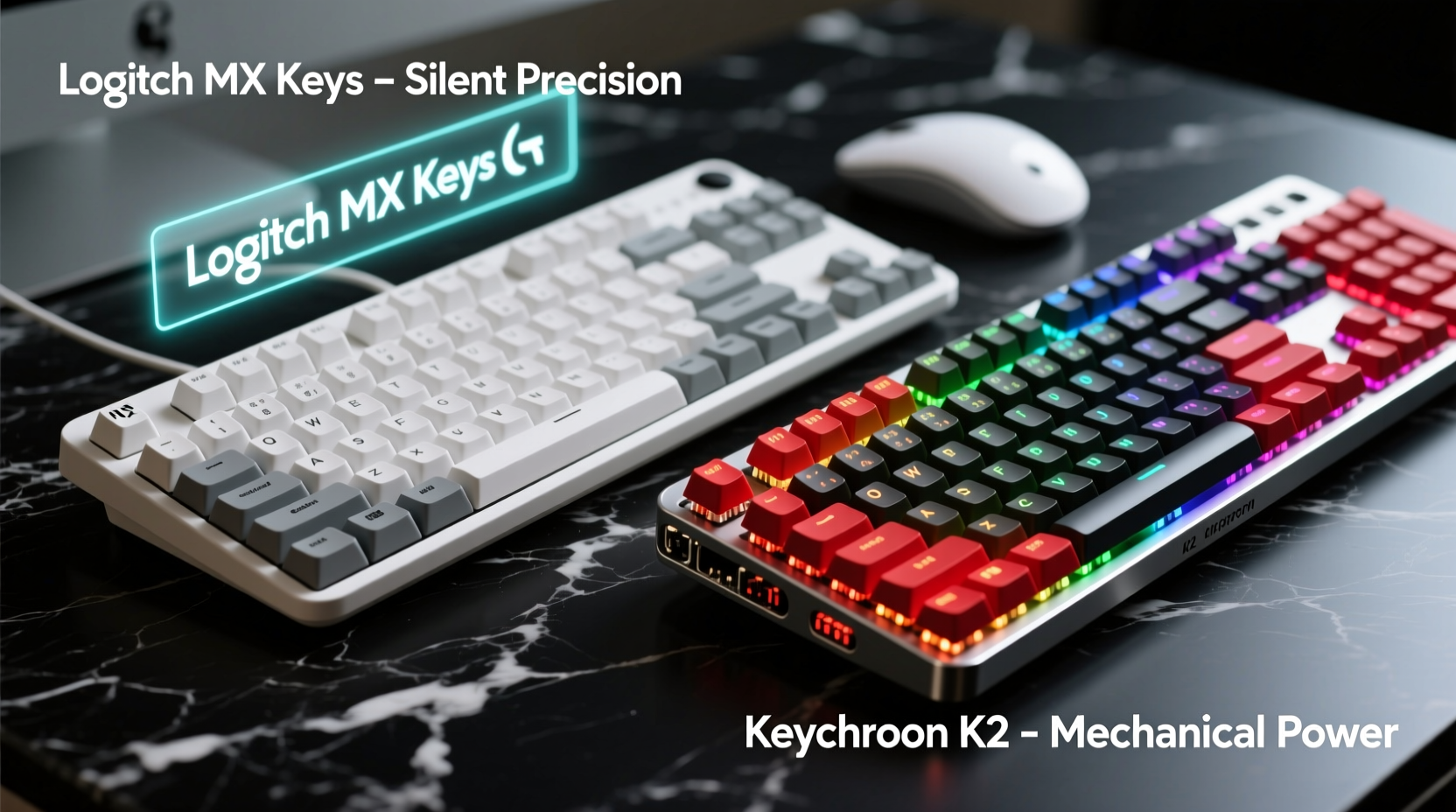
The Logitech MX Keys follows a sleek, low-profile design language consistent with Logitech’s premium peripherals. Constructed from aluminum and soft-touch plastic, it feels sturdy on the desk without being overly heavy. Its slim profile and rounded keycaps give it a modern, office-friendly aesthetic. The keys sit slightly recessed, promoting quiet operation and a smooth glide of the fingers across the surface. It's designed for professionals who value discretion and elegance.
In contrast, the Keychron K2 is built for tinkerers and enthusiasts. With a full aluminum case and a taller, more traditional mechanical form factor, it has a substantial presence. The K2 offers both wired and wireless connectivity (Bluetooth 5.1), supports multiple operating systems, and features hot-swappable switch sockets—meaning you can change mechanical switches without soldering. This modularity makes it highly customizable, appealing to users who want to tailor every aspect of their typing experience.
Switches and Typing Feel: Scissor vs Mechanical
This is where the fundamental difference lies. The MX Keys uses Logitech’s proprietary low-profile scissor-switch mechanism. These are not mechanical switches in the traditional sense. Instead, they rely on a rubber dome beneath a scissor stabilizer, delivering a shallow key travel (around 1.5mm) and a soft, muted keystroke. The feedback is subtle—quiet and consistent, ideal for shared offices or noise-sensitive environments.
The Keychron K2, however, uses genuine mechanical switches. Depending on the version purchased, it may come with Gateron Red, Brown, or Blue switches—or allow you to install your own via hot-swap sockets. Mechanical switches typically have 3.6–4.0mm of travel and a distinct tactile bump or linear glide. For example, Gateron Browns provide tactile feedback without loud clickiness, while Blues offer an audible snap that many typists love (but may annoy coworkers).
Typing on the MX Keys feels like gliding—smooth, efficient, and fatigue-free over long sessions. It rewards fast, light touch typists. The Keychron K2 demands more finger engagement. Each press is more deliberate, offering stronger tactile confirmation. Over hours, this can lead to greater awareness of each keystroke, potentially improving accuracy. However, it may also cause fatigue for those unaccustomed to deeper actuation.
“Mechanical keyboards don’t just type—they communicate. The feedback loop between finger and brain enhances precision and rhythm.” — David Lin, Ergonomic Design Consultant
Comparison Table: Key Features at a Glance
| Feature | Logitech MX Keys | Keychron K2 |
|---|---|---|
| Switch Type | Low-profile scissor (rubber dome) | Full mechanical (Gateron, hot-swappable) |
| Key Travel | ~1.5mm | 3.6–4.0mm |
| Noise Level | Very quiet | Moderate to loud (depends on switch) |
| Backlighting | White backlight with auto-sensing | RGB backlight with per-key customization |
| Connectivity | Bluetooth, USB-C (wired), Logi Bolt USB receiver | Bluetooth 5.1, USB-C (wired) |
| Multi-Device Pairing | Up to 3 devices, easy toggle | Up to 3 devices, manual switching |
| Layout | Compact with function row | Full-size 75% layout (F-keys, arrow cluster) |
| Customization | Limited (via Logi Options+ software) | High (QMK/VIA firmware support) |
| Battery Life | Up to 10 days (backlight on), 5 months (off) | Up to 70 hours (RGB on), ~100 hours (off) |
| Price Range | $110–$130 | $80–$100 (base model) |
Real-World Usage: A Day in the Life
Consider Sarah, a technical writer who splits her time between a home office and co-working spaces. She values quiet operation and quick transitions between her MacBook, iPad, and Windows desktop. The MX Keys fits perfectly into her workflow. She pairs all three devices once, then toggles between them with a flip of a switch. The subdued backlight activates only when she reaches for the keyboard in dim lighting. Her typing remains fluid, and she appreciates the lack of distraction from loud keypresses.
On the other hand, Mark, a backend developer working remotely, spends six to eight hours a day coding. He prefers the tactile feedback of mechanical switches and enjoys fine-tuning his environment. He bought the Keychron K2 with Gateron T1 Browns—tactile but not noisy—and flashed custom QMK firmware to remap keys and create macros for common commands. The ability to swap in silent reds later or adjust debounce settings gives him control no pre-built keyboard can match. While he charges it every few days, the flexibility far outweighs the maintenance.
These scenarios highlight a central truth: the “better” keyboard depends entirely on context. The MX Keys excels in plug-and-play reliability and polished integration. The K2 thrives where personalization and physical feedback matter most.
Software and Customization: Closed Ecosystem vs Open Firmware
Logitech provides the Logi Options+ software, which allows basic remapping, function key reassignment, and smart illumination controls. It’s intuitive and stable, but limited. You cannot program complex macros or layer-based shortcuts. The experience is curated, not open-ended. For most office users, this is sufficient—if not preferable—due to its simplicity.
The Keychron K2, especially in its QMK/VIA-enabled variants, unlocks deep customization. VIA (a graphical interface for QMK) lets users remap any key, create layers, assign macros, and tweak RGB lighting—all without compiling code. This is invaluable for developers, writers using special symbols, or anyone building a personalized workflow. Want your Caps Lock to become Escape when tapped and Ctrl when held? Done. Need a dedicated emoji shortcut? Easy. The K2 becomes an extension of your thinking process, not just an input device.
Step-by-Step Guide: Choosing the Right Keyboard for You
- Evaluate your primary use case: Are you mostly in meetings, writing emails, or presenting? The MX Keys’ quiet operation and elegant look may suit corporate environments better.
- Assess your typing style: Do you type lightly and quickly? You might prefer the MX Keys. Do you enjoy a firm, tactile response? Lean toward the K2.
- Check your workspace: In shared or quiet areas, mechanical keyboards with clicky switches may be disruptive. Opt for silent reds or stick with the MX Keys.
- Determine customization needs: If you use multiple OS platforms or want advanced key programming, the K2’s QMK support is a major advantage.
- Test before buying (if possible): Visit a store or borrow a friend’s mechanical keyboard to get a feel for deeper key travel and actuation force.
- Consider long-term ownership: The K2 can evolve with your needs via switch swaps and firmware updates. The MX Keys will remain unchanged but reliable.
Frequently Asked Questions
Is the Logitech MX Keys a mechanical keyboard?
No, the MX Keys uses a low-profile scissor-switch mechanism with rubber domes, not mechanical switches. It mimics some mechanical benefits with stability and responsiveness but lacks the tactile depth and customizability of true mechanical boards.
Can I use the Keychron K2 with a Mac?
Yes, the Keychron K2 includes macOS-specific key mapping and media controls. It supports Mac, Windows, and Linux natively via DIP switches on the back, making it one of the most versatile cross-platform mechanical keyboards available.
Which keyboard lasts longer?
Both are durable, but in different ways. The MX Keys has a sealed design resistant to dust and spills. The Keychron K2’s mechanical switches are rated for 50–100 million keystrokes, and individual components can be replaced. Long-term, the K2 offers more repairability and upgrade potential.
Final Verdict and Recommendation
The Logitech MX Keys and Keychron K2 represent two ends of the premium keyboard spectrum. The MX Keys is the consummate professional tool—refined, quiet, and effortlessly integrated. It’s ideal for business users, frequent travelers, and those who prioritize aesthetics and ease of use over tinkering.
The Keychron K2 is a tinkerer’s dream. With genuine mechanical switches, hot-swap capability, and open-source firmware support, it offers unparalleled customization. It’s perfect for coders, writers, and keyboard enthusiasts who want full control over their typing experience.
If your goal is silent efficiency and multi-device harmony, go with the MX Keys. If you crave tactile satisfaction and the freedom to modify every detail, the Keychron K2 is worth every penny.




 浙公网安备
33010002000092号
浙公网安备
33010002000092号 浙B2-20120091-4
Comments
No comments yet. Why don't you start the discussion?