
When it comes to choosing a computer mouse, two dominant philosophies emerge: one prioritizes form and minimalism, the other function and physical comfort. The Logitech MX Master 3S and the Apple Magic Mouse represent these opposing schools of thought. One is engineered for all-day comfort with pronounced curves and advanced features; the other embraces sleek, minimalist design at the cost of ergonomics. But which approach wins in real-world use? And more importantly, is the MX Master 3S’s “ugly” look justified by its superior ergonomic shape?
This isn’t just about aesthetics—it’s about how your choice affects your wrist health, productivity, and daily computing experience. Let’s dissect both mice across key performance metrics and user needs.
Ergonomic Design: Form Follows Function
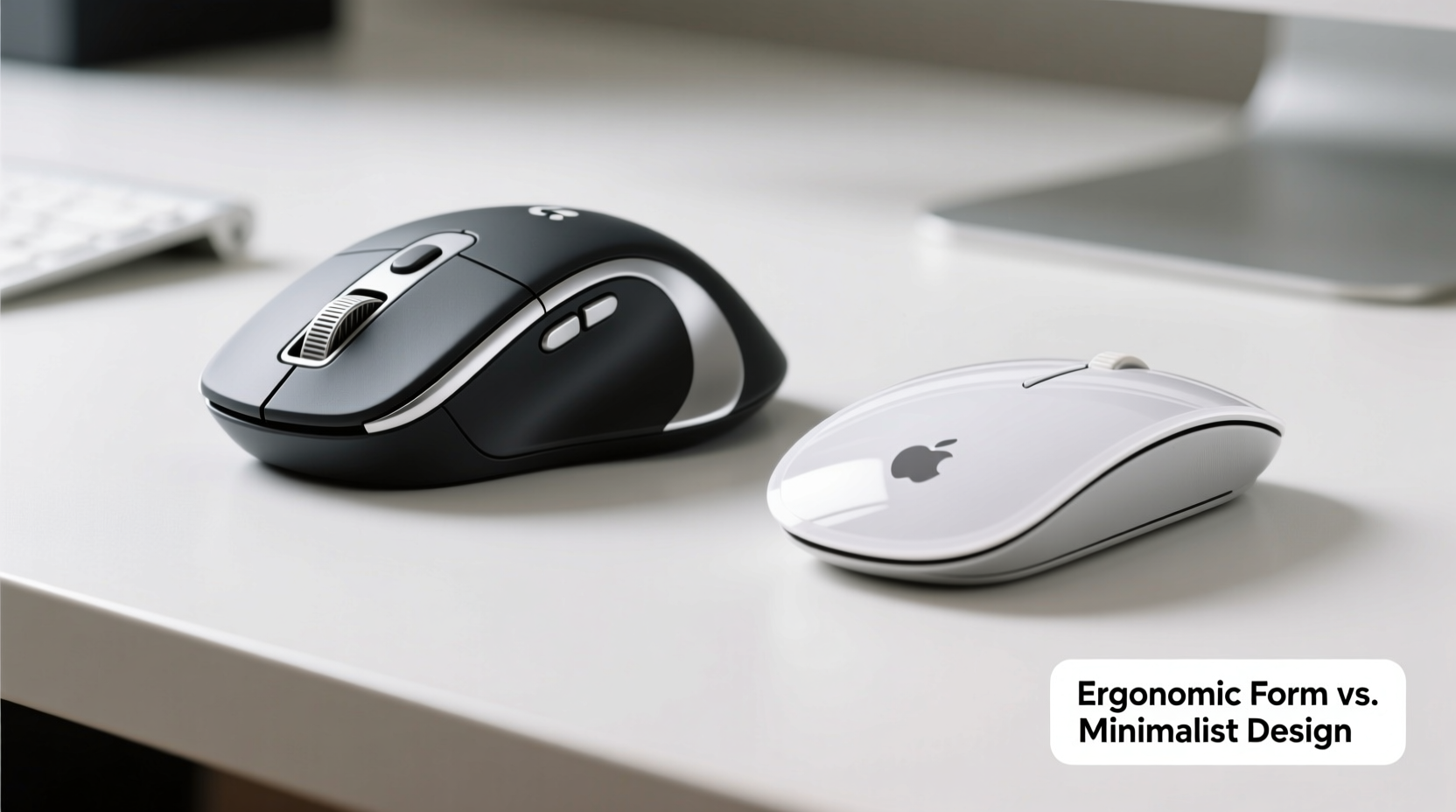
The most striking difference between the Logitech MX Master 3S and the Apple Magic Mouse lies in their physical design. The MX Master 3S features a right-handed, contoured body that supports the natural arch of the palm. Its thumb rest, sculpted side grips, and elevated rear promote a neutral hand posture, reducing strain during prolonged use. In contrast, the Magic Mouse is flat, symmetrical, and nearly weightless—designed to blend into Apple’s aesthetic ecosystem but offering little in terms of anatomical support.
For users who spend eight or more hours a day at a desk, ergonomics aren’t optional—they’re essential. Repetitive strain injuries (RSIs), carpal tunnel syndrome, and chronic wrist pain are real risks associated with poor mouse design. According to Dr. Naomi O’Reilly, a certified hand therapist and ergonomics consultant:
“An ergonomic mouse can reduce muscle activation in the forearm by up to 30%. Over time, this significantly lowers the risk of developing overuse injuries.” — Dr. Naomi O’Reilly, Hand Therapy Specialist
The MX Master 3S’s shape forces the hand into a handshake grip, minimizing ulnar deviation and wrist extension. The Magic Mouse, on the other hand, encourages a claw or fingertip grip, increasing tension in the small muscles of the hand. This subtle difference accumulates over weeks and months, often leading to fatigue and discomfort.
Performance and Precision
Both mice offer high-resolution optical sensors, but their tracking behavior differs due to weight and surface interaction. The MX Master 3S packs a 8,000 DPI sensor with Logitech’s Darkfield technology, allowing flawless tracking on glass and uneven surfaces. The Magic Mouse uses a lower-DPI sensor optimized for smooth desks and trackpad-like gestures, but it struggles on reflective or textured surfaces.
In practical terms, the MX Master 3S delivers pixel-perfect precision, especially beneficial for designers, coders, and spreadsheet users. Its scroll wheel—a standout feature—is hyper-fast and silent, capable of zipping through long documents with a flick and switching to ratcheted mode for fine control.
The Magic Mouse relies on inertia-based scrolling via its touch-sensitive surface. While initially satisfying, this method lacks tactile feedback and can lead to overshooting content. It also disables horizontal scrolling by default unless manually enabled in system settings—a frustrating omission for power users.
| Feature | Logitech MX Master 3S | Apple Magic Mouse |
|---|---|---|
| Sensor Resolution | 8,000 DPI | ~1,000 DPI (estimated) |
| Scroll Wheel | MagSpeed Electromagnetic (hyper-fast + ratchet) | Touch surface (inertial only) |
| Surface Compatibility | Works on glass, carpet, wood | Limited to smooth surfaces |
| Battery Life | Up to 70 days (USB-C rechargeable) | Approx. 1 month (Lightning charging) |
| Connectivity | Bluetooth + USB receiver (via Unifying) | Bluetooth only |
User Experience Across Platforms
One of the MX Master 3S’s strongest advantages is cross-platform versatility. With Logitech’s Options+ software, you can customize button functions, assign app-specific profiles, and enable Flow—a feature that lets you move your cursor and copy-paste across multiple computers seamlessly. This makes the MX Master 3S ideal for hybrid work setups involving Windows, macOS, Linux, and ChromeOS devices.
The Magic Mouse is deeply integrated into macOS, supporting intuitive gestures like swiping between desktops and Mission Control. However, its functionality collapses outside Apple’s ecosystem. On Windows or Android machines, it reverts to basic left/right click and scrolling—with no gesture support or customization options.
If you use multiple operating systems, the Magic Mouse becomes a liability. Pairing it requires manual Bluetooth management, and battery level monitoring is inconsistent. The MX Master 3S, meanwhile, remembers up to three devices and allows instant switching via a toggle button on the bottom.
Aesthetics vs. Utility: The Great Design Debate
The Magic Mouse wins hands-down in visual appeal. Its seamless white or black shell, absence of visible buttons, and ultra-thin profile make it a centerpiece of modern minimalist desks. It looks like a piece of art—not a tool. But beauty comes at a price. Its low profile forces the wrist into an extended position, increasing pressure on tendons. After two hours of continuous use, many users report numbness in the pinky and ring fingers—a sign of ulnar nerve compression.
The MX Master 3S, by contrast, looks industrial. Its asymmetrical shape, prominent scroll wheel, and textured rubber grips prioritize utility over elegance. Critics call it “bulky,” “over-engineered,” or even “alien-like.” Yet, this design is intentional—every curve serves a biomechanical purpose.
Consider this: would you choose a chair based solely on how it looks in an Instagram photo, or would you prioritize lumbar support and seat depth? The same logic applies here. The MX Master 3S may not win design awards, but it prevents pain. And unlike furniture, you interact with a mouse thousands of times per day. Small inefficiencies compound rapidly.
“A good tool should disappear into your workflow. The Magic Mouse draws attention to itself through discomfort. The MX Master disappears because it fits.” — Adrian Lin, UX Designer & RSI Advocate
Real-World Case: Sarah, the Remote Developer
Sarah, a full-stack developer working remotely from Lisbon, used the Magic Mouse for two years after switching from a PC to a MacBook Pro. Initially charmed by its look, she began experiencing sharp pains in her right wrist after long debugging sessions. She dismissed it as fatigue—until tingling spread into her fingers.
After a consultation with an occupational therapist, she was diagnosed with early-stage tendinitis. Her therapist recommended switching to an ergonomic mouse immediately. Reluctant to break her desk’s aesthetic, Sarah tried several alternatives before settling on the MX Master 3S.
Within three weeks, her symptoms diminished. “I hated how it looked next to my Mac,” she admits. “But within a week, I stopped noticing it. Now I can code for six hours straight without discomfort. I’d trade ten Magic Mice for this one.”
Her story isn’t unique. Thousands of remote workers, creatives, and office professionals have made the same transition—not for fashion, but for function.
Customization and Long-Term Usability
Another area where the MX Master 3S pulls far ahead is programmability. It features seven customizable buttons, including a thumb paddle for forward/back navigation and a middle button for quick app switching. Using Logitech Options+, you can assign macros, launch applications, or control media playback.
The Magic Mouse has exactly zero programmable buttons. Swipes are limited to system-level actions and cannot be modified beyond Apple’s preset gestures. For users managing complex workflows—editing video timelines, navigating spreadsheets, or coding across multiple tabs—this lack of control is limiting.
Additionally, the MX Master 3S includes silent clicking technology, reducing noise by 90% compared to standard mice. This is invaluable in shared offices, libraries, or late-night work sessions. The Magic Mouse clicks are quiet but still audible, and repeated use produces a hollow resonance due to its hollow shell.
Checklist: Choosing the Right Mouse for You
- Choose the MX Master 3S if:
- You work more than 4 hours daily at a computer
- You use multiple operating systems
- You value wrist health and long-term comfort
- You need precise scrolling and button customization
- Noise reduction is important (e.g., open office)
- Choose the Magic Mouse if:
- You prioritize design harmony with your Mac setup
- Your usage is light (under 2 hours/day)
- You rely heavily on macOS gestures
- You rarely switch devices or platforms
- You prefer a lightweight, portable option
Frequently Asked Questions
Can the MX Master 3S be used comfortably by left-handed people?
The MX Master 3S is designed specifically for right-handed users. Left-handed individuals may find the thumb rest and button layout awkward. Logitech does not offer a left-handed version. For ambidextrous use, consider the MX Anywhere 3, which has a symmetrical design.
Does the Magic Mouse cause wrist pain?
Yes, many users report wrist and forearm discomfort after extended use. Its flat design promotes an unnatural hand position, increasing strain on tendons and nerves. It’s particularly problematic for users with larger hands or those prone to RSIs.
Is the MX Master 3S worth the higher price?
At roughly twice the cost of the Magic Mouse, the MX Master 3S is an investment. However, when factoring in durability (rated for 5 million clicks), battery life, multi-device support, and health benefits, most professionals find it pays for itself in reduced downtime and medical costs.
Final Verdict: Function Over Fashion
The debate between the Logitech MX Master 3S and the Apple Magic Mouse ultimately boils down to values. If your priority is a clean, minimalist desk that looks great in photos, the Magic Mouse delivers. But if you care about comfort, efficiency, and long-term physical well-being, the MX Master 3S is the clear winner—even if it doesn’t match your MacBook’s color scheme.
Ergonomics isn’t about luxury; it’s about sustainability. Tools should serve the human, not the other way around. The MX Master 3S may look “ugly” to some, but its shape exists to protect something far more valuable than aesthetics: your body.
In the end, the best mouse isn’t the one that looks good on your desk—it’s the one that lets you work longer, faster, and pain-free. And sometimes, that means embracing a design that’s built for humans, not for Instagram.




 浙公网安备
33010002000092号
浙公网安备
33010002000092号 浙B2-20120091-4
Comments
No comments yet. Why don't you start the discussion?