
Choosing the right wireless technology for your peripherals can have a lasting impact on productivity, reliability, and device longevity. Logitech offers two primary wireless platforms: Unifying and Bolt. While both deliver solid performance, they differ significantly in design, security, and future-proofing. For users considering an upgrade—or replacing a lost or damaged receiver—understanding the differences is essential.
Many still rely on older Logitech Unifying receivers, which have served reliably for years. But with newer devices increasingly shipping with Logitech Bolt receivers, the question arises: Is it worth upgrading? The answer depends on your use case, device ecosystem, and priorities like latency, security, and battery life.
Understanding Logitech Unifying Technology
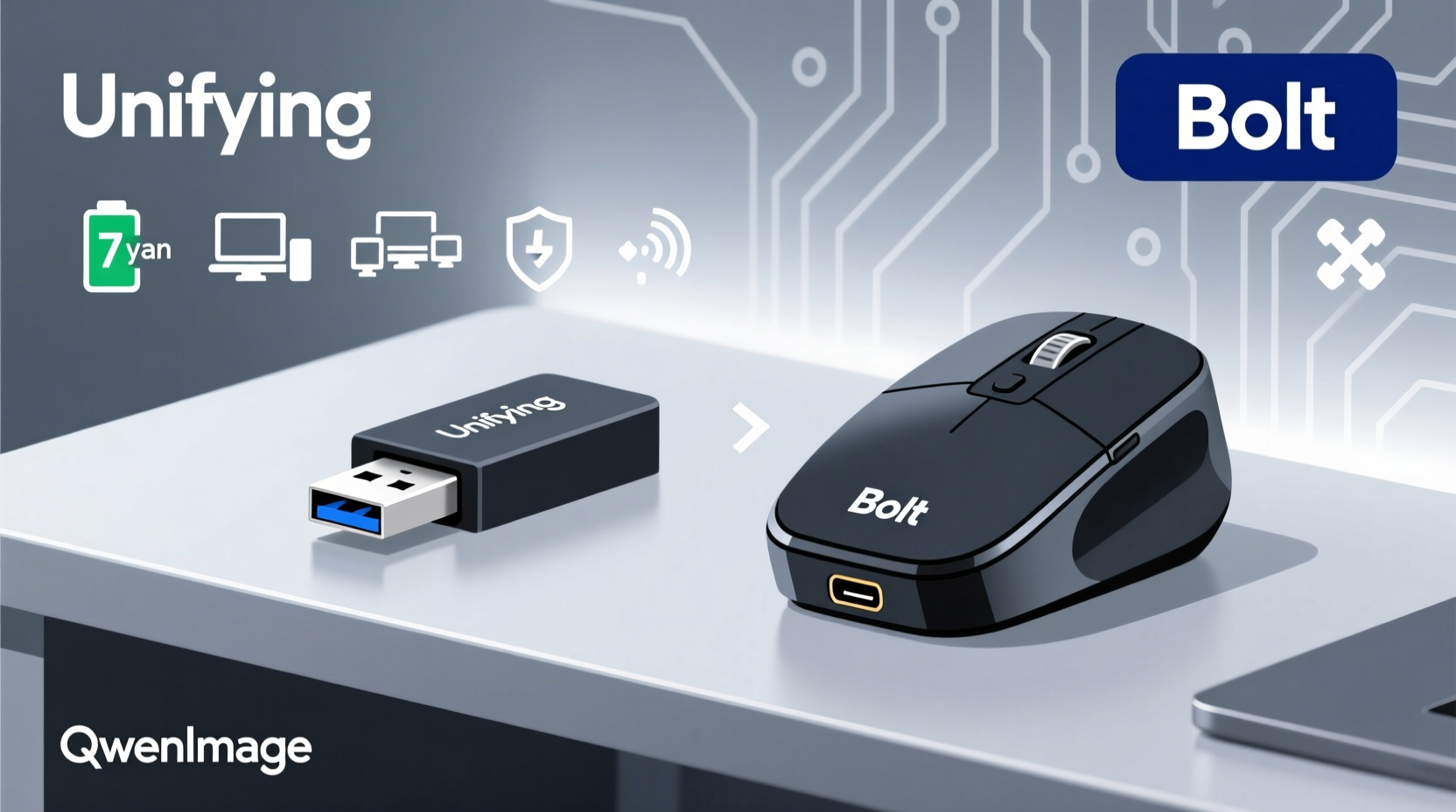
Introduced in 2011, Logitech Unifying was a breakthrough in plug-and-play convenience. It uses a small USB nano receiver that can connect up to six compatible devices—mice, keyboards, presentation remotes—using 2.4 GHz wireless communication. This means one receiver handles multiple peripherals, reducing USB clutter.
The technology relies on standard 2.4 GHz radio frequency, similar to many other wireless mice and keyboards. While stable in most environments, it's susceptible to interference from Wi-Fi routers, Bluetooth devices, and microwaves. Additionally, Unifying lacks modern encryption standards, making it less secure than newer alternatives.
Despite its age, Unifying remains widely supported. Hundreds of Logitech devices—from the popular M325 mouse to the K360 keyboard—are Unifying-compatible. If you're using older gear, this ecosystem ensures backward compatibility.
Introducing Logitech Bolt: A Modern Wireless Standard
Launched in 2020, Logitech Bolt represents a significant leap forward. Designed primarily for business and enterprise users, Bolt prioritizes security, responsiveness, and interference resistance. It operates in the same 2.4 GHz band but uses advanced frequency-hopping algorithms and AES 128-bit encryption to enhance performance and data protection.
Bolt receivers are typically paired one-to-one with a single device, though some newer models support pairing multiple Bolt devices to a single receiver via software. Latency is reduced compared to Unifying, offering a near-wired experience ideal for fast-paced work or precision tasks.
One of Bolt’s standout features is its robust security framework. Unlike Unifying, which has no built-in encryption, Bolt prevents eavesdropping and “mouse jacking” attacks—where hackers intercept wireless signals to inject malicious commands. This makes Bolt a preferred choice for professionals handling sensitive data.
“Bolt sets a new benchmark for secure wireless connectivity in professional environments.” — David Liu, Senior Peripheral Engineer at TechInsight Labs
Key Differences: Unifying vs Bolt
| Feature | Logitech Unifying | Logitech Bolt |
|---|---|---|
| Encryption | No built-in encryption | AES 128-bit encryption |
| Latency | ~8 ms (standard) | ~2–4 ms (low latency mode) |
| Range | Up to 10 meters | Up to 10 meters (improved signal stability) |
| Multi-Device Support | Up to 6 devices per receiver | Typically 1:1, some support multi-pairing |
| Security | Vulnerable to mouse jacking | Resistant to wireless snooping |
| Battery Efficiency | Good | Excellent (optimized power management) |
| Compatibility | Wide range of legacy devices | Newer Logitech MX and BR series |
When Should You Upgrade?
Upgrading from Unifying to Bolt isn’t always necessary—but it can be highly beneficial under certain conditions. Consider the following scenarios:
- You work with sensitive information (financial, legal, healthcare).
- Your current setup suffers from frequent disconnections or interference.
- You’re investing in new Logitech peripherals that only support Bolt.
- You frequently use your devices in public or high-risk environments (e.g., co-working spaces, airports).
If you're still using older peripherals that function well, there's no urgent need to replace them. However, if you're adding new devices—especially high-end ones like the MX Master 3S or MX Keys Mini—you’ll likely get better performance and longer battery life with Bolt.
Mini Case Study: Upgrading a Remote Work Setup
Sarah, a freelance accountant, used a decade-old Logitech MK260 (Unifying) at home. She noticed occasional lag during video calls and typing delays when multitasking. After switching to an MX Keys Mini and MX Anywhere 3 with a Bolt receiver, she reported immediate improvements: smoother cursor movement, faster key registration, and zero dropouts—even with her router nearby.
More importantly, Sarah handles client tax records daily. Knowing her keystrokes and mouse movements are encrypted gave her peace of mind, especially when working from cafes. Her upgrade cost under $150, but the gains in efficiency and security justified the investment.
Step-by-Step Guide to Upgrading Your Receiver
- Check Device Compatibility: Verify whether your current or planned peripherals support Bolt. Visit Logitech’s official website and search your model number.
- Purchase a Bolt Receiver: Buy a standalone Bolt receiver (sold separately) or get one bundled with a new device.
- Install Logitech Options+ Software: Download and install the latest version from Logitech’s support site to manage pairing and settings.
- Pair Your Devices: Plug in the Bolt receiver, open Options+, and follow the prompts to pair each device. Some require a physical pairing button press.
- Test Performance: Use your devices across different distances and environments to ensure stable connection.
- Retire or Repurpose Old Unifying Receiver: Keep it as a backup or use it with older devices not yet upgraded.
FAQ
Can I use a Bolt receiver with my old Unifying mouse?
No. Bolt and Unifying are not cross-compatible. Each requires its own receiver and firmware. You cannot pair a Unifying device to a Bolt receiver or vice versa.
Is the Bolt receiver smaller than the Unifying receiver?
They are nearly identical in size. Both are compact nano receivers designed to stay plugged into laptops. Some Bolt receivers include a removable cap to protect the connector when stored.
Does Bolt work with Mac and Windows?
Yes. Bolt is fully supported on Windows 10/11 and macOS 11 or later through Logitech Options+ software. Feature availability may vary slightly between platforms.
Final Checklist Before Upgrading
- ✅ Confirm your devices support Logitech Bolt
- ✅ Back up any custom settings in Logitech Options or Unifying software
- ✅ Install Logitech Options+ before pairing
- ✅ Test connection stability in your typical workspace
- ✅ Decide whether to keep Unifying devices active or retire them
Conclusion: Is It Worth the Upgrade?
For casual users with functional Unifying gear, upgrading isn't urgent. But for professionals seeking enhanced security, lower latency, and better battery optimization, switching to Logitech Bolt is a smart long-term investment. The improved encryption alone makes it worthwhile in today’s threat landscape, where wireless peripheral hacking is no longer theoretical.
If you're refreshing your workspace, adding new devices, or concerned about data integrity, Bolt delivers tangible benefits over its predecessor. While Unifying served admirably for over a decade, Bolt reflects how far wireless technology has come—and where it needs to go.




 浙公网安备
33010002000092号
浙公网安备
33010002000092号 浙B2-20120091-4
Comments
No comments yet. Why don't you start the discussion?