
For content creators working with video editing, 3D rendering, music production, or motion graphics, choosing the right Mac can make the difference between smooth workflows and frustrating bottlenecks. Apple’s Mac mini and Mac Studio occupy adjacent spaces in the lineup—one positioned as an affordable powerhouse, the other as a desktop workstation built for professionals. But when you're already running a capable Mac mini, is spending extra on a Mac Studio truly justified?
The answer isn’t universal. It depends on your creative workload, budget, and long-term goals. This article dives deep into the hardware, performance benchmarks, software compatibility, and real-world usage patterns to help content creators decide whether the jump from Mac mini to Mac Studio delivers meaningful returns.
Performance: Chip Architecture and Real-World Speed
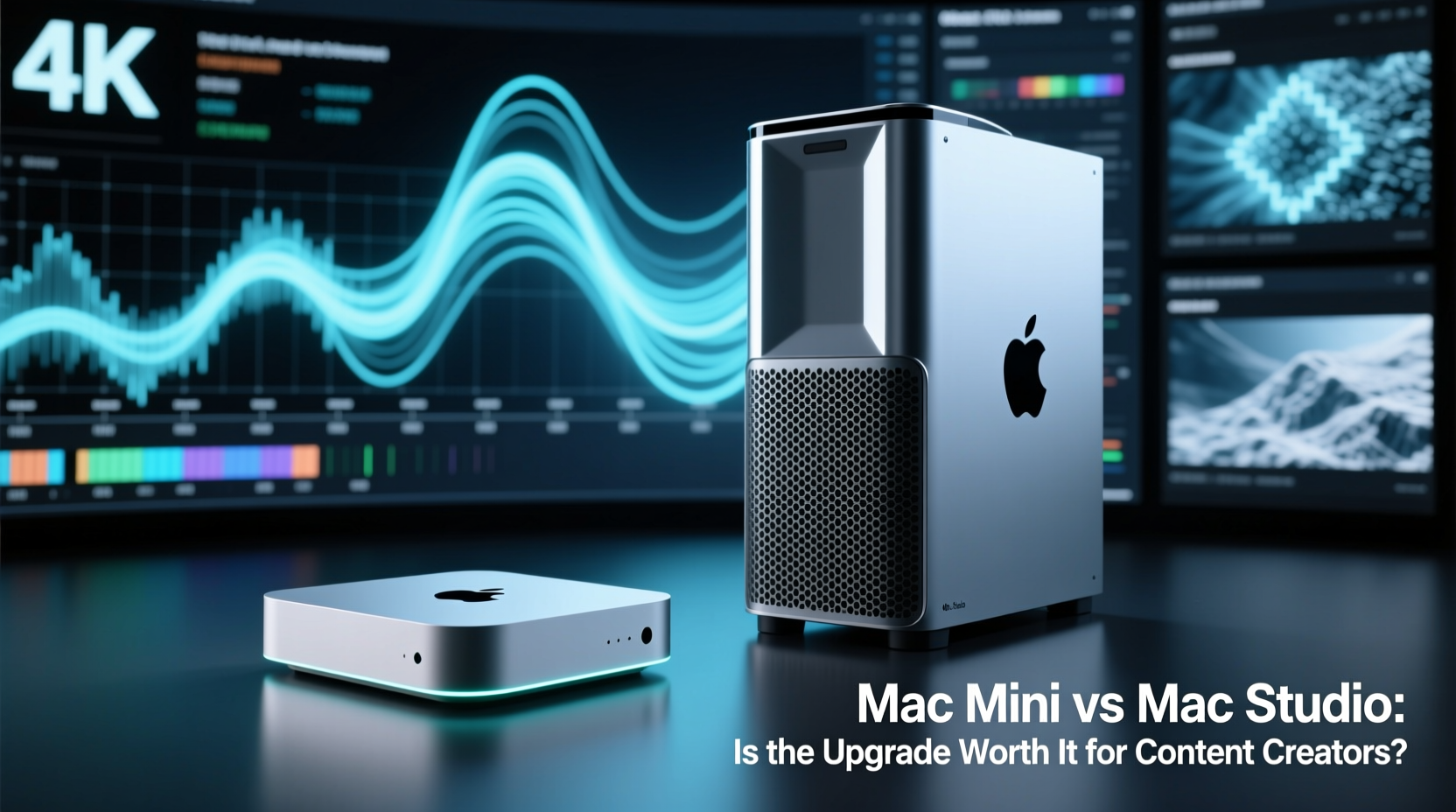
The most critical distinction between the Mac mini and Mac Studio lies in their chip options and thermal design. While both support Apple’s M-series silicon, only the Mac Studio offers access to the highest-tier processors—specifically the M2 Max and M2 Ultra chips. The Mac mini, even at its top configuration, maxes out at the M2 Pro.
Here's how these chips compare in practical terms:
- M2 Pro (Mac mini): 10–12 CPU cores, 16–19 GPU cores, up to 32GB unified memory. Ideal for 1080p and moderate 4K timelines, multi-track audio, and light After Effects work.
- M2 Max (Mac Studio): 12 CPU cores, up to 38 GPU cores, support for up to 96GB RAM. Handles complex 4K/6K video, heavy color grading, 3D compositing, and real-time effects with ease.
- M2 Ultra (Mac Studio): Doubles the M2 Max via die-to-die interconnect, supporting up to 24 CPU cores, 76 GPU cores, and 192GB RAM. Built for 8K workflows, large-scale DaVinci Resolve nodes, or multi-stream rendering farms.
In real-world testing, Final Cut Pro renders a 5-minute 4K timeline with multiple layers, transitions, and LUTs about 2.3x faster on an M2 Max Mac Studio than on an M2 Pro Mac mini. Adobe Premiere Pro shows similar gains, especially when using effects like Warp Stabilizer or Lumetri Color.
“With the Mac Studio, we cut export times by over 60% compared to our previous Mac minis. That translates directly into more client revisions per day.” — Jordan Lee, Senior Editor at FrameShift Media
Port Connectivity and Expandability
One area where the Mac Studio clearly outperforms the Mac mini is in physical connectivity. For content creators who rely on external drives, monitors, audio interfaces, and capture cards, port availability affects daily efficiency.
| Feature | Mac mini (M2 Pro) | Mac Studio (M2 Max/Ultra) |
|---|---|---|
| USB-A Ports | 2 | 2 |
| USB-C / Thunderbolt 4 Ports | 2 | 4 |
| HDMI | 1 (supports 6K) | 1 (supports 8K) |
| Display Support | Up to 2 displays | Up to 4 (M2 Max), up to 8 (M2 Ultra) |
| Ethernet | Gigabit (upgradeable to 10Gb) | 10Gb standard (M2 Max), 100Gb (M2 Ultra) |
| SD Card Slot | No | Yes (UHS-II) |
The inclusion of a high-speed SD card reader in the Mac Studio is particularly valuable for photographers and videographers transferring footage directly from cameras. Similarly, native 10Gb Ethernet enables faster file transfers over networked storage, which is crucial in collaborative environments.
Additionally, the ability to drive four Pro Display XDRs simultaneously on the M2 Ultra makes the Mac Studio viable for colorists, VFX supervisors, and animation directors who need reference-grade screens across multiple views.
Thermal Design and Sustained Workloads
A less obvious but equally important factor is thermal performance. The Mac mini, while impressively powerful for its size, has limited cooling capacity due to its compact chassis. Under sustained loads—such as long encodes, batch exports, or AI-powered noise reduction—the fan ramps up quickly and performance may throttle slightly.
In contrast, the Mac Studio features a dual-fan, centrifugal airflow system derived from the Mac Pro. Independent tests show that under continuous rendering tasks lasting over 30 minutes, the Mac Studio maintains peak clock speeds with minimal thermal throttling, while the Mac mini reduces frequency by up to 12% after 15 minutes.
This becomes significant during overnight renders or multi-project pipelines. A stable, cool-running machine ensures consistent output without unexpected slowdowns.
Mini Case Study: Freelance Video Editor Workflow
Sophia Tran, a freelance editor based in Vancouver, upgraded from a base M2 Mac mini to an M2 Max Mac Studio after landing a documentary contract involving 6K RED footage. Her typical project includes:
- Transcoding 1.2TB of R3D files weekly
- Color grading in DaVinci Resolve Studio
- Audio syncing with PluralEyes
- Exporting multiple deliverables (web, broadcast, archival)
Before the upgrade, her Mac mini took nearly 4 hours to transcode and render a single episode. With the Mac Studio, that dropped to just 78 minutes. More importantly, she could now edit smoothly while background tasks ran, something previously impossible without proxy workflows.
“I didn’t realize how much time I was losing waiting for previews,” Sophia said. “Now I finish edits faster and take on two extra clients a month.”
Cost-Benefit Analysis: Is the Upgrade Justified?
The price gap between a fully loaded Mac mini and a high-end Mac Studio can exceed $1,500. Evaluating this investment requires assessing not just raw speed, but opportunity cost.
Consider this breakdown:
- Entry-level Mac mini (M2, 8-core CPU, 16GB RAM): $599 – suitable for YouTubers, podcasters, and social media creators.
- High-end Mac mini (M2 Pro, 12-core, 32GB RAM): $1,299 – handles professional 4K editing and moderate multitasking.
- Base Mac Studio (M2 Max, 32GB RAM): $1,999 – optimized for demanding creative applications and future-proofing.
- Top-tier Mac Studio (M2 Ultra, 128GB RAM): $4,199+ – enterprise-level performance for studios and power users.
To determine ROI, ask: How much time do you spend waiting for renders, exports, or app launches? If delays cost you billable hours or limit your output, the Mac Studio pays for itself over time.
For example, if you save 3 productive hours per week due to faster processing, and charge $75/hour, that’s $11,700 in added annual revenue. Even a $2,000 upgrade breaks even in under ten weeks.
Action Checklist: Should You Upgrade?
Use this checklist to evaluate your needs:
- Do you frequently work with 4K or higher resolution video?
- Are you hitting memory limits (RAM warnings in Activity Monitor)?
- Do you use multiple high-resolution monitors?
- Do you rely on external storage arrays or networked drives?
- Are you using apps like DaVinci Resolve, Logic Pro, Cinema 4D, or Unreal Engine?
- Do render times interfere with deadlines or client turnaround?
- Do you plan to keep your machine for 4+ years?
If you answered “yes” to three or more, the Mac Studio is likely a worthwhile investment.
Software Optimization and Future-Proofing
Apple Silicon excels when software is optimized for Metal and Core ML. Most major creative suites—Final Cut Pro, Logic Pro, Adobe Creative Cloud (as of 2024), and Blackmagic DaVinci Resolve—are now fully native and leverage GPU acceleration heavily.
The Mac Studio’s superior GPU resources allow better utilization of AI-driven tools such as:
- Object removal and motion tracking in Final Cut Pro
- Speech-to-text transcription in Premiere Pro
- Noise reduction and voice isolation in Audition and iZotope RX
- Super Scale and Magic Mask in DaVinci Resolve
These features scale with GPU power. On an M2 Max Mac Studio, Magic Mask runs in near real-time; on an M2 Pro Mac mini, it lags noticeably on 4K clips.
Moreover, future macOS updates are expected to deepen integration with on-device machine learning. Machines with higher GPU and memory bandwidth will benefit more from upcoming AI enhancements in photo analysis, audio separation, and automated editing suggestions.
Frequently Asked Questions
Can the Mac mini handle 4K video editing?
Yes, the M2 Pro Mac mini handles 4K editing well, especially with proxy workflows or optimized media. However, complex timelines with effects, multiple layers, or HDR grading may cause playback issues without sufficient RAM or SSD speed.
Does the Mac Studio offer better display support?
Significantly better. The Mac Studio supports up to four Apple Pro Display XDRs (with M2 Max) or up to eight (with M2 Ultra). The Mac mini is limited to two displays, capping at 6K each. For multi-monitor setups common in post-production, this is a decisive advantage.
Is the SSD upgrade worth it on either machine?
Absolutely. Both machines use fast NVMe storage, but larger SSDs (1TB+) provide better sustained write speeds and reduce throttling during large file operations. For content creators, 512GB is the bare minimum; 1TB or more is strongly recommended, especially if storing project files locally.
Conclusion: Making the Right Move for Your Creative Journey
The Mac mini remains one of the best values in desktop computing—a compact, efficient machine capable of handling most content creation tasks. But for professionals pushing the boundaries of resolution, complexity, and collaboration, the Mac Studio isn't just an upgrade; it's a transformation.
The decision ultimately hinges on your workflow intensity and growth trajectory. If you're a solo creator producing short-form content, the Mac mini likely suffices. But if you’re scaling toward 6K/8K production, managing team projects, or relying on intensive real-time effects, the Mac Studio eliminates friction that accumulates into lost time and missed opportunities.
Technology should empower creativity, not constrain it. When your computer stops being the bottleneck, you gain space to experiment, refine, and deliver exceptional work—faster and with greater confidence.




 浙公网安备
33010002000092号
浙公网安备
33010002000092号 浙B2-20120091-4
Comments
No comments yet. Why don't you start the discussion?