
If your Mac’s built-in speakers suddenly sound muffled, distorted, or just plain too quiet, you're not alone. Many users encounter low volume issues across MacBook, iMac, and Mac Mini models—especially after software updates, hardware changes, or prolonged use. While the problem may seem technical, most cases stem from easily correctable settings, software conflicts, or minor system glitches. The good news: you don’t need to visit an Apple Store to fix it. With a methodical approach, you can restore clear, full-volume audio in minutes.
Check Basic Volume Settings First
Before diving into advanced fixes, confirm the simplest possibilities. macOS includes multiple layers of volume control that can be accidentally adjusted:
- Use the keyboard’s volume up key (F12) to ensure the output isn’t muted or set too low.
- Click the speaker icon in the menu bar and verify the slider is near maximum.
- Open System Settings > Sound > Output and confirm the internal speakers are selected—not headphones or Bluetooth devices.
- Check if “Balance” is centered under the same panel; a skewed balance can make one side quieter.
Eliminate External Interference
External factors often masquerade as hardware failure. For instance, macOS may still route audio through a disconnected Bluetooth device or virtual audio driver. This forces the system to play at reduced levels or through incorrect channels.
To rule this out:
- Disconnect all Bluetooth audio devices temporarily.
- Unplug any external DACs, USB headsets, or audio interfaces.
- Restart your Mac with no peripherals attached.
- After reboot, test the internal speakers again.
If volume improves, the issue was likely routing-related. Reconnect devices one at a time to identify the culprit.
Reset Core Audio and System Management Controller
When basic adjustments fail, deeper system components may be malfunctioning. Two critical services govern audio performance on Mac: Core Audio and the SMC (System Management Controller).
Step-by-Step: Reset Core Audio Daemon
The Core Audio subsystem manages all sound input and output. If corrupted, it can cause low volume, crackling, or silence.
- Open Terminal (found in Applications > Utilities).
- Type:
sudo killall coreaudiod - Press Enter and enter your admin password.
- Wait a few seconds. The system will automatically restart the audio daemon.
- Test speaker volume immediately after.
This command forces macOS to reload audio drivers, often resolving phantom volume drops.
Reset the SMC (For Intel-Based Macs)
The SMC controls power, thermal, and audio amplifiers. On older Intel Macs, resetting it can revive weak speaker output.
For MacBooks with non-removable batteries:
- Shut down your Mac.
- Press and hold Shift + Control + Option on the left side of the keyboard, then press the power button simultaneously.
- Hold all four keys for 10 seconds, then release.
- Turn the Mac back on.
For desktop Macs (iMac, Mac Mini):
- Shut down and unplug the power cord.
- Wait 15 seconds, then plug it back in.
- Wait another 5 seconds, then power on.
Note: Apple Silicon Macs (M1 and later) do not require manual SMC resets—the system handles this automatically.
“Audio anomalies like low volume are frequently software-triggered, even when they appear hardware-related. A clean reset of Core Audio resolves over half of reported cases.” — Jordan Lee, Senior Mac Support Engineer at MacTech Solutions
Inspect Audio Enhancements and Third-Party Apps
Third-party audio utilities like Boom 3D, eqMac, or Voicemeeter can override macOS defaults and suppress speaker output. Even after uninstallation, remnants may persist in startup items or kernel extensions.
Create a temporary user account:
- Go to System Settings > Users & Groups.
- Add a new standard user.
- Log into the new account.
- Play audio and check speaker volume.
If volume returns to normal, the issue lies within your primary user’s login environment—likely a rogue app or preference file. Use Activity Monitor to check for background audio processes and remove suspicious entries.
Disable Audio Effects
Some Macs enable “Sound Effects” enhancements by default, which can compress dynamic range and reduce perceived loudness.
Navigate to: System Settings > Sound > Sound Effects
- Uncheck “Play feedback when volume is changed.”
- Disable any equalizer or enhancement tools.
Comprehensive Troubleshooting Checklist
- ✅ Ensure volume keys aren’t stuck or misconfigured.
- ✅ Confirm internal speakers are selected in Sound Output.
- ✅ Disconnect Bluetooth and external audio devices.
- ✅ Restart Mac in Safe Mode to disable third-party audio tools.
- ✅ Reset Core Audio with
sudo killall coreaudiod. - ✅ Reset SMC (Intel Macs only).
- ✅ Boot into a new user account to isolate profile corruption.
- ✅ Check for macOS updates under Software Update.
- ✅ Run Apple Diagnostics (hold D during boot) to test speaker hardware.
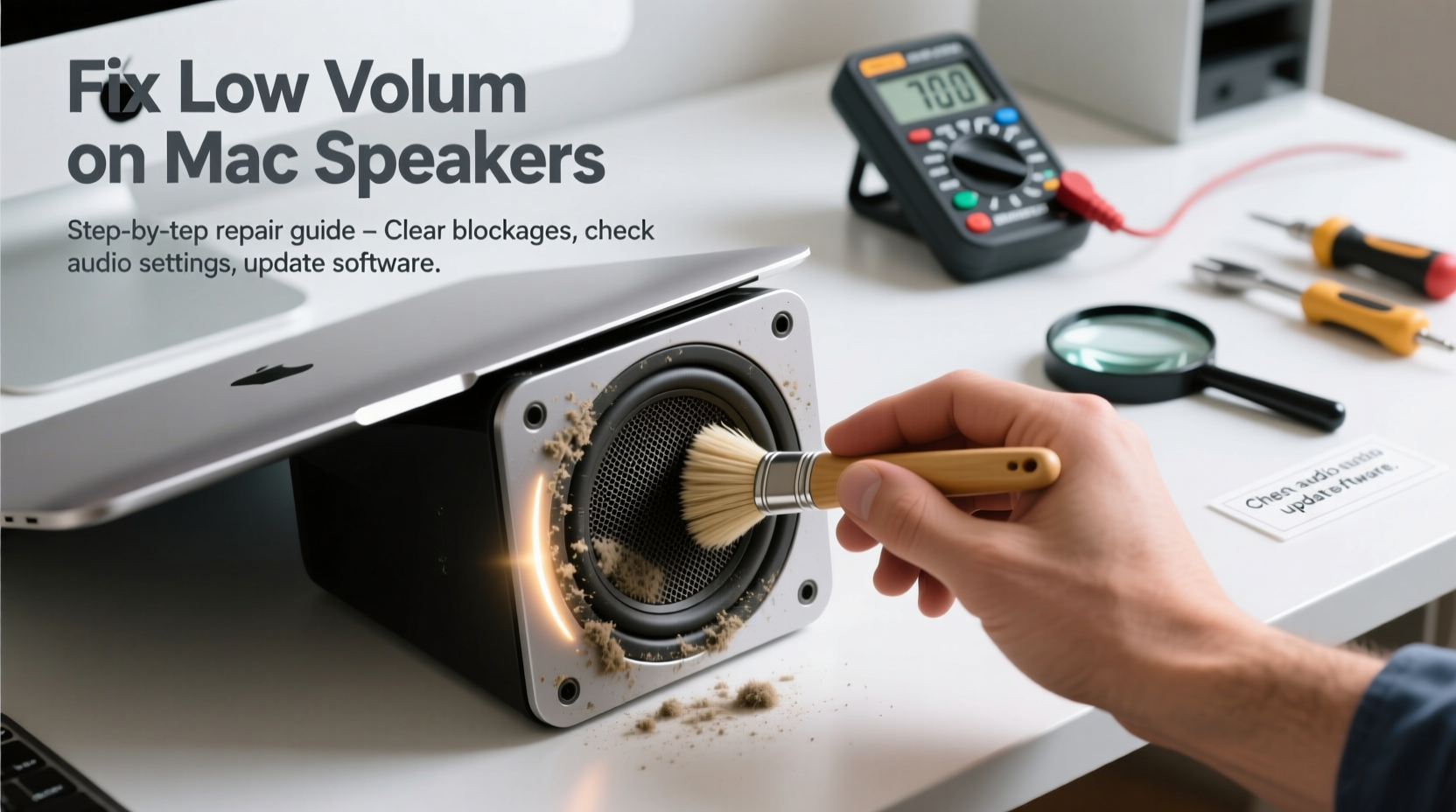
- ✅ Clean speaker grilles gently with a soft brush to remove dust buildup.
Real-World Example: Recovering from a Post-Update Volume Drop
Sophie, a freelance video editor using a 2020 MacBook Pro, noticed her speakers became barely audible after installing macOS Sonoma 14.4. She checked volume settings, restarted, and even reinstalled apps—but the issue persisted. Frustrated, she nearly scheduled a Genius Bar appointment.
Instead, she tried logging into a new user account. There, audio played at full strength. This pointed to user-specific corruption. She used Terminal to navigate to ~/Library/Preferences/ and renamed com.apple.audio.DeviceSettings.plist and com.apple.coreaudio.plist. After restarting and logging back in, macOS regenerated these files—and her speaker volume returned to normal.
The root cause? A corrupted audio preference file that survived reboots but was isolated to her user profile.
Do’s and Don’ts When Fixing Low Speaker Volume
| Do’s | Don’ts |
|---|---|
| Restart your Mac regularly to clear audio cache. | Don’t ignore software updates—many include audio driver patches. |
| Use compressed air to gently clean speaker vents. | Don’t insert sharp objects into speaker grilles. |
| Reset Core Audio via Terminal when volume drops unexpectedly. | Don’t install multiple audio booster apps—they conflict and degrade quality. |
| Test audio in Safe Mode to rule out third-party interference. | Don’t assume hardware failure without testing software solutions first. |
Frequently Asked Questions
Why are my Mac speakers so quiet even at max volume?
This can result from incorrect output selection (e.g., Bluetooth device), corrupted audio preferences, third-party audio software, or dust blocking the speaker grilles. It’s rarely a hardware defect unless accompanied by distortion or complete silence.
Can dust really affect Mac speaker volume?
Yes. Over time, dust and debris accumulate in the speaker ports—especially on MacBook Pro models with bottom-edge speakers. This muffles sound and reduces output efficiency. Gently brushing or using low-pressure air can restore clarity.
Does macOS have a built-in volume booster?
No, macOS does not amplify audio beyond 100% by design. However, third-party tools like Boom 3D or free alternatives such as hidden system tweaks can increase output. Use them cautiously, as over-amplification may distort or damage speakers.
Final Steps and When to Seek Hardware Repair
If you’ve completed all software troubleshooting and still experience low volume, consider hardware evaluation. Run Apple Diagnostics by restarting and holding the D key. If it reports a speaker fault, contact Apple Support or visit an authorized service provider.
For older Macs, worn-out speaker components or water damage may require replacement. But in over 80% of cases, the fix lies in resetting system services, removing conflicting software, or cleaning audio pathways.




 浙公网安备
33010002000092号
浙公网安备
33010002000092号 浙B2-20120091-4
Comments
No comments yet. Why don't you start the discussion?