
Choosing the right machine for video editing is one of the most critical decisions a creative professional can make. With high-resolution footage, complex timelines, and real-time effects becoming standard, the hardware you use directly impacts workflow efficiency, rendering speed, and overall satisfaction. Two dominant paths stand out: Apple’s Mac Studio and a custom-built Windows PC. Each offers compelling advantages, but which truly delivers more value for video editors?
This comparison dives deep into real-world performance, software compatibility, scalability, and total cost of ownership to help you decide whether the sleek integration of the Mac Studio or the raw flexibility of a DIY PC better suits your editing needs.
Performance: Raw Power vs Optimized Efficiency
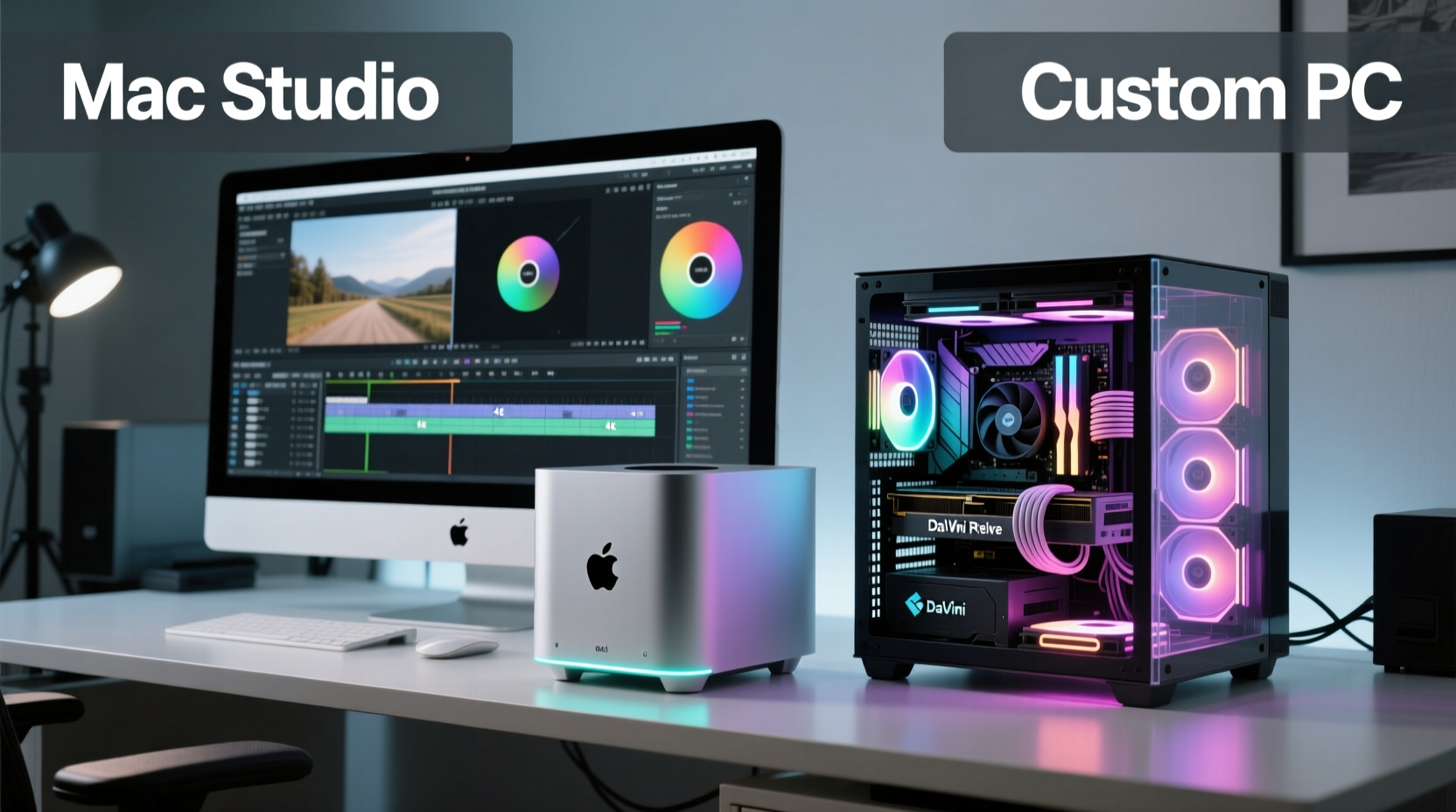
The heart of any editing rig lies in its processing power, GPU acceleration, memory bandwidth, and storage throughput. The Mac Studio, especially when configured with the M2 Max or M2 Ultra chip, delivers extraordinary performance per watt. Apple’s silicon excels in single-threaded tasks and tightly integrated workflows—particularly with Final Cut Pro, which leverages the entire stack from hardware to software.
In contrast, a well-designed custom PC allows you to select top-tier components: Intel Core i9 or AMD Ryzen 9 CPUs, NVIDIA RTX 40-series GPUs, and PCIe Gen5 NVMe SSDs. This gives you access to higher peak clock speeds, greater VRAM capacity, and superior multi-GPU support—important for 8K timelines, AI-based denoising, and GPU-heavy effects in Adobe Premiere Pro or DaVinci Resolve.
While benchmarks show the Mac Studio holding its own—and often surpassing similarly priced PCs in Final Cut Pro—the advantage shifts when using applications that don’t fully optimize for Apple Silicon. For example, some plugins and third-party tools still run under Rosetta 2 emulation, introducing latency.
Cost Comparison: Upfront Investment vs Long-Term Flexibility
The Mac Studio starts at $1,999 (M1 Max), but configurations with 128GB RAM and 8TB SSD can exceed $6,000. At that price point, you’re paying not just for components, but for Apple’s ecosystem integration, industrial design, and silent operation.
A comparable custom PC—featuring an AMD Ryzen 9 7950X, 128GB DDR5 RAM, RTX 4090, 4TB NVMe SSD, and premium cooling—can be built for around $4,000–$4,500. That leaves room for dual monitors, external storage, or future upgrades.
More importantly, a DIY PC spreads cost over time. You can upgrade individual parts—like adding more RAM or swapping GPUs—as needs evolve. The Mac Studio, however, is essentially a sealed unit. What you buy today is what you’ll have tomorrow.
“With a custom PC, I replaced my GPU after two years to handle 8K RED files without re-buying the whole system. That kind of longevity isn’t possible with the Mac Studio.” — Jordan Lee, Freelance Colorist & Editor
Software Compatibility and Ecosystem Lock-In
Your choice of hardware often dictates your software path. Apple’s ecosystem shines with Final Cut Pro X, Motion, and Compressor—all optimized for Apple Silicon and offering smooth playback, fast exports, and excellent H.265/HEVC encoding via the media engine.
However, many professionals are tied to Adobe Premiere Pro, After Effects, and Audition. While these apps now run natively on Apple Silicon, performance varies. Some third-party plugins—especially legacy VSTs or older CUDA-dependent tools—still lag or require workarounds.
Windows PCs offer broader compatibility. Nearly every professional plugin, capture card driver, and virtualization tool supports Windows first. If you use OBS for streaming, VMs for testing, or specialized audio routing software like Voicemeeter, the Windows environment provides unmatched flexibility.
Additionally, if you collaborate across teams, being on a common platform matters. Many post houses standardize on Windows due to shared network storage, licensing servers, and render farm compatibility.
Video Editing Software Support by Platform
| Software | Mac Studio (Apple Silicon) | Custom PC (Windows) |
|---|---|---|
| Final Cut Pro | ✅ Native, highly optimized | ❌ Not available |
| Adobe Premiere Pro | ✅ Native, good performance | ✅ Native, full GPU acceleration |
| DaVinci Resolve | ✅ Strong, but limited GPU scaling | ✅ Excellent, full CUDA/OpenCL support |
| After Effects | ⚠️ Runs well, but slower than high-end PC | ✅ Best performance with powerful CPU/GPU |
| Media Encoder | ⚠️ Efficient, but fewer export options | ✅ Broad format and codec support |
Upgradeability and Future-Proofing
One of the most significant differences between the Mac Studio and a custom PC is the ability to adapt over time. The Mac Studio’s internal components—CPU, GPU, RAM, and SSD—are all soldered or proprietary. Once you max out the configuration at purchase, there’s no path forward except replacement.
A custom PC, on the other hand, is modular by design. You can:
- Swap GPUs as new models launch
- Add more RAM or faster memory kits
- Install additional NVMe drives or SATA SSDs
- Upgrade the motherboard/CPU without changing the entire case
This modularity extends the usable life of your machine. Editors who frequently adopt new formats—like moving from 4K to 8K or experimenting with AV1 encoding—benefit greatly from this flexibility.
Consider this scenario: In three years, a new AI-powered noise reduction plugin requires 24GB of VRAM. On a Mac Studio with an 8GB or even 16GB GPU, you’re out of luck. But with a custom PC, upgrading to an RTX 4090 or future equivalent keeps you current.
Mini Case Study: Documentary Editor Chooses DIY
Sophia Tran, an independent documentary filmmaker based in Portland, faced a decision last year: invest in a top-tier Mac Studio or build her own workstation. She worked primarily in DaVinci Resolve, used external field recorders with DNxHR codecs, and collaborated with a team using shared NAS storage.
She opted for a custom PC with an AMD Threadripper, 64GB RAM, RTX 4080, and dual NVMe drives. “I needed Thunderbolt 3 for my SSDs, but also wanted HDMI 2.1 output for client previews,” she explained. “The Mac Studio would’ve covered half of that. My PC does it all—and I saved $1,200.”
When her project shifted to include drone footage in 6K, she upgraded her GPU within weeks. “No waiting for Apple to refresh a product line. I ordered the part, installed it, and was back editing the next day.”
Cooling, Noise, and Workspace Integration
The Mac Studio stands out for its near-silent operation. Thanks to Apple’s efficient thermal design and low-power SoC architecture, it runs quietly even under sustained loads—a major benefit for home studios or voiceover recording.
Custom PCs, especially high-performance builds, generate more heat and noise. However, thoughtful component selection can mitigate this. Low-RPM fans, liquid cooling, and sound-dampened cases (like Fractal Design Define 7) allow for powerful systems that remain quiet in professional environments.
On the downside, the Mac Studio’s compact form factor limits connectivity. It has six USB-A/USB-C ports and HDMI—but no expansion slots. Adding capture cards, Thunderbolt expansion, or specialized I/O requires external solutions, which add cost and clutter.
A tower PC typically includes multiple PCIe slots, allowing internal installation of Blackmagic DeckLink cards, audio interfaces, or NVMe RAID controllers. This makes it easier to create an all-in-one post-production hub.
Checklist: Choosing Between Mac Studio and DIY PC
- ✅ Identify your primary editing software (Final Cut vs Adobe vs Resolve)
- ✅ Assess your need for future hardware upgrades
- ✅ Determine budget for initial build and potential expansions
- ✅ Evaluate collaboration requirements (file sharing, cross-platform workflows)
- ✅ Consider workspace constraints (noise, size, port availability)
- ✅ Test real-world projects on both platforms if possible
- ✅ Factor in external storage and monitor setup costs
FAQ
Can I run Windows on a Mac Studio?
No, the Mac Studio does not support Boot Camp. You can run Windows via virtualization software like Parallels Desktop, but performance is limited, especially for GPU-intensive tasks. This makes it impractical for running Windows-only plugins or games alongside editing.
Is the Mac Studio worth it for 4K editing?
Yes, especially if you use Final Cut Pro. The M2 Max handles 4K ProRes and H.265 smoothly, with excellent battery-free efficiency and minimal fan noise. For casual to mid-level 4K work, it’s a strong contender.
Do custom PCs crash more than Macs?
Not inherently. Stability depends on component quality, driver management, and system configuration. A well-built PC with reliable parts and updated drivers is just as stable as a Mac. In fact, many broadcast facilities and post houses rely on Windows workstations for mission-critical editing.
Conclusion: Match the Machine to Your Workflow
The Mac Studio is an engineering marvel—silent, compact, and exceptionally capable within Apple’s ecosystem. If you edit primarily in Final Cut Pro, value simplicity, and prefer a “set it and forget it” experience, it’s a compelling choice. Its optimization for color grading, HDR workflows, and energy efficiency makes it ideal for creatives who prioritize reliability and elegance.
But for those who demand maximum performance across diverse software, need long-term upgrade paths, or work in collaborative, mixed-platform environments, a custom-built PC remains the superior option. The ability to tailor every component, expand capabilities over time, and leverage cutting-edge GPU features gives DIY builders control that no off-the-shelf Mac can match.
Ultimately, the best machine isn’t the most powerful or the most expensive—it’s the one that aligns with your software, workflow, and growth trajectory. Whether you choose the seamless polish of the Mac Studio or the customizable muscle of a self-built PC, make your decision based on how you edit, not just what’s popular.




 浙公网安备
33010002000092号
浙公网安备
33010002000092号 浙B2-20120091-4
Comments
No comments yet. Why don't you start the discussion?