
If your MacBook isn’t charging, it can quickly disrupt your workflow. Whether you're working remotely, studying, or editing media, a dead battery without a charge is more than inconvenient—it’s critical. While some issues require professional repair, many cases stem from preventable or easily fixable problems. This guide breaks down the most common reasons your MacBook battery may not be charging and delivers practical, tested solutions to get you back up and running.
Understanding the Basics: How MacBook Charging Works
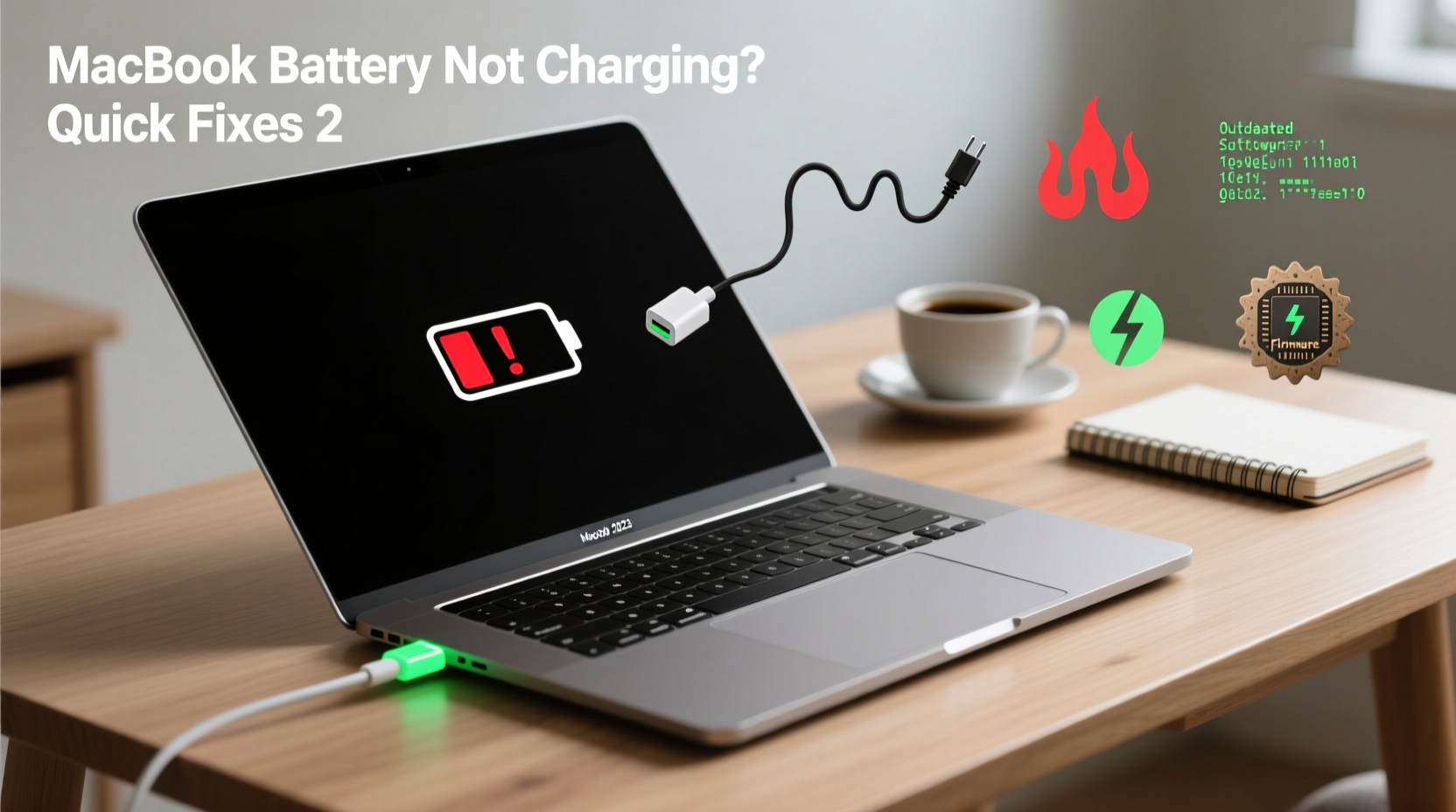
Your MacBook relies on a tightly integrated system of hardware and software to manage power delivery. The MagSafe or USB-C charger sends power through the port to the battery management system (BMS), which regulates voltage, monitors temperature, and communicates with macOS to display charge status. When any part of this chain fails—whether it's a frayed cable, a faulty sensor, or a software glitch—the result is often a \"Not Charging\" message in the menu bar.
Before jumping to conclusions about a defective battery, consider that the issue might lie outside the MacBook itself. Many users overlook simple fixes that take minutes but resolve the problem entirely.
Common Reasons Your MacBook Battery Isn’t Charging
- Faulty or incompatible charger: Using third-party or damaged adapters can interrupt power flow.
- Damaged charging cable or port: Fraying, kinks, or debris in the USB-C/MagSafe port can prevent connection.
- Software glitches: macOS updates or background processes may interfere with battery reporting.
- Battery health degradation: After 500+ charge cycles, lithium-ion batteries lose capacity and may stop accepting charge.
- SMC (System Management Controller) malfunction: The SMC controls power distribution; if stuck, it won’t initiate charging.
- Overheating protection: If the MacBook detects high internal temperatures, it halts charging to protect components.
Mini Case Study: The Overlooked Cable
Sarah, a freelance graphic designer, noticed her MacBook Pro wouldn’t charge past 42%. She tried restarting, resetting settings, and even visited an Apple Store. Technicians found no internal fault. The culprit? A slightly bent USB-C plug on her otherwise functional cable. Replacing the cable restored full charging capability. Sarah later admitted she’d been yanking the cable out by the cord instead of gripping the plug—a habit that slowly damaged the connector.
“A significant percentage of ‘battery failure’ reports we see are actually due to compromised cables or ports.” — James Lin, Apple Authorized Service Provider Technician
Step-by-Step Troubleshooting Guide
Follow this logical sequence to identify and resolve the issue efficiently:
- Check the power source: Plug into a different outlet. Test the wall socket with another device to confirm it’s live.
- Inspect the charger and cable: Look for frays, bends, or discoloration. Try a known-working charger if available.
- Examine the charging port: Use a flashlight to check for lint, dust, or bent pins. Do not use metal objects to clean.
- Restart your MacBook: A simple reboot can clear temporary software conflicts affecting power management.
- Reset the SMC: This resets power-related functions. Instructions vary by model (see next section).
- Check battery status: Click the battery icon in the menu bar. If it says “Replace Soon,” “Service Battery,” or “Not Charging,” diagnostic steps are needed.
- Boot into Safe Mode: Hold Shift while booting. This disables non-essential processes and tests if software is interfering.
How to Reset the SMC Based on Your Model
| MacBook Type | SMC Reset Steps |
|---|---|
| MacBooks with Apple Silicon (M1, M2, M3) | Shut down. Wait 30 seconds. Press and hold power button for 10 seconds. Release, then turn on. |
| MacBooks with Intel & Non-Removable Battery | Shut down. Press Shift+Control+Option+Power simultaneously for 10 seconds. Release all. |
| MacBooks with Intel & Removable Battery | Shut down. Remove battery. Press power button for 5 seconds. Reinsert battery and restart. |
Do’s and Don’ts When Dealing With Charging Issues
| Do’s | Don’ts |
|---|---|
| Use Apple-certified chargers and cables | Use off-brand or cheap USB-C cables |
| Keep the charging port clean with soft brush | Poke the port with paperclips or sharp tools |
| Store your MacBook in a cool, dry place | Leave it in hot cars or direct sunlight |
| Update macOS regularly | Ignore system alerts related to battery or power |
| Monitor battery health monthly | Run intensive tasks while charging at 0% |
Battery Health: When Replacement Is Necessary
Even with perfect care, batteries degrade. macOS includes a built-in tool to assess battery condition. To check:
- Click the Apple logo in the top-left corner.
- Select “About This Mac.”
- Click “System Report,” then go to “Power” under Hardware.
- Look for “Cycle Count” and “Condition.”
If the cycle count exceeds 1,000 (or 500 for older models) and the condition reads “Service Battery,” replacement is recommended. Apple rates most modern MacBooks for 1,000 cycles before significant degradation. You can extend lifespan by avoiding full discharges and keeping charge between 20% and 80% during daily use.
Expert Insight on Long-Term Battery Care
“Lithium-ion batteries hate two things: full discharges and constant 100% charging. For longevity, keep your MacBook between 30% and 80% when possible.” — Dr. Lena Park, Battery Research Scientist, Stanford University
FAQ: Common Questions About MacBook Charging Problems
Why does my MacBook say 'Not Charging' when plugged in?
This typically occurs when the system detects an unstable power source, overheating, or a communication error between the charger and battery. It may also appear temporarily when the battery is fully charged or during SMC reset.
Can a software update cause charging issues?
Yes. Occasionally, macOS updates introduce bugs affecting power management. Check Apple’s support forums or install the latest patch. Booting into Safe Mode can help determine if the issue is software-related.
Is it safe to use my MacBook while charging?
Absolutely. Modern MacBooks are designed for continuous use while plugged in. However, prolonged heat buildup can accelerate battery wear. Ensure proper ventilation and avoid using heavy apps for hours on carpet or pillows.
Quick Fixes Checklist
- ✅ Swap in a known-good charger
- ✅ Clean the charging port gently with a plastic toothpick or soft brush
- ✅ Restart your MacBook
- ✅ Reset the SMC (follow model-specific steps)
- ✅ Check battery condition in System Report
- ✅ Try a different power outlet
- ✅ Boot into Safe Mode to rule out software conflict
Conclusion: Take Control of Your MacBook’s Power Health
A MacBook that won’t charge doesn’t automatically mean a trip to the repair shop. Most issues stem from overlooked details—cables, ports, or minor software hiccups—that you can fix in under 30 minutes. By understanding how the charging system works and following a structured approach, you save time, money, and frustration. Regular maintenance, like checking cable integrity and monitoring battery health, prevents future surprises. Don’t wait until the battery dies completely. Act now, apply these fixes, and keep your MacBook powered and productive.




 浙公网安备
33010002000092号
浙公网安备
33010002000092号 浙B2-20120091-4
Comments
No comments yet. Why don't you start the discussion?