
A MacBook that refuses to charge is more than an inconvenience—it disrupts work, travel, and daily productivity. While Apple devices are built for reliability, even the best technology can encounter power issues. Whether your MacBook shows a “Not Charging” message at 20%, suddenly stops gaining power, or fails to respond when plugged in, understanding the root causes is the first step toward resolution. This guide dives into the most frequent reasons behind charging failures and provides practical, tested solutions.
Common Causes of MacBook Battery Not Charging
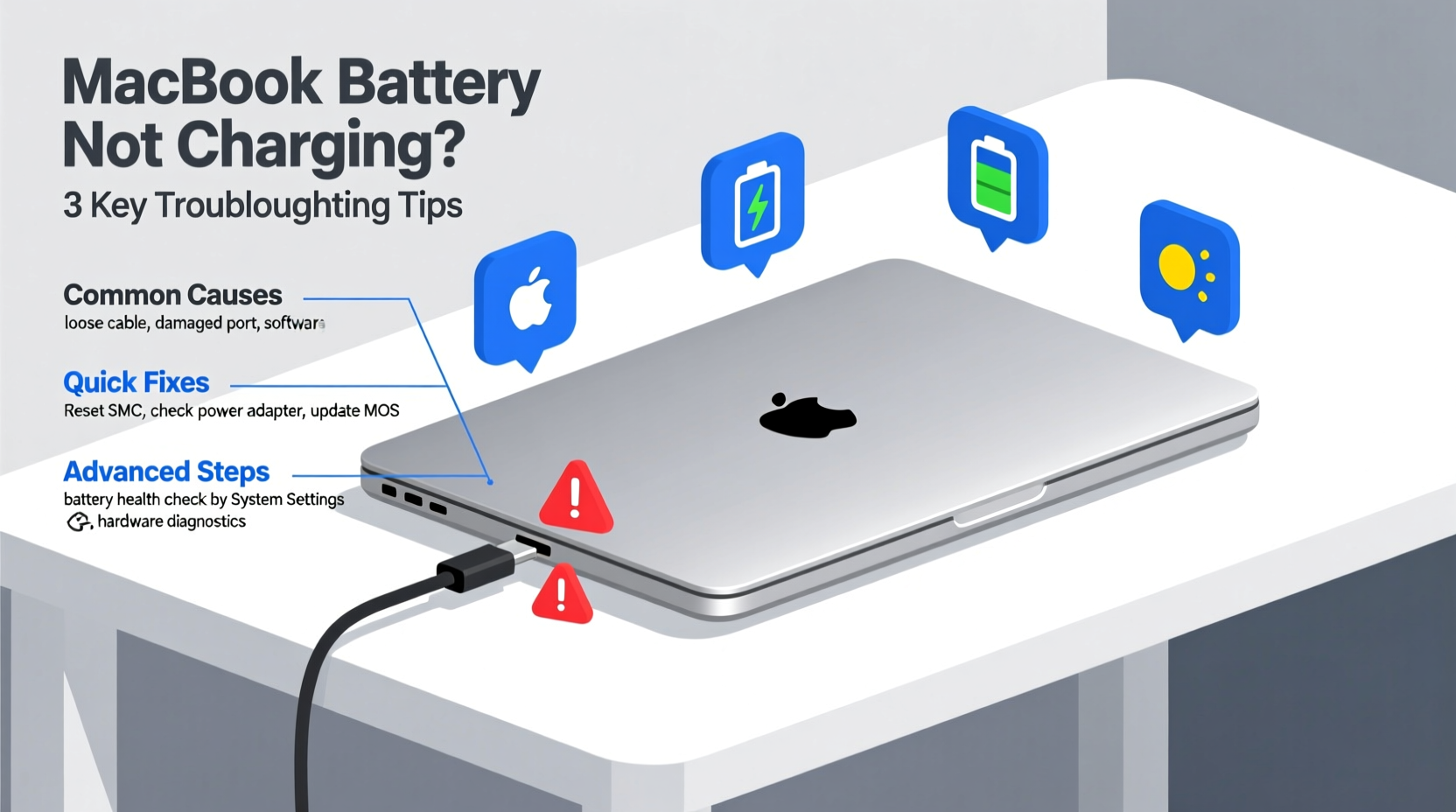
Before jumping to conclusions about hardware failure, consider the full spectrum of potential culprits. Charging problems can stem from software glitches, peripheral conflicts, or physical wear. Identifying the source early saves time and prevents unnecessary service visits.
- Faulty or incompatible charger: Using third-party adapters or damaged cables often leads to inconsistent charging.
- Loose or dirty charging port: Dust, lint, or debris in the MagSafe or USB-C port can interrupt the connection.
- Battery health degradation: Lithium-ion batteries degrade over time, reducing their ability to hold or accept charge.
- Software or system management controller (SMC) issues: macOS may incorrectly report battery status due to a stuck SMC.
- Overheating protection: If the MacBook detects high internal temperatures, it may disable charging to protect components.
Step-by-Step Troubleshooting Guide
Follow this logical sequence to diagnose and resolve charging issues efficiently. Start with the simplest fixes before moving to advanced steps.
- Check the power source: Plug the charger into a different outlet. Test with a known-working outlet to rule out electrical issues.
- Inspect the charger and cable: Look for fraying, kinks, or bent pins on the connector. Try a different Apple-certified charger if available.
- Examine the charging port: Use a flashlight to check for debris. Gently clean with a dry, soft brush or compressed air—never metal tools.
- Restart your MacBook: A simple reboot can clear temporary software hiccups affecting power delivery.
- Reset the System Management Controller (SMC): The SMC manages power, battery charging, and thermal systems. Resetting it often resolves charging blocks.
How to Reset the SMC on Apple Silicon and Intel Macs
| Mac Type | Steps to Reset SMC |
|---|---|
| Apple Silicon (M1, M2, M3 chips) | Shut down the Mac. Wait 30 seconds. Turn it back on. No additional steps needed—SMC resets automatically. |
| Intel Mac with T2 Chip | Shut down. Press and hold Control + Option + Shift (left side) for 7 seconds, then press the power button while holding the keys for another 7 seconds. Release all and turn on. |
| Older Intel Mac (without T2) | Shut down. Press Shift + Control + Option (left) + Power simultaneously. Hold for 10 seconds, release, then power on. |
After resetting, plug in the charger and observe whether charging resumes. If the battery symbol in the menu bar changes from “Not Charging” to “Charging,” the issue was likely software-related.
Battery Health and Calibration
Even with a functioning charger, an aged battery may struggle to charge beyond a certain point. macOS includes built-in tools to assess battery condition.
Navigate to the Apple menu > About This Mac > System Report > Power. Under “Health Information,” check the “Condition” field. If it says “Service Battery,” the battery no longer holds charge effectively and should be replaced.
While lithium-ion batteries don’t require full discharge cycles like older battery types, occasional calibration can improve accuracy in charge reporting.
Do’s and Don’ts for Battery Longevity
| Do’s | Don’ts |
|---|---|
| Keep battery between 20%–80% for daily use | Leave MacBook plugged in 24/7 without breaks |
| Use optimized battery charging (enabled in Battery Settings) | Expose MacBook to extreme heat (e.g., car dashboard) |
| Power down when storing for long periods | Use off-brand chargers with unknown voltage output |
“Battery longevity hinges on thermal management and charge discipline. Avoiding deep discharges and sustained 100% states preserves cycle life.” — Dr. Lena Torres, Power Systems Engineer, Stanford Energy Lab
Real-World Case: Remote Worker's Charging Crisis
Sophie, a freelance designer based in Portland, noticed her 2020 Intel MacBook Pro stopped charging at 45%. She relied on it for client calls and rendering projects. Initially assuming the battery was failing, she booked a Genius Bar appointment. Before going, she tried resetting the SMC as suggested in an online forum. After the reset, her MacBook began charging normally. Further inspection revealed her third-party USB-C charger had inconsistent power delivery, which confused the SMC. Switching back to her original Apple charger resolved the issue permanently. Sophie now keeps her backup charger stored separately and avoids mixing accessories.
This case highlights how easily a minor hardware mismatch can mimic serious battery failure. Simple diagnostics prevented unnecessary repair costs.
When to Seek Professional Help
If basic troubleshooting doesn’t restore charging, deeper issues may be present. Consider professional service if:
- The battery condition reads “Replace Soon” or “Service Battery” consistently.
- You smell burning near the charging port or notice swelling in the trackpad.
- Multiple Apple-certified chargers fail to initiate charging.
- The MacBook overheats during minimal use or shuts down unexpectedly.
Apple Authorized Service Providers can run diagnostics using Apple Diagnostics (hold 'D' during startup) and determine whether the issue lies with the logic board, battery, or charging circuitry. Replacing a degraded battery typically restores normal function and can extend the usable life of your MacBook by years.
Frequently Asked Questions
Why does my MacBook say “Not Charging” when plugged in?
This message usually appears when the battery is above 90% and macOS pauses charging to prolong battery lifespan. It can also occur due to SMC errors, faulty cables, or overheating. Check battery condition and reset the SMC if the message persists below 90%.
Can a software update cause charging problems?
Rarely, but possible. Major macOS updates have occasionally introduced bugs affecting power management. If the issue started immediately after an update, check Apple’s support forums for known issues and install any available patches.
Is it safe to use my MacBook while charging?
Yes. Modern MacBooks are designed for continuous use while plugged in. However, prolonged use under heavy load (e.g., video editing) can generate heat, accelerating battery wear. Allow periodic cooldowns and avoid covering ventilation areas.
Final Checklist: Quick Actions to Try Now
- Verify the wall outlet works with another device.
- Swap in a known-good Apple charger and cable.
- Inspect and clean the charging port gently.
- Restart your MacBook.
- Reset the SMC based on your Mac model.
- Check battery health in System Report.
- Update macOS to the latest version.
Take Charge of Your MacBook’s Performance
A MacBook that won’t charge doesn’t mean the end of its life. Most issues stem from preventable or correctable causes—faulty accessories, software snags, or overlooked maintenance. By applying systematic troubleshooting and practicing smart battery habits, you can restore reliable power and extend your device’s usability. Don’t rush to replace your MacBook at the first sign of trouble. Instead, use the steps outlined here to diagnose, fix, and future-proof your machine.




 浙公网安备
33010002000092号
浙公网安备
33010002000092号 浙B2-20120091-4
Comments
No comments yet. Why don't you start the discussion?