
If your MacBook’s FaceTime camera appears grainy, blurry, or washed out during video calls, you're not alone. Many users report declining image quality over time—especially in low-light conditions or after software updates. While Apple markets its built-in iSight or FaceTime HD cameras as high-quality, real-world performance can degrade due to a mix of hardware limitations, environmental factors, and software conflicts. Understanding the root causes and applying targeted fixes can restore clarity and make your virtual meetings more professional.
Why Is Your MacBook Camera Grainy?
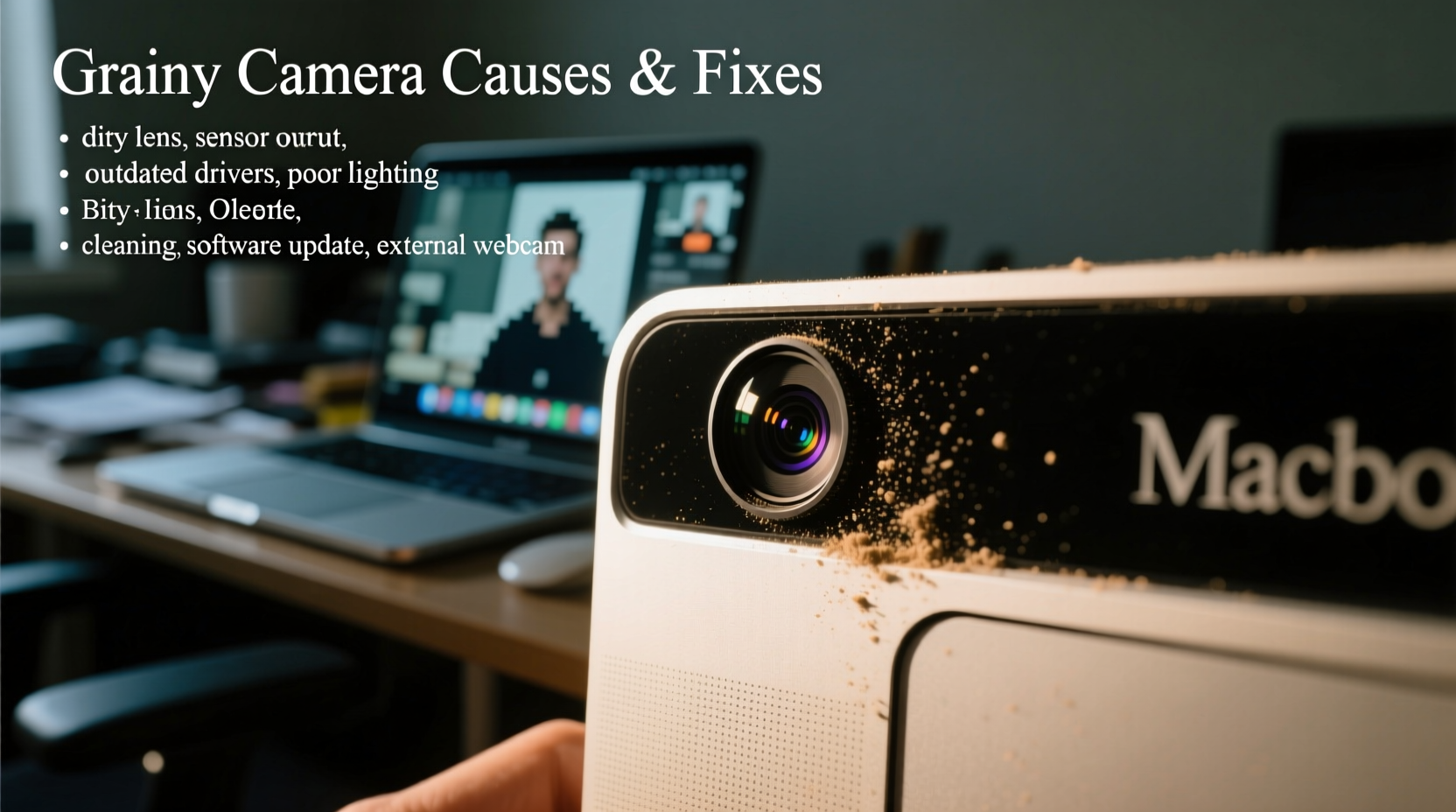
The graininess or pixelation in your MacBook camera feed typically stems from insufficient light, outdated drivers, background app interference, or physical obstructions. Unlike external webcams with advanced sensors and larger apertures, the integrated cameras in MacBooks have modest hardware specs designed for convenience rather than studio-level output. This makes them particularly sensitive to suboptimal conditions.
Apple's newer models, such as those equipped with the M1 chip and later, feature improved image signal processors that enhance dynamic range and reduce noise. However, even these can struggle under dim lighting or when multiple apps access the camera simultaneously.
“Low-light performance is the Achilles’ heel of most laptop-integrated cameras. Without sufficient illumination, noise becomes unavoidable.” — Dr. Lena Torres, Imaging Systems Engineer at MIT Media Lab
Common Causes of Poor Image Quality
- Insufficient Lighting: The most frequent culprit. Low ambient light forces the camera to boost ISO sensitivity, introducing digital noise (grain).
- Dirty Lens: Smudges, dust, or fingerprints on the camera lens distort light and reduce sharpness.
- Software Glitches: macOS bugs, conflicting permissions, or outdated system versions may impair camera functionality.
- Background App Interference: Applications running in the background might be using the camera or taxing system resources, affecting video encoding.
- Hardware Limitations: Older MacBook models use 720p FaceTime cameras, which lack the resolution and sensor quality of modern 1080p+ webcams.
Step-by-Step Fixes for a Grainy MacBook Camera
Before assuming hardware failure, systematically eliminate common issues through this structured troubleshooting process.
- Clean the Camera Lens: Use a microfiber cloth to gently wipe the small lens near the top center of your screen. Avoid abrasive materials or liquids.
- Improve Lighting Conditions: Position yourself facing a natural light source or use a soft desk lamp. Avoid backlighting (e.g., sitting with your back to a bright window).
- Restart Your MacBook: A simple reboot clears temporary glitches and resets camera processes.
- Check for macOS Updates: Go to System Settings > General > Software Update. Install any pending updates, as they often include camera driver improvements.
- Reset the Camera Permissions: Navigate to System Settings > Privacy & Security > Camera. Toggle off and then back on access for apps like Zoom, FaceTime, or Teams.
- Close Unnecessary Apps: Reduce CPU load by quitting unused applications, especially those accessing the camera or microphone.
- Test in Different Apps: Open Photo Booth, FaceTime, and QuickTime to see if the issue persists across all platforms. If only one app shows grain, the problem is likely app-specific.
- Reset SMC and NVRAM (older Intel Macs): For pre-Apple Silicon models, resetting these components can resolve hardware communication errors.
Do’s and Don’ts: Best Practices for Clearer Video
| Do’s | Don’ts |
|---|---|
| Use soft, front-facing lighting (natural or LED ring light) | Face strong backlight (e.g., sit in front of a bright window) |
| Keep the lens clean and smudge-free | Use harsh overhead lighting that creates shadows |
| Update macOS regularly | Ignore software update notifications |
| Limit background apps during video calls | Run multiple camera-intensive apps simultaneously |
| Use third-party tools like Camo or OBS for enhanced control | Apply heavy digital filters that degrade resolution |
Real-World Example: Remote Worker Resolves Grain Issue
Sarah, a freelance graphic designer using a 2018 MacBook Pro, began receiving feedback about her “fuzzy” appearance during client calls. Her home office had minimal lighting, relying solely on a ceiling fixture. After testing her camera in Photo Booth, she noticed significant grain and color distortion.
She followed the troubleshooting steps: cleaned the lens, updated macOS, and closed unnecessary browser tabs. Still, the image remained poor. Then, she invested in a $30 LED desk lamp positioned slightly above eye level. Within minutes, the grain reduced dramatically. She also enabled “Auto-Brightness” in Zoom settings. The combination transformed her video presence, leading to more confident interactions and positive client remarks.
This case illustrates how environmental adjustments often outweigh technical fixes when dealing with built-in camera limitations.
When Hardware Upgrades Make Sense
If you consistently need high-quality video—whether for streaming, remote teaching, or client presentations—the internal MacBook camera may simply not meet your needs. Even the best-integrated laptop cameras fall short compared to dedicated devices.
Consider these alternatives:
- External Webcams: Models like Logitech Brio or Razer Kiyo Pro offer 4K resolution, HDR, and superior low-light performance.
- Dedicated Cameras with Capture Cards: Use a DSLR or mirrorless camera via USB or HDMI-to-USB adapters for broadcast-level quality.
- AI-Powered Enhancement Tools: Software like NVIDIA Broadcast (via Boot Camp) or Krisp uses AI to reduce noise and enhance image clarity in real time.
Frequently Asked Questions
Can I upgrade my MacBook’s internal camera?
No, the FaceTime camera is soldered into the display assembly and cannot be upgraded. Apple does not offer official camera upgrades. Users seeking better quality must rely on external solutions.
Does macOS version affect camera quality?
Yes. Major updates, especially those introducing new image processing algorithms (like macOS Ventura and Sonoma), can improve camera clarity, exposure balancing, and noise reduction. Always keep your system updated for optimal performance.
Why does my camera look worse after a Zoom meeting?
Prolonged use can cause thermal throttling, where the CPU heats up and reduces processing power, indirectly affecting video encoding. Additionally, some apps fail to release camera resources properly, requiring a restart to reset the feed.
Final Checklist: Fix Grainy MacBook Camera
- Wipe the camera lens with a microfiber cloth.
- Ensure adequate front lighting; avoid backlighting.
- Restart your MacBook to clear cache and processes.
- Update macOS to the latest version.
- Verify camera permissions in System Settings.
- Test camera in multiple apps (FaceTime, Photo Booth, Zoom).
- Close bandwidth-heavy or camera-accessing background apps.
- Consider using an external webcam for critical video work.
Conclusion: Take Control of Your Video Presence
A grainy MacBook camera doesn’t have to undermine your professionalism. Most image quality issues stem from correctable factors like lighting, cleanliness, and software settings—not irreversible hardware flaws. By methodically addressing each potential cause, you can significantly improve your video output without spending a dime.
For those who rely on video communication daily, investing in external tools is a smart long-term move. But for everyday use, simple adjustments make a surprising difference. Start today: clean your lens, adjust your lighting, and run a quick system check. Your next video call will reflect the clarity and confidence you deserve.




 浙公网安备
33010002000092号
浙公网安备
33010002000092号 浙B2-20120091-4
Comments
No comments yet. Why don't you start the discussion?