
For Mac users, the choice between Apple’s Magic Mouse and the MacBook’s built-in trackpad isn’t just about hardware—it’s about workflow, comfort, and long-term usability. Both offer precision input with seamless integration into macOS, but they serve different needs. While the Magic Mouse is marketed as a premium wireless accessory, many find themselves questioning whether it truly outperforms the trackpad already built into their laptop. With prices starting at $79 for the Magic Mouse and thousands already invested in a MacBook, is upgrading to an external mouse really justified?
The answer depends on how you work, where you work, and what kind of interaction feels most natural. Let’s break down the real differences—not just in specs, but in daily use.
Ergonomics and Physical Comfort
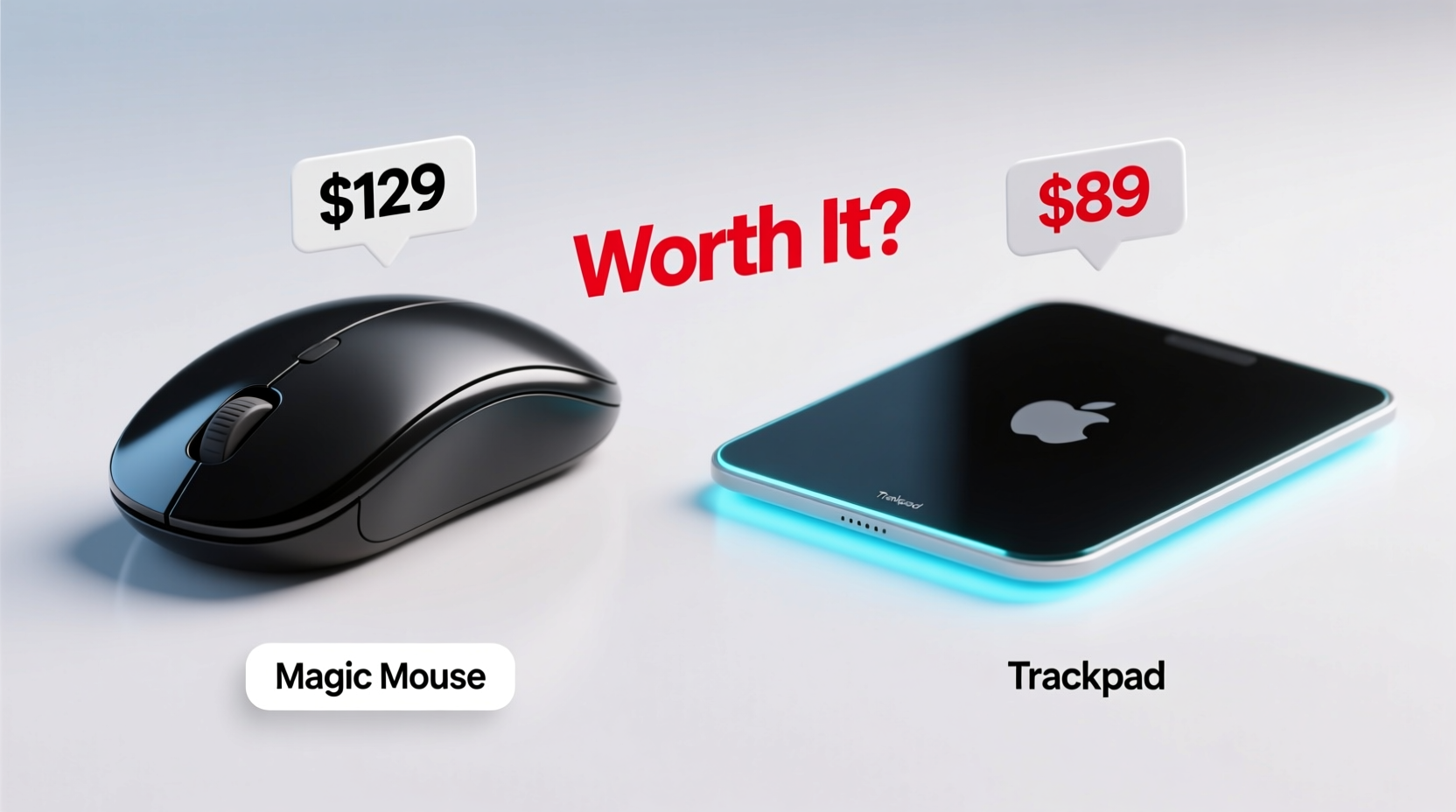
One of the most debated aspects of the Magic Mouse versus the trackpad is ergonomics. The Magic Mouse has a low-profile, symmetrical design that looks sleek but can cause discomfort during extended use. Because it sits flat in the hand, users often rest their palm on the top surface while moving the entire arm to navigate—leading to wrist strain over time.
In contrast, the MacBook trackpad encourages a more relaxed hand position. Your fingers glide across the surface with minimal movement, reducing forearm fatigue. Apple designed the Force Touch trackpad to respond to subtle pressure, allowing gestures like tapping to click, pinch-to-zoom, and three-finger swipes without lifting your hands.
“Many users don’t realize how much repetitive motion adds up over hours. The trackpad’s gesture-based navigation reduces micro-movements that contribute to long-term discomfort.” — Dr. Lena Torres, Occupational Ergonomist
Precision and Navigation Performance
When it comes to cursor control, both devices are highly responsive, but they excel in different scenarios.
The Magic Mouse offers smooth tracking across surfaces and supports multi-touch gestures like swiping between pages and pinching to zoom. However, its small size and lack of tactile feedback make precise selections—like editing photos or selecting text—more challenging than expected. Users often report overshooting targets due to oversensitive scrolling.
The MacBook trackpad, by comparison, provides superior accuracy. Its larger surface area allows for fine-grained control, especially when working in creative applications like Final Cut Pro or Adobe Photoshop. Features like haptic feedback simulate a physical click while letting you adjust sensitivity in System Settings, tailoring the response to your preference.
Real-World Example: Graphic Designer Workflow
Consider Maria, a freelance graphic designer who uses her 16-inch MacBook Pro for client projects. She initially purchased a Magic Mouse hoping for better control during image retouching. After two weeks, she noticed increased tension in her right shoulder and found herself constantly readjusting the cursor position. She switched back to the trackpad and customized gesture shortcuts for brush resizing and layer navigation. Her productivity improved, and her physical discomfort disappeared.
This scenario highlights a key insight: for detail-oriented tasks, the trackpad’s responsiveness and integration with macOS gestures often outperform even Apple’s own peripherals.
Portability and Setup Simplicity
If you frequently switch between mobile and desk setups, the trackpad has a clear advantage: it’s always there. No pairing, no charging, no extra cables. Whether you’re working from a café or presenting in a meeting room, your input method travels with your laptop.
The Magic Mouse, while wireless and Bluetooth-enabled, requires occasional recharging via Lightning cable (still used on current models). Forgetting to charge it can leave you stranded. Additionally, carrying an extra device adds bulk—especially if you're already juggling a laptop, charger, and accessories.
Gesture Support and macOS Integration
Apple’s ecosystem thrives on fluid interaction, and gestures are central to that experience. Here’s how the two devices compare:
| Feature | Magic Mouse | MacBook Trackpad |
|---|---|---|
| Swipe Between Desktops | Two-finger swipe | Three- or four-finger swipe |
| Launchpad Access | Pinch with two fingers | Pinch with four fingers |
| App Exposé | Swipe down with three fingers | Four-finger downward swipe |
| Smart Zoom | Double-tap with two fingers | Double-tap with two fingers |
| Custom Gestures | Limited (via third-party apps) | Extensive (native + third-party) |
While the Magic Mouse supports basic gestures, the trackpad unlocks the full potential of macOS. Four-finger swipes to switch spaces, force-click for quick lookups, and inertial scrolling all feel more intuitive on the larger surface. Third-party tools like BetterTouchTool expand this further, allowing complex macros directly from the trackpad.
Cost-Benefit Analysis: Is the Magic Mouse Worth It?
The Magic Mouse costs $79 (as of 2024), which may seem modest—but only if you don’t already own a MacBook. Since every MacBook includes a high-performance trackpad, spending extra on a peripheral that underperforms in key areas raises questions about value.
Who benefits most from the Magic Mouse?
- Desktop Mac users (iMac, Mac mini) who lack a built-in trackpad.
- Users preferring traditional mouse ergonomics, such as those transitioning from Windows.
- Presenters or lecturers who benefit from consistent pointing control during slideshows.
But for the majority of MacBook owners, especially those working remotely or in hybrid environments, the trackpad delivers equal or better functionality at zero added cost.
Checklist: Should You Buy the Magic Mouse?
- Are you using a desktop Mac without a trackpad?
- Do you spend more than 4 hours daily on detailed pointing tasks?
- Have you tried the MacBook trackpad extensively and still prefer a mouse?
- Is your workspace fixed, minimizing portability concerns?
- Can you customize pointer speed and gesture settings to suit your needs?
If you answered “no” to three or more of these, the Magic Mouse likely won’t improve your experience enough to justify the price.
FAQ
Can I use the Magic Mouse with any Mac?
Yes, the Magic Mouse works wirelessly via Bluetooth with all modern Macs running macOS 10.15 (Catalina) or later. It pairs easily through System Settings > Bluetooth.
Why does the Magic Mouse feel slippery?
The glossy finish and low profile contribute to a lack of grip. Some users apply adhesive rubber pads or use textured sleeves to improve traction and comfort.
Does the trackpad wear out over time?
Apple’s Force Touch trackpads are built to last. While older models had mechanical buttons, current versions use haptic engines with no moving parts, making them highly durable. Most failures are related to software or logic board issues, not the trackpad itself.
Final Verdict: Stick with the Trackpad—Unless You Have a Specific Need
The MacBook trackpad isn’t just a convenient default—it’s one of the best input devices Apple has ever made. Its combination of size, responsiveness, gesture support, and ergonomic design makes it ideal for most workflows. For creatives, developers, writers, and general users, switching to the Magic Mouse often introduces more friction than benefit.
The Magic Mouse isn’t poorly designed, but it serves a niche. If you’re tethered to a desk, prefer vertical hand positioning, or need compatibility with a non-laptop Mac, it can be a worthwhile addition. But for the average MacBook owner, the built-in trackpad already offers everything needed—without the extra cost or clutter.
Rather than upgrading hardware, consider mastering the trackpad’s capabilities. Learn advanced gestures, customize haptic feedback, and optimize pointer speed. These tweaks cost nothing and can transform your daily computing experience far more than any peripheral ever could.




 浙公网安备
33010002000092号
浙公网安备
33010002000092号 浙B2-20120091-4
Comments
No comments yet. Why don't you start the discussion?