
Photography has become more accessible than ever, but capturing a great shot is only half the story. The real magic often happens in post-processing. Whether you're using a smartphone or a DSLR, learning how to edit photos like a professional can transform ordinary images into striking visuals. The good news? You don’t need expensive software or years of training. With the right techniques and a clear workflow, anyone can achieve polished, professional-looking results.
Understand the Foundation: What Makes a Photo Edit \"Pro-Level\"?
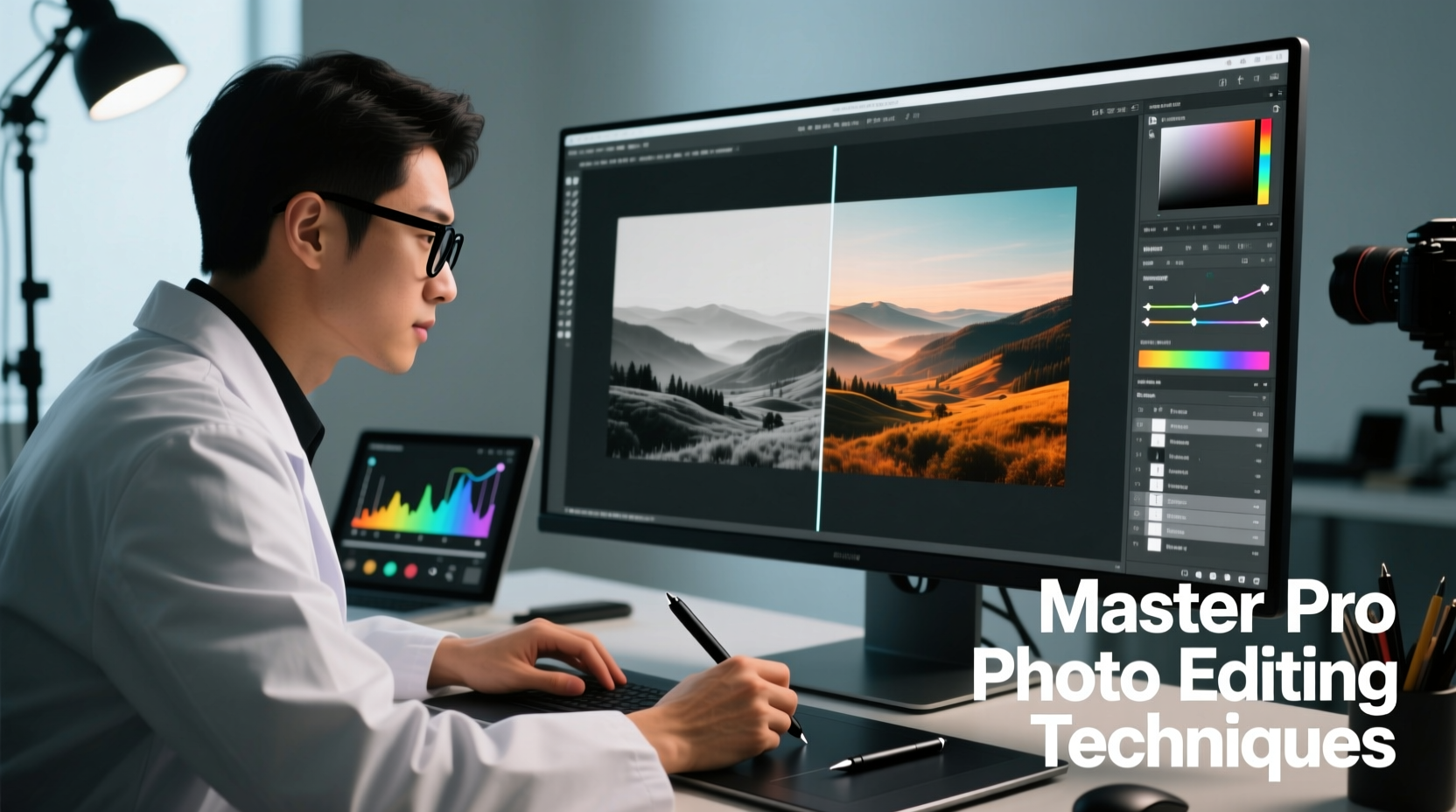
Professional photo editing isn't about over-the-top filters or excessive retouching. It’s about enhancing what’s already there—correcting exposure, balancing colors, sharpening details, and guiding the viewer’s eye. A well-edited photo feels natural, intentional, and emotionally resonant.
The key lies in subtlety. Over-editing distracts; under-editing misses opportunities. Striking that balance requires understanding core editing principles: exposure, contrast, color temperature, composition, and detail enhancement.
Essential Editing Tools and Software Options
You don’t need Photoshop mastery to get started. Modern editing tools are intuitive and powerful, available across devices. Here’s a quick overview of top options:
| Software | Best For | Learning Curve | Cost |
|---|---|---|---|
| Adobe Lightroom (Desktop/Mobile) | Color grading, batch editing, cloud sync | Moderate | Paid (subscription) |
| Photoshop Express | Quick fixes, mobile editing | Low | Free with premium features |
| Skylum Luminar Neo | AI-powered enhancements, creative effects | Low to Moderate | Paid (one-time or subscription) |
| GIMP (Free) | Advanced editing on a budget | High | Free |
| Apple Photos / Google Photos | Basic adjustments, everyday use | Very Low | Free |
For beginners, Adobe Lightroom Mobile or Apple Photos offer excellent starting points. They include sliders for exposure, contrast, saturation, and sharpness—tools that mirror professional workflows without overwhelming complexity.
“Editing isn’t about fixing bad photos. It’s about revealing the best version of a good one.” — Sarah Lin, Professional Editorial Photographer
Step-by-Step Guide: Edit Any Photo Like a Pro in 7 Steps
Follow this proven sequence to consistently improve your images. This workflow works across platforms and genres—from portraits to landscapes.
- Start with a clean slate. Import your image and resist the urge to jump straight into filters. Zoom out and assess the overall tone, lighting, and composition.
- Adjust white balance. Correct unnatural color casts. If skin tones look too warm (orange) or too cool (blue), tweak the temperature slider until whites appear neutral and skin looks natural.
- Balance exposure and contrast. Use the exposure slider to brighten underexposed areas or recover highlights. Then increase contrast slightly to add depth—just enough to make shadows and highlights distinct without losing detail.
- Enhance clarity and sharpness. Clarity boosts mid-tone contrast, adding texture (great for architecture or portraits). Sharpness refines edges. Apply both subtly—overuse creates harsh, artificial looks.
- Tune saturation and vibrance. Vibrance intelligently boosts muted colors without oversaturating skin tones. Use it to make skies bluer or foliage greener. Saturation affects all colors equally—use sparingly.
- Crop and straighten. Align horizons, remove distractions, and apply rule-of-thirds composition. Even slight tilts can undermine professionalism—straightening makes a dramatic difference.
- Apply subtle vignetting or selective edits. A soft vignette draws attention to the subject. Use brushes or radial filters to brighten faces, darken skies, or enhance specific areas.
Mini Case Study: Transforming a Flat Landscape Photo
Consider a midday landscape shot taken on a cloudy day. The original appears flat, with low contrast and dull greens and blues. The sky lacks definition, and the foreground feels lifeless.
Using Lightroom, the editor first adjusted the white balance to remove a slight blue cast. Exposure was increased slightly, and contrast boosted to give dimension. The clarity slider was raised to +15 to emphasize rock textures and tree bark. Vibrance was increased to +20, making foliage pop without turning it neon.
A graduated filter darkened the sky, simulating a polarizing effect. A second brush selectively brightened the riverbank. Finally, a mild crop tightened the composition, placing the winding river along a diagonal line for visual flow.
The result? A dynamic, immersive scene that feels vibrant yet authentic—proof that thoughtful edits elevate mood and impact.
Common Mistakes and How to Avoid Them
- Over-sharpening: Creates unnatural halos around edges. Stick to moderate settings and use masking (if available) to apply sharpness only to detailed areas.
- Excessive saturation: Turns realistic scenes into cartoonish ones. When in doubt, reduce saturation by 10% from your preferred setting.
- Neglecting noise reduction: High ISO shots or extreme brightening introduce grain. Use luminance noise reduction carefully—too much blurs detail.
- Ignoring aspect ratio: Cropping without considering output (Instagram, print, web) leads to awkward framing. Know your platform’s ideal dimensions.
- Editing on uncalibrated screens: Colors may look different on other devices. Whenever possible, preview edits on multiple screens.
“Editing discipline is more important than technical skill. Less is often more.” — Diego Mendez, Fine Art Photographer
Checklist: Your Quick-Reference Photo Editing Workflow
Keep this checklist handy for every edit:
- ✅ Assess the image at full zoom and normal view
- ✅ Correct white balance for accurate colors
- ✅ Adjust exposure and recover highlights/shadows
- ✅ Increase contrast and clarity moderately
- ✅ Enhance vibrance (not saturation) for natural pop
- ✅ Crop and straighten for strong composition
- ✅ Sharpen selectively and apply noise reduction if needed
- ✅ Zoom out and review—does it look balanced and intentional?
- ✅ Save a high-resolution version and a compressed copy for sharing
FAQ
Do I need Photoshop to edit like a pro?
No. While Photoshop offers advanced capabilities, most professional-quality edits can be done in simpler tools like Lightroom, Luminar, or even mobile apps. Focus on technique, not software.
How do I make my photos look “clean” and not over-edited?
Stick to subtle adjustments. If an edit is immediately noticeable, it’s likely too strong. Compare before-and-after frequently, and step away for a few minutes to reset your eyes.
Can I edit photos well on my phone?
Absolutely. Modern smartphones have powerful editing apps like Snapseed, Lightroom Mobile, and VSCO. With touch precision and AI-assisted tools, mobile editing is faster and more capable than ever.
Final Thoughts: Start Small, Think Big
Becoming proficient at photo editing isn’t about mastering every tool—it’s about developing a consistent, mindful approach. Begin with simple corrections, build your confidence, and gradually experiment with creative effects. The goal isn’t perfection, but intentionality. Every adjustment should serve the story the photo tells.
With practice, these techniques will become second nature. Soon, you’ll instinctively see how light falls, how colors interact, and how small tweaks can amplify emotion. That’s the mark of a true editor—not flawless tools, but a refined eye.




 浙公网安备
33010002000092号
浙公网安备
33010002000092号 浙B2-20120091-4
Comments
No comments yet. Why don't you start the discussion?