
For writers, students, language learners, and professionals working across languages, typing accented characters is a daily necessity. Whether you're composing an email in French, writing a research paper with Spanish citations, or drafting bilingual content, accessing special characters quickly can make a significant difference in productivity. On macOS, Apple has built multiple intuitive ways to insert accents and symbols—without requiring third-party tools. Mastering these methods not only saves time but also enhances accuracy and professionalism in your work.
The challenge many users face isn’t the lack of options—it’s knowing which method fits their workflow best. Some prefer speed, others precision; some need occasional access, while multilingual typists require constant use. The good news? macOS offers flexible solutions tailored to every user profile. From simple long-press keys to advanced Unicode input, this guide breaks down all available techniques so you can choose what works for you—and use it confidently.
Understanding Accents and Special Characters
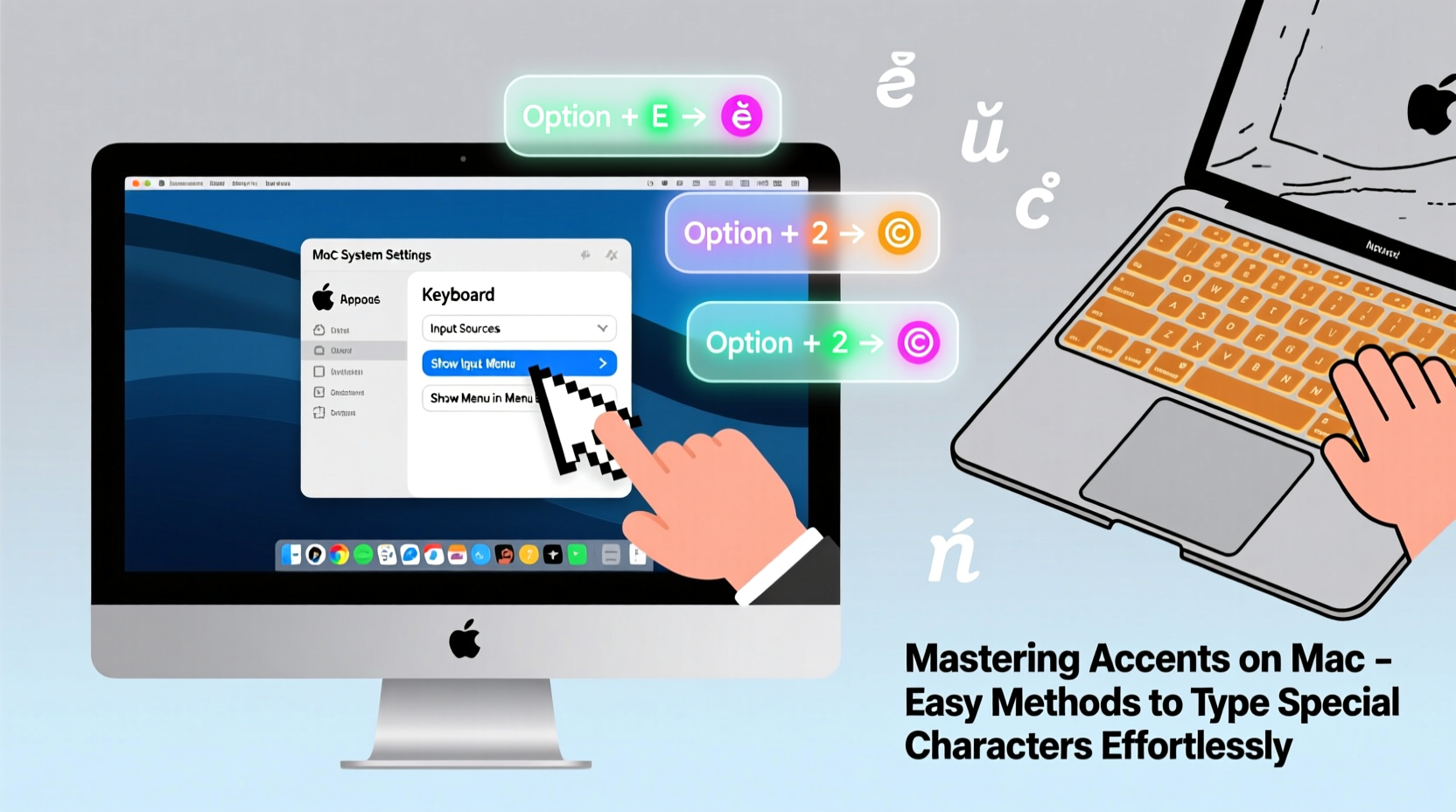
Accents modify pronunciation and meaning in many languages. A misplaced or missing accent can change a word entirely—or render it incorrect. For example:
- café vs. cafe – The former is correct in French and English usage; the latter lacks proper diacritical marking.
- naïve – The diaeresis (¨) over the 'i' indicates separate vowel pronunciation.
- résumé – Both 'e' letters carry acute accents critical to spelling and meaning.
Special characters go beyond accents. They include currency symbols (€, £), mathematical signs (∑, ∫), punctuation (« », †), and emoji. All are accessible on Mac through native tools, often faster than most people realize.
“Efficient typing in multiple languages starts with mastering character input. On Mac, the tools are already there—you just need to unlock them.” — Dr. Lena Torres, Computational Linguist & Multilingual UX Researcher
Method 1: Long-Press Key for Accent Pop-Up
This is the fastest way for occasional use. Simply press and hold any letter key (like a, e, u) on your Mac keyboard, and a pop-up menu appears showing common accented versions.
For instance, holding down Option + e then pressing e again produces é. But if you just press and hold e alone, a visual selector appears:
This method supports major Western European languages including French, German, Spanish, Portuguese, and Italian. It's ideal for casual users who don’t want to memorize complex shortcuts.
Supported Letters via Long-Press
| Base Letter | Available Accents |
|---|---|
| A | à, á, â, ä, ã, å, æ |
| E | è, é, ê, ë |
| I | ì, í, î, ï |
| O | ò, ó, ô, ö, œ |
| U | ù, ú, û, ü |
| C | ç, ¢ |
| N | ñ, ¥ |
Method 2: Use Option (Alt) Key Shortcuts
For frequent typists, keyboard combinations using the Option key offer unmatched speed. These shortcuts apply accents first, then combine them with a base letter.
Here’s how it works:
- Press and release the Option key plus an accent key (e.g., Option + e for acute accent).
- Then press the letter you want to accent (e.g., e → é, a → á).
If you make a mistake, just press Spacebar after the accent to cancel.
Common Option Key Combinations
| Shortcut | Accent Type | Example Output |
|---|---|---|
| ⌥ + e, then letter | Acute (´) | é, á, í |
| ⌥ + `, then letter | Grave (`) | è, à, ù |
| ⌥ + i, then letter | Circumflex (^) | ê, ô, î |
| ⌥ + u, then letter | Diaeresis/Umlaut (¨) | ü, ï, ö |
| ⌥ + n, then letter | Tilde (~) | ñ, ã |
| ⌥ + c | Cedilla | ç |
| ⌥ + s | ß | German sharp S |
Method 3: Open the Character Viewer
When you need rare symbols—like ©, ™, ∂, or even musical notes—the **Character Viewer** is your go-to tool. It’s a full library of glyphs, emojis, and script-specific characters built into macOS.
How to Enable and Use Character Viewer
- Go to System Settings > Keyboard > Text Input.
- Click “Edit” next to Input Sources and check “Show Input menu in menu bar.”
- Now, click the input icon (🌐 or 🌍) in the top-right menu bar.
- Select Show Emoji & Symbols.
Alternatively, use the shortcut Control + Command + Space to open it instantly.
Inside the viewer, browse categories like Latin, Greek, Cyrillic, Arrows, Currency, or search by name (e.g., “acute e”). Double-click any character to insert it directly into your document.
“The Character Viewer is underused but incredibly powerful. I use it daily when transcribing phonetic scripts or inserting domain-specific symbols.” — Mark Chen, Technical Writer & Localization Specialist
Mini Case Study: Bilingual Content Creator’s Workflow
Sophie Ramirez is a content creator producing YouTube subtitles in both English and Canadian French. She used to copy-paste accents from web pages, which slowed her down and introduced errors. After learning Mac’s long-press and Option-key methods, she cut her editing time by nearly 30%.
Her current workflow:
- Uses Option + e followed by e for é during live captioning.
- Holds u to pick ù when writing blog posts.
- Keeps Character Viewer open (Ctrl+Cmd+Space) for less common terms like œuvre or façade.
“Once I internalized the shortcuts, typing in two languages felt natural,” she says. “It’s small changes like this that keep my creativity flowing instead of getting stuck on formatting.”
Checklist: Master Accents on Mac in One Week
Adopt these steps over seven days to build fluency:
- Day 1: Practice long-press on vowels. Type “café,” “naïve,” “résumé.”
- Day 2: Learn ⌥ + e → e = é. Repeat for other vowels.
- Day 3: Add circumflex: ⌥ + i, then o = ô.
- Day 4: Try ⌥ + u for umlauts: ü, ö.
- Day 5: Open Character Viewer with Ctrl+Cmd+Space; explore categories.
- Day 6: Write a short paragraph mixing English and Spanish using only native input.
- Day 7: Time yourself typing 10 accented words. Compare to Day 1—notice the improvement.
Frequently Asked Questions
Can I customize the long-press accent menu?
No, the default set shown when holding a key cannot be edited directly. However, you can create custom text replacements in System Settings > Keyboard > Text Replacements (e.g., replace “(c)” with ©).
Why doesn’t the accent pop-up appear when I hold a key?
This feature may be disabled. Go to System Settings > Keyboard and ensure “Press and hold” is enabled under Key Repeat settings. If disabled, holding keys will repeat the letter instead of showing accents.
Is there a way to type accents without changing keyboard layout?
Yes—all methods described work regardless of your primary input language. You don’t need to switch to a French or Spanish keyboard layout to type accented characters.
Conclusion: Type With Confidence Across Languages
Mastering accents on Mac isn’t about memorizing dozens of obscure shortcuts—it’s about choosing one or two efficient methods that align with how you write. Whether you’re sending international emails, studying foreign languages, or publishing multilingual content, seamless character input elevates your communication.
The tools are already built into your system. With minimal practice, inserting special characters becomes second nature. Start with the long-press technique today, add one Option-key combo tomorrow, and soon you’ll navigate diacritics as smoothly as the alphabet.




 浙公网安备
33010002000092号
浙公网安备
33010002000092号 浙B2-20120091-4
Comments
No comments yet. Why don't you start the discussion?