
Whether you're writing in French, Spanish, German, or any language that uses accented characters, typing them efficiently on a PC shouldn’t be a struggle. Many users rely on copying and pasting from external sources or waste time searching for the right symbol online. But with the right techniques, you can type é, ü, ñ, ç, and dozens of other special characters instantly—without leaving your keyboard.
The key is knowing which method fits your workflow: built-in keyboard shortcuts, operating system features, third-party tools, or Unicode input. Each has its strengths, and mastering even one can dramatically improve your productivity and accuracy when working with foreign languages, academic papers, or multilingual communication.
Understanding Why Accents Matter
Accents aren't just stylistic flourishes—they change pronunciation, meaning, and grammar in many languages. For example, in French, “résumé” means a summary, while “resume” without accents could imply restarting something. In Spanish, “si” means “if,” but “sí” means “yes.” Typing these correctly ensures clarity and professionalism.
Yet, most standard English keyboards don’t display accented keys, creating a barrier for non-native typists or bilingual professionals. Fortunately, Windows and other platforms offer multiple ways to bypass this limitation.
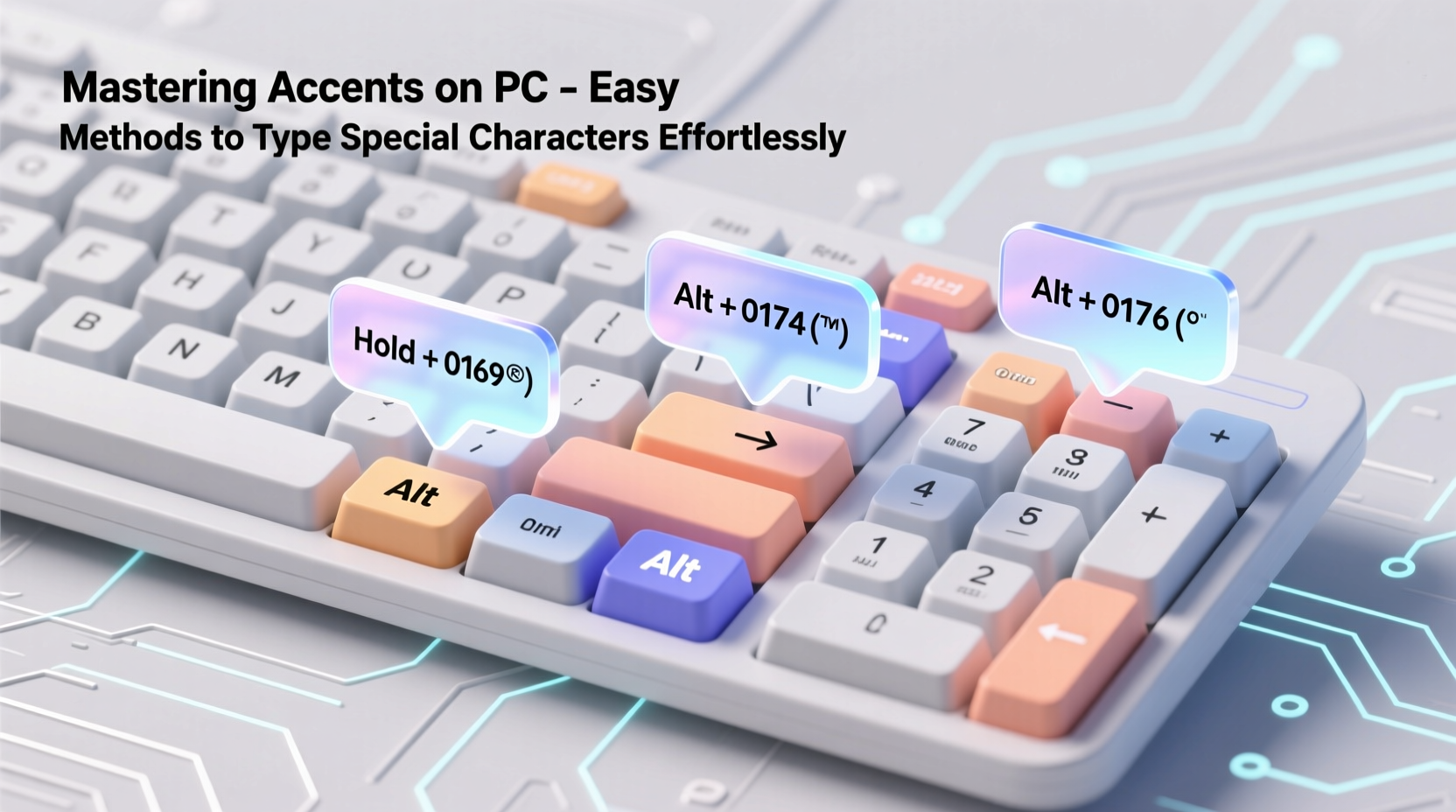
Using Keyboard Shortcuts (Alt Codes)
One of the fastest ways to insert special characters on a Windows PC is through Alt codes—numeric combinations typed on the numeric keypad while holding down the Alt key.
To use Alt codes effectively:
- Ensure Num Lock is turned on.
- Hold down the Alt key.
- Type the corresponding number sequence on the numeric keypad.
- Release the Alt key, and the character will appear.
Commonly Used Alt Codes
| Character | Accent Type | Alt Code |
|---|---|---|
| é | Acute accent | Alt + 0233 |
| è | Grave accent | Alt + 0232 |
| ê | Circumflex | Alt + 0234 |
| ë | Umlaut/Diaeresis | Alt + 0235 |
| ñ | Tilde | Alt + 0241 |
| ç | Cedilla | Alt + 0231 |
| ü | Umlaut | Alt + 0252 |
| ¿ | Inverted question mark | Alt + 0191 |
| ¡ | Inverted exclamation | Alt + 0161 |
Note: Always use the leading zero for these codes (e.g., 0233 instead of 233) to ensure compatibility across applications like Word, email clients, and browsers.
Switching Input Languages and Using Dead Keys
A more sustainable long-term solution is adding a foreign language keyboard layout to your system. This allows you to type accents naturally using “dead keys”—keys that don’t produce a character immediately but modify the next letter typed.
Step-by-Step: Add a Language Layout in Windows
- Open Settings → Time & Language → Language & Region.
- Click “Add a language” and search for your target language (e.g., Spanish, French, German).
- Select the variant and install it.
- Once added, switch between layouts using Windows + Spacebar.
For example, with the U.S. International Keyboard enabled:
- Type ' then e → produces é
- Type ` then u → produces ù
- Type \" then o → produces ö
- Type ~ then n → produces ñ
This method mimics how native speakers type and becomes intuitive over time.
Unicode Input and Character Map Tool
For occasional use or rare symbols, Windows’ built-in Character Map utility provides a visual way to browse and insert special characters.
How to Use Character Map
- Press Win + R, type
charmap, and press Enter. - Select a font (e.g., Arial, Times New Roman).
- Browse or search for the desired character (e.g., æ, œ, ß, ¢).
- Click “Select,” then “Copy,” and paste into your document.
Alternatively, use Unicode hex codes directly:
- Type the Unicode value (e.g., 00E9 for é).
- Immediately press Alt + X (in Microsoft Word only).
This converts the code into the actual character. Useful for writers, translators, and academics who need precise control over typography.
Third-Party Tools and Auto-Correct Utilities
If you want even greater flexibility, consider lightweight software like AutoHotkey or Bépo (for French), which let you create custom shortcuts.
For instance, you can set up a script so that typing :e: automatically replaces it with é, or :ss: with ß. These tools adapt to your habits and reduce repetitive strain.
“Efficient typing isn’t about speed alone—it’s about minimizing cognitive load. When accents become automatic, focus shifts back to content.” — Dr. Lena Torres, Human-Computer Interaction Researcher
Mini Case Study: Maria, Bilingual Customer Support Agent
Maria works for a travel company handling bookings in both English and Spanish. Initially, she copied accents from Google searches, slowing her response time by nearly 40%. After learning Alt codes and switching to the U.S. International layout, her average reply time dropped from 8 to 3 minutes per ticket. She now types naturally, reducing errors and improving customer satisfaction scores.
Her workflow today:
- Uses Alt + 0241 for “ñ” in “España”
- Types acute accents using dead keys: ' + o = ó
- Keeps Spanish layout active during shifts, switches back with Win + Space
What once felt like a technical hurdle became second nature within two weeks.
Checklist: Master Accents in 7 Days
- ✅ Day 1: Learn 5 essential Alt codes (é, è, ñ, ü, ¿)
- ✅ Day 2: Install U.S. International or target language keyboard
- ✅ Day 3: Practice dead key combinations for vowels
- ✅ Day 4: Use Character Map to find and copy less common symbols
- ✅ Day 5: Set up one AutoCorrect rule (e.g., :ae: → æ)
- ✅ Day 6: Write a short paragraph using only keyboard inputs
- ✅ Day 7: Test yourself under time pressure—no copying allowed!
Do’s and Don’ts When Typing Special Characters
| Do’s | Don’ts |
|---|---|
| Use Alt codes with the numeric keypad and leading zero | Try Alt codes on laptops without enabling Num Lock or Fn mode |
| Switch keyboard layouts if typing full sentences in another language | Rely solely on copy-paste for frequent characters |
| Use Unicode + Alt+X in Word for fast symbol insertion | Expect Unicode shortcuts to work outside Microsoft Office |
| Customize auto-replacements in Word or text expanders | Ignore keyboard layout indicators—know which one you’re using |
Frequently Asked Questions
Can I type accents on a laptop without a numeric keypad?
Yes. Most laptops have a hidden numeric keypad activated by pressing the Fn key plus specific letter keys (usually marked in a different color). Alternatively, enable the on-screen keyboard via Win + Ctrl + O and click the numpad manually.
Why do some Alt codes not work in certain programs?
Some applications, especially web-based editors or older software, may not support extended ASCII codes. Stick to Unicode-compatible environments like Microsoft Word, Google Docs (which supports direct input), or modern browsers for best results.
Is there a universal method that works across all devices?
Not exactly. While Alt codes are Windows-specific, macOS uses Option key combinations (e.g., Option + e, then e = é). For cross-platform consistency, consider cloud-based tools like browser extensions or text expansion apps that sync your shortcuts.
Final Thoughts: Make Accents Work for You, Not Against You
Typing special characters doesn’t have to disrupt your flow. Whether you choose Alt codes for quick access, adopt an international keyboard for fluency, or automate replacements, the goal is seamless integration into your daily tasks. The initial learning curve pays off in long-term efficiency, accuracy, and confidence—especially when communicating in multiple languages.
Start small. Pick one method. Practice consistently. Soon, typing é, ñ, or ü will feel as natural as typing A, B, C.




 浙公网安备
33010002000092号
浙公网安备
33010002000092号 浙B2-20120091-4
Comments
No comments yet. Why don't you start the discussion?