
Navigating terrain or flying through variable atmospheric conditions demands precision in elevation data. Whether you're a seasoned hiker, paraglider, mountaineer, or pilot, the altimeter is one of your most critical tools. But an altimeter only works effectively when properly understood and calibrated. Misreading it—or ignoring its limitations—can lead to dangerous miscalculations. This guide breaks down how altimeters function, how to interpret their readings accurately, and how to adjust for real-world variables that affect elevation accuracy.
How Altimeters Work: The Science Behind Elevation Measurement
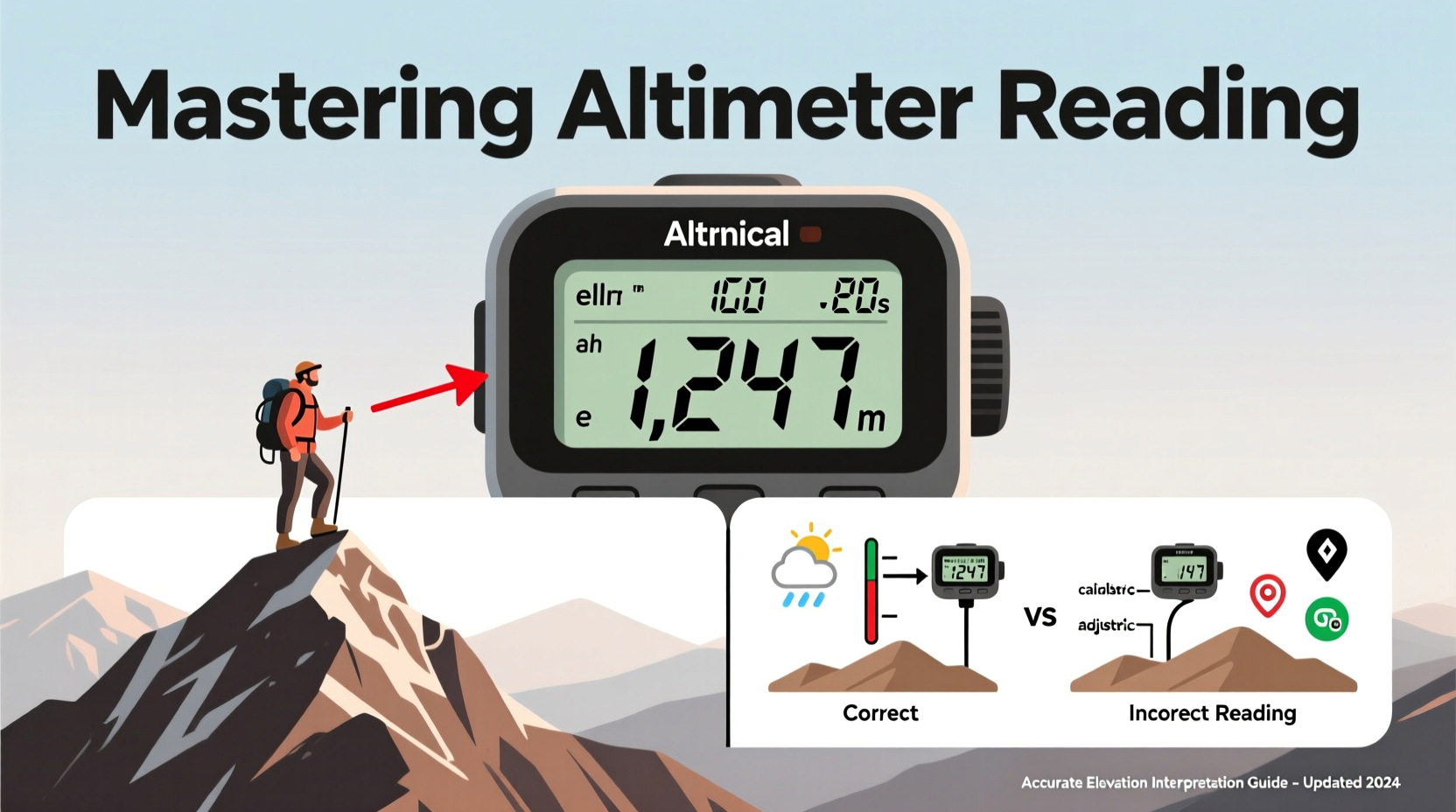
At its core, an altimeter measures altitude by detecting changes in atmospheric pressure. As altitude increases, air pressure decreases predictably. Most mechanical and digital altimeters use this principle, converting pressure readings into elevation above sea level using a standard pressure model.
The International Standard Atmosphere (ISA) assumes a sea-level pressure of 1013.25 hPa (hectopascals) and a consistent temperature lapse rate. However, real-world conditions rarely match this idealized model. Temperature deviations, weather systems, and local topography all influence air pressure and thus alter altimeter output.
There are three primary types of altimeters:
- Analog (barometric) – Uses a sealed aneroid capsule that expands or contracts with pressure changes.
- Digital (electronic) – Employs microelectromechanical sensors (MEMS) to detect pressure and often integrates GPS data.
- GPS-based – Calculates elevation from satellite triangulation but can be less accurate vertically than horizontally.
While GPS altimeters avoid pressure-related inaccuracies, they struggle in canyons, dense forests, or under cloud cover. Barometric models, though sensitive to weather, offer smoother vertical tracking when calibrated correctly.
Calibrating Your Altimeter: A Step-by-Step Guide
Accurate readings begin with proper calibration. Without it, even a high-end device may report elevations off by hundreds of feet. Follow these steps to ensure reliability:
- Find a known reference point. Use trail signs, topographic maps, or official survey markers with marked elevation.
- Allow time for stabilization. If you've ascended or descended rapidly, wait 2–3 minutes for the sensor to equilibrate.
- Adjust the current reading. On analog units, turn the calibration knob; on digital devices, access the settings menu and set the displayed altitude to match the known value.
- Recheck periodically. Recalibrate every few hours or after significant weather shifts.
- Note local barometric pressure if available. Some advanced altimeters allow inputting station pressure for improved accuracy.
For aviation applications, pilots routinely update their altimeter setting using ATIS (Automatic Terminal Information Service) or air traffic control reports. Hikers and climbers should consult regional weather stations or apps that provide localized pressure data adjusted to sea level (QNH).
Common Errors and How to Correct Them
Even well-calibrated altimeters can mislead due to environmental factors. Recognizing these pitfalls is essential for safe navigation.
| Error Source | Impact on Reading | Solution |
|---|---|---|
| Temperature extremes | Cold air = higher density = overestimated altitude | Apply temperature correction formulas or cross-check with GPS |
| Weather system changes | Low-pressure fronts cause falsely high readings | Recalibrate frequently during storms or rapid weather shifts |
| Altitude drift over time | Gradual sensor drift due to prolonged use | Reset at known points; use auto-calibration features if available |
| Incorrect sea-level pressure setting | Off-by-default baseline leads to cumulative error | Set QNH from reliable meteorological sources |
“Pilots learn early: an uncalibrated altimeter isn’t just inaccurate—it’s hazardous. The same principle applies to backcountry travelers relying on elevation cues.” — Captain Linda Reeves, Aviation Safety Instructor
Practical Applications: Real-World Scenarios
Consider Alex, an experienced hiker attempting a solo trek across the Sierra Nevada. His route includes navigating a narrow ridge with steep drop-offs on either side. Visibility drops suddenly due to fog, eliminating visual landmarks. He relies on his altimeter to confirm he hasn't deviated from the planned ascent profile.
Earlier that morning, Alex calibrated his watch-based altimeter at a trailhead sign indicating 7,240 feet. By midday, the device reads 9,850 feet—consistent with the next waypoint on his map. But as he continues, the reading climbs faster than expected. He pauses and recalls a weather alert about an approaching low-pressure system.
Suspecting distortion, Alex checks a weather app showing local pressure has dropped 12 hPa since morning. He recalculates using a correction formula: for every 1 hPa deviation from standard pressure, altitude changes by approximately 27 feet. With a 12 hPa drop, his altimeter could be overreading by up to 324 feet.
He adjusts mentally, factoring in the potential error, and proceeds cautiously. Later, he verifies his position at a stream crossing marked at 9,600 feet on the map—his corrected estimate aligns closely. This awareness prevented a possible wrong turn into rugged, unsafe terrain.
Advanced Tips for Accurate Interpretation
To master altimeter reading, go beyond basic calibration. Integrate elevation data intelligently into your decision-making process.
- Use multi-source validation. Cross-reference your altimeter with GPS elevation, topographic maps, and physical landmarks whenever possible.
- Understand your device’s refresh rate. Some budget models update slowly, creating lag during rapid ascents or descents.
- Track trends, not just numbers. A steady climb of 500 feet per mile tells more than a single altitude snapshot.
- Log elevation profiles. Many smartwatches and GPS units record ascent/descent totals—review them post-trip to refine future estimates.
- Learn to read pressure trends. A dropping altimeter reading while stationary suggests a falling-pressure weather system, not descent.
Checklist: Ensuring Reliable Altimeter Performance
- ✅ Calibrate at a known elevation before departure
- ✅ Confirm battery level and sensor functionality
- ✅ Input correct local pressure setting (QNH) if applicable
- ✅ Recalibrate every 2–3 hours or after major weather changes
- ✅ Compare with secondary sources (map, GPS, landmark)
- ✅ Monitor for sudden jumps or drift inconsistent with movement
- ✅ Record key elevation checkpoints during travel
Frequently Asked Questions
Why does my altimeter show different values than my GPS?
Barometric altimeters measure pressure-derived elevation, while GPS calculates position via satellites. GPS vertical accuracy is typically ±20–40 feet, whereas a well-calibrated barometric sensor can achieve ±10 feet. Environmental interference affects both differently—use them together for best results.
Can I trust my smartphone’s altimeter?
Most smartphones contain barometric sensors, but they’re often optimized for indoor use (e.g., step counting). They can be accurate if calibrated and shielded from body heat, but dedicated outdoor devices generally offer better stability and durability.
How do I correct for non-standard temperatures?
In extreme cold, true altitude is lower than indicated. A rule of thumb: for every 10°C below standard ISA temperature, reduce indicated altitude by roughly 4%. For example, at -15°C (instead of +15°C), apply a ~12% downward correction at 10,000 feet.
Conclusion: Elevate Your Awareness
Mastering altimeter reading isn’t about memorizing numbers—it’s about understanding context, recognizing limitations, and making informed decisions. Whether you're clearing a mountain pass or descending into a remote airstrip, precise elevation interpretation separates prepared adventurers from those who rely on luck. Take the time to learn your instrument, respect atmospheric variability, and integrate multiple data sources. Your safety—and success—depends on it.




 浙公网安备
33010002000092号
浙公网安备
33010002000092号 浙B2-20120091-4
Comments
No comments yet. Why don't you start the discussion?