
While desktop users take right-click context menus for granted, Android users often miss this functionality when navigating apps, files, or web pages. Unlike PCs, Android doesn’t natively label interactions as “right-click,” but it offers several intuitive methods to achieve the same result. Mastering these techniques unlocks faster navigation, deeper control over content, and improved productivity—especially when using external mice, styluses, or advanced touch gestures.
The key lies in understanding that Android translates \"right-click\" into contextual actions triggered through long presses, hardware inputs, or assistive features. Whether you're editing text, managing files, or browsing the web, knowing how to simulate a right click gives you access to hidden menus and shortcuts that streamline your workflow.
Understanding Contextual Actions on Android
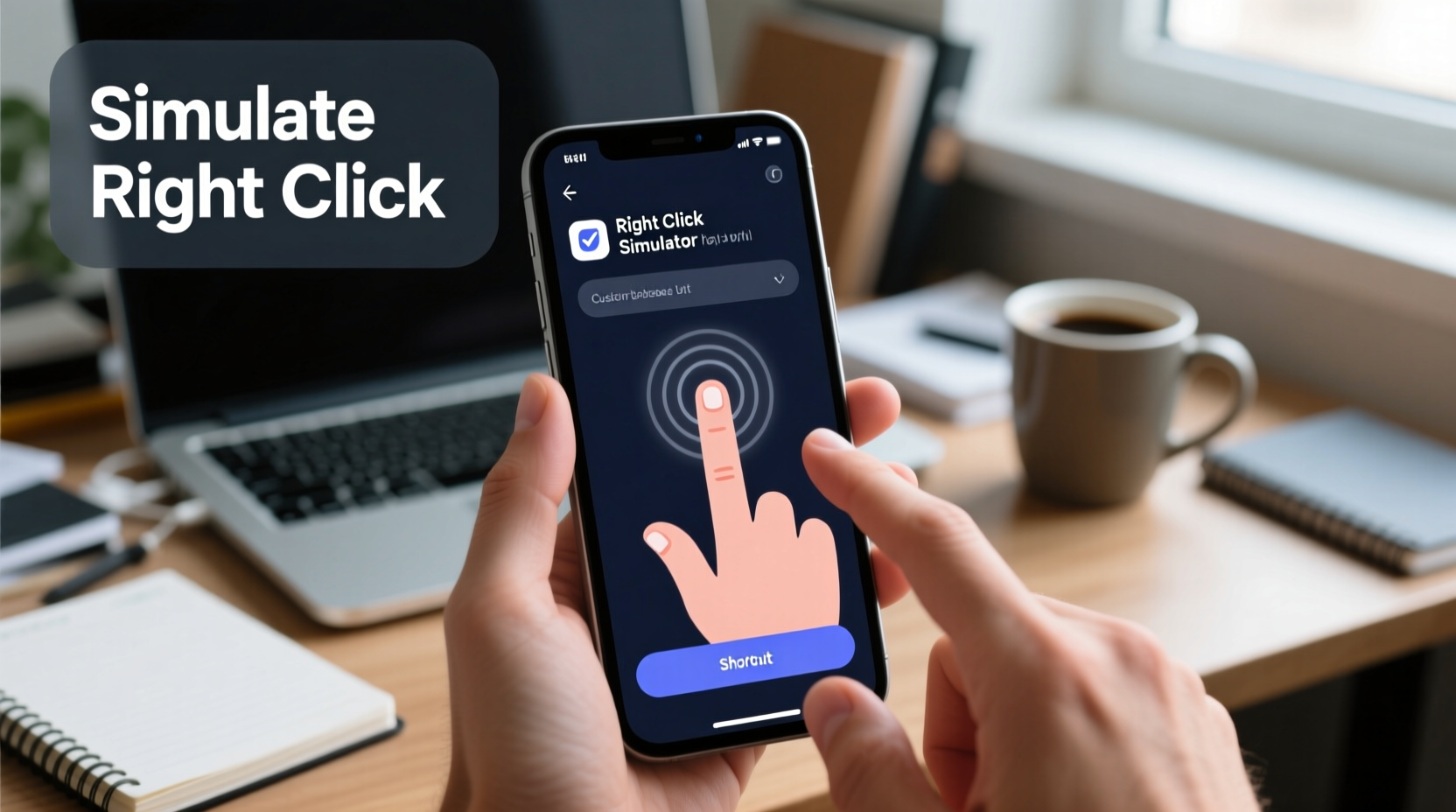
In Android’s design philosophy, every interaction is touch-first. A long press on an item typically opens a contextual action bar or floating menu—functionally equivalent to a right-click on desktop systems. This behavior is consistent across most stock Android implementations and major OEM skins like Samsung One UI, Xiaomi MIUI, and Google Pixel interfaces.
For example, long-pressing a home screen icon brings up options to uninstall, share, or resize the app. Similarly, pressing and holding a word in a document selects it and reveals formatting or sharing tools. These are all forms of simulated right-click behavior, adapted for touchscreens.
“Android replaces traditional mouse actions with gesture-based equivalents. The long press is the closest thing to a universal right-click.” — Rajiv Mehta, Mobile UX Designer at Android Authority
This foundation makes it possible to simulate right-click functionality even without physical buttons, though additional tools expand precision and usability—especially when using peripherals.
Simulating Right Click Using Touch Gestures
The most accessible method available to every Android user is the long press. It requires no setup and works universally across apps and system interfaces.
How to Use Long Press Effectively
- Tap and hold your finger on any selectable item (text, file, link, app icon).
- Maintain pressure for about 1–2 seconds until a menu or selection handle appears.
- Lift your finger—the contextual menu will remain active.
- Select from available actions such as copy, open in new tab, delete, or share.
Some variations exist depending on the app or Android version. For instance, Chrome may show a simplified menu after a long press on a link, offering to open, copy, or download. In messaging apps, long-pressing a message bubble reveals reply, forward, and delete options.
Using External Mice and Styluses for True Right-Click Simulation
If you’re using a Bluetooth or USB mouse with your Android device—common with tablets or foldables like the Samsung Galaxy Z Fold—you can perform actual right-clicks via the mouse’s secondary button. This is particularly useful for multitasking setups or desktop-like environments such as Samsung DeX.
Similarly, active styluses like the S Pen support button-activated context menus. Pressing the stylus button while hovering over text or an interface element simulates a right-click, bringing up precise contextual tools ideal for note-taking or photo editing.
| Input Method | Right-Click Equivalent | Best For |
|---|---|---|
| Finger Long Press | Hold for 1–2 seconds | General use, smartphones |
| Mouse Right Button | Physical click | Tablets, DeX mode, multitasking |
| S Pen / Active Stylus | Button press + hover | Note-taking, drawing, precision tasks |
| Accessibility Shortcut | Custom trigger (e.g., triple tap) | Users with motor impairments |
Enhancing Control with Accessibility Features
Android’s built-in accessibility tools offer powerful alternatives for simulating right-click behavior, especially for users who rely on one-handed operation or have difficulty performing long presses.
One standout feature is Assistant Menu, which overlays a floating button on-screen. Tapping it reveals a radial menu with options including “Long Press,” “Drag,” and “Back.” Activating “Long Press” lets you simulate the action anywhere on screen with a single tap.
Step-by-Step: Enable Assistant Menu
- Open Settings.
- Navigate to Accessibility > Interaction and dexterity > Assistant Menu.
- Toggle on Assistant Menu.
- A floating icon will appear; tap it to reveal controls.
- Select the clock-like “Long Press” option and tap where you want the context menu.
Another valuable tool is Switch Access, which allows users to navigate and trigger actions using external switches or timed scans. While primarily designed for assistive use, it can be configured to send long-press commands programmatically.
Real-World Example: Editing Documents on a Tablet
Consider Maya, a freelance writer using a Samsung Galaxy Tab S9 with a keyboard cover and Bluetooth mouse. She frequently edits Google Docs and needs quick access to formatting tools like bold, hyperlink, and comment insertion.
Rather than tapping twice to select a word and then searching through toolbar icons, she uses her mouse’s right button to instantly bring up the context menu. From there, she chooses “Insert comment” or “Look up” without breaking her flow. When reviewing client feedback, she hovers with her S Pen and clicks the side button to reply directly to suggestions—all mimicking desktop-level efficiency.
This hybrid approach—leveraging both hardware and software solutions—demonstrates how simulating right-click actions enhances real-world productivity beyond what touch alone allows.
Common Pitfalls and Best Practices
Despite its usefulness, many users underutilize or misuse right-click simulation methods. Here are common mistakes and how to avoid them:
- Over-tapping instead of long-pressing: Rapid taps won’t trigger context menus. Practice steady pressure.
- Ignoring peripheral support: Many don’t realize their mouse or stylus can do more than basic navigation.
- Disabling accessibility features prematurely: Tools like Assistant Menu are lightweight and shouldn’t be dismissed as only for disabled users.
- Assuming uniform behavior: Not all apps respect long-press conventions equally. Some social media apps limit options for security or simplicity.
“Power users treat Android like a full operating system. Simulating right-clicks is just one step toward unlocking its desktop-class potential.” — Lena Park, Senior Android Developer at XDA Developers
Quick Checklist: Master Right-Click Simulation on Android
- ✅ Practice long-pressing text, links, and icons to trigger context menus.
- ✅ Connect a mouse to access true right-click functionality (especially on tablets).
- ✅ Use an S Pen or compatible stylus for precise input with button-triggered actions.
- ✅ Enable Assistant Menu in Accessibility settings for on-demand long press simulation.
- ✅ Explore app-specific gestures—some browsers and file managers support two-finger tap as right-click.
FAQ
Can I simulate a right-click without holding my finger down?
Yes. If your device supports external input devices, use a mouse with a right button. Alternatively, enable Assistant Menu in Accessibility settings to trigger long-press actions with a single tap.
Why doesn’t long press work in some apps?
Some apps disable long-press to prevent accidental selections or due to custom UI frameworks. Try using a mouse or check if the app has alternative gesture controls in settings.
Does Android 14 improve right-click simulation?
Android 14 enhances pointer accuracy and refines contextual menus in multitasking environments. Devices running Android 14 with large screens or DeX-like modes offer smoother integration between mouse input and context actions.
Conclusion
Mastering right-click simulation on Android isn’t about replicating desktop behavior—it’s about adapting powerful interactions to a mobile-first world. Whether through disciplined long presses, smart use of peripherals, or leveraging accessibility tools, you gain finer control over your digital environment. These techniques are especially transformative on larger devices, where productivity expectations meet touchscreen limitations.




 浙公网安备
33010002000092号
浙公网安备
33010002000092号 浙B2-20120091-4
Comments
No comments yet. Why don't you start the discussion?