
Navigating a cluttered smartphone can feel like searching for a needle in a haystack—especially when you're in a hurry. But Android offers a powerful suite of search tools that most users barely scratch the surface of. From locating lost apps to retrieving old text messages or buried documents, mastering Android's search capabilities transforms your device from chaotic to intuitive. With the right techniques, you can cut through digital noise and access what you need in seconds.
Leverage the Power of Google Search on Your Home Screen
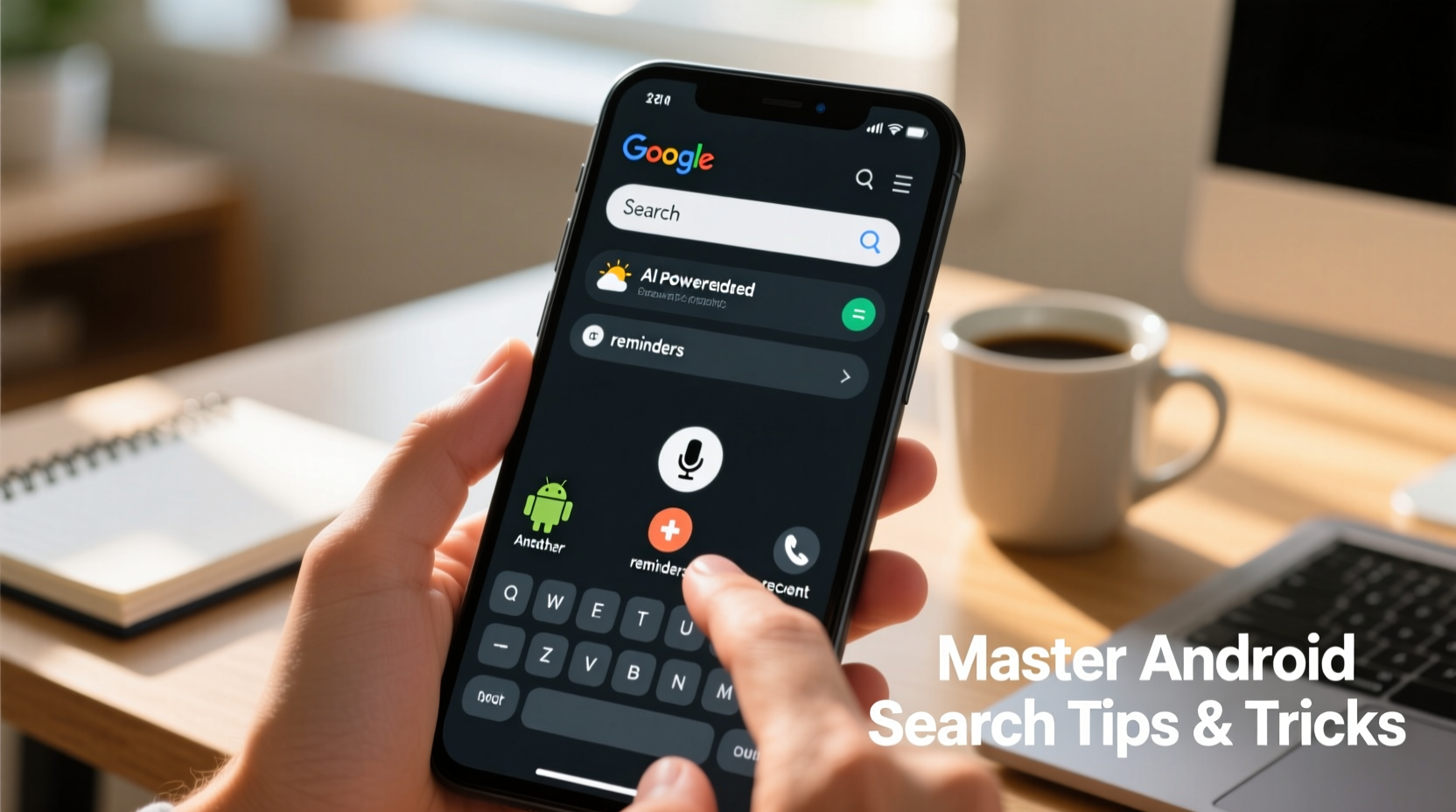
The swiping-up or tapping Google bar on your home screen is one of Android’s most underused features. This isn’t just for web queries—it searches your entire device in real time. Type a few letters, and it surfaces apps, contacts, calendar events, emails, files, and even settings options.
For example, typing “Wi-Fi” brings up the Wi-Fi settings toggle, recent connections, related support articles, and nearby apps using network data. No more digging through Settings menus.
This global search works best when permissions are enabled. Go to Settings > Google > Discover feed > Device search and ensure app, message, and file indexing are turned on.
Use In-App Search for Messages and Emails
Searching within messaging apps like Messages, WhatsApp, or Gmail is essential when trying to locate a specific conversation thread or confirmation code. Most apps include a dedicated search function, but few users exploit its full potential.
In **Messages by Google**, tap the search icon at the top to look through SMS and RCS conversations. You can search by keyword, phone number, or even date ranges. Need that restaurant reservation sent two weeks ago? Try typing “dinner reservation” and filter results by date.
Similarly, **Gmail** allows advanced search operators. While the mobile interface doesn’t expose all filters, you can still use commands like:
from:amazon.com– Find emails from Amazonhas:attachment after:2023/10/01– Show emails with attachments from October 2023 onwardsubject:\"receipt\"– Locate receipts by subject line
Though limited compared to desktop, these inputs work surprisingly well on mobile when typed into the Gmail search bar.
Find Files Faster with Google Files App
Buried PDFs, forgotten screenshots, or misplaced downloads? The Google Files app (preinstalled on most Android devices) is a game-changer for file management. Its intelligent search goes beyond filenames to detect content types and usage patterns.
“Most users don’t realize their phone has a built-in AI-powered file finder. Google Files learns what you use often and surfaces it proactively.” — Rajiv Mehta, Mobile UX Analyst at TechFlow Insights
To find something fast:
- Open the Google Files app.
- Type keywords like “invoice,” “contract,” or “photo beach.”
- Use category filters: Images, Videos, Documents, Downloads.
The app also detects duplicate files, large videos, and unused apps—helping clean up space while making search more efficient over time.
File Search Comparison: Built-in vs. Third-Party Tools
| Feature | Google Files | Samsung My Files | Third-Party (e.g., Solid Explorer) |
|---|---|---|---|
| Keyword Search | ✅ Yes (by name/content type) | ✅ Yes | ✅ Yes (with regex support) |
| Search by Date | ✅ Yes (filterable) | ✅ Yes | ✅ Yes |
| Deep Text Search in PDFs | ❌ Limited | ❌ No | ✅ Yes (premium tools) |
| AI Suggestions | ✅ Yes (Smart Cleanup) | ⚠️ Basic | ❌ No |
For most users, Google Files strikes the best balance between simplicity and power.
Unlock Voice Search for Hands-Free Navigation
When your hands are busy—or your eyes are elsewhere—voice search becomes indispensable. Activate Google Assistant by saying “Hey Google” or holding the home button, then ask:
- “Open Instagram”
- “Call Mom”
- “Show photos from June”
- “Find my last email from David”
Voice search integrates with device indexing, so if your emails and messages are searchable, Assistant can retrieve them too. However, accuracy depends on clear speech and background noise levels.
Advanced Search Techniques Across Key Areas
Android’s ecosystem supports nuanced search behaviors once you know where to look. Here’s how to target specific needs:
Finding Lost Apps
If an app icon vanished from your home screen:
- Swipe up on the home screen to open the app drawer.
- Type the app name in the search bar at the top.
- If still missing, go to Settings > Apps > See all apps and check if it’s disabled.
Searching Text Messages by Date
While Android doesn’t natively support date-range filtering in Messages, you can approximate it:
- Search for a keyword (e.g., “flight”) and manually scroll to older threads.
- Use third-party backup tools like SMS Backup & Restore, which allow exporting and searching messages via CSV.
Locating Old Photos Without Tags
Google Photos excels here. Use natural language in the search bar:
- “Beach sunset 2023”
- “Dog park autumn”
- “Receipts January”
Its AI recognizes objects, locations, and even handwritten text in images.
Quick Access to Settings
Instead of navigating nested menus:
- Type “Bluetooth” in the home screen search bar to jump directly to pairing mode.
- Search “Battery” to see usage stats and optimization options instantly.
Mini Case Study: Recovering a Forgotten Confirmation Code
Sarah needed to verify her bank account but couldn’t find the SMS with the 6-digit code. She remembered receiving it “a few days ago” but had dozens of messages from her bank.
Instead of scrolling endlessly, she opened Messages, tapped the search icon, and typed “verification code.” Results appeared instantly. Using the date filter above the search bar, she narrowed it to “Last week,” found the message in under 15 seconds, and completed verification without calling customer support.
This saved her time and stress—all thanks to knowing how to use in-app search effectively.
Checklist: Master Android Search in 7 Steps
Follow this actionable checklist to unlock full search functionality across your device:
- ✅ Enable device search in Settings > Google > Device Search
- ✅ Add the Google search bar widget to your home screen
- ✅ Install and set up Google Files for document retrieval
- ✅ Test voice commands with Google Assistant daily
- ✅ Use keywords and filters in Gmail and Messages
- ✅ Regularly back up important messages and files
- ✅ Explore Google Photos’ semantic search (“Christmas dinner,” “car repair”)
FAQ
Why doesn’t my phone find certain apps when I search?
This usually happens if the app is disabled or not indexed. Go to Settings > Apps, find the app, and ensure it’s enabled. Also, verify that Google’s device search permission is active.
Can I search inside documents like Word or PDFs?
Yes, partially. Google Files lets you search by filename and type. For full-text search in PDFs, use Adobe Acrobat or Xodo PDF Reader, which offer internal search functions.
Is Android search secure? Can others see what I’ve searched?
Your on-device search history stays private unless synced to your Google Account. To enhance privacy, review Google Activity Controls and disable Web & App Activity if desired.
Conclusion
Searching on Android doesn’t have to be frustrating. By leveraging global search, in-app tools, voice commands, and smart file managers, you gain instant access to everything on your phone. These techniques aren’t hidden hacks—they’re built-in features waiting to be used. The difference between a sluggish experience and seamless navigation comes down to knowing where and how to look.




 浙公网安备
33010002000092号
浙公网安备
33010002000092号 浙B2-20120091-4
Comments
No comments yet. Why don't you start the discussion?