
Text messaging remains one of the most frequently used features on Android smartphones. Whether you're coordinating plans, sharing updates, or handling work-related communication, how you text impacts both efficiency and tone. Yet many users operate on autopilot—sending messages without optimizing for clarity, speed, or personal expression. With a few smart adjustments, you can transform your texting experience from basic to masterful.
Android offers robust tools built into its default messaging apps and enhanced by third-party options. From predictive typing to rich formatting and automation, mastering these features saves time, reduces errors, and helps your personality shine through your texts.
1. Optimize Your Keyboard for Speed and Accuracy
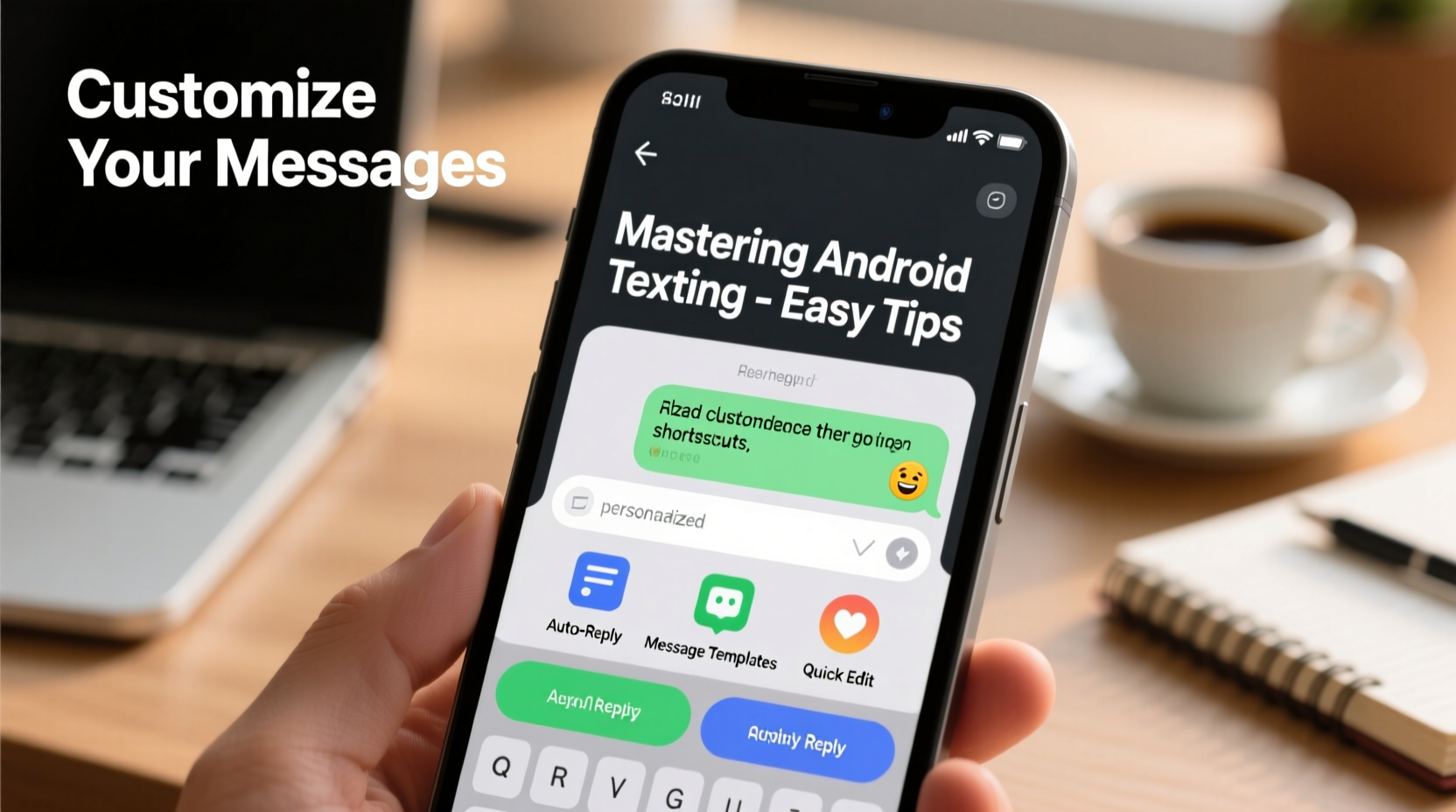
The keyboard is your primary interface for texting. Choosing the right one—and configuring it properly—can dramatically improve your typing speed and reduce mistakes.
Google’s Gboard is pre-installed on most Android devices and supports swipe typing (Glide Typing), voice input, multilingual layouts, and even emoji prediction. To get the most out of it:
- Enable glide typing in Settings > Preferences > Glide Typing.
- Add frequently used phrases to your personal dictionary.
- Use voice dictation when your hands are busy or accuracy isn’t critical.
- Turn on auto-correction but adjust sensitivity if it changes words too aggressively.
Third-party keyboards like SwiftKey offer advanced AI-driven predictions based on your writing style. If you frequently switch between languages or use niche terminology, investing time in training your keyboard pays off over weeks of daily use.
2. Customize Message Appearance and Tone
Plain SMS often feels flat. But modern Android messaging supports rich features that let you convey emotion, urgency, or emphasis effectively.
With RCS (Rich Communication Services) enabled in Google Messages, you can send high-resolution photos, see typing indicators, and know when your message is read—just like iMessage or WhatsApp. Ensure RCS is active by opening Google Messages, going to Settings > Chat features, and enabling it if available in your region.
Beyond functionality, consider tone. Short, abrupt messages may be efficient but can seem cold. A well-placed emoji or thoughtful punctuation softens the delivery. For example:
| Message | Tone | Suggested Improvement |
|---|---|---|
| \"Ok\" | Dismissive | \"Got it, thanks!\" |
| \"Call me.\" | Demanding | \"When you have a sec, mind giving me a call?\" |
| \"Fine.\" | Passive-aggressive | \"Sure, that works for me!\" |
“Tone is the silent layer of communication. On text, punctuation and word choice carry emotional weight.” — Dr. Lena Patel, Digital Communication Researcher
To personalize further, use formatting tricks within supported apps:
- Surround text with asterisks for *italics* or _underscores_.
- Use **double asterisks** for bold.
- Add line breaks by pressing Enter twice (single breaks may not render).
3. Organize and Manage Conversations Efficiently
Inbox clutter slows down response times and increases stress. Managing conversations proactively keeps your messaging app functional and focused.
Start by pinning important chats—like family members or team leads—so they stay at the top. In Google Messages, long-press a conversation and select “Pin.” Unsubscribe from spam or promotional texts by replying “STOP” or blocking numbers automatically via settings.
Create labels or folders if using an app like Samsung Messages or a third-party client such as Textra. Group chats related to work, home, and social events so you can filter them later.
Step-by-Step Guide: Clean Up Your Messaging Inbox
- Open your default messaging app.
- Review the last 20 conversations and identify inactive ones.
- Archive or mute group chats you no longer need to monitor.
- Pin up to five critical contacts (e.g., partner, manager).
- Enable “Auto-delete” for sensitive or temporary threads if your app supports it.
- Set a monthly reminder to repeat this process.
4. Automate Routine Messaging Tasks
Repetitive texts—like confirming appointments or wishing friends happy birthday—are prime candidates for automation. Tools like Tasker, Bixby Routines (on Samsung), or built-in shortcuts in Gboard can handle these effortlessly.
For instance, create a Gboard shortcut:
- Go to Settings > System > Languages & input > Virtual keyboard > Gboard > Text correction > Corrections.
- Select “Personal dictionary” and add a new entry.
- Set phrase: “Running 5 mins late, will text when I arrive.”
- Assign shortcut: “late”
Now, typing “late” anywhere with Gboard active suggests your full message. No need to retype during stressful moments.
For more complex automation:
- Use Tasker to auto-send a custom message when arriving at a location.
- Set up a routine to silence messages during sleep hours unless flagged as urgent.
- Automatically back up message history to Google Drive weekly.
“Automation isn’t about being lazy—it’s about redirecting mental energy toward meaningful interactions.” — Marcus Tran, Productivity Engineer
5. Real Example: How Sarah Streamlined Her Work-Life Texting
Sarah, a project coordinator, used to feel overwhelmed by constant pings across personal and professional threads. She often missed urgent requests buried in group chats and accidentally sent informal replies to clients.
She implemented three changes:
- Switched to Google Messages with RCS to distinguish read/unread statuses clearly.
- Created separate message templates for common responses: status updates, meeting confirmations, and apologies for delays.
- Used color-coded labels in her third-party app to visually separate client, team, and family messages.
Within two weeks, her response time improved by 40%, and she reported feeling less anxious about missing messages. The structure gave her control without sacrificing responsiveness.
Essential Checklist: Master Your Android Texting
- ✅ Enable glide typing and train your keyboard’s prediction engine.
- ✅ Activate RCS in Google Messages for richer features.
- ✅ Set up personalized shortcuts for frequent messages.
- ✅ Pin important contacts and archive inactive threads.
- ✅ Use formatting (*italics*, **bold**) to emphasize tone.
- ✅ Mute noisy group chats or schedule Do Not Disturb periods.
- ✅ Back up message history regularly to avoid data loss.
Frequently Asked Questions
How do I stop receiving spam texts on Android?
Most stock messaging apps include spam protection. In Google Messages, go to Settings > Spam > Enable “Filter spam messages.” Suspected spam will be quarantined. You can also report unwanted numbers directly from the message thread.
Can I edit a text after sending it?
Traditional SMS doesn’t support editing. However, with RCS enabled in Google Messages, you can edit messages within 15 minutes of sending. Tap and hold the sent message, then choose “Edit.” Note: Both sender and recipient must have RCS active.
Are my Android messages encrypted?
SMS messages are not end-to-end encrypted. However, when using Google Messages with RCS and “Chat Features” enabled, messages are encrypted in transit between devices. For full encryption, consider using Signal or WhatsApp instead.
Conclusion
Mastering Android texting isn’t about learning complicated hacks—it’s about using existing tools intentionally. From refining your keyboard settings to organizing conversations and automating repetitive tasks, small improvements compound into a smoother, more expressive communication style.
You don’t need to overhaul everything at once. Start with one change: set up a text shortcut, enable RCS, or clean your inbox. Build from there. Over time, your messages will become clearer, faster, and more authentic—reflecting not just what you say, but how you want to be heard.




 浙公网安备
33010002000092号
浙公网安备
33010002000092号 浙B2-20120091-4
Comments
No comments yet. Why don't you start the discussion?