
In a digital landscape crowded with millions of apps, your app icon is often the first—and sometimes only—impression users have before deciding whether to download. More than just a graphic, it’s a visual ambassador for your brand, functionality, and user experience. A well-designed app icon captures attention instantly, communicates purpose clearly, and builds trust at a glance. With screen space limited and competition fierce, mastering app icon design isn’t optional—it’s essential.
The Role of App Icons in User Decision-Making
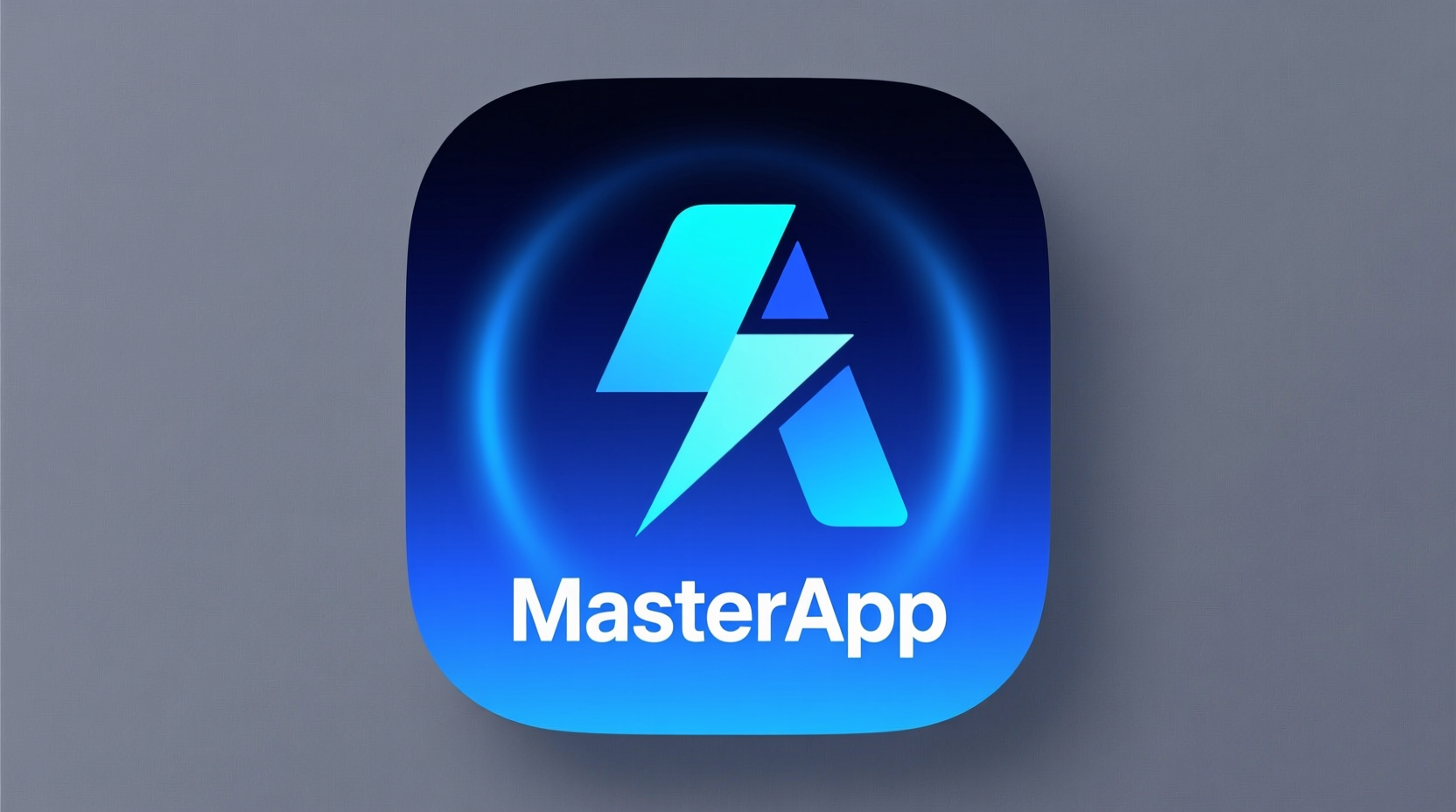
An app icon functions as both branding and marketing in miniature. On mobile home screens and app store listings, icons are viewed at small sizes, often surrounded by dozens of competitors. Users make split-second decisions based on visual cues: color, shape, contrast, and clarity. Research from Nielsen Norman Group shows that users spend less than 10 seconds scanning an app store page before deciding to install or scroll past. Your icon plays a pivotal role in that moment.
A strong icon doesn’t just look good—it works hard. It should be instantly recognizable, scalable across devices, and consistent with your brand identity. Whether it's displayed on an iPhone lock screen or a Google Play thumbnail, it must retain its impact.
Core Design Principles for Effective App Icons
Creating a compelling app icon requires more than aesthetic sense; it demands strategic thinking. Below are five foundational principles every designer should follow.
- Simplicity: Avoid overcrowding. Use minimal elements that convey the app’s core function. Think of the Instagram or Spotify icons—recognizable with few details.
- Scalability: Design for multiple resolutions. An icon must remain clear at 40x40 pixels (on older devices) up to 1024x1024 (app store assets).
- Contrast & Legibility: Ensure your icon stands out against various backgrounds. High contrast between foreground and background improves visibility.
- Color Psychology: Colors evoke emotion and signal meaning. Blue suggests trust (used by Facebook, Twitter), green implies growth or finance (PayPal, WhatsApp), while red drives urgency (YouTube, Netflix).
- Brand Consistency: Align the icon with your logo, website, and overall visual language. Consistency strengthens recognition over time.
Common Pitfalls to Avoid
| Do’s | Don’ts |
|---|---|
| Use clean lines and uncluttered composition | Cram text or complex illustrations into the icon |
| Stick to 1–3 colors max for clarity | Overuse gradients or neon effects that distract |
| Test on dark and light backgrounds | Ignore platform-specific guidelines (iOS vs Android) |
| Design in vector format for scalability | Rely solely on raster images prone to pixelation |
| Maintain visual harmony with app UI | Create an icon that misrepresents the app’s purpose |
Step-by-Step Guide to Crafting Your App Icon
Follow this structured approach to develop a professional-grade app icon that performs well across platforms and contexts.
- Define the Core Message: What does your app do? Messaging? Fitness tracking? Photo editing? Identify one central idea to represent visually.
- Research Competitors: Analyze top apps in your category. Note common shapes, colors, and symbols. Differentiate without alienating user expectations.
- Sketch Concepts on Paper: Begin analog. Rapid sketching helps explore ideas without technical constraints.
- Digitalize in Vector Software: Use tools like Figma, Adobe Illustrator, or Sketch to create scalable versions. Work within standard templates (e.g., Apple’s 1024x1024 px).
- Apply Platform Guidelines: iOS prefers flat, minimal designs with subtle shadows; Android Adaptive Icons require layered formats. Tailor accordingly.
- Test Across Devices: Place your icon on screenshots of actual phones. View it alongside other popular apps. Ask unbiased users which one grabs attention fastest.
- Iterate Based on Feedback: Refine based on usability tests. Even minor tweaks to hue or spacing can significantly improve perception.
Real-World Example: How Todoist Nailed Its Icon Redesign
In 2020, productivity app Todoist launched a major rebrand, including a new app icon. The previous version featured a checklist inside a notebook—a literal but cluttered symbol. The redesign simplified to a bold “T” formed by checkmarks, using vibrant purple and white.
The change aligned with evolving trends toward abstract symbolism and bolder colors. Despite initial skepticism from long-time users, engagement metrics showed increased tap-through rates on app store pages. Within three months, uninstalls dropped by 7%, suggesting improved perceived quality.
The lesson? Sometimes less familiar is more effective—if the underlying design logic supports clarity and brand evolution.
“An app icon isn’t art—it’s communication. Every pixel must serve a purpose.” — Sarah Chen, Senior Product Designer at Figma
Essential Checklist Before Finalizing Your Icon
Before publishing, run through this verification list to ensure your icon meets industry standards and user expectations:
- ✅ Designed at 1024x1024 px (minimum) in vector format
- ✅ Tested at actual display sizes (e.g., 60x60 px on iOS)
- ✅ Complies with Apple Human Interface Guidelines and Material Design specs
- ✅ Uses no text unless absolutely necessary (and legible when tiny)
- ✅ Maintains contrast against black, white, and gradient backgrounds
- ✅ Reflects the app’s primary function or brand essence
- ✅ Delivers emotional resonance—feels trustworthy, modern, or energetic as appropriate
- ✅ Backed by user testing data from diverse demographics
Frequently Asked Questions
Can I use my company logo directly as the app icon?
You can, but only if the logo is simple, scalable, and recognizable at small sizes. Many brands simplify their logos specifically for app icons (e.g., LinkedIn uses just the “in” letterform). If your logo contains intricate details or text, consider creating a derivative emblem instead.
Should my app icon change with updates?
Minor refinements are acceptable, but drastic changes risk confusing loyal users. Major rebrands should come with clear messaging and phased rollouts. Sudden shifts can lead to mistaken deletions or reduced trust.
Is animation or interactivity allowed in app icons?
No. Static icons are required by both Apple App Store and Google Play. While some launchers allow dynamic badges (like unread counts), the base icon must remain fixed. Animated previews may be used in promotional materials, but not on the device itself.
Final Thoughts: Design with Purpose, Not Just Aesthetics
An exceptional app icon balances creativity with strategy. It’s not about being the flashiest—it’s about being the most meaningful within milliseconds of exposure. Great icons endure because they communicate value quickly, align with user expectations, and reflect thoughtful design process.
Whether you're launching a startup MVP or refreshing an established product, treat your app icon as a critical component of your UX, not an afterthought. Invest time in research, iteration, and testing. The difference between obscurity and visibility might come down to a single square on a smartphone screen.




 浙公网安备
33010002000092号
浙公网安备
33010002000092号 浙B2-20120091-4
Comments
No comments yet. Why don't you start the discussion?