
The iPhone 15 brings powerful hardware and intelligent software designed to handle multitasking with ease. Yet even the most advanced devices can benefit from thoughtful app management. Contrary to popular belief, iOS doesn’t require users to manually close apps for routine performance gains—Apple’s operating system is built to suspend background apps efficiently. However, knowing how and when to close apps can help resolve glitches, conserve battery during intensive use, or free up memory after running demanding applications. This guide breaks down the mechanics of app switching and closing on the iPhone 15, offering practical steps, expert insights, and best practices that align with Apple’s design philosophy.
Understanding How Apps Work in iOS
iOS handles background apps differently than traditional desktop operating systems. When you press the Home button (or swipe up on Face ID models), an app doesn’t continue running—it enters a suspended state. In this mode, it uses no CPU power and minimal memory, effectively pausing until reopened. Only certain types of apps, like music players or navigation tools, are allowed to run limited processes in the background.
This means that routinely swiping away every app at the end of the day won't improve battery life or speed up your phone. In fact, constantly relaunching apps forces the system to reload them from scratch, which consumes more energy over time. As Mike Stern, Senior iOS Developer at AppFlow Labs, explains:
“iOS manages app states intelligently. Closing apps unnecessarily disrupts the optimized resume experience Apple has engineered.” — Mike Stern, Senior iOS Developer
That said, there are legitimate reasons to close apps: when they’re frozen, misbehaving, or consuming excessive resources due to bugs. The key is knowing when intervention is actually needed—not as a habit, but as a targeted solution.
How to Close Apps on iPhone 15: Step-by-Step Guide
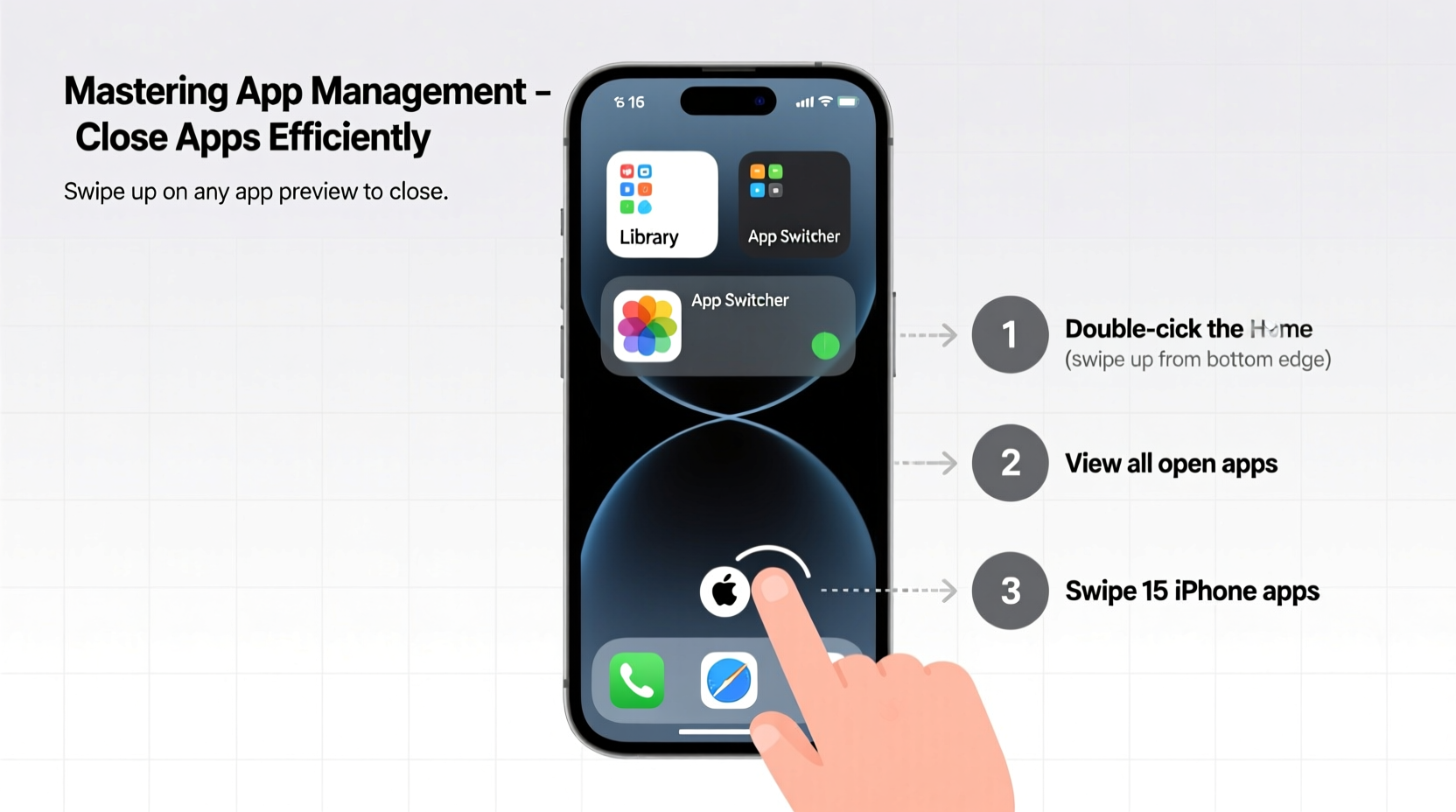
The iPhone 15 uses gesture-based navigation, eliminating the physical Home button. Closing apps involves accessing the App Switcher and manually dismissing unwanted apps. Follow these steps precisely:
- Activate the App Switcher: From any screen, swipe up from the bottom of the display and pause slightly in the center. This reveals all currently open or recently used apps in card-like previews.
- Locate the App to Close: Scroll left or right through the app cards to find the one you want to close.
- Swipe Up to Close: Place your finger on the top edge of the app preview and swipe upward firmly off the screen. A slight flick ensures the app disappears completely.
- Close Multiple Apps: Repeat the swipe-up motion for each app you wish to terminate. You can also swipe diagonally across multiple cards to close several at once, though precision varies by hand size and screen control.
This method works consistently across all iPhone 15 models, including the mini, standard, Pro, and Pro Max variants. No settings need to be adjusted—this functionality is native and always active.
When Should You Actually Close Apps?
While iOS excels at managing background processes, specific scenarios justify manual intervention. Consider closing apps under the following conditions:
- An app is unresponsive or frozen on screen.
- You notice unusual battery drain attributed to a single app in Settings > Battery.
- The device feels sluggish after using graphics-heavy apps like games or video editors.
- You're troubleshooting connectivity issues (e.g., Messages not updating, Maps stuck loading).
- You’ve just finished using sensitive apps (like banking) and prefer peace of mind regarding data exposure.
A real-world example illustrates this well: Sarah, a freelance photographer, uses her iPhone 15 Pro Max to edit high-resolution images in Adobe Lightroom. After extended sessions, she noticed the phone warming up and slowing down. By checking Settings > Battery, she found Lightroom still consuming energy in the background. A quick force-close via the App Switcher restored normal operation and reduced heat buildup.
Do’s and Don’ts of App Management
| Do | Don’t |
|---|---|
| Close apps that are clearly malfunctioning | Routinely close all apps daily “to save battery” |
| Use the App Switcher to quickly switch between frequently used apps | Believe myths about “RAM hoarding” requiring constant cleanup |
| Restart your iPhone weekly to clear system caches | Double-tap the side button expecting it to close apps (it opens Apple Pay instead) |
| Leverage Focus modes to limit background distractions | Install third-party “task killer” apps—they offer no real benefit and may compromise privacy |
Optimizing App Behavior Without Constant Closing
Instead of focusing on closing apps, adopt smarter long-term habits that enhance performance without interfering with iOS logic:
- Update Apps Regularly: Developers patch memory leaks and optimize background behavior in updates. Go to App Store > Updates to stay current.
- Limit Background App Refresh: Navigate to Settings > General > Background App Refresh. Disable it for non-essential apps like social media or games.
- Enable Low Power Mode: This automatically suspends background activity and reduces visual effects when battery drops below 20%.
- Use Offload Unused Apps: In Settings > App Store, turn on “Offload Unused Apps.” iOS removes infrequently used apps while preserving documents and data.
Frequently Asked Questions
Does closing apps save battery on iPhone 15?
Generally, no. iOS suspends background apps effectively, so they consume negligible power. Force-closing apps and reopening them later uses more energy than leaving them suspended. However, if a specific app shows high background activity in the Battery menu, closing it may help.
Why can’t I close apps by double-tapping the button?
The iPhone 15 uses gesture navigation. Double-pressing the side button launches Apple Pay or Siri, depending on settings. To manage apps, you must swipe up and hold to access the App Switcher.
Can apps track me while running in the background?
iOS restricts background location access. Apps must request permission and declare their need for continuous tracking. You can review and revoke access in Settings > Privacy > Location Services. Most apps only fetch data briefly when opened.
Final Checklist: Efficient App Management Routine
- Access the App Switcher only when switching tasks or troubleshooting.
- Force-close apps only if they’re frozen or causing performance issues.
- Check battery usage weekly to identify problematic apps.
- Keep iOS and apps updated to benefit from performance improvements.
- Use built-in features like Offload Unused Apps and Background App Refresh controls.
- Restart your iPhone once a week to refresh system memory.
Take Control With Confidence
Mastering app management on the iPhone 15 isn’t about micromanaging every background process—it’s about understanding how iOS works and intervening wisely when necessary. With the right knowledge, you can maintain smooth performance, extend battery health, and avoid common misconceptions pushed by outdated advice. Your iPhone is designed to work seamlessly; your role is to support that design, not override it. Apply these strategies today and experience a faster, more reliable device without unnecessary rituals.




 浙公网安备
33010002000092号
浙公网安备
33010002000092号 浙B2-20120091-4
Comments
No comments yet. Why don't you start the discussion?