
In today’s fast-paced professional and personal environments, time is one of the most valuable resources. Mismanaged schedules lead to missed opportunities, double bookings, and unnecessary stress. Google Calendar has emerged as a powerful tool for organizing time, coordinating teams, and maintaining clarity across daily commitments. However, many users only scratch the surface of its capabilities. Mastering appointment creation in Google Calendar goes beyond simply adding events—it involves precision, automation, collaboration, and foresight.
Whether you're managing client meetings, team stand-ups, or personal deadlines, a structured approach to scheduling ensures consistency and reliability. This guide walks through the full lifecycle of creating appointments efficiently, leveraging both basic and advanced features to maximize your time and minimize friction.
Step-by-Step: Creating an Appointment in Google Calendar
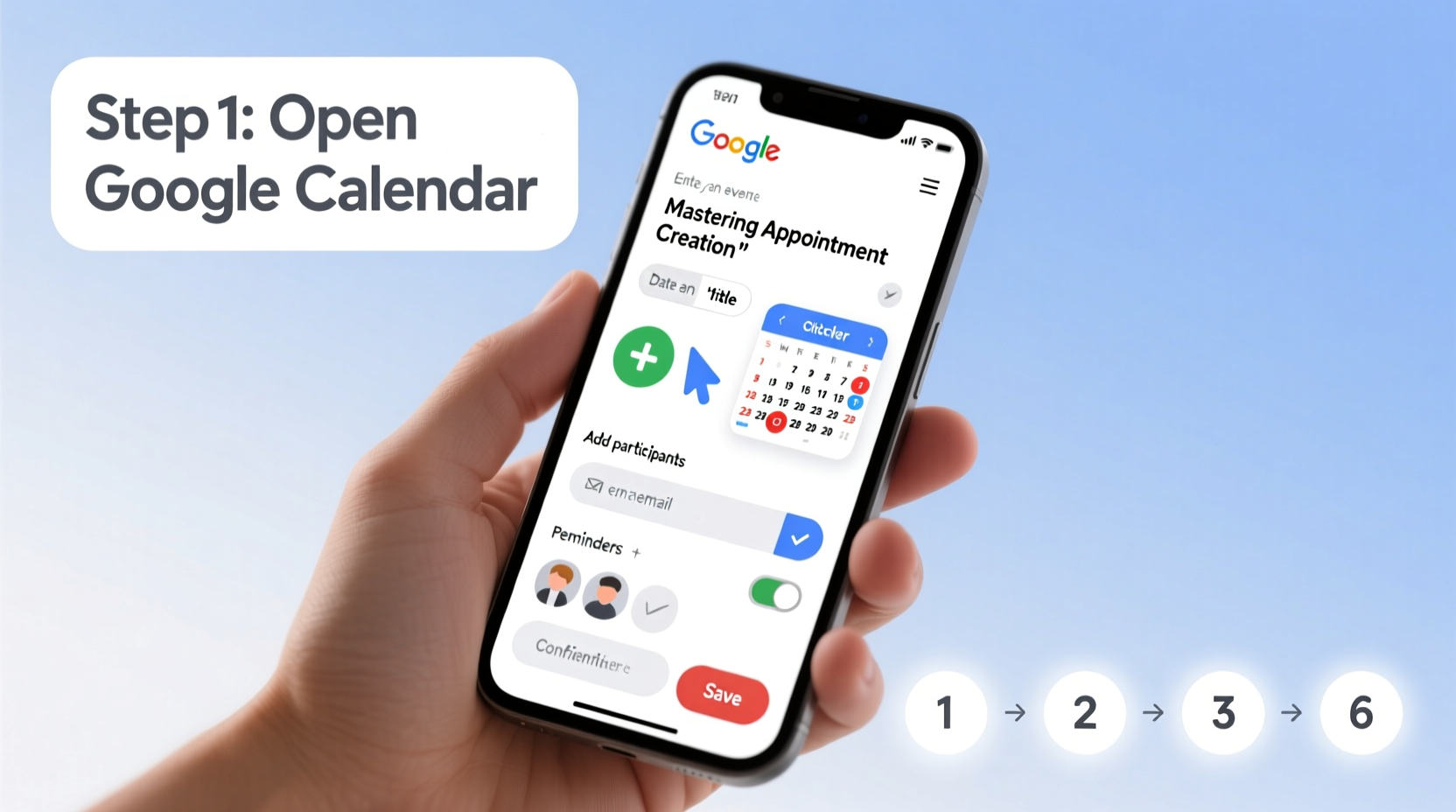
The foundation of effective scheduling lies in understanding how to create appointments correctly. Follow this sequence to ensure every event is set up for success:
- Open Google Calendar – Navigate to calendar.google.com and sign in with your Google account.
- Select a Time Slot – Click on any time block in the day, week, or month view. A pop-up window titled “Event” will appear.
- Enter Event Details:
- Title: Give the appointment a clear, descriptive name (e.g., “Client Strategy Call – Acme Corp”).
- Date & Time: Set start and end times. Use the time zone selector if coordinating across regions.
- Location: Add a physical address or video conferencing link (Google Meet links are auto-generated).
- Description: Include agenda items, preparation notes, or relevant documents via Google Drive attachments.
- Add Guests – Enter email addresses to invite participants. They’ll receive a notification and can accept, decline, or propose a new time.
- Set Reminders – Choose default or custom alerts (e.g., 10 minutes before, 1 day prior). You can add multiple reminders.
- Configure Repetition (if needed) – For recurring events (weekly team meetings), click “Does not repeat” and select a pattern (daily, weekly, monthly).
- Save – Click “Save” to finalize. The event appears on your calendar, and invites are sent automatically.
Optimizing Scheduling Efficiency with Advanced Features
Once comfortable with the basics, unlock Google Calendar’s advanced tools to reduce manual effort and improve coordination.
Use Find a Time to Coordinate Availability
When scheduling with others, click “Find a time” within the event editor. This view displays attendees’ free/busy status based on their shared calendar availability, minimizing back-and-forth emails.
Leverage Templates for Recurring Appointments
If you host regular calls (e.g., onboarding sessions, coaching), save time by creating template events. After setting up a fully detailed event, copy its details to reuse later or use third-party tools like Google Workspace add-ons to automate templates.
Integrate Goals and Focus Time
Google Calendar allows you to schedule focus blocks for deep work. Label these as “Focus: Project Alpha Draft” and assign them a category color. Treat them like appointments—non-negotiable and protected.
Enable Speedy Scheduling with Keyboard Shortcuts
Power users benefit from keyboard navigation:
C– Create a new event quickly.→/←– Move between days.Ctrl + F– Search for past or upcoming events.
Do’s and Don’ts of Professional Appointment Creation
| Do’s | Don’ts |
|---|---|
| Include a clear agenda in the event description | Schedule meetings without a defined purpose |
| Set appropriate reminders for yourself and guests | Rely solely on memory or last-minute notifications |
| Use color-coding for different types of events (work, personal, health) | Mix all events into a single visual stream |
| Confirm availability using “Find a time” | Double-book overlapping events without notice |
| Attach relevant files from Google Drive | Assume attendees know where to find materials |
Real-World Example: Streamlining Client Onboarding
Jamie, a freelance marketing consultant, used to spend hours each week coordinating onboarding calls with new clients. She would exchange five or six emails per client just to lock in a time, often missing time zone differences or forgetting to send prep materials.
After restructuring her process using Google Calendar, she created a standardized onboarding appointment template with:
- A fixed duration (45 minutes)
- An auto-generated Google Meet link
- A description including a welcome message, agenda, and pre-read document
- A reminder set for 1 hour before and a follow-up task scheduled for the next business day
“Effective scheduling isn’t about filling time—it’s about designing your day with intention. Google Calendar, when used deliberately, becomes a blueprint for productivity.” — Dr. Lena Patel, Time Management Researcher, Stanford University
Essential Checklist for Flawless Appointment Creation
Before finalizing any appointment, run through this checklist to ensure completeness and professionalism:
- ✅ Event title clearly describes the purpose
- ✅ Correct date, time, and time zone selected
- ✅ Location or virtual meeting link included
- ✅ Agenda and necessary attachments added in description
- ✅ All required attendees invited (double-check spellings)
- ✅ Appropriate reminders set for all parties
- ✅ Confirmed no conflicts using “Find a time” or availability check
- ✅ Color-coded for quick visual identification
Frequently Asked Questions
How do I schedule an appointment across different time zones?
Google Calendar automatically detects your current time zone, but you can enable “Time zone viewing” in Settings to see two time zones simultaneously. When creating an event, toggle “Show secondary time zone” and set the guest’s local zone. This prevents miscommunication and ensures accurate scheduling.
Can I allow others to suggest new times for my events?
Yes. When sending an invitation, recipients can click “Propose new time” if they’re unavailable. As the organizer, you’ll receive the suggestion and can approve or counter-propose. This feature respects everyone’s availability while keeping control in your hands.
What happens if I delete a recurring event?
You’ll be prompted to choose: delete only that instance, delete the entire series, or remove future events. Be cautious—deleting the series removes all past and future occurrences, which may affect attendees’ calendars.
Conclusion: Take Control of Your Time Starting Today
Mastering appointment creation in Google Calendar is more than a technical skill—it's a strategic advantage. Every well-structured event reduces cognitive load, improves communication, and reinforces professionalism. From solo entrepreneurs to enterprise teams, the ability to schedule with precision directly impacts performance and peace of mind.
Start by auditing your current calendar: Are events vague? Are reminders missing? Is time blocked for focused work? Apply the steps outlined here—use templates, leverage automation, and adopt best practices. Then, refine continuously based on feedback and changing needs.




 浙公网安备
33010002000092号
浙公网安备
33010002000092号 浙B2-20120091-4
Comments
No comments yet. Why don't you start the discussion?