
Audacity is one of the most powerful free, open-source audio editing tools available today. Whether you're recording a podcast, narrating an audiobook, or laying down vocals for a song, Audacity provides the features needed to capture professional-grade sound—provided you know how to use it correctly. Unlike commercial DAWs (Digital Audio Workstations), Audacity has a steeper learning curve in setup rather than interface complexity. This guide walks through every essential step to master audio recording in Audacity, from configuration to export, ensuring your recordings are clean, clear, and production-ready.
Setting Up Your Recording Environment
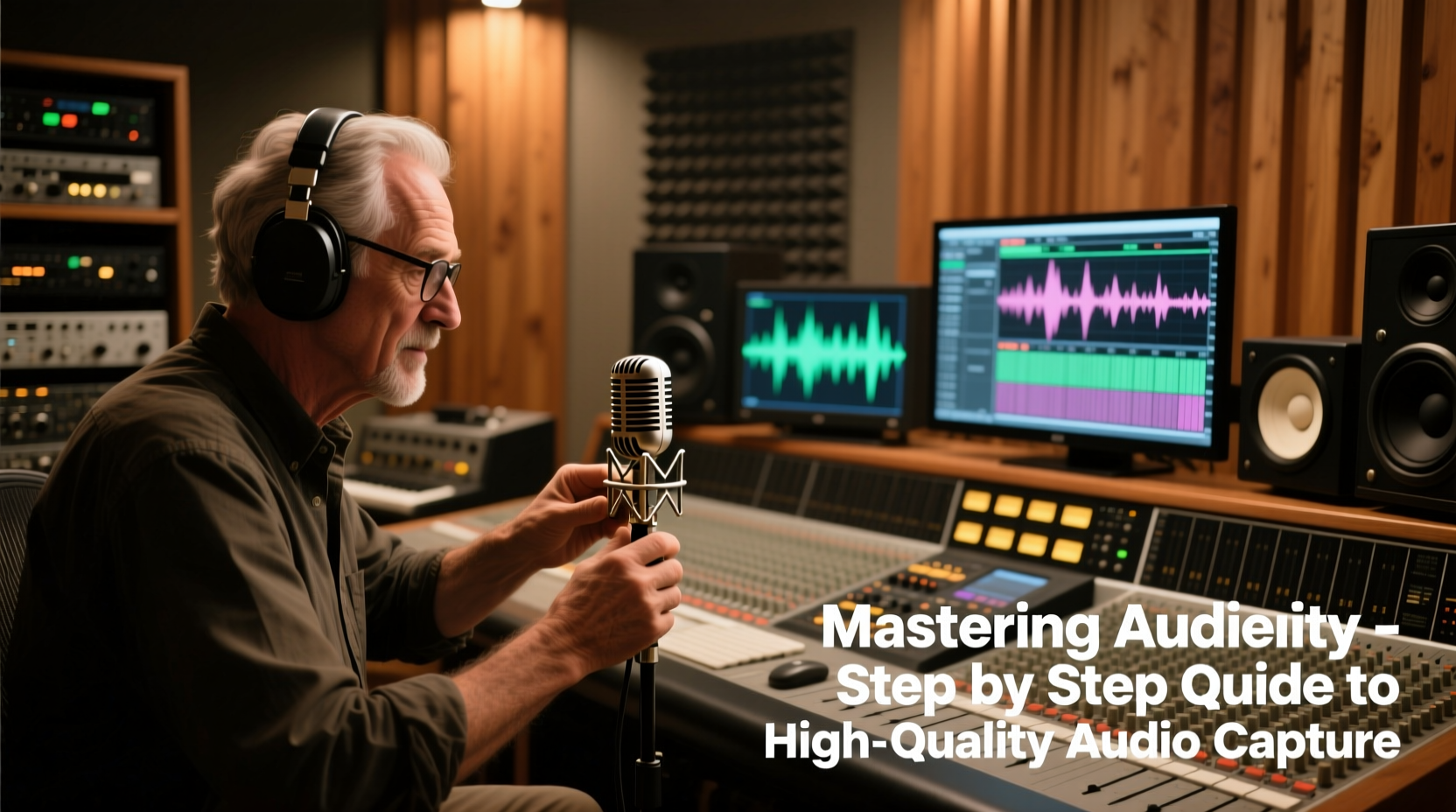
The quality of your final audio depends as much on your environment as it does on software settings. Background noise, echo, and poor microphone placement can ruin even the best equipment. Start by choosing a quiet room with soft furnishings—carpets, curtains, and bookshelves help absorb sound reflections. Avoid hard surfaces like bare walls or tiled floors that cause reverberation.
Position your microphone 6–12 inches from your mouth, slightly off-axis to reduce plosive sounds (“p” and “b” bursts). Use a pop filter if available. Close windows, silence phones, and disable HVAC systems during recording. Even subtle hums from electronics can become noticeable in post-production.
Configuring Audacity for Optimal Recording
Before hitting record, ensure Audacity is properly configured. Open the software and go to Edit > Preferences (or Audacity > Preferences on Mac). Navigate through key sections:
- Devices: Select your input device under \"Recording Device.\" If using USB mic or audio interface, make sure it's selected—not your computer’s built-in mic.
- Audio I/O: Set the recording meter to monitor input levels. Adjust the input volume slider so peaks hover around -6dB to avoid clipping.
- Quality: Set sample rate to 44100 Hz (standard for MP3) or 48000 Hz for video sync. Bit depth should be 32-bit float for maximum headroom during editing.
Under the \"Tracks\" section, enable \"Default Sample Format\" to 32-bit float. This preserves dynamic range and reduces distortion risk during processing.
Input Monitoring vs. Software Playthrough
Audacity allows real-time monitoring, but only if your system supports low-latency playback. Enable \"Software Playthrough\" under Transport > Playthru if you need to hear yourself while recording. Be cautious—this can cause echo if speakers are near the mic. Use headphones instead.
Step-by-Step Recording Process
- Launch Audacity and verify your microphone is active in the system settings and recognized in Audacity’s Device Toolbar.
- Create a new track by clicking the red Record button or pressing ‘R’. A new mono track will appear.
- Speak or sing normally into the mic. Watch the waveform build and check peak meters. Aim for consistent levels without touching 0 dB (clipping).
- Pause when needed. Audacity records continuously, but you can split takes manually by stopping and starting new recordings on the same track.
- Name your track by double-clicking its label (e.g., “Intro Voiceover”) for easier organization.
- Stop recording by pressing the yellow Stop button or spacebar.
After recording, zoom in (Ctrl + 1) to inspect waveforms. Look for sudden spikes (clipping), long silences, or breath noises that may need trimming.
| Level Range | Meaning | Action |
|---|---|---|
| -30dB to -18dB | Too quiet | Increase gain or move closer to mic |
| -18dB to -6dB | Optimal range | No adjustment needed |
| -6dB to -1dB | Loud but safe | Monitor for clipping |
| 0dB and above | Clipping (distortion) | Reduce input level immediately |
Post-Recording Editing Essentials
Clean audio starts with good recording—but polish comes in editing. Apply these steps in order:
- Trim silence: Select unwanted sections at the beginning or end and press Delete.
- Remove background noise: Highlight a section of room tone, go to Effect > Noise Reduction, click \"Get Noise Profile,\" then select entire track and reapply the effect.
- Normalize: Select all (Ctrl+A), then Effect > Normalize. Check \"Remove DC offset\" and set peak amplitude to -1.0 dB to prevent clipping after amplification.
- Compress dynamics: Use Effect > Compressor with threshold at -20dB, ratio 2:1, to balance vocal levels without sounding artificial.
For multi-track projects (e.g., voice and music), align tracks carefully and adjust volume envelopes to prevent masking.
“Even amateur recordings can sound professional with proper gain staging and noise control.” — David Lin, Audio Engineer & Podcast Producer
Mini Case Study: From Garage to Global Podcast
Jamie Rivera started a true-crime podcast using only a $50 USB mic and Audacity. Initially, episodes had inconsistent volume and AC hum. After following structured Audacity workflows—setting input levels correctly, using noise reduction, and normalizing output—listener retention increased by 70% within two months. Distribution platforms began featuring the show due to its clarity and production value. Jamie credits disciplined recording habits and mastering Audacity’s core tools as the turning point.
Checklist: Pre-Recording Setup Routine
- ✅ Test microphone connection and select it in Audacity
- ✅ Close unnecessary apps to reduce CPU load
- ✅ Set project rate to 44100 Hz or 48000 Hz
- ✅ Calibrate input level using a test recording
- ✅ Wear closed-back headphones for accurate monitoring
- ✅ Prepare script or talking points to minimize retakes
- ✅ Record 5 seconds of room tone for noise profiling
Frequently Asked Questions
Can I record multiple people at once with Audacity?
Yes, if each person uses a separate microphone connected via an audio interface that supports multi-channel input. In Audacity, enable multi-track recording in Preferences > Devices and assign inputs accordingly. Each mic will record to its own track.
Why does my audio sound distorted even though levels were fine?
Distortion can occur from hardware issues (e.g., faulty cables), driver conflicts, or sample rate mismatches. Ensure your operating system’s audio settings match Audacity’s project rate. Also, avoid over-processing—applying too many effects can introduce digital clipping.
How do I export my recording for sharing?
Go to File > Export > Export as MP3 (or WAV for highest quality). For MP3, choose 192 kbps or higher bitrate. Add metadata (title, artist, album) in the dialog box before saving. Store original .aup project files for future edits.
Final Tips for Consistent High-Quality Results
Mastery comes not from knowing every feature, but from consistency in process. Stick to a repeatable workflow: prepare your space, calibrate input, record cleanly, edit methodically, and export appropriately. Save templates with your preferred settings—sample rate, bit depth, noise profile—to speed up future sessions.
Avoid the temptation to over-process. Subtle adjustments preserve natural tone. Always listen back on different devices—earbuds, car speakers, phone—to ensure broad compatibility.




 浙公网安备
33010002000092号
浙公网安备
33010002000092号 浙B2-20120091-4
Comments
No comments yet. Why don't you start the discussion?