
Audio-video synchronization is one of the most critical aspects of professional video editing. Even slight misalignment between sound and picture can break immersion, distract viewers, and compromise the credibility of your production. In fast-paced workflows, especially when working with multi-camera shoots or external audio recorders, maintaining perfect sync becomes both a challenge and a necessity. Adobe Premiere Pro offers powerful tools to manage and correct sync issues—but only if you know how to use them effectively. This guide walks through proven techniques, best practices, and troubleshooting methods to help you achieve flawless audio alignment in every project.
Understanding the Causes of Audio Sync Issues
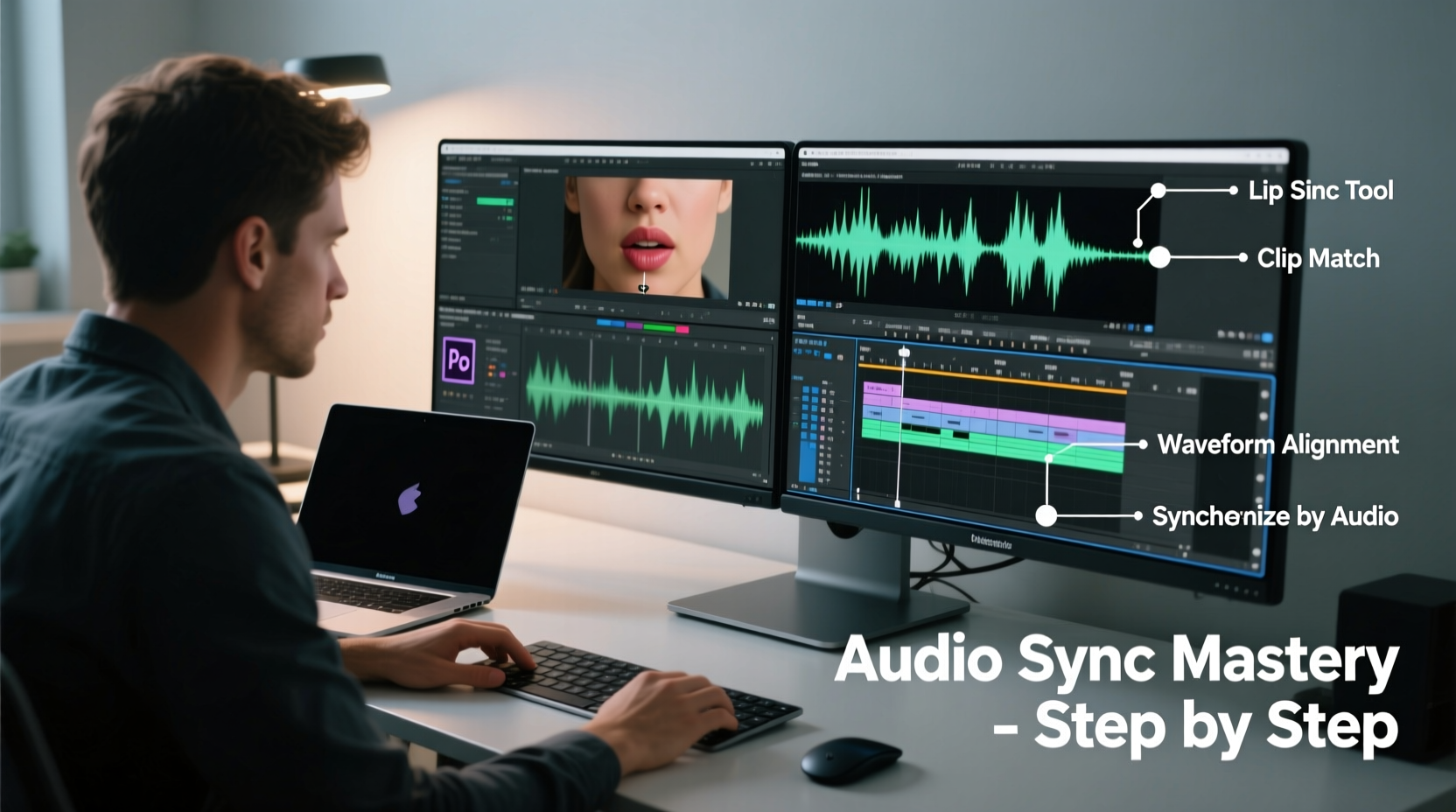
Synchronization problems don’t appear out of nowhere. They stem from technical mismatches during recording or import. Common causes include:
- Different frame rates: When camera and audio recorder operate at mismatched sample or frame rates (e.g., 23.976fps video with 48kHz audio).
- Manual recording start/stop: Starting audio and video devices independently introduces drift over time.
- Variable-speed media: Some cameras adjust frame rate dynamically under low light, causing timing discrepancies.
- Import errors: Misinterpretation of timecode or metadata during file ingestion into Premiere Pro.
While some sync drift accumulates gradually—measurable in milliseconds per minute—others are immediate and obvious. Recognizing the root cause helps determine whether manual correction, automatic alignment, or preventive workflow adjustments are needed.
“Sync isn’t just about precision—it’s about perception. Audiences may not notice perfect sync, but they’ll always feel when it’s off.” — David Kim, Post-Production Supervisor, Indie Film Collective
Step-by-Step: Aligning Audio and Video in Premiere Pro
Whether you're dealing with a single interview clip or a complex multicam documentary, follow this structured process to fix sync issues efficiently.
- Organize Your Media: Import all video and corresponding audio files into the same bin. Label them clearly (e.g., “Scene 5 – Camera A,” “Scene 5 – Lav Mic”).
- Create a Sequence: Drag your primary video clip into a new sequence. Ensure the sequence settings match the video’s format (right-click the clip > \"New Sequence From Clip\").
- Add External Audio: Place the matching standalone audio file on an adjacent audio track, roughly aligned using visual cues like clapperboard slates or mouth movements.
- Zoom In for Precision: Use Z to zoom into waveforms and video frames around a clear transitory moment—such as a hand clap or sharp consonant (“t” or “p” sound).
- Use Waveform Peaks: Align the peak of the audio waveform with the exact frame where the action occurs (e.g., hands meeting during a clap).
- Enable Snapping: Turn on snapping (S) to lock clips into place once aligned.
- Lock Tracks After Sync: Once aligned, lock the video and audio tracks to prevent accidental shifts during editing.
Using Auto-Align Tools: Merge Clips vs. Synchronize
Premiere Pro provides two built-in methods for automated syncing—Merge Clips and the Synchronize command. Each has distinct advantages depending on your workflow.
| Method | Best For | Pros | Cons |
|---|---|---|---|
| Merge Clips | Multi-source recordings (camera + external mic) | Creates a single manageable file; preserves original sync after import | Limited flexibility post-merge; cannot re-sync easily if initial attempt fails |
| Synchronize Command | Editing timelines with existing clips | Non-destructive; works directly on timeline; supports multiple clips | Requires strong audio transients; may fail with quiet or ambient recordings |
To use Merge Clips, select both video and audio files in the Project panel, right-click, and choose “Merge Clips.” Select “Audio” as the merging criterion and ensure “Synchronize Point” is set correctly. The result is a nested clip with perfectly aligned elements.
For the Synchronize function, select both clips already placed on the timeline, right-click, and choose “Synchronize.” Choose “Audio” as the reference type. Premiere will analyze waveforms and realign based on audio fingerprint matching.
Real-World Example: Documentary Field Recording Rescue
A documentary crew filmed interviews across rural locations using DSLR cameras and Zoom H6 recorders. Due to inconsistent slate usage and long takes, several segments had noticeable lip-flap by the end of three-minute responses.
The editor imported all materials into Premiere Pro and used the synchronize feature with mixed results—some clips synced instantly, while others failed due to background wind noise masking speech onset.
For problematic clips, the editor manually identified a strong “p” sound in the word “people” early in the sentence. By zooming in and aligning that transient peak with the speaker’s lip movement, the entire segment was corrected. Remaining drift was negligible because the recording duration was short enough that clock drift remained under 3 frames.
This hybrid approach—automated sync where possible, manual refinement where necessary—saved hours compared to frame-by-frame dragging.
Prevention Checklist: Avoid Sync Issues Before Editing
The best way to handle sync problems is to prevent them. Follow these steps during pre-production and shooting:
- ✅ Use timecode-capable recorders and cameras synchronized via cable or wireless timecode generator.
- ✅ Always record a visible and audible slate at the start of each take.
- ✅ Match sample rates (ideally 48kHz) and frame rates across all devices.
- ✅ Record room tone for at least 10 seconds after each scene to aid in noise matching and gap filling.
- ✅ Name files consistently (e.g., SCENE_TAKE_AUDIO.wav / SCENE_TAKE_VIDEO.mov) to simplify pairing later.
- ✅ Avoid stopping and restarting audio without also marking video, unless absolutely necessary.
Frequently Asked Questions
Can I resync clips after merging them?
Yes, but not directly. You must unmerge the clips (right-click > Unmerge Clips), adjust their positions, and then re-merge them. It’s better to verify sync accuracy before merging.
Why does my audio drift further apart over time?
This indicates a frame rate or sample rate mismatch. For example, recording 29.97fps video with a device interpreting it as 30fps creates a 0.03fps difference, which compounds over minutes. Always check device settings and use tools like PluralEyes or Tentacle Sync to resolve systemic drift.
Does Premiere Pro support timecode-based syncing?
Premiere Pro can read embedded timecode, but it doesn’t automatically align clips based on it unless used within specific workflows (like XML imports from field sync tools). For true timecode-driven sync, pair Premiere with third-party software or use hardware sync solutions during recording.
Final Thoughts: Precision Builds Professionalism
Flawless audio sync might seem like a minor detail, but it’s foundational to viewer trust and engagement. With the right combination of preparation, technique, and software features, maintaining perfect alignment is entirely achievable—even in complex projects.
Start by auditing your current workflow: Are you relying too much on manual fixes? Could better labeling or clapping improve consistency? Small improvements in how you capture and organize media today can eliminate hours of correction tomorrow.




 浙公网安备
33010002000092号
浙公网安备
33010002000092号 浙B2-20120091-4
Comments
No comments yet. Why don't you start the discussion?