
In today’s fast-paced world, every second counts—especially when you're trying to reach someone quickly during an emergency or juggling back-to-back calls for work. Auto dial settings on your cell phone can save time, reduce errors, and enhance accessibility, particularly for users with mobility challenges or visual impairments. Yet, many people overlook these powerful tools, unaware of their full potential or how to configure them effectively. This guide dives deep into the practicalities of auto dial functions across major platforms, offering clear instructions, expert insights, and real-world applications to help you take control of your calling experience.
Understanding Auto Dial: What It Is and Why It Matters
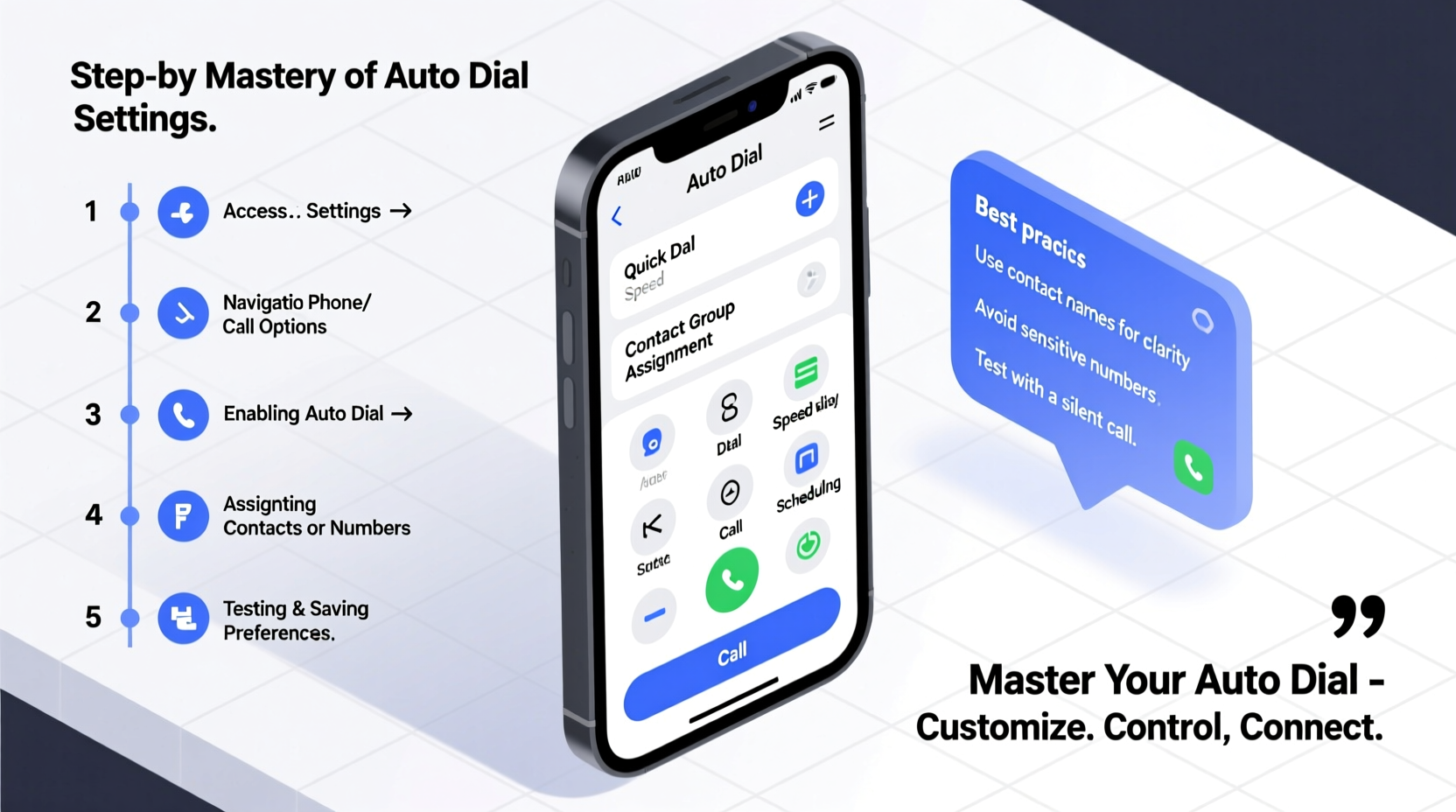
Auto dial refers to any feature that automatically initiates a phone call with minimal user input. This could be as simple as tapping a contact once to call, using voice commands, assigning speed dial shortcuts, or leveraging accessibility tools like switch control or tap-to-call gestures. While not all phones label these features uniformly as “auto dial,” they serve the same core purpose: reducing friction in initiating calls.
For professionals managing high-volume communications, caregivers supporting elderly relatives, or individuals with motor limitations, auto dial is more than convenience—it's a functional necessity. The ability to trigger a call without precise finger movements or multiple taps increases safety, efficiency, and independence.
“Automation in mobile interactions isn’t just about speed—it’s about inclusion. Features like auto dial ensure technology adapts to human needs, not the other way around.” — Dr. Lena Torres, Human-Computer Interaction Researcher at MIT Media Lab
How to Set Up Auto Dial on iOS and Android
Both Apple and Google offer robust methods to automate calling, though they differ in approach and naming. Below is a step-by-step breakdown tailored to each operating system.
iOS: Using Siri, Shortcuts, and Accessibility Tools
Apple doesn’t have a native “auto dial” toggle, but several integrated tools achieve the same result:
- Use Siri: Activate Siri and say, “Call Mom,” or “Dial 555-123-4567.” Ensure contacts are properly labeled for best results.
- Create a Shortcut: Open the Shortcuts app, tap the + button, choose “Add Action,” search for “Phone,” select “Start Call,” pick a contact, then assign a voice phrase (e.g., “Hey Siri, emergency call”) or home screen widget.
- Enable Voice Control: Go to Settings > Accessibility > Voice Control. Once enabled, say “Tap Emergency Contact” if labeled clearly on screen.
- Switch Control (for motor assistance): Navigate to Settings > Accessibility > Switch Control. Configure external switches or head tracking to activate call buttons automatically.
Android: Speed Dial, Bixby, and Third-Party Apps
Android offers greater flexibility through built-in options and customizable launchers:
- Speed Dial Widgets: Long-press home screen > Widgets > Phone > Speed Dial. Choose up to four frequent contacts.
- Google Assistant: Say, “Hey Google, call Dad on speaker,” or create Routines for one-command calling.
- Bixby Routines (Samsung): Automate calls based on time, location, or charging status. Example: “When I plug in at 7 AM, call my office.”
- Third-party apps: Apps like AutoVoice, Tasker, or MacroDroid allow advanced automation, such as double-tap back to call a preset number.
Customization Strategies for Maximum Efficiency
Auto dial becomes truly powerful when personalized to your daily routine. Consider these strategies:
| Scenario | Solution | Platform |
|---|---|---|
| Emergency preparedness | Assign side-button press to call emergency contact | iOS (via Shortcuts), Android (via Bixby/Tasker) |
| Daily check-ins with parents | Set automated morning call via Google Routine or Siri Shortcut | Android/iOS |
| Hands-free driving | Voice-activated dialing using “Hey Siri” or “Ok Google” | Both |
| Accessibility support | Use head gestures or switch devices to trigger calls | iOS Switch Control, Android AAC apps |
Mini Case Study: Supporting Aging Parents Remotely
Mark, a software engineer in Chicago, lives 800 miles from his 78-year-old mother, who has early-stage arthritis. Simple tasks like unlocking her phone and tapping small contact names became painful. After researching solutions, Mark set up an iPhone shortcut labeled “Quick Call Son” on her home screen—large icon, one tap. He also configured Siri so she could say, “Call Mark,” even with slight pronunciation issues. Within days, her confidence improved, and weekly calls increased from once to nearly daily. This low-tech intervention significantly strengthened their connection and reduced her sense of isolation.
Common Pitfalls and How to Avoid Them
Even well-designed auto dial systems can fail if misconfigured. Here are common mistakes and fixes:
- Misfiring Commands: Background noise or similar-sounding phrases may trigger unintended calls. Solution: Use unique activation phrases like “Initiate Family Call” instead of generic ones like “Call now.”
- Outdated Contacts: Auto dial links break if numbers change. Review assigned shortcuts quarterly.
- Over-Automation: Automatically calling someone at inappropriate times feels intrusive. Always include manual confirmation steps unless urgency demands otherwise.
- Security Risks: Public devices with open auto dial shortcuts could lead to accidental or malicious use. Enable passcode or biometric locks on critical actions.
Step-by-Step Guide: Create Your First Auto Dial Shortcut (iOS & Android)
Follow this universal process to build a reliable auto dial function:
- Choose your primary platform: Decide whether you’re using iOS or Android, as tools vary.
- Select the target contact: Pick someone you call frequently—spouse, child, doctor, etc.
- Decide on activation method: Will you use voice, a home screen icon, gesture, or automation?
- Configure the tool:
- iOS: Open Shortcuts app > New Shortcut > Add Action > Search “Call” > Select contact > Save.
- Android: Long-press home > Widget > Phone > Speed Dial > Choose contact.
- Add triggers (optional): Link to voice command, location, or wearable gesture (e.g., double-tap watch).
- Test thoroughly: Make sure it works in different environments—quiet room, noisy street, car.
- Document and share: If setting up for others, write simple instructions or record a quick video walkthrough.
FAQ
Can auto dial work without internet or data?
Yes. As long as your phone has cellular service, auto dial shortcuts that initiate regular calls will function offline. However, voice assistants like Siri or Google Assistant require internet to process commands unless pre-cached.
Is auto dial safe for children or seniors to use?
Yes, when configured responsibly. Limit auto dial to trusted contacts only, disable accidental triggers, and consider enabling call confirmation prompts for added safety.
Can I schedule automatic calls at specific times?
Not natively on most phones, but third-party automation apps like Tasker (Android) or Shortcuts with time-based triggers (iOS) can initiate calls on a schedule. Use cautiously to avoid disturbing recipients.
Checklist: Optimizing Your Auto Dial Setup
- ✅ Identify top 3–5 frequent contacts for automation
- ✅ Choose preferred activation method (voice, tap, gesture)
- ✅ Set up shortcuts or widgets on main screen
- ✅ Test each auto dial function in real conditions
- ✅ Review privacy and security settings
- ✅ Share setup with family members if needed
- ✅ Schedule quarterly review to update contacts and functionality
Conclusion
Auto dial settings are among the most underused yet impactful features on modern smartphones. When customized thoughtfully, they transform communication from a series of repetitive actions into a seamless, intuitive experience. Whether you're streamlining your workflow, supporting a loved one, or enhancing accessibility, mastering auto dial gives you greater control over how and when you connect. Don’t wait for urgency to reveal the gaps in your setup—take ten minutes today to configure one auto dial shortcut. That small step could make a significant difference tomorrow.




 浙公网安备
33010002000092号
浙公网安备
33010002000092号 浙B2-20120091-4
Comments
No comments yet. Why don't you start the discussion?