
Smart glasses are no longer science fiction—they’re here, blending augmented reality with everyday functionality. One of the most intuitive advancements in wearable tech is binaural touch control: a dual-touch interface built into both arms of the frame, enabling gesture-based navigation without reaching for a phone or voice command. Yet, despite its promise, many users underutilize or misunderstand these controls. This guide demystifies binaural touch systems, offering actionable strategies to harness their full potential.
Understanding Binaural Touch Controls
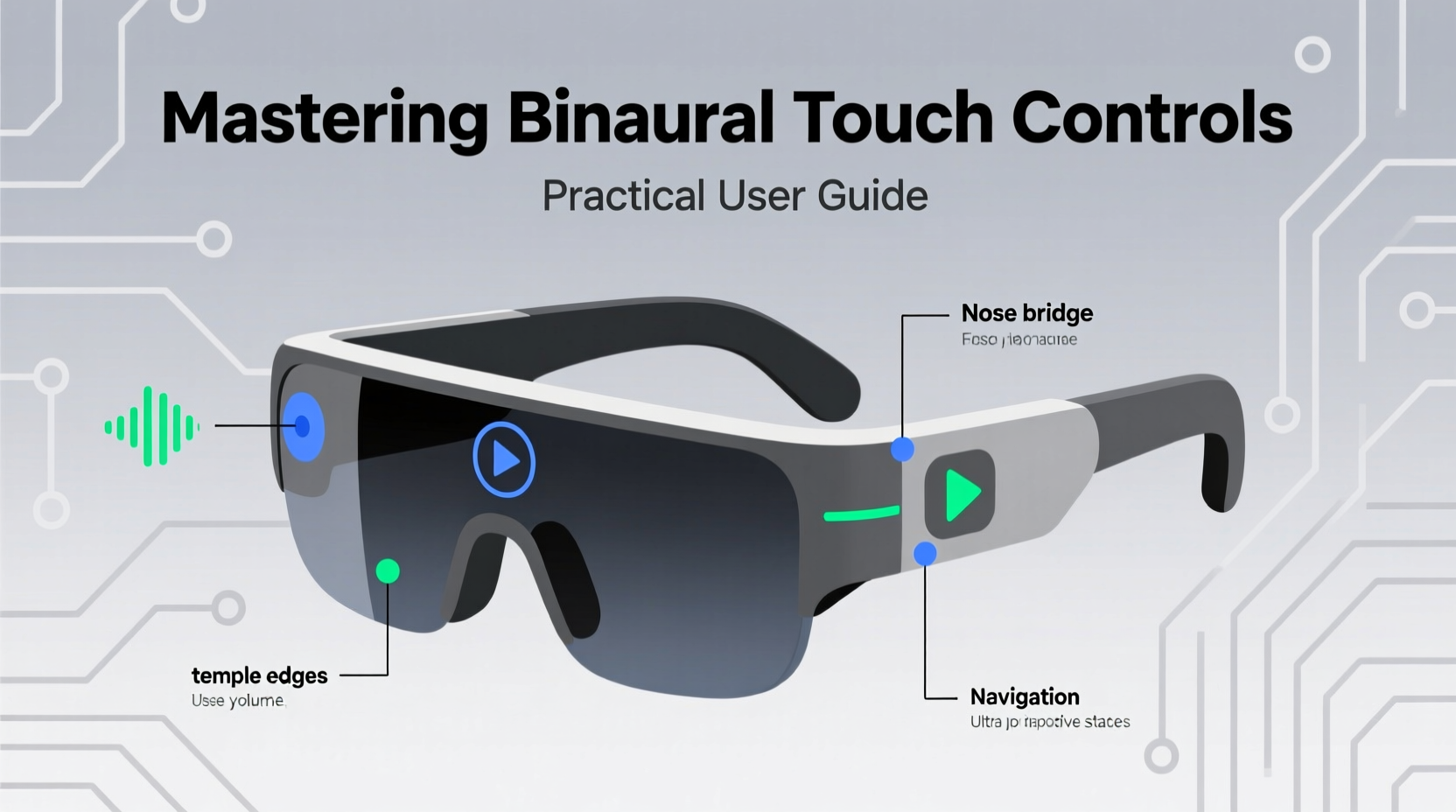
Binaural touch refers to responsive touch sensors embedded in both temples (arms) of smart glasses. Unlike single-point touch found in early models, binaural systems detect multi-point gestures—taps, swipes, holds, and combinations—allowing nuanced input. These inputs can trigger actions such as launching apps, adjusting volume, skipping tracks, or initiating voice assistants.
The key advantage lies in discretion and speed. A double-tap on the right temple might start a recording, while a swipe backward on the left could lower audio levels—all without removing your phone from your pocket. The system relies on capacitive sensing, similar to smartphone screens, but tuned for minimal pressure and ambient conditions like wind or sweat.
“Binaural controls represent a shift from reactive to anticipatory interfaces. When calibrated correctly, they reduce cognitive load by aligning with natural head and hand movements.” — Dr. Lena Patel, Human-Computer Interaction Researcher at MIT Media Lab
Essential Gestures and Their Functions
While exact gestures vary slightly between brands (e.g., Ray-Ban Meta, XREAL Air, and Vuzix), most follow standardized patterns. Below is a universal reference table outlining common commands:
| Gesture | Action Triggered | Common Use Case |
|---|---|---|
| Single tap (right) | Play/Pause media | Music, podcasts, videos |
| Double tap (right) | Answer/end call | Hands-free calling |
| Swipe forward (right) | Increase volume | Noise-adjusted listening |
| Swipe backward (right) | Decrease volume | Lower audio discreetly |
| Tap and hold (left) | Activate voice assistant | Voice search or dictation |
| Double tap (left) | Capture photo | Visual note-taking |
| Two-finger tap (both temples) | Start/stop screen recording | AR documentation |
Step-by-Step Guide to Calibration and Customization
To get the most out of your smart glasses, proper setup is essential. Follow this timeline to optimize responsiveness and personalize controls:
- Power on and pair: Connect your glasses to the companion app via Bluetooth. Ensure firmware is up to date.
- Run sensitivity calibration: In the app, initiate a calibration sequence that prompts you to perform each gesture slowly. This helps the system learn your typical pressure and speed.
- Select gesture mapping: Choose default profiles (e.g., “Media,” “Productivity,” “Navigation”) or create a custom layout. For example, remap the left double-tap from photo capture to launching a translation tool if traveling.
- Adjust debounce settings: Reduce accidental triggers by setting a minimum time interval (e.g., 150ms) between recognized taps.
- Test in real environments: Try gestures while walking, in light rain, or wearing gloves (if supported). Note inconsistencies and re-calibrate if needed.
- Save and backup profile: Store your configuration in the cloud so it can be restored after resets or applied to future devices.
Real-World Application: A Day with Binaural Control
Consider Maria, a field technician using smart glasses for remote diagnostics. Her morning begins with a double-tap on the right temple to accept a video call from her team. As she inspects equipment, she uses a two-finger tap to record a 30-second AR overlay showing a faulty valve. Later, during a noisy engine test, she swipes backward on the left arm to mute audio alerts without removing her gloves. When she needs hands-free guidance, a long press on the left temple activates her voice assistant: “Show me the repair manual for Model X7.”
By relying on binaural touch, Maria maintains focus on her surroundings while accessing digital tools fluidly. Over six months, she reports a 40% reduction in task-switching delays and fewer interruptions compared to using handheld tablets.
Troubleshooting Common Issues
Even well-designed systems encounter hiccups. Here’s how to resolve frequent problems:
- False triggers when adjusting glasses: Lower sensitivity in the app or enable “lockout during movement” if your model supports motion detection.
- Gestures not registering: Clean the touch zones with a microfiber cloth. Sweat and oils can interfere with capacitive response.
- Inconsistent behavior between sides: Recalibrate binaural balance—some systems drift over time due to temperature changes.
- Drained battery from overactive sensors: Disable touch control when not needed via the app or a physical switch, if available.
Do’s and Don’ts of Binaural Touch Usage
| Do’s | Don’ts |
|---|---|
| Use short, deliberate gestures | Drag fingers too slowly across the surface |
| Customize controls based on daily tasks | Assign conflicting actions to similar gestures |
| Keep touch surfaces clean and dry | Operate with wet or greasy hands |
| Practice muscle memory in safe environments | Rely solely on touch in high-risk situations (e.g., driving) |
| Update firmware regularly | Ignore app notifications about sensor performance |
FAQ
Can I use binaural touch with gloves?
Some premium models support glove mode using enhanced capacitance detection. Standard gloves usually block touch signals. For best results, use conductive-finger gloves designed for touchscreens.
Are binaural controls accessible for people with limited dexterity?
Yes, many systems offer adaptive settings, including extended timing windows and alternative input modes (voice or head tracking). Check accessibility options in your device’s app.
How do I reset touch settings to factory defaults?
Open the companion app, navigate to Device Settings > Touch Controls > Reset. Alternatively, perform a hardware reset by holding both touch zones for 10 seconds until the LED flashes red.
Maintaining Long-Term Performance
Like any precision interface, binaural touch degrades without care. Dust buildup, moisture exposure, and software fragmentation can dull responsiveness. Establish a weekly maintenance routine: wipe sensors gently, verify gesture accuracy, and review battery usage patterns. Also, avoid exposing the arms to extreme temperatures—prolonged heat can warp internal circuitry and desensitize touch pads.
“The longevity of touch controls depends more on user habits than hardware quality. Five minutes of weekly upkeep can extend functional life by over a year.” — Rajiv Mehta, Senior Engineer at XREAL Labs
Conclusion
Binaural touch controls transform smart glasses from passive displays into dynamic, responsive tools. Mastery comes not just from knowing the gestures, but from integrating them seamlessly into your rhythm—whether you're navigating a city, managing a job site, or simply enjoying music on a run. With thoughtful customization, consistent calibration, and mindful usage, these controls become an invisible extension of your intent.




 浙公网安备
33010002000092号
浙公网安备
33010002000092号 浙B2-20120091-4
Comments
No comments yet. Why don't you start the discussion?