
Bluetooth technology has transformed the way we listen to music, take calls, and interact with our devices. For iPhone users, wireless headphones offer freedom, convenience, and high-quality audio—when they work correctly. Yet, despite Apple’s user-friendly design, many people still struggle with pairing issues, inconsistent connections, or missed opportunities to optimize their experience. Understanding how to properly pair and manage Bluetooth headphones with your iPhone is essential for maximizing performance and minimizing frustration.
This comprehensive guide walks you through every stage of the process—from checking compatibility to maintaining stable connections—and equips you with practical knowledge that goes beyond basic setup.
Understanding Bluetooth Compatibility with Your iPhone
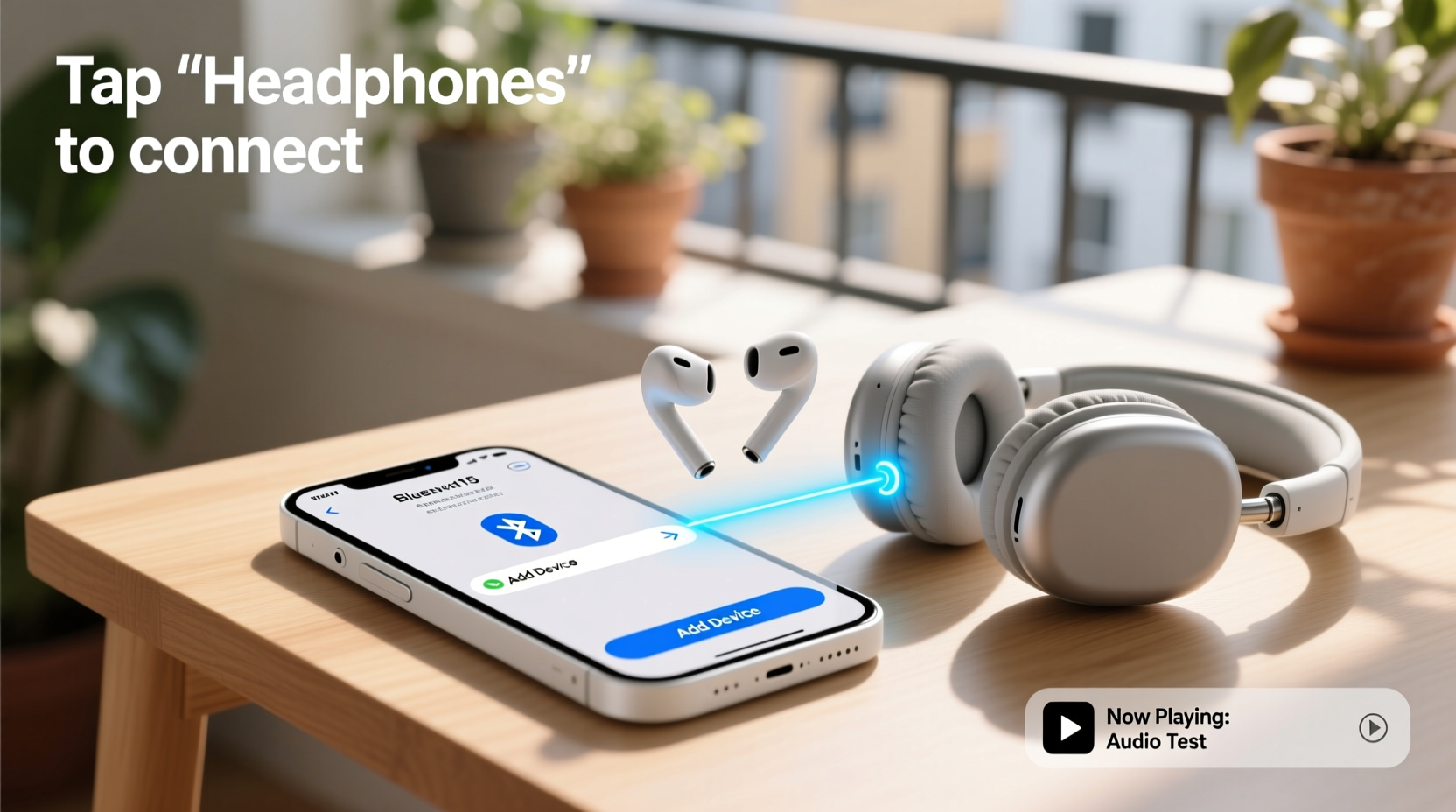
Before attempting to pair any headphones, it's crucial to confirm compatibility. While most modern Bluetooth headphones work with iPhones, certain features may be limited depending on the model and Bluetooth version.
iPhones support Bluetooth 4.0 and later, with newer models (iPhone 6s and up) offering Bluetooth 5.0 or higher. This means improved range, faster data transfer, and lower power consumption. However, not all headphones take full advantage of these upgrades. For example, older Bluetooth 4.2 devices will still connect but won’t benefit from extended range or enhanced stability.
Additionally, consider codec support. iPhones primarily use AAC (Advanced Audio Coding), which delivers good sound quality over Bluetooth. Some third-party headphones, especially Android-focused brands, prioritize aptX or LDAC codecs, which are not supported by iOS. As a result, audio quality may not reach its full potential even if the device pairs successfully.
Step-by-Step Guide to Pairing Headphones with Your iPhone
Pairing Bluetooth headphones with an iPhone is generally straightforward, but knowing the correct sequence prevents errors and saves time. Follow this proven method for reliable results.
- Prepare your headphones: Charge them fully and turn them on. Activate pairing mode—this usually involves pressing and holding the power button until an indicator light flashes blue or red.
- Open iPhone Settings: Unlock your iPhone and go to the Settings app.
- Navigate to Bluetooth: Tap “Bluetooth” and make sure it’s turned on. The iPhone will begin scanning for nearby devices.
- Select your device: Under “Other Devices,” look for your headphone’s name (e.g., “AirPods Pro,” “Sony WH-1000XM4”). Tap it once.
- Confirm connection: If prompted, confirm the pairing request. Once connected, the status will change to “Connected” next to the device name.
- Test audio: Play a song or video to ensure sound outputs through the headphones.
If the device doesn’t appear, double-check that it’s in pairing mode and within close proximity (within 3 feet). Restarting Bluetooth on the iPhone or resetting network settings can also resolve detection issues.
Troubleshooting Common Pairing Issues
Even with careful setup, problems can arise. Here are frequent issues and how to resolve them effectively.
- Device not showing up: Ensure the headphones are in pairing mode. Some models require specific button combinations (e.g., holding volume down + power).
- Connection drops frequently: Interference from Wi-Fi routers, microwaves, or other electronics can disrupt Bluetooth signals. Move away from such sources or restart your router.
- Audio only plays from one side: Reset the headphones and re-pair them. Also, check iPhone audio balance settings under Settings > Accessibility > Audio/Visual.
- Headphones connect but no sound: Verify that the correct output device is selected. Swipe down Control Center, press and hold the audio icon, and choose your headphones manually.
“Over 70% of Bluetooth issues stem from outdated firmware or improper pairing sequences. A simple reset often resolves what seems like a hardware failure.” — David Lin, Senior Wireless Engineer at ConnectTech Labs
Best Practices for Maintaining Stable Connections
Once paired, maintaining a strong and consistent Bluetooth connection requires ongoing attention. These habits help prevent disconnections and extend device lifespan.
| Practice | Benefit | How to Implement |
|---|---|---|
| Keep software updated | Fixes bugs and improves compatibility | Update iOS via Settings > General > Software Update |
| Limit active Bluetooth devices | Reduces signal interference | Disconnect unused accessories in Bluetooth settings |
| Re-pair periodically | Clears corrupted cache | Forget device, then re-pair every few months |
| Store headphones properly | Prolongs battery and sensor health | Use protective case; avoid extreme temperatures |
Real-World Example: Solving Daily Commute Disruptions
Sarah, a marketing executive in San Francisco, relied on her wireless headphones during her daily BART commute. She noticed frequent dropouts when entering tunnels or crowded stations. Initially assuming faulty hardware, she replaced her headphones twice—only for the issue to persist.
After consulting Apple Support, she learned that dense environments with overlapping Wi-Fi networks and Bluetooth signals were causing interference. By updating her iPhone’s software, disabling unnecessary connected devices, and switching to a headphone model with better Bluetooth 5.2 signal stability, Sarah achieved uninterrupted playback throughout her commute.
Her experience underscores the importance of environmental awareness and proactive maintenance—not just hardware quality—in ensuring reliable Bluetooth performance.
Frequently Asked Questions
Can I pair multiple headphones to one iPhone at the same time?
Yes, but not simultaneously for stereo audio. You can connect two sets via Bluetooth, but only one can play audio at a time. Alternatively, use Audio Sharing with compatible AirPods or Beats models to stream to two devices at once.
Why do my headphones keep disconnecting automatically?
This often occurs due to low battery, software glitches, or being out of range. Try resetting the connection by forgetting the device in Bluetooth settings and re-pairing. Also, disable “Automatic Ear Detection” if using non-Apple headphones, as it may misread inactivity.
Do I need to unpair headphones when not in use?
No, but disconnecting them manually conserves battery life on both the headphones and iPhone. Leaving Bluetooth on constantly uses minimal power, but closing active connections helps maintain optimal system performance.
Maximizing Your Wireless Experience
Mastering Bluetooth isn’t just about connecting devices—it’s about building a seamless ecosystem where audio flows effortlessly between your iPhone and headphones. From understanding technical limitations to applying real-world fixes, each step contributes to a smoother, more enjoyable listening experience.
Whether you're using premium noise-canceling cans or everyday earbuds, taking control of your Bluetooth settings empowers you to eliminate interruptions, improve sound quality, and make the most of your mobile lifestyle.




 浙公网安备
33010002000092号
浙公网安备
33010002000092号 浙B2-20120091-4
Comments
No comments yet. Why don't you start the discussion?