
The S95 Zealot speaker delivers powerful sound in a compact, rugged design—ideal for outdoor adventures, home use, or on-the-go listening. But even the best speaker is only as good as its connection. Bluetooth pairing seems simple in theory, but users often face delays, dropouts, or failed connections due to overlooked settings or environmental interference. This guide walks you through every phase of pairing your S95 Zealot speaker with confidence, avoiding common pitfalls and maximizing performance.
Understanding Bluetooth Technology and the S95 Zealot
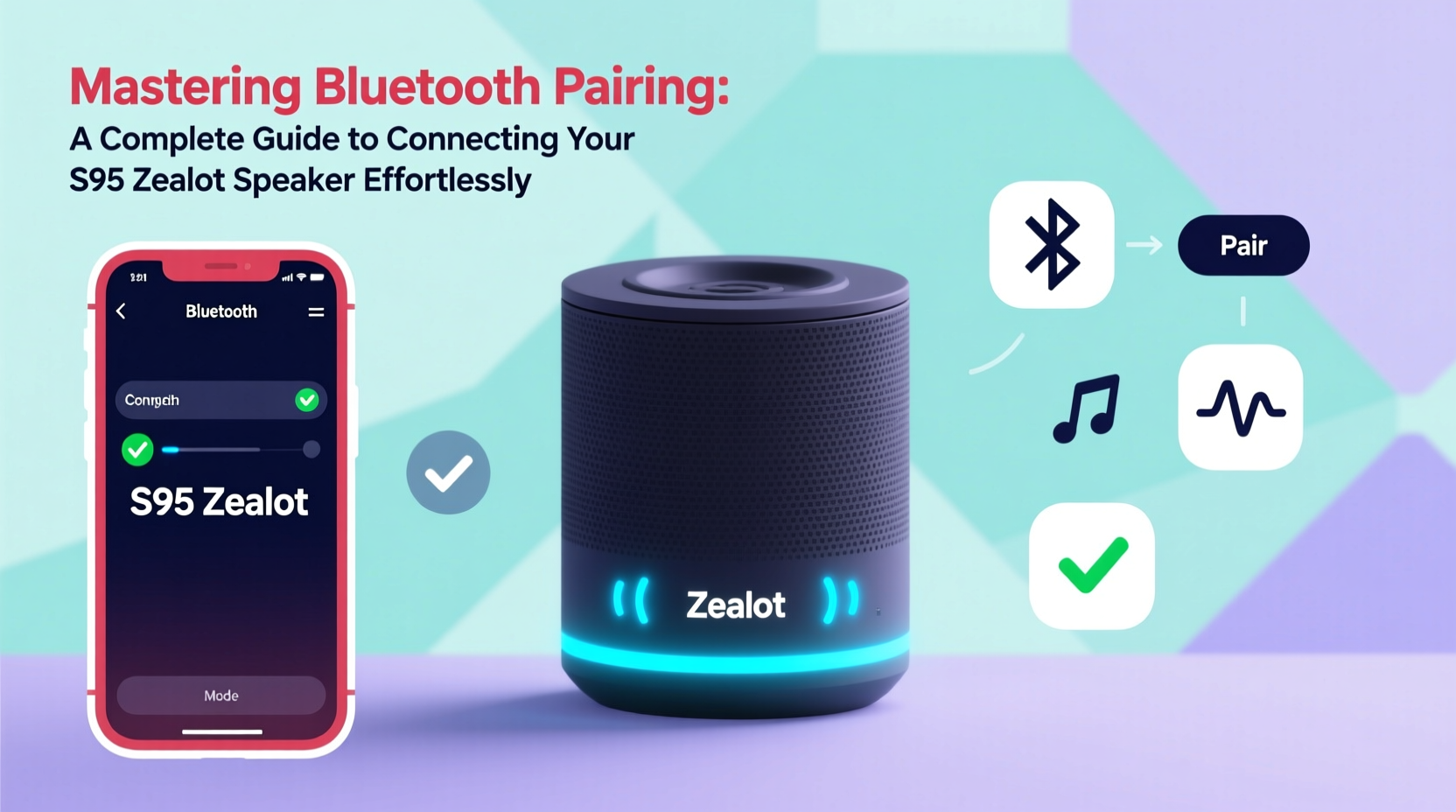
Bluetooth is a wireless communication standard that allows devices to exchange data over short distances using radio waves. The S95 Zealot uses Bluetooth 5.0, which offers improved range (up to 33 feet/10 meters), faster pairing, lower power consumption, and better resistance to signal interference compared to older versions.
Before diving into pairing, it's essential to understand key terms:
- Pairing: The initial process of linking two devices so they can communicate.
- Connection: The active state where audio or data is being transmitted.
- Reconnection: Automatic linking when both devices are within range and previously paired.
The S95 Zealot supports multipoint pairing, meaning it can remember multiple devices and switch between them quickly. However, only one device can stream audio at a time.
“Modern Bluetooth 5.0 devices like the S95 Zealot are engineered for reliability, but user habits and environment still play a critical role in consistent performance.” — Dr. Alan Reeves, Wireless Audio Systems Engineer
Step-by-Step Guide to Pairing Your S95 Zealot Speaker
Follow this clear sequence to establish a stable Bluetooth connection between your speaker and any compatible device—smartphone, tablet, laptop, or smartwatch.
- Power on the speaker: Press and hold the power button for 2–3 seconds until the LED indicator flashes blue and red. You’ll hear a tone confirming startup.
- Enable pairing mode: Press the Bluetooth button once. The flashing pattern will change to alternating blue and white, indicating the speaker is discoverable.
- Turn on Bluetooth on your device: Go to Settings > Bluetooth and ensure it’s enabled.
- Search for devices: Tap “Scan” or wait for available devices to appear. Look for “Zealot S95” in the list.
- Select the speaker: Tap on “Zealot S95.” If prompted, confirm pairing by tapping “Pair” or entering PIN 0000 (rarely required).
- Wait for confirmation: A solid blue LED and a voice prompt (“Connected”) indicate successful pairing.
- Test playback: Play a song or video to verify audio output.
Troubleshooting Common Connection Issues
Even with proper procedure, issues may arise. Here are frequent problems and their solutions:
| Issue | Possible Cause | Solution |
|---|---|---|
| Speaker not showing up in device list | Not in pairing mode or out of range | Restart speaker, press Bluetooth button again, move closer to the device |
| Paired but no sound | Audio output not routed to speaker | Check device audio settings; select S95 as output device |
| Intermittent audio or dropouts | Signal interference or low battery | Reduce distance, avoid Wi-Fi routers/microwaves, charge speaker |
| Can’t reconnect automatically | Device memory conflict or Bluetooth cache issue | Forget device on phone, re-pair from scratch |
If your speaker becomes unresponsive, perform a factory reset by pressing and holding the Volume Up and Power buttons simultaneously for 8 seconds. The LED will flash rapidly, then power off. Restart and re-pair.
Optimizing Performance: Best Practices for Long-Term Use
Once paired, maintaining a reliable connection requires ongoing care. Environmental factors, device settings, and usage patterns all influence Bluetooth stability.
- Maintain line of sight: Physical obstructions like walls or furniture weaken signals.
- Limit interference: Keep the speaker away from microwaves, cordless phones, and crowded USB 3.0 hubs.
- Update firmware: Check the manufacturer’s website periodically for firmware updates that improve connectivity.
- Manage battery levels: Low power can degrade transmission quality. Charge before extended use.
Real-World Example: Beach Day Setup Gone Right
Mark planned a beach outing and wanted music without wires. He arrived early, turned on his S95 Zealot, and attempted to pair it with his phone. The device didn’t appear. Remembering the guide, he checked: the speaker was in pairing mode (blue-white flash), but his phone’s Bluetooth had auto-connected to his car earlier. He manually disconnected the car, refreshed the device list, and selected “Zealot S95.” Within seconds, it connected. Throughout the day, the speaker maintained a stable link—even at 25 feet—because Mark kept it dry, charged, and positioned away from metal objects.
Expert Tips Checklist
Use this checklist each time you set up or troubleshoot your S95 Zealot:
- ✅ Charge the speaker fully before first use
- ✅ Confirm pairing mode via LED indicators
- ✅ Disable other Bluetooth connections temporarily
- ✅ Keep devices within 10 meters and in direct line of sight
- ✅ Forget old or unused devices from speaker memory
- ✅ Perform factory reset if experiencing persistent issues
- ✅ Store the speaker in a dry case when not in use
Frequently Asked Questions
How many devices can the S95 Zealot remember?
The S95 Zealot can store up to 8 paired devices in its memory. It automatically reconnects to the last used device when powered on, provided Bluetooth is active on that device.
Why does my speaker disconnect when I answer a call?
This occurs when your phone routes the call audio back to itself instead of keeping the Bluetooth channel open. Some smartphones default to built-in microphone/speaker during calls. To fix, go to your phone’s Bluetooth settings and disable “Phone Audio” for the S95, or use a headset for calls while streaming music through the speaker.
Can I use the S95 Zealot while charging?
Yes. The speaker is designed to function normally while plugged in. However, for optimal battery longevity, avoid continuous use while charging over long periods.
Conclusion: Take Control of Your Audio Experience
Mastering Bluetooth pairing isn’t about technical wizardry—it’s about understanding the rhythm between your devices. With the S95 Zealot, you have a capable, durable speaker ready to deliver rich sound wherever you go. By following these steps, applying best practices, and knowing how to troubleshoot, you eliminate guesswork and enjoy seamless, frustration-free listening.




 浙公网安备
33010002000092号
浙公网安备
33010002000092号 浙B2-20120091-4
Comments
No comments yet. Why don't you start the discussion?