
Bullet points are more than just formatting tools—they’re essential for clarity, readability, and organization. In Google Docs, where collaboration and communication happen daily, mastering bullet points can transform cluttered paragraphs into structured, scannable content. Whether you're drafting meeting notes, outlining a project, or building a presentation, knowing how to use bullet points effectively ensures your message is understood quickly and accurately.
Yet many users treat bullet points as an afterthought—clicking the icon without considering hierarchy, consistency, or purpose. This guide walks through the full potential of bullet points in Google Docs, from basic creation to advanced customization and best practices that elevate your documents from functional to polished.
Why Bullet Points Matter in Professional Writing
In a world of overflowing inboxes and short attention spans, dense blocks of text lose readers fast. Bullet points break information into digestible pieces, improving comprehension and retention. Research from the Nielsen Norman Group shows that users read web content in an F-shaped pattern—skimming first lines and jumping to visual cues like bullets and headings.
Well-formatted bullet points help readers:
- Identify key takeaways at a glance
- Navigate complex ideas with ease
- Distinguish between main points and subpoints
- Follow logical sequences in instructions or proposals
“Lists are the backbone of clear communication. When done right, they reduce cognitive load and increase engagement.” — Dr. Laura Bennett, Cognitive Psychologist & Technical Communication Researcher
Step-by-Step: Creating and Customizing Bullet Points
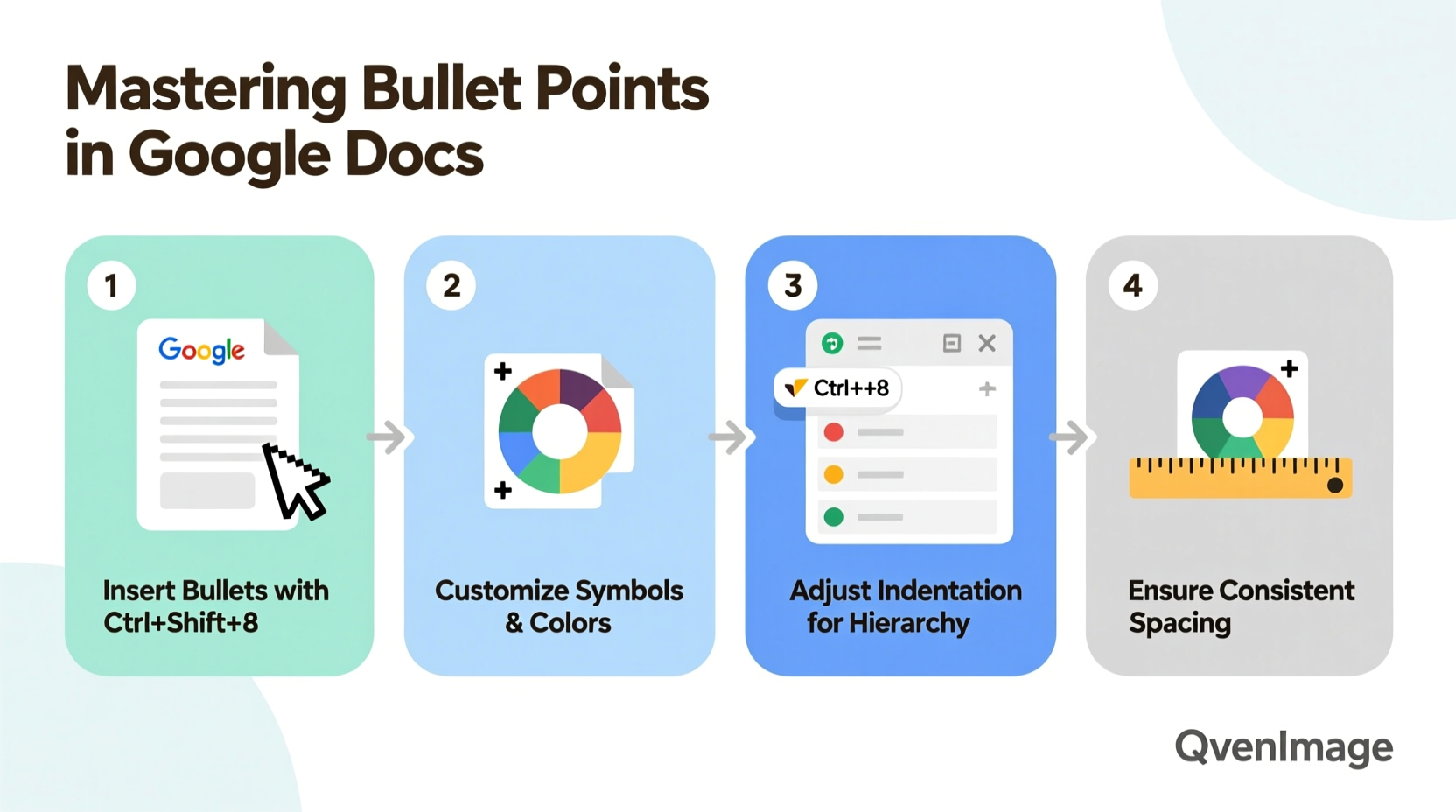
Google Docs offers intuitive tools for creating bullet points, but true mastery lies in understanding how to manipulate them for maximum impact. Follow this sequence to build clean, hierarchical lists.
- Select your text: Highlight the lines you want to turn into bullets, or place your cursor where you’d like to start typing.
- Click the bullet point icon: Located in the toolbar (it looks like three stacked dots with lines), this instantly formats your line(s) with default bullets.
- Type your content: Press Enter to create a new bulleted line. Press Enter twice to exit the list.
- Adjust indentation: Use the Increase/Decrease Indent buttons (arrows pointing right or left) to create subpoints and establish hierarchy.
- Change bullet style: Click the small arrow next to the bullet icon to choose from different symbols—discs, circles, squares, or numbered formats.
Customizing Bullets for Visual Hierarchy
Default bullet styles work for simple lists, but customizing them enhances professionalism and structure. For example, use discs for main ideas, circles for supporting details, and squares for action items.
To customize:
- Create a bulleted list.
- Highlight the level you want to change (e.g., all second-level items).
- Click the bullet dropdown → “Bullets & numbering” → “Customize.”
- Select a symbol, adjust font size, or even insert special characters (like arrows or checkmarks).
Best Practices for Effective Bullet Lists
Not all bullet points are created equal. The difference between a helpful list and a confusing one often comes down to structure and writing quality.
| Do | Don’t |
|---|---|
| Start each bullet with a strong verb (e.g., \"Review quarterly reports\") | Begin with articles like \"The\" or \"A\" |
| Keep items parallel in structure | Mix sentence fragments with full sentences |
| Limit bullets to 5–7 per list | Create long, overwhelming lists |
| Use consistent punctuation | Randomly mix periods and no punctuation |
| Use indentation to show relationships | Overuse multiple levels (more than 3) |
Avoid Common Formatting Pitfalls
One of the most frequent issues in shared documents is inconsistent bullet formatting. This happens when users copy-paste text from external sources or manually simulate bullets using dashes or asterisks.
Always use Google Docs’ native bullet tool. It ensures:
- Uniform spacing and alignment
- Proper nesting across document views
- Compatibility with screen readers and accessibility tools
- Easier editing during collaborative reviews
Real-World Example: Transforming a Cluttered Agenda
Consider a team lead preparing a weekly meeting agenda. Their initial draft reads:
We need to talk about the client feedback we got last week. Also, the design team has updated the mockups and wants input. We should discuss the timeline because there might be delays. Don’t forget to mention the budget review with finance on Friday.
This paragraph contains four distinct topics but presents them as a single thought. Using bullet points, the same content becomes structured and actionable:
- Review client feedback from Q3 survey
- Provide input on updated design mockups (Design Team)
- Assess project timeline adjustments due to vendor delays
- Prepare for budget review with Finance (Friday, 2 PM)
The revised version allows participants to scan, prioritize, and prepare. Each item starts with a verb, maintains parallel structure, and avoids unnecessary words. This small shift improves meeting efficiency and follow-through.
Advanced Tips and Pro Techniques
Once you’ve mastered the basics, leverage these advanced strategies to refine your documents further.
Use Keyboard Shortcuts for Speed
Speed up your workflow with these essential shortcuts:
- Ctrl + Shift + 8: Toggle default bullets on/off
- Tab: Increase indentation (create sub-bullet)
- Shift + Tab: Decrease indentation
- Ctrl + \\: Reset formatting (removes bullets and indents)
Create Reusable Templates
If you frequently write reports, agendas, or task lists, save time by creating a Google Docs template with pre-formatted bullet styles. Set up custom indentation, fonts, and colors once, then reuse it across projects.
“Teams that standardize their document formatting reduce revision cycles by up to 40%.” — Marcus Lin, Productivity Consultant at WorkFlow Labs
FAQ: Common Questions About Bullet Points in Google Docs
Can I resume a bulleted list after inserting a paragraph?
Yes. After typing a regular paragraph within a list, press Enter twice and click the bullet button again. Google Docs will continue the list format from before.
Why do my bullets look misaligned when I share the doc?
This usually happens when bullet styles were pasted from another app. To fix it, reapply bullets using Google Docs’ native tools and avoid copying formatted text from Word, PDFs, or web pages.
Is it possible to use images as bullets?
Not natively. Google Docs doesn’t support image-based bullets. However, you can insert small icons manually (via Insert > Image), though this breaks automation and isn’t recommended for long documents.
Checklist: Building Better Bullet Lists
Before finalizing any document, run through this checklist to ensure your bullet points are effective:
- ✅ All main points begin with a strong action verb
- ✅ Items are parallel in grammatical structure
- ✅ No more than 7 bullets per list
- ✅ Subpoints are properly indented under main ideas
- ✅ Punctuation is consistent (either all sentences end with periods or none do)
- ✅ No manual dashes or asterisks used instead of real bullets
- ✅ List serves a clear purpose—summarizing, prioritizing, or instructing
Conclusion: Elevate Your Documents One Bullet at a Time
Mastering bullet points in Google Docs isn’t about flashy design—it’s about precision, clarity, and respect for the reader’s time. A well-crafted list guides attention, supports decision-making, and reflects professionalism. These small formatting choices accumulate into a reputation for organized, effective communication.
Take a moment to review your recent documents. Are your lists helping—or hindering—understanding? Apply the techniques in this guide to refine your approach. Share this knowledge with your team, and together, raise the standard of how information is presented and consumed.




 浙公网安备
33010002000092号
浙公网安备
33010002000092号 浙B2-20120091-4
Comments
No comments yet. Why don't you start the discussion?