
Driving has evolved far beyond just getting from point A to B. With Apple CarPlay, your iPhone becomes an intelligent co-pilot, transforming your dashboard into a smart interface that keeps you connected, informed, and focused on the road. But despite its intuitive design, many drivers underutilize CarPlay or struggle with setup and optimization. This guide walks you through every phase of mastering CarPlay—ensuring seamless integration, maximizing functionality, and enhancing safety without distraction.
Understanding Apple CarPlay: What It Is and Why It Matters
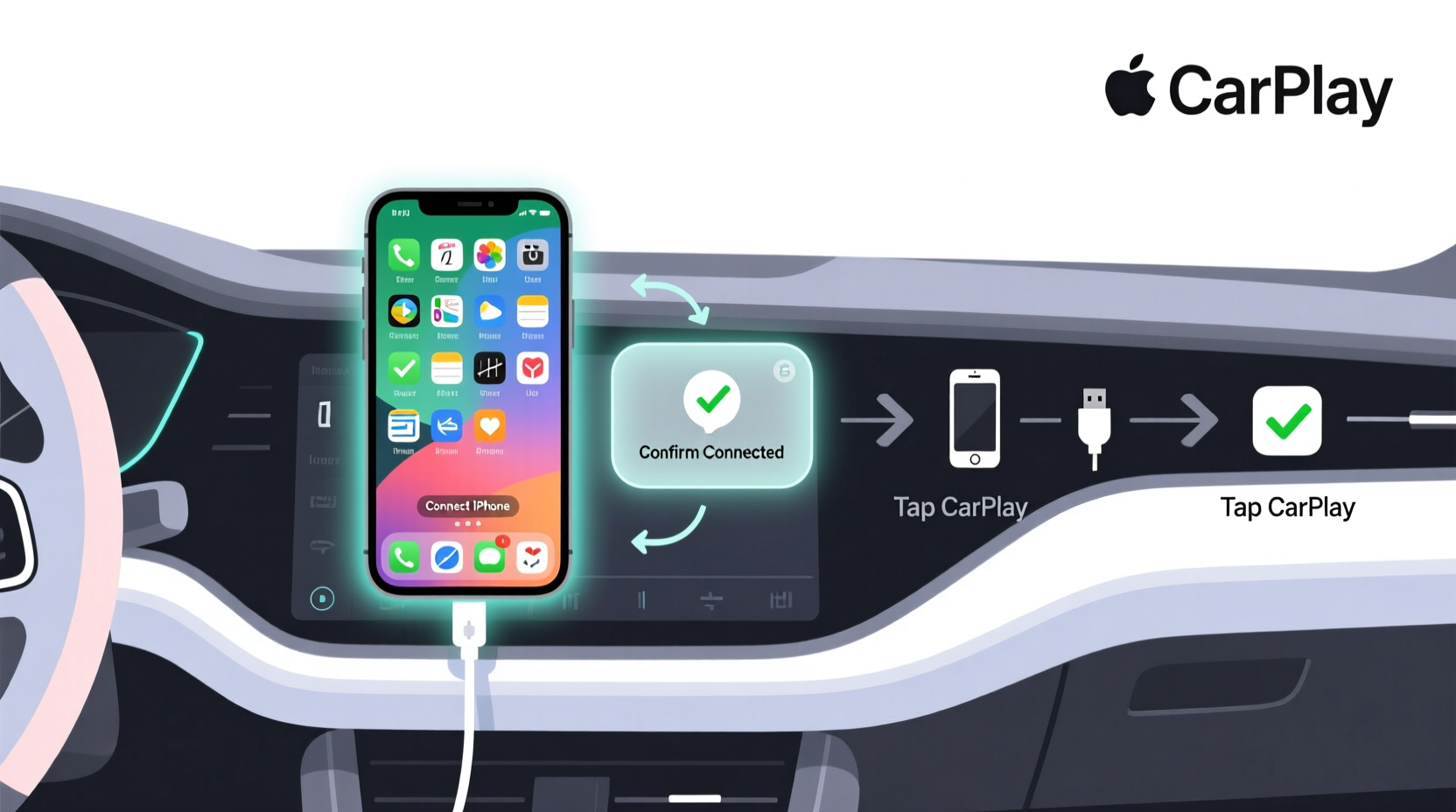
Apple CarPlay is Apple’s in-car operating system that mirrors select iPhone functions onto your vehicle’s infotainment screen. It allows access to navigation, messaging, music, phone calls, and third-party apps—all through a simplified interface optimized for driving. Unlike simply mounting your phone, CarPlay uses voice commands (via Siri), steering wheel controls, and touchscreen gestures to minimize distractions.
CarPlay works over USB or wirelessly, depending on your car model and iPhone compatibility. It supports both portrait and landscape displays and adapts dynamically to your vehicle’s screen size and resolution. Importantly, CarPlay doesn’t give full access to your iPhone; instead, it filters only the most relevant apps for safe use while driving.
“CarPlay reduces cognitive load by streamlining interaction with essential apps. Drivers stay more focused because the interface is predictable and voice-first.” — Dr. Lena Torres, Human-Machine Interaction Researcher at MIT Mobility Lab
Step-by-Step Setup: Connecting Your iPhone to CarPlay
Getting started with CarPlay is straightforward, but knowing the nuances ensures a smooth experience. Follow this timeline to connect your device correctly:
- Check Compatibility: Ensure your iPhone runs iOS 7.1 or later (iPhone 5 and newer). Verify your car supports CarPlay—most models from 2016 onward do, especially from brands like Honda, Toyota, Ford, BMW, and Volvo.
- Update Software: On your iPhone, go to Settings > General > Software Update to install the latest iOS version. Also check if your car’s infotainment system has pending updates via dealership service or over-the-air alerts.
- Connect via USB (First-Time Setup): Plug your iPhone into the designated USB port—usually labeled with a smartphone icon. Avoid charging-only ports; they won’t transmit data.
- Approve Connection: When prompted on-screen, tap “Use CarPlay” or “Always Enable.” You may need to confirm permissions for specific apps like Messages or Maps.
- Enable Wireless CarPlay (If Supported): Some vehicles offer wireless connectivity. To pair: activate Bluetooth and Wi-Fi on your iPhone, start CarPlay mode in your car, then follow the pairing prompts on your phone.
- Test Core Functions: Make a call, send a message using Siri, and launch Apple Maps to confirm full functionality.
Optimizing Your Daily CarPlay Experience
Once connected, personalization elevates usability. Tailor CarPlay to match your routine so information flows naturally during commutes, road trips, or errands.
- Customize App Layout: Press and hold any app icon on the CarPlay home screen to enter edit mode. Drag frequently used apps (like Podcasts, Waze, or Spotify) to the front row for instant access.
- Set Default Navigation App: While Apple Maps is native, you can choose alternatives. However, only one navigation app can run at a time. Switch in Settings > General > CarPlay > [Your Vehicle].
- Leverage Siri Commands: Use natural language: “Call Mom,” “Send a message to James saying I’ll be five minutes late,” or “Play my workout playlist.” Siri handles these safely while you keep hands on the wheel.
- Auto-Start CarPlay: In Settings > General > CarPlay, assign a vehicle profile to auto-launch CarPlay whenever your iPhone connects.
Real Example: Sarah’s Morning Commute
Sarah drives 45 minutes each morning through city traffic. Before using CarPlay, she’d fumble with her phone for directions and miss messages. Now, as soon as she plugs in, CarPlay launches automatically. Siri reads her unread messages aloud: “You have three new texts—one from your manager about today’s meeting.” She replies, “Tell them I’m on schedule,” without touching her phone. Apple Maps reroutes around congestion, and her podcast continues seamlessly across devices. The entire drive feels smoother, safer, and less stressful.
Do’s and Don’ts of CarPlay Usage
| Do’s | Don’ts |
|---|---|
| Use voice commands for messaging and calling | Manually type messages while driving |
| Keep your iPhone charged with fast-charging cables | Rely on low-power mode during long trips—it may disrupt connectivity |
| Download offline maps for areas with poor signal | Stream high-definition video content (not supported and unsafe) |
| Regularly clear app cache in CarPlay settings | Install unverified third-party apps claiming CarPlay support |
Advanced Tips and Hidden Features
Most users stick to basics, but deeper features unlock even greater convenience.
- Dark Mode Sync: CarPlay automatically follows your iPhone’s display settings. Enable Dark Mode in Settings > Display & Brightness for reduced glare at night.
- Multiple Driver Profiles: Families sharing a vehicle can set up individual CarPlay profiles linked to different iPhones. Each driver gets personalized app layouts and recent destinations.
- Third-Party App Integration: Apps like Audible, WhatsApp (audio messages via Siri), and NPR One work within CarPlay. Ensure they’re updated and enabled in Settings > Screen Time > Content & Privacy Restrictions > Allowed Apps.
- Location Services Precision: Go to Settings > Privacy > Location Services > System Services and enable “Motion Calibration & Distance” for better GPS accuracy in tunnels or urban canyons.
FAQ: Common CarPlay Questions Answered
Why does CarPlay disconnect randomly?
Intermittent disconnections often stem from faulty cables or outdated firmware. Try a certified MFi (Made for iPhone) Lightning cable, restart both your iPhone and car’s head unit, and ensure both systems are updated. For wireless setups, interference from other Bluetooth devices may cause drops—turn off unused connections.
Can I use CarPlay with Android Auto simultaneously?
No. Vehicles support either Apple CarPlay or Android Auto, not both at once. However, dual-system head units allow switching between phones depending on which is connected. Check your vehicle manual for multi-device capabilities.
Is wireless CarPlay worth upgrading for?
If your car lacks built-in wireless CarPlay, aftermarket stereos from Pioneer, Kenwood, or Alpine offer retrofit solutions. The convenience of automatic connection—no plugging required—is valuable for frequent drivers. Consider it a worthwhile upgrade if you value seamless daily integration.
Conclusion: Drive Smarter, Not Harder
Mastering CarPlay isn’t just about technology—it’s about reclaiming focus, reducing stress, and making every journey more efficient. From initial setup to advanced customization, the tools are there to turn your commute into a productive, enjoyable part of your day. Whether you're navigating unfamiliar roads, staying in touch hands-free, or listening to your favorite show, CarPlay puts control where it belongs: safely within reach.




 浙公网安备
33010002000092号
浙公网安备
33010002000092号 浙B2-20120091-4
Comments
No comments yet. Why don't you start the discussion?