
Smartphones are essential tools in daily life, but they’re prone to glitches, slowdowns, and hardware failures. Most users react to problems only when they become unbearable—by then, data may be lost or repair costs high. Proactive diagnostics can prevent that. Understanding how to identify symptoms early and interpret what they mean allows you to maintain peak performance, extend device lifespan, and avoid unnecessary replacements.
This guide walks through the full diagnostic process—from initial signs of trouble to advanced troubleshooting—equipping you with practical knowledge to assess, isolate, and resolve the most frequent smartphone issues.
Understanding Common Symptoms and Their Meaning
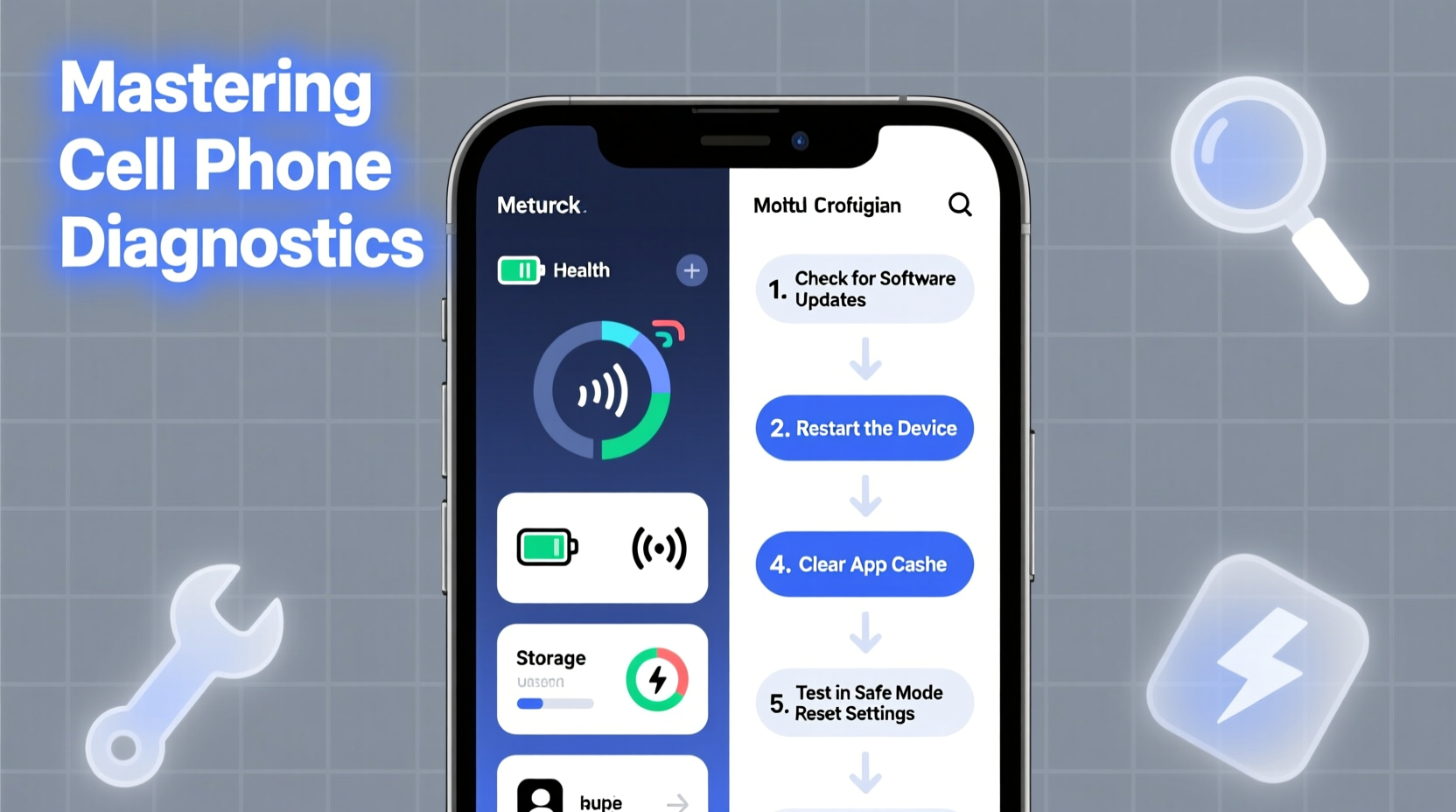
Before diving into tools or fixes, recognize what your phone is trying to tell you. Unusual behavior often points to specific underlying causes:
- Slow performance: Could indicate low storage, background app overload, or outdated software.
- Rapid battery drain: May stem from rogue apps, faulty charging circuits, or degraded battery health.
- Overheating: Often caused by intensive usage, poor ventilation, or malfunctioning components.
- Wi-Fi or Bluetooth disconnections: Suggests software bugs, network interference, or failing antennas.
- Screen flickering or unresponsiveness: Points to display driver errors or physical damage.
Recognizing patterns helps prioritize which systems to investigate first. For example, if your phone overheats while charging but works fine otherwise, the issue likely lies in power management rather than CPU usage.
Step-by-Step Diagnostic Process
Diagnostics should follow a logical flow: observe, isolate, test, confirm, act. Jumping straight to solutions without proper assessment risks misdiagnosis.
- Observe and document symptoms – Note frequency, duration, and conditions under which problems appear.
- Check for software updates – Outdated OS versions are responsible for many bugs. Install available updates via Settings > System > Software Update.
- Boot into Safe Mode (Android) – This disables third-party apps. If the problem disappears, a downloaded app is likely the culprit.
- Review battery and performance stats – Use built-in tools like Battery Usage or Digital Wellbeing to see which apps consume resources.
- Test hardware functions – Use diagnostic menus (e.g., Android’s *№*#*#6484#*#*) or manufacturer tools (Samsung Device Care, iPhone Diagnostics) to check touchscreen, sensors, camera, and audio.
- Perform a factory reset (last resort) – Back up data first. If issues persist after reset, the cause is likely hardware-related.
This sequence eliminates variables methodically, ensuring accurate conclusions before any irreversible actions.
Essential Built-In and Third-Party Diagnostic Tools
Modern phones come equipped with powerful self-diagnostics. Knowing where to find them saves time and money.
| Platform | Tool | Function | How to Access |
|---|---|---|---|
| Android (General) | Service Menu (*#*#6484#*#*) | Hardware testing (touchscreen, speaker, sensors) | Dial code directly on phone app |
| Samsung | Device Care | Battery, storage, memory optimization | Preinstalled app or Settings > Battery and Device Care |
| iOS | Apple Diagnostics | Hardware fault detection during startup | Triggered automatically when sending device to Apple Support |
| All Platforms | AccuBattery (Android), CoconutBattery (Mac+iPhone) | Precise battery health monitoring | Download from app store or desktop client |
Third-party tools offer deeper insights than stock utilities. AccuBattery, for instance, estimates actual battery capacity over time—critical for spotting degradation before sudden shutdowns occur.
“Most ‘broken’ phones brought into repair shops are actually suffering from software bloat or misconfigured settings. A proper diagnostic routine catches 70% of issues before hardware replacement is even considered.” — Marcus Lin, Mobile Repair Technician with 12 years of field experience
Real-World Example: Resolving Intermittent Wi-Fi Drops
A user reports their phone frequently disconnects from Wi-Fi at home, requiring manual reconnection. The router works fine with other devices.
The diagnostic path unfolds as follows:
- First, reboot both phone and router—no change.
- Check for OS updates—none pending.
- Forget the network and reconnect—temporary fix, drops return within hours.
- Boot into Safe Mode—Wi-Fi remains stable for two days.
- Conclusion: A third-party app is interfering with connectivity.
- Process of elimination identifies a recently installed file-syncing app running aggressive background processes.
- Uninstalling the app resolves the issue permanently.
Without using Safe Mode to isolate software influence, the user might have replaced the router or assumed hardware failure.
Do’s and Don’ts of Phone Diagnostics
| Do | Don't |
|---|---|
| Back up data regularly before running deep diagnostics or resets | Ignore persistent error messages—they rarely disappear on their own |
| Use official firmware and trusted tools only | Root or jailbreak solely to access hidden diagnostics—it increases instability |
| Monitor battery health monthly on older devices | Leave your phone charging overnight routinely—it accelerates battery wear |
| Clean cache partitions periodically (Android) | Apply pressure to a flickering screen—it may worsen internal damage |
Comprehensive Diagnostic Checklist
Use this checklist whenever your phone shows abnormal behavior:
- ✅ Restart the device to clear temporary glitches
- ✅ Check for operating system and app updates
- ✅ Monitor battery usage for abnormally high consumers
- ✅ Boot into Safe Mode (Android) to test for app conflicts
- ✅ Run built-in hardware diagnostics (via service codes or manufacturer apps)
- ✅ Test connectivity on multiple networks (Wi-Fi, cellular)
- ✅ Verify storage space—ensure at least 10–15% free for smooth operation
- ✅ Inspect for physical damage or liquid exposure signs
- ✅ Back up data and consider factory reset if issues persist
- ✅ Consult professional repair services if hardware faults are suspected
Frequently Asked Questions
How do I know if my battery needs replacement?
Most iPhones show battery health percentage under Settings > Battery > Battery Health. On Android, use AccuBattery. If maximum capacity falls below 80%, replacement is recommended. Symptoms include sudden shutdowns at 20–30% charge and inability to hold a charge for more than a few hours.
Can software really cause overheating?
Yes. Apps that run GPS, video streaming, or background syncing continuously can push CPU usage to maximum, generating heat. Malware or poorly optimized apps are common culprits. Monitor active processes in Settings > Developer Options or third-party task managers.
Is it safe to run engineering mode or secret codes?
Codes like *#*#6484#*#* are designed by manufacturers for diagnostics and are generally safe. However, avoid changing settings in these menus unless guided by support staff. Misconfiguration can disable features or trigger false error flags.
Take Control of Your Device’s Health
Mastering phone diagnostics isn’t about becoming a technician—it’s about empowerment. With basic knowledge and consistent checks, you can catch issues early, avoid costly repairs, and keep your phone running smoothly for years. Technology serves you best when you understand its language. Start applying these steps today: monitor performance weekly, use diagnostic tools proactively, and never ignore subtle warning signs.




 浙公网安备
33010002000092号
浙公网安备
33010002000092号 浙B2-20120091-4
Comments
No comments yet. Why don't you start the discussion?