
In today’s hyper-connected world, the ability to pair your smartphone with other devices is no longer optional—it’s essential. Whether you're connecting wireless earbuds for a morning jog, syncing a smartwatch to track your health, or projecting your screen to a TV for movie night, seamless device pairing enhances productivity, convenience, and entertainment. Yet, despite advancements in technology, many users still face frustrating disconnects, failed attempts, or compatibility confusion.
This guide demystifies the process of cell phone pairing across multiple connection types. From Bluetooth basics to NFC taps and Wi-Fi Direct transfers, you’ll learn how to establish reliable connections with confidence—regardless of brand or operating system.
Understanding the Core Technologies Behind Device Pairing
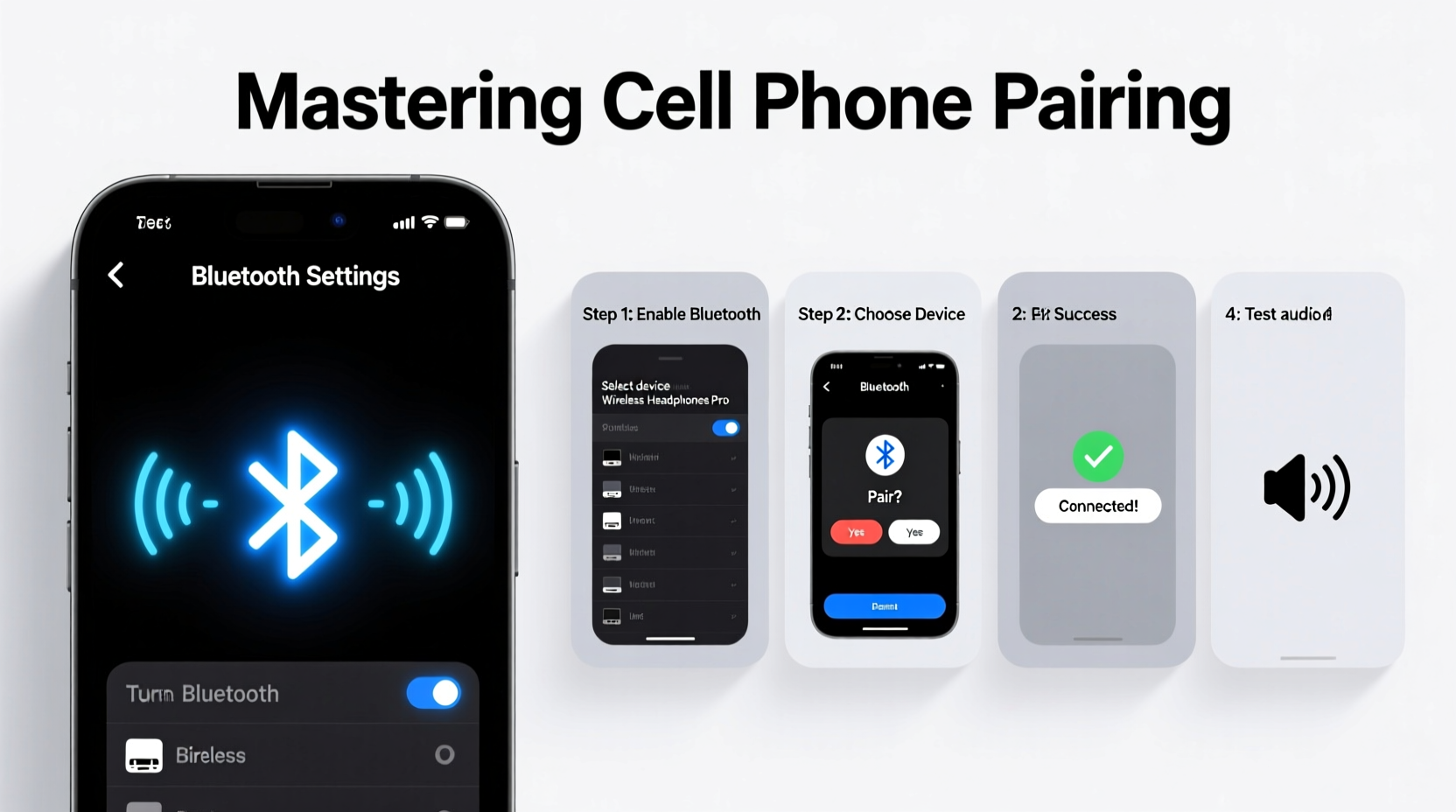
Before diving into steps, it's crucial to understand the technologies that make device pairing possible. Each has its strengths, ideal use cases, and limitations.
- Bluetooth: The most common method for short-range wireless communication (up to 30 feet). Ideal for audio devices, wearables, and car systems.
- Wi-Fi Direct: Enables high-speed file transfers between devices without needing a router. Useful for sharing large photos or videos.
- NFC (Near Field Communication): Allows instant pairing with a simple tap. Found in contactless payments and quick-share features.
- QR Code Pairing: Used by some smart home devices and apps to bypass manual setup through scannable codes.
“Modern smartphones are designed as digital hubs. Mastering pairing protocols means unlocking their full potential.” — Dr. Lena Torres, Wireless Systems Engineer at MIT Media Lab
Step-by-Step Guide to Pairing via Bluetooth
Bluetooth remains the go-to option for connecting phones to accessories. Follow this universal sequence regardless of whether you’re using Android or iOS.
- Turn on Bluetooth on your phone: Navigate to Settings > Connected Devices (Android) or Settings > Bluetooth (iOS).
- Enable pairing mode on the secondary device (e.g., headphones, speaker, fitness tracker). This usually involves holding a power button until an LED flashes blue.
- Wait for the device name to appear under “Available Devices” on your phone.
- Select the device. If prompted, enter the PIN (often 0000 or 1234; check the manual if unsure).
- Confirm successful connection. Audio devices will often emit a chime; wearables may vibrate.
If pairing fails, try these troubleshooting actions:
- Restart both devices.
- Forget the device from your phone’s Bluetooth list and retry.
- Ensure the accessory is charged and within range.
- Update firmware on the accessory via its companion app.
When and How to Use Alternative Pairing Methods
While Bluetooth dominates, alternatives offer faster or more secure options in specific scenarios.
Using NFC for Instant Pairing
Commonly used in Android devices, NFC allows two devices to pair simply by touching them together. For example:
- Tap your phone to an NFC-enabled speaker to start music instantly.
- Use Android Beam (or Google’s Fast Pair) to share contacts or links.
Ensure NFC is enabled in Settings > Connected Devices > Connection Preferences. Not available on iPhones except for Apple Pay.
Wi-Fi Direct for Large File Transfers
Perfect when transferring high-resolution videos between phones or printing wirelessly. To use:
- Open Settings > Network & Internet > Hotspot & Tethering > Wi-Fi Direct (varies by model).
- Select the nearby device when it appears.
- Accept the connection prompt on both ends.
- Transfer files using a file manager app like Samsung’s Quick Share or Google’s Nearby Share.
QR Code Setup for Smart Home Devices
Many IoT gadgets (like smart lights or cameras) generate QR codes during setup. Simply open the brand’s app, select “Add Device,” and scan the code to auto-configure network settings.
Device Compatibility and Common Pitfalls
Not all devices play well together. Here’s a breakdown of frequent issues and how to avoid them.
| Issue | Root Cause | Solution |
|---|---|---|
| Device not showing up | Out of range, low battery, or not in pairing mode | Move closer, charge device, re-enter pairing mode |
| Connection drops frequently | Interference from walls, microwaves, or other electronics | Reduce physical obstructions; switch Bluetooth channel via developer options |
| Audio lag during video playback | Codec mismatch or latency in Bluetooth transmission | Use aptX Low Latency codec if supported; switch to wired or 5GHz Wi-Fi streaming |
| Can’t reconnect after forgetting device | Firmware glitch or cache corruption | Restart phone; clear Bluetooth cache (Android: Settings > Apps > Show System Apps > Bluetooth) |
Mini Case Study: Connecting a New Fitness Tracker
Jamal purchased a new fitness tracker but couldn’t get it to sync with his iPhone. He followed the app instructions, but the device never appeared in the Bluetooth list. After checking forums, he realized the tracker needed to be reset first—something not mentioned in the quick-start guide. He held the side button for 15 seconds, restarted the companion app, and successfully paired the device. The issue? The tracker was stuck in a previous owner’s pairing loop. Resetting cleared the memory and allowed fresh discovery.
Checklist: Ensure Smooth Pairing Every Time
Use this checklist before attempting any new connection:
- ✅ Charge both devices to at least 50% to prevent mid-process shutdowns.
- ✅ Confirm both devices support the intended connection type (e.g., Bluetooth 5.0+).
- ✅ Disable airplane mode and ensure Bluetooth/Wi-Fi/NFC is enabled.
- ✅ Place devices within 3–6 feet of each other with minimal interference.
- ✅ Update both devices’ software and firmware.
- ✅ Forget old or failed pairings to avoid conflicts.
- ✅ Consult the user manual for model-specific pairing sequences.
Frequently Asked Questions
Why does my phone fail to remember a paired device?
This typically happens due to software glitches, OS updates, or corrupted Bluetooth profiles. Try removing the device, restarting your phone, then re-pairing. On Android, clearing the Bluetooth cache can resolve persistent memory issues.
Can I pair two Bluetooth devices at once?
Yes, modern smartphones support multi-point pairing. For example, you can connect wireless earbuds and a smartwatch simultaneously. However, only one audio output device can stream sound at a time unless using third-party apps or split-audio features.
Is it safe to pair with unknown devices?
No. Avoid accepting pairing requests from unrecognized sources. Malicious actors can exploit Bluetooth vulnerabilities (like BlueBorne) to access data. Always set your phone to “non-discoverable” mode when not actively pairing.
Maintaining Reliable Connections Over Time
Pairing isn’t a one-time event. Long-term reliability depends on maintenance. Periodically review connected devices and remove those no longer in use. Excessive paired devices can slow down discovery and cause conflicts.
For mission-critical connections—like hearing aids or medical monitors—schedule monthly tests to ensure responsiveness. Also, monitor battery levels on accessories; weak power can mimic connectivity problems.
Conclusion
Mastering cell phone pairing empowers you to build a seamless ecosystem of devices that work together intuitively. By understanding the underlying technologies, following structured steps, and avoiding common pitfalls, you gain control over your digital environment—not the other way around. Whether you're setting up a new smartwatch, sharing files with a colleague, or enjoying hands-free calls on the road, confident pairing turns complexity into convenience.




 浙公网安备
33010002000092号
浙公网安备
33010002000092号 浙B2-20120091-4
Comments
No comments yet. Why don't you start the discussion?