
In an age where smartphones store everything from personal photos to banking credentials, securing your device is no longer optional—it’s essential. One of the most effective ways to protect your information is by regularly updating your phone’s password. Yet many users stick to weak or outdated passcodes out of habit or confusion about the process. This guide breaks down exactly how to change your password on both iOS and Android devices, explains why it matters, and provides best practices for maintaining long-term digital safety.
Why Changing Your Phone Password Matters
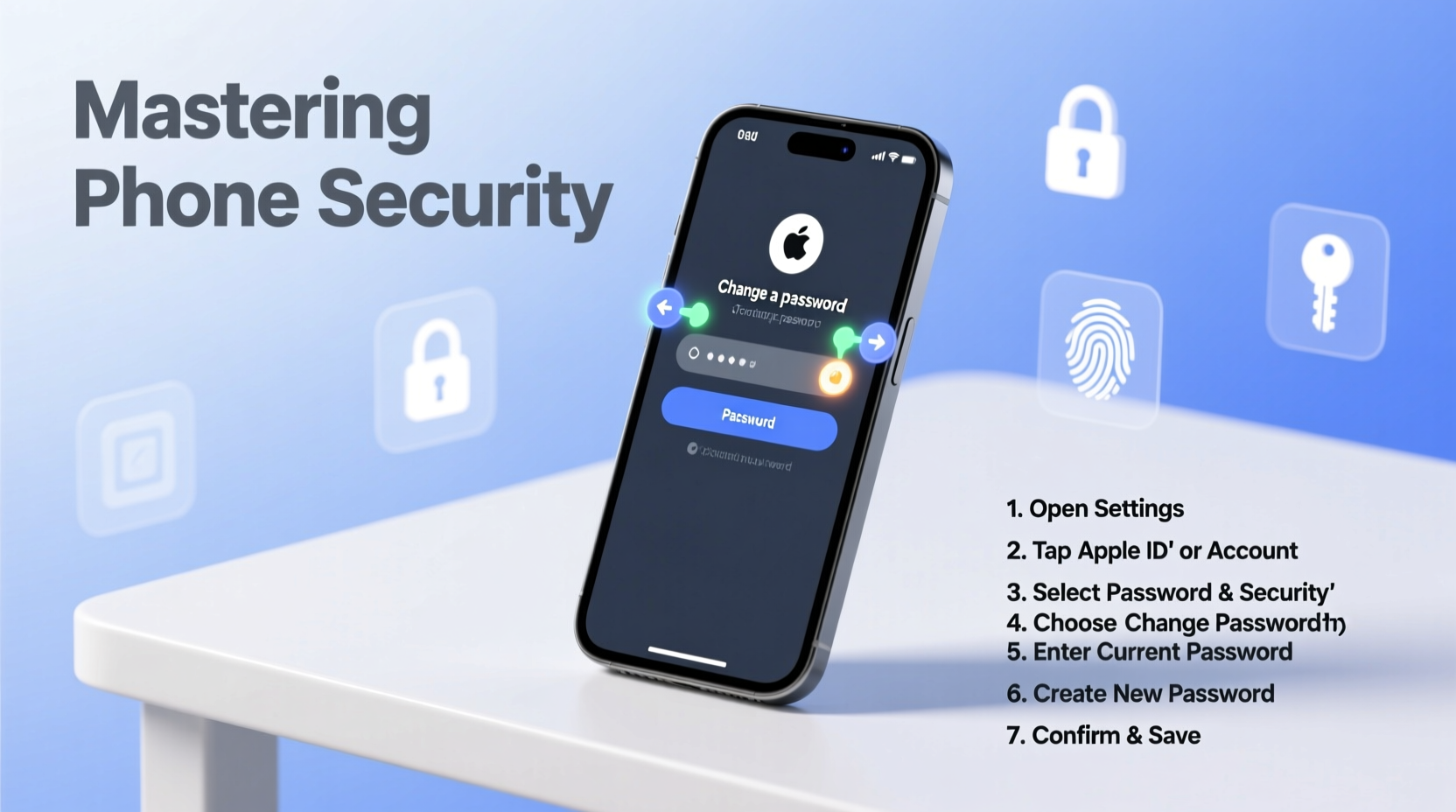
Your smartphone is more than a communication tool—it’s a gateway to your digital life. From email and social media to two-factor authentication and mobile payments, unauthorized access can lead to identity theft, financial loss, and reputational damage. A strong, frequently updated password acts as the first line of defense.
Security experts agree: static passwords are vulnerable. Cybercriminals use tools like brute-force attacks, phishing, and data breaches to guess or steal login credentials. Regularly changing your password reduces the window of opportunity for attackers, especially if you’ve unknowingly exposed your credentials through a compromised website or app.
“Updating your phone’s passcode every 60 to 90 days significantly reduces the risk of unauthorized access, particularly if you’ve used public Wi-Fi or downloaded third-party apps.” — Dr. Lena Torres, Cybersecurity Researcher at SecureMobile Labs
Step-by-Step Guide to Changing Your Password
Changing your phone’s password is straightforward, but the steps vary slightly between operating systems. Follow the instructions below based on your device type.
For iPhone (iOS 16 and later)
- Open the Settings app.
- Tap Face ID & Passcode (or Touch ID & Passcode if applicable).
- Enter your current passcode when prompted.
- Select Change Passcode.
- Enter your old passcode again.
- Type in your new six-digit passcode.
- Re-enter the new passcode to confirm.
- To use a custom alphanumeric code (recommended for higher security), tap Passcode Options > Custom Alphanumeric Code.
For Android (Android 12 and later)
- Navigate to Settings.
- Tap Security & Privacy (may appear as Security or under Biometrics and Security on Samsung devices).
- Select Screen Lock Type or Lock Screen Preferences.
- Authenticate using your current PIN, pattern, or password.
- Choose the type of lock you want: PIN, Password, or Pattern.
- Enter your current code.
- Create and confirm your new screen lock.
- For maximum security, select Password and use a mix of uppercase letters, lowercase letters, numbers, and symbols.
Best Practices for Strong Phone Security
Changing your password is just one component of comprehensive phone security. Combine it with these proven strategies to create a robust defense system.
Use Biometrics Wisely
Fingerprint and facial recognition offer convenience, but they should complement—not replace—a strong passcode. Always set up a secure backup method in case biometrics fail.
Enable Two-Factor Authentication (2FA)
Even if someone gains physical access to your phone, 2FA adds an extra layer by requiring a second verification step—like a text message code or authenticator app—for sensitive accounts.
Update Your Operating System Regularly
Software updates often include critical security patches. Delaying updates leaves known vulnerabilities unpatched and exploitable.
Avoid Public Charging Stations
“Juice jacking” is a real threat—malicious USB ports in public areas can install malware or extract data. Use AC outlets with your own charger or carry a portable power bank.
| Do’s | Don’ts |
|---|---|
| Use a unique, complex password | Reuse passwords across devices |
| Change your password every 60–90 days | Share your passcode with others |
| Enable auto-lock after 30 seconds | Leave your phone unlocked while unattended |
| Back up data before resetting | Store passwords in unencrypted notes apps |
Real-World Example: How a Simple Password Change Prevented a Breach
Jamal, a freelance designer from Austin, noticed unusual login alerts on his Google account. He hadn’t clicked any suspicious links, but he recalled charging his phone at an airport kiosk the previous week. Concerned, he immediately changed his phone’s passcode from a simple four-digit PIN to a 10-character alphanumeric password. He also reviewed recent device activity and revoked access from unrecognized sessions.
Later, a security audit revealed that the charging station had been compromised. While several travelers had their session cookies stolen, Jamal’s timely action prevented further access. Because his phone was now locked with a stronger password, attackers couldn’t unlock it even if they had gained temporary access earlier.
This case underscores a crucial point: proactive password changes—even without confirmed threats—can stop attacks in their tracks.
Common Questions About Phone Password Security
How often should I change my phone password?
Every 60 to 90 days is ideal for most users. If you suspect a security breach, change it immediately. High-risk individuals (e.g., journalists, executives) may consider monthly updates.
Is a longer password always better?
Yes, provided it's memorable and not written down insecurely. A 6-digit PIN has only 1 million possible combinations; a 10-character alphanumeric password has over 800 trillion. However, avoid overly complex passwords that force you to write them down or reset frequently.
Can I use Face ID instead of a password?
Face ID is convenient, but it’s not foolproof. It can be tricked by high-resolution photos or masks in rare cases. Always pair biometric locks with a strong fallback password. Also, remember that law enforcement or third parties may compel biometric access in some jurisdictions—something that doesn’t apply to memorized passwords.
Final Checklist for Secure Phone Management
- ✅ Changed your phone password within the last 90 days
- ✅ Used a mix of letters, numbers, and symbols (if using a full password)
- ✅ Disabled auto-fill for passwords on untrusted apps
- ✅ Enabled automatic screen lock (30–60 seconds)
- ✅ Verified all linked accounts have two-factor authentication
- ✅ Reviewed connected devices in iCloud (iOS) or Google Account (Android)
- ✅ Installed the latest OS update
Take Control of Your Digital Safety Today
Securing your phone isn’t a one-time task—it’s an ongoing practice. By making password changes routine and combining them with smart habits, you dramatically reduce the risk of falling victim to cybercrime. The few minutes it takes to update your passcode could save you hours of recovery—or worse—from a data breach.
Start today: open your settings, navigate to your lock screen options, and change your password now. Encourage friends and family to do the same. In a world where digital threats evolve daily, staying ahead begins with simple, consistent actions.




 浙公网安备
33010002000092号
浙公网安备
33010002000092号 浙B2-20120091-4
Comments
No comments yet. Why don't you start the discussion?