
The Windows Command Prompt (CMD) is a powerful tool that allows users to interact directly with the operating system through text-based commands. While it can perform many functions in standard mode, certain administrative tasks—such as modifying system files, managing services, or changing network configurations—require elevated privileges. Running CMD as an administrator unlocks these capabilities, giving you complete control over your system. This guide walks you through everything you need to know to use Command Prompt effectively and securely with administrative rights.
Why Run Command Prompt as Administrator?
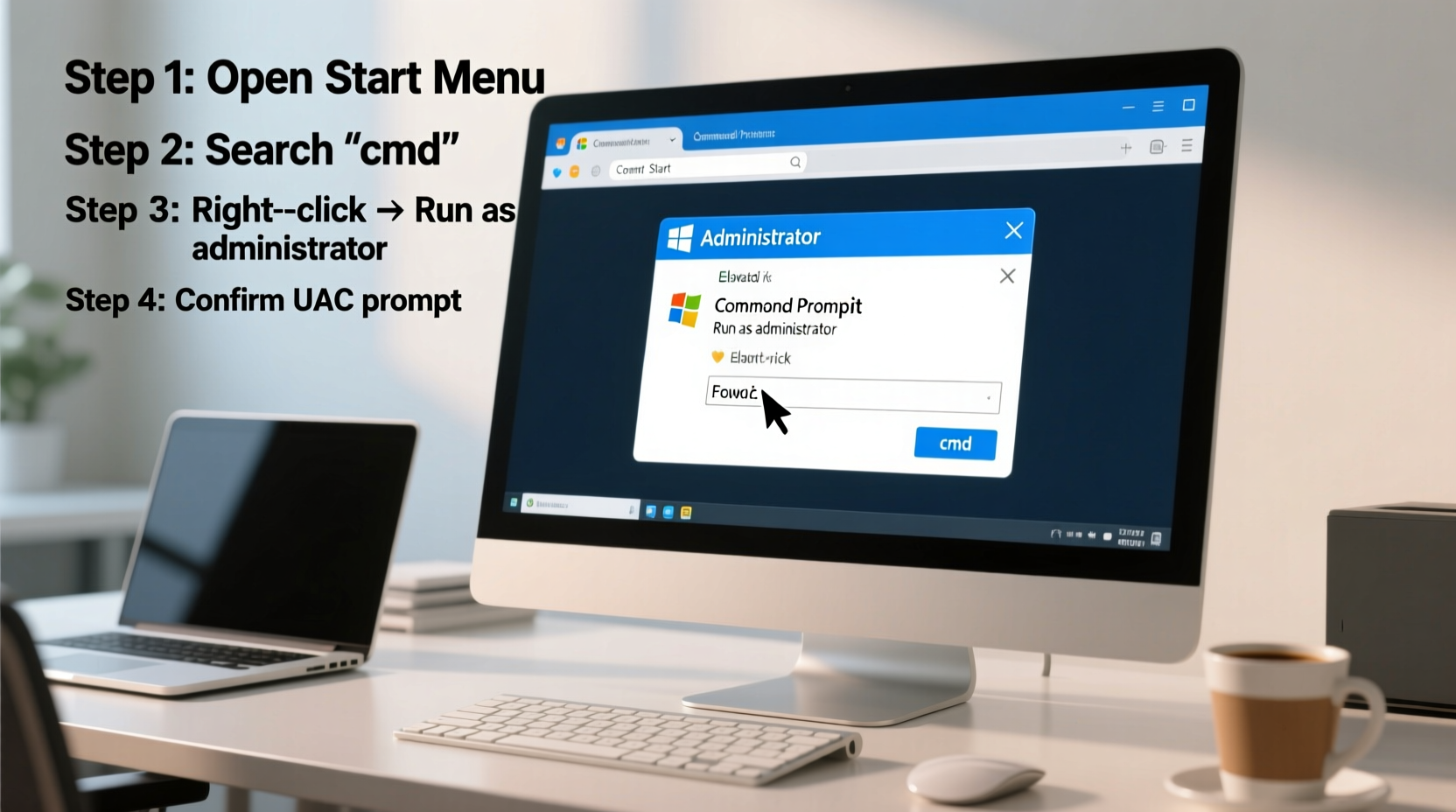
By default, applications on modern Windows systems run with standard user permissions to enhance security. However, some operations require access to protected areas of the system. Without administrator privileges, you’ll encounter “Access Denied” errors when attempting actions like:
- Modifying registry keys under HKEY_LOCAL_MACHINE
- Installing or removing software via command line
- Changing firewall rules using netsh
- Editing hosts file or DNS settings
- Managing startup programs or scheduled tasks
- Repairing system files using sfc /scannow
Running CMD as administrator grants temporary elevated rights, allowing these tasks to execute successfully. It's essential for IT professionals, developers, and advanced users who rely on automation and deep system access.
“Elevated command-line access is not just about convenience—it’s a necessity for diagnosing and resolving deeper system issues.” — Mark Thompson, Senior Systems Engineer at TechOps Solutions
Step-by-Step Guide to Launch CMD with Admin Rights
There are multiple reliable methods to open Command Prompt as an administrator. Choose the one that best fits your workflow.
Method 1: Using the Start Menu (Recommended)
- Click the Start button or press the Windows key.
- Type
cmdorCommand Prompt. - Right-click on Command Prompt from the search results.
- Select Run as administrator.
- If prompted by User Account Control (UAC), click Yes to confirm.
Method 2: Through Run Dialog (Quick Access)
- Press Windows + R to open the Run dialog.
- Type
cmd. - Press Ctrl + Shift + Enter instead of just Enter. This forces elevation.
- Approve the UAC prompt if shown.
Method 3: From File Explorer Address Bar
- Open any folder in File Explorer.
- In the address bar, type
cmdand press Ctrl + Shift + Enter. - This opens CMD at the current directory with admin rights.
Method 4: Using Task Manager
- Press Ctrl + Shift + Esc to open Task Manager.
- Click File → Run new task.
- Type
cmd. - Check the box labeled Create this task with administrative privileges.
- Click OK.
Best Practices When Using Elevated CMD
Gaining administrative access increases power but also risk. A single typo in a destructive command can damage your system. Follow these best practices to stay safe:
| Do’s | Don’ts |
|---|---|
| Always verify commands before pressing Enter | Never run untrusted scripts from unknown sources |
Use built-in help (e.g., del /?) to understand syntax |
Avoid using wildcards (*) without confirming target paths |
| Back up critical data before making system changes | Don’t disable UAC permanently—even experts keep it enabled |
| Close elevated CMD windows after use | Never leave an admin session open unattended |
Secure Your Workflow
Limit the duration of elevated sessions. Open CMD as admin only when necessary, complete your task, and close the window. Prolonged elevated sessions increase exposure to accidental or malicious actions.
Real-World Example: Repairing Corrupted System Files
Jamie, a technical support specialist, was troubleshooting a client’s PC that wouldn't boot properly after a failed update. The system reported missing DLL files. Jamie connected remotely and followed these steps:
- Ran Command Prompt as administrator using the Start menu method.
- Executed
sfc /scannowto scan for corrupted system files. - After SFC found issues but couldn’t repair them, ran
Dism /Online /Cleanup-Image /RestoreHealthto fix the component store. - Re-ran
sfc /scannow, which then completed successfully. - Restarted the machine—boot issues were resolved.
This case highlights how elevated CMD access enables deep system repairs that GUI tools might not handle automatically. Without admin rights, both SFC and DISM would have failed immediately.
Common Pitfalls and How to Avoid Them
Even experienced users make mistakes when working in elevated environments. Here are frequent issues and solutions:
- UAC Prompt Doesn’t Appear: Ensure User Account Control is enabled in Control Panel > User Accounts. Disabled UAC undermines system security.
- \"Requested Operation Requires Elevation\" Error: You're running CMD in standard mode. Close it and relaunch using one of the admin methods above.
- Commands Work Locally But Fail Remotely: Remote administration requires proper group policy settings and network permissions.
- Accidental Deletion of System Files: Always double-check paths. Use
echobefore executing deletion commands to preview targets.
Frequently Asked Questions
Can I always run CMD as administrator by default?
No—and you shouldn’t. Automatically elevating all sessions defeats Windows’ security model. Instead, manually elevate only when needed. If you frequently need admin access, consider creating specific batch scripts that request elevation upon launch.
What’s the difference between CMD and PowerShell as admin?
Both provide administrative access, but PowerShell is more advanced. It supports object-oriented output, remote execution, and robust scripting. For basic file and network tasks, CMD suffices. For automation and enterprise management, PowerShell is superior.
Is it safe to run CMD as admin on a work computer?
Only if authorized. Many corporate environments restrict admin rights for security. Unauthorized elevation may violate policies or trigger monitoring alerts. Always consult your IT department before proceeding.
Essential Checklist Before Running CMD as Admin
- ✅ Confirm you have legitimate admin credentials
- ✅ Save and close unrelated work to prevent interference
- ✅ Verify the exact command syntax using
[command] /? - ✅ Backup important data or create a system restore point
- ✅ Ensure antivirus software is active and updated
- ✅ Plan to close the session immediately after completing your task
Conclusion: Take Control Responsibly
Mastery of Command Prompt begins with understanding privilege levels. Running CMD as administrator is not a shortcut—it’s a responsibility. With the correct permissions, you gain the ability to troubleshoot deeply, automate efficiently, and maintain system integrity. But with great power comes the obligation to act carefully and ethically.
Now that you know how to safely elevate your command-line access, put this knowledge into practice. Try running a system scan or managing a service using the techniques outlined here. Share your experiences, ask questions, and continue building your expertise—one command at a time.




 浙公网安备
33010002000092号
浙公网安备
33010002000092号 浙B2-20120091-4
Comments
No comments yet. Why don't you start the discussion?