
Navigating the world has never been easier, yet pinpointing an exact location—especially one without a street address—can still be challenging. Whether you're planning a remote hike, verifying property boundaries, or coordinating emergency response, knowing how to use geographic coordinates in Google Maps is a powerful skill. Unlike searching by name or address, coordinate-based queries deliver precision down to the meter. This guide breaks down exactly how to input, interpret, and leverage GPS coordinates effectively within Google Maps for reliable, repeatable results.
Understanding Geographic Coordinates
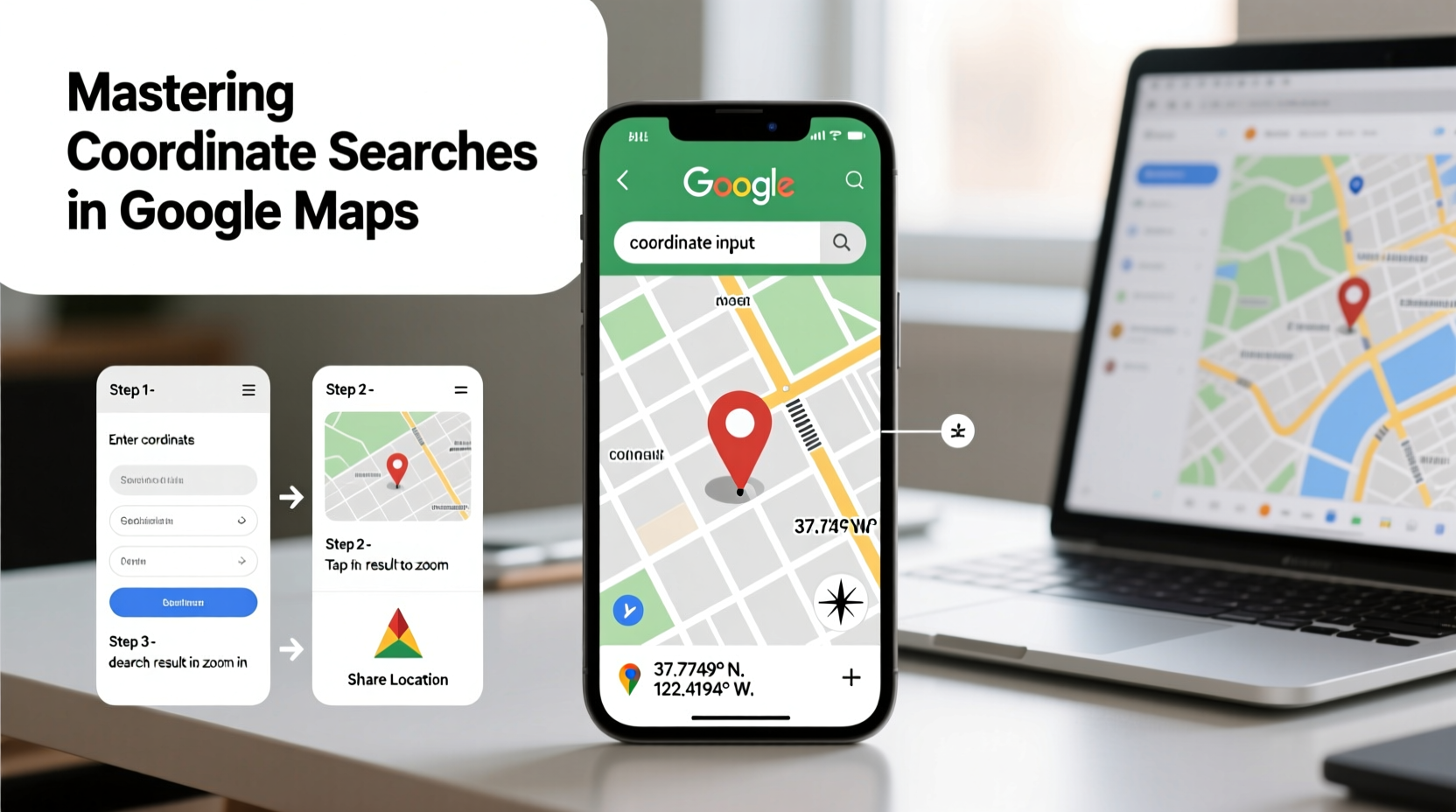
Before diving into search mechanics, it's essential to understand what coordinates are and how they function. Latitude and longitude form a global grid system used to identify any point on Earth. Latitude measures distance north or south of the equator (0°), ranging from -90° at the South Pole to +90° at the North Pole. Longitude measures east-west position relative to the Prime Meridian (0° passing through Greenwich, UK), extending from -180° to +180°.
Coordinates can appear in several formats:
- Degrees, Minutes, Seconds (DMS): 40° 26' 46\" N, 79° 58' 56\" W
- Decimal Degrees (DD): 40.446111, -79.982222
- Degrees and Decimal Minutes (DMM): 40° 26.767' N, 79° 58.933' W
Google Maps primarily accepts decimal degrees, but it’s flexible enough to parse most common formats if properly formatted. The key is consistency and correct syntax.
Step-by-Step Guide to Searching Coordinates in Google Maps
Finding a location via coordinates is straightforward once you know the correct format and interface behavior. Follow these steps for consistent accuracy:
- Open Google Maps in your browser or mobile app.
- In the search bar, type the coordinates using decimal degrees (e.g.,
40.758701, -73.985629). Ensure there is no space after the comma unless the platform auto-corrects it. - Press Enter or tap Search. Google Maps will zoom directly to the specified point.
- Verify accuracy by checking nearby landmarks or switching to Satellite view.
- Save or share the location by right-clicking (desktop) or long-pressing (mobile) and selecting “Save” or “Share.”
If you’re working with DMS or DMM formats, convert them to decimal degrees first. For example, 40° 26' 46\" N becomes approximately 40.446111. Numerous free online converters exist, or you can calculate manually using the formula:
Degrees + (Minutes / 60) + (Seconds / 3600)
For west or south coordinates, apply a negative sign accordingly.
Common Mistakes and How to Avoid Them
Even small errors in formatting can send you hundreds of miles off target. Below are frequent pitfalls and their solutions:
| Mistake | Consequence | Solution |
|---|---|---|
| Swapping latitude and longitude | Location appears in entirely wrong region | Remember: latitude comes first (like alphabet: lat before lon) |
| Omitting negative signs for western/southern hemispheres | Point appears in opposite hemisphere | Double-check directional indicators (W = negative longitude) |
| Using spaces instead of commas | Search fails or returns unrelated results | Use a single comma with optional space after |
| Poor precision (too few decimal places) | Accuracy drops significantly (e.g., 1 decimal ≈ 11 km error) | Use at least 5–6 decimal places for meter-level accuracy |
“GPS coordinates are only as good as their formatting. A misplaced sign or comma can misplace a person in the middle of the ocean.” — Dr. Lena Torres, Geospatial Analyst, National Cartographic Institute
Real-World Application: A Hiking Scenario
Consider Sarah, an experienced hiker planning a solo trek in the Uinta Mountains. The trailhead she wants isn’t marked on standard maps, but a park ranger provided the coordinates: 40.8067, -110.9150. Using her phone, Sarah opens Google Maps and types the numbers precisely. The map drops a pin near a dirt access road, not labeled on the main view. She cross-references with satellite imagery, confirms alignment with a creek mentioned in the trail notes, and saves the location as “Summit Trail Start.” Without coordinate search, she might have wasted hours driving aimlessly or started from the wrong path.
This scenario underscores how critical coordinate literacy is beyond urban navigation. Emergency responders, surveyors, drone operators, and real estate professionals rely on this method daily.
Pro Tips for Advanced Users
Once comfortable with basic coordinate entry, explore these advanced techniques:
- Create custom maps: Use Google My Maps to plot multiple coordinate points and label them for fieldwork or travel planning.
- Extract coordinates from a location: Right-click any point on desktop Google Maps and select “What’s here?” The coordinates appear in the search bar below.
- Use coordinates in URLs: Append coordinates directly to a Google Maps link:
https://www.google.com/maps/place/40.758701,-73.985629. - Batch process coordinates: For large datasets, import CSV files with lat/long columns into Google My Maps for instant visualization.
FAQ
Can I search coordinates on the Google Maps mobile app?
Yes. Open the app, tap the search bar, and enter the coordinates in decimal degrees separated by a comma. The map will navigate directly to the point.
Why does my coordinate search show a slightly different location than expected?
This discrepancy may result from low precision (few decimal places), incorrect format, or datum differences. Ensure you're using WGS84—the standard reference system for GPS—and at least five decimal places for accuracy within 1–2 meters.
How accurate are coordinates from Google Maps?
When sourced from high-quality GPS devices or verified data, coordinates in Google Maps are accurate to within 1–3 meters under open sky conditions. Urban canyons, dense foliage, or outdated satellite imagery may reduce precision.
Essential Checklist for Reliable Coordinate Searches
Before conducting any coordinate-based search, run through this checklist to ensure success:
- Confirm the coordinate format (preferably Decimal Degrees).
- Ensure latitude is listed first, followed by longitude.
- Apply negative signs for southern latitudes and western longitudes.
- Use a comma to separate values (space after comma is optional).
- Enter at least 5 decimal places for field accuracy.
- Cross-check with satellite view or known landmarks.
- Save or bookmark the location once confirmed.
Conclusion
Mastery of coordinate searches transforms Google Maps from a simple navigation tool into a precise geolocation instrument. Whether you're exploring off-grid destinations, supporting logistics operations, or simply verifying a remote meeting spot, the ability to input and interpret coordinates reliably gives you a significant advantage. Accuracy begins with attention to detail—correct order, proper signs, and sufficient precision. These small habits compound into dependable results over time.




 浙公网安备
33010002000092号
浙公网安备
33010002000092号 浙B2-20120091-4
Comments
No comments yet. Why don't you start the discussion?