
In an age where time is not just measured but managed, smartwatches have evolved into essential tools for productivity and personal organization. Among the most useful yet underutilized features are dual calendar watch faces—displays that show two distinct calendar views simultaneously. Whether you're juggling work deadlines, family events, or international meetings, these watch faces offer real-time visibility across multiple schedules. Yet many users struggle to interpret or fully leverage them. This guide demystifies dual calendar watch faces, offering practical strategies to read, configure, and use them effectively.
Understanding Dual Calendar Watch Faces
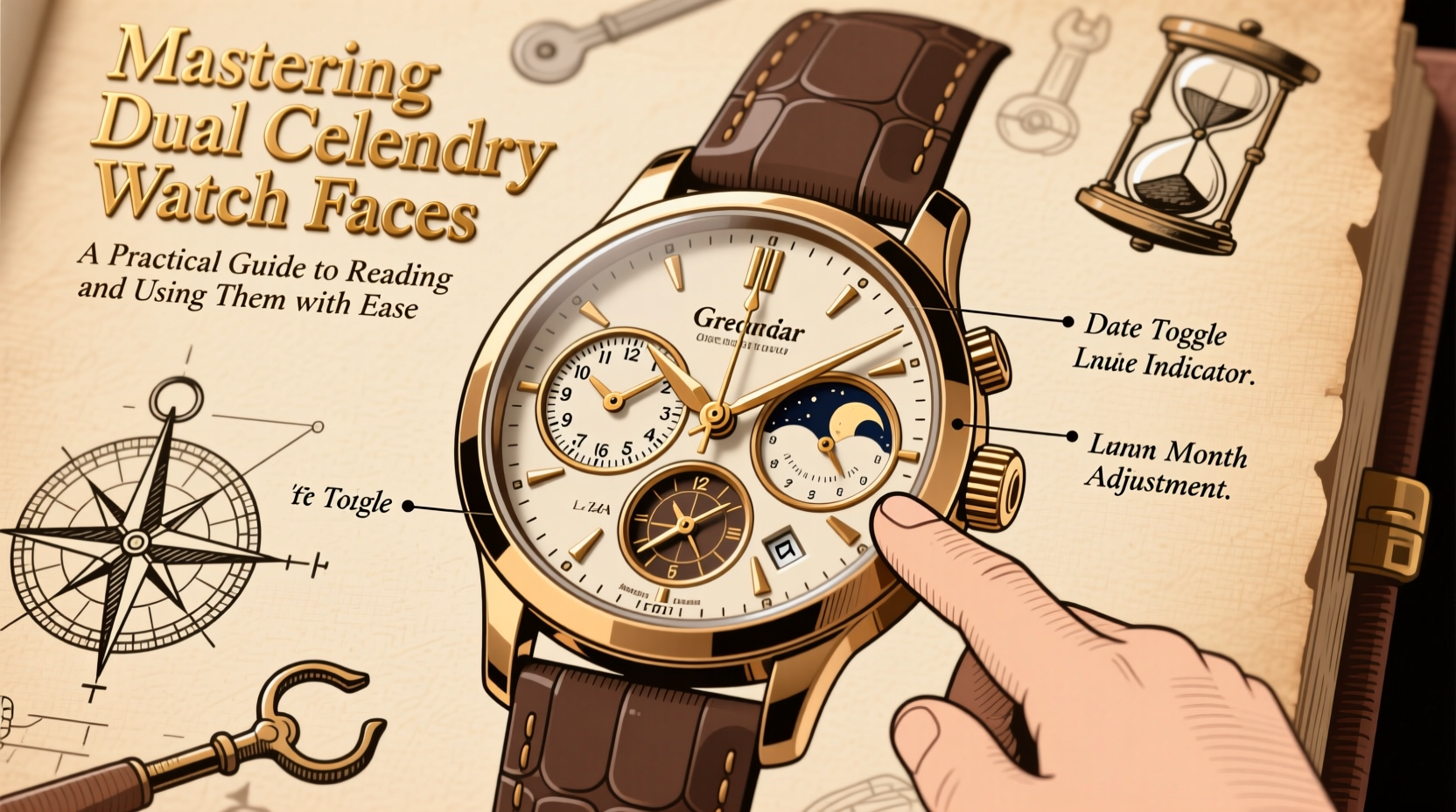
A dual calendar watch face integrates two calendar streams directly onto your watch display. These could represent different calendar accounts (e.g., personal and professional), time zones, or even recurring event types like tasks and appointments. Unlike single-calendar displays, dual layouts allow side-by-side or layered comparison without opening an app, saving time and reducing cognitive load.
The core benefit lies in context awareness. For example, seeing both your work calendar and family schedule at a glance prevents double-booking and improves planning accuracy. Some watches achieve this through split-screen designs; others use overlay indicators or stacked event previews. The key is understanding how your device renders this information and learning to decode it quickly.
How to Read a Dual Calendar Display
Reading a dual calendar isn’t intuitive at first. Each manufacturer uses slightly different visual cues to distinguish between calendars. Here’s how to interpret common design patterns:
- Color Coding: Events from each calendar are often color-coded. A red dot might indicate a work meeting, while blue represents personal time.
- Positional Layout: Left vs. right, top vs. bottom, or inner vs. outer ring placement can separate calendars spatially.
- Iconography: Small icons (briefcase, home, globe) may denote the source or nature of the event.
- Text Density: One calendar may show full titles; the other only symbols or abbreviated labels.
Start by identifying which visual element corresponds to which calendar. Most watches let you customize these settings in the companion app. Spend five minutes adjusting colors and labels so they align with your mental model—this small step dramatically improves readability.
Step-by-Step: Setting Up Your First Dual Calendar View
- Open your smartwatch’s companion app on your phone (e.g., Wear OS, Galaxy Wearable, or Apple Watch app).
- Navigate to “Watch Faces” and select a customizable design that supports dual calendars.
- Tap on the calendar module to edit its settings.
- Choose two calendar sources (e.g., “Work Calendar” and “Family Shared Calendar”).
- Assign distinct colors and icons to each.
- Adjust text size and event preview depth (next 1–3 events).
- Sync and apply the face to your watch.
- Test by adding a dummy event to each calendar and verifying visibility.
Practical Use Cases and Real-World Scenarios
Dual calendar watch faces shine in complex scheduling environments. Consider Maria, a project manager and parent of two. Her primary calendar tracks client calls, sprint reviews, and team standups. Her secondary calendar holds school pickups, doctor visits, and weekend plans. Before using a dual calendar face, she frequently missed overlapping commitments. Now, when she raises her wrist, she instantly sees whether a proposed meeting clashes with family obligations.
Another user, David, works remotely across time zones. His main calendar follows U.S. Pacific Time, while his secondary reflects Europe Central Time. His watch face shows both timelines vertically: upcoming events in his local time on top, and corresponding times abroad below. This eliminates constant mental conversion and reduces scheduling errors during global calls.
“Wearable interfaces must reduce decision fatigue, not add to it. A well-designed dual calendar face acts as a silent assistant—anticipating conflicts before they happen.” — Dr. Lena Torres, Human-Computer Interaction Researcher, MIT Media Lab
Optimization Checklist: Getting the Most From Your Dual Calendar
To ensure your dual calendar remains functional—not just flashy—follow this checklist:
- ✅ Sync all relevant calendars to your phone and verify they appear in the watch app.
- ✅ Assign unique, high-contrast colors to each calendar stream.
- ✅ Limit displayed events to 2–3 per calendar to avoid clutter.
- ✅ Test visibility in sunlight and low-light conditions.
- ✅ Disable non-essential calendars temporarily to improve focus.
- ✅ Update calendar permissions regularly to maintain sync reliability.
- ✅ Rotate watch faces based on context (e.g., “Focus Mode” on weekdays, “Family Mode” on weekends).
Common Pitfalls and How to Avoid Them
Even experienced users make mistakes when setting up dual calendar displays. Below is a summary of frequent issues and their solutions:
| Issue | Impact | Solution |
|---|---|---|
| Overlapping event labels | Hard to read, confusion about timing | Reduce number of preview events or switch to icon-only mode |
| Sync delays between devices | Outdated info on wrist | Enable background refresh and check internet connection |
| Too many calendars enabled | Visual noise, reduced clarity | Select only two priority calendars per face |
| Poor color contrast | Difficulty distinguishing sources | Use bold, complementary colors (e.g., navy/orange, black/yellow) |
| Battery drain from constant updates | Shortened usage time | Set calendar refresh interval to every 30 mins instead of real-time |
Frequently Asked Questions
Can I use dual calendar watch faces on any smartwatch?
No, not all models support this feature. High-end devices like Samsung Galaxy Watch series, Apple Watch with custom watch faces, and certain Wear OS watches (e.g., Fossil Gen 6, TicWatch Pro 5) offer robust dual-calendar capabilities. Check your watch face marketplace for compatibility.
Will dual calendars drain my battery faster?
They can, especially if set to update in real time. To conserve power, adjust sync frequency, disable animations, or use static calendar previews that update only once per hour.
How do I know which event belongs to which calendar?
Reliable identification comes from consistent customization. Always assign distinct colors and, if available, unique glyphs or badges. Train yourself to associate red with work, green with health, etc., just as you would traffic signals.
Conclusion: Turn Awareness Into Action
Dual calendar watch faces are more than aesthetic upgrades—they’re cognitive tools that enhance situational awareness and prevent scheduling conflicts before they occur. By taking control of how information is displayed, you transform your wrist into a proactive planning hub. The initial setup takes less than ten minutes, but the long-term payoff in efficiency and peace of mind is substantial.




 浙公网安备
33010002000092号
浙公网安备
33010002000092号 浙B2-20120091-4
Comments
No comments yet. Why don't you start the discussion?